Register a 60-second temporary public key with ali-instance-cli and connect to an ECS instance with the private key instead of a password.
Temporary public keys
Temporary public keys let you connect to instances over SSH without configuring key pairs on the instances. Each time you connect, register a temporary public key valid for 60 seconds, then use the corresponding private key instead of a password.
Temporary public keys are stored on the Cloud Assistant server.
Prerequisites
Enable the Session Manager service
Enable the Session Manager service for your Alibaba Cloud account in the console:
Go to ECS console - Instances.
In the top navigation bar, select the region and resource group for the instance.
On the Instance page, find the target instance and click Connect in the Actions column.
Click Show Other Logon Methods. Find Session Manager. Turn on the switch next to Session Management closed. Then, follow the on-screen instructions to enable the service.


Check whether the instance is in the Running state
Check whether Cloud Assistant Agent is installed
Prepare the credentials of a RAM user for Session Manager
1. Install and configure the Session Manager CLI
Skip this step if you have already installed and configured the Session Manager CLI.
1.1 Install
Install the Session Manager CLI (ali-instance-cli) on your computer. The installation method varies by operating system.
Windows
Click to download ali-instance-cli for Windows and save it to a local folder.
This topic uses the C:\Users\test folder as an example.macOS
In the macOS terminal, download ali-instance-cli for macOS:
curl -O https://aliyun-client-assist.oss-accelerate.aliyuncs.com/session-manager/mac/ali-instance-cliGrant execute permissions:
chmod a+x ali-instance-cliLinux
Install ali-instance-cli for Linux:
x86 architecture
curl -O https://aliyun-client-assist.oss-accelerate.aliyuncs.com/session-manager/linux/ali-instance-cliarm architecture
curl -O https://aliyun-client-assist.oss-cn-beijing.aliyuncs.com/session-manager/linux_arm/ali-instance-cliGrant execute permissions:
chmod a+x ali-instance-cli1.2 Configure
To connect to an ECS instance with ali-instance-cli, configure identity credentials such as an AccessKey. See Prepare the credentials of a RAM user for Session Manager.
Windows
Click , enter cmd, and press the
Enterkey to open a command prompt window.Go to the directory of ali-instance-cli.exe. This example uses
C:\Users\test.cd C:\Users\testConfigure credentials using one of the following methods:
AccessKey
Configure the AccessKey ID, AccessKey secret, and Region ID as prompted:
ali-instance-cli.exe configure --mode AKSTS Token
Complete the configuration:
ali-instance-cli.exe configure set --mode StsToken --region "<region>" --access-key-id "<ak>" --access-key-secret "<sk>" --sts-token "<sts_token>"Replace
<region>,<ak>,<sk>, and<sts_token>with your actual region ID, AccessKey ID, AccessKey secret, andSTS token.CredentialsURI
Enter the Credentials URI and Region ID as prompted:
ali-instance-cli.exe configure --mode=CredentialsURIThe following output indicates a successful configuration.

macOS/Linux
Go to the directory of ali-instance-cli. This example uses the home directory
~.cd ~Configure credentials:
AccessKey
Configure the AccessKey ID, AccessKey secret, and Region ID as prompted:
./ali-instance-cli configure --mode AKSTS Token
Complete the configuration:
./ali-instance-cli configure set --mode StsToken --region "<region>" --access-key-id "<ak>" --access-key-secret "<sk>" --sts-token "<sts_token>"Replace
<region>,<ak>,<sk>, and<sts_token>with your actual region ID, AccessKey ID, AccessKey secret, andSTS token.CredentialsURI
Configure the Credentials URI and Region ID as prompted:
./ali-instance-cli configure --mode=CredentialsURIThe following output indicates a successful configuration.

2. Register a temporary public key with the instance
2.1 Obtain the ID of the instance
Obtain the ID of the target instance.
Use the ECS console
|
|
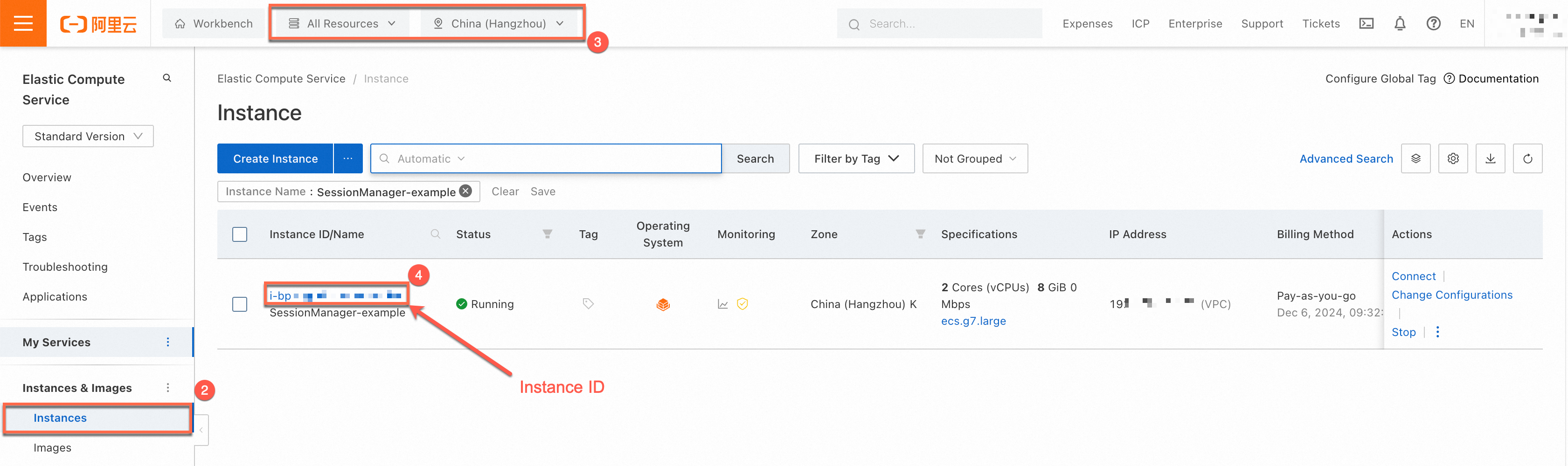
Use Alibaba Cloud CLI
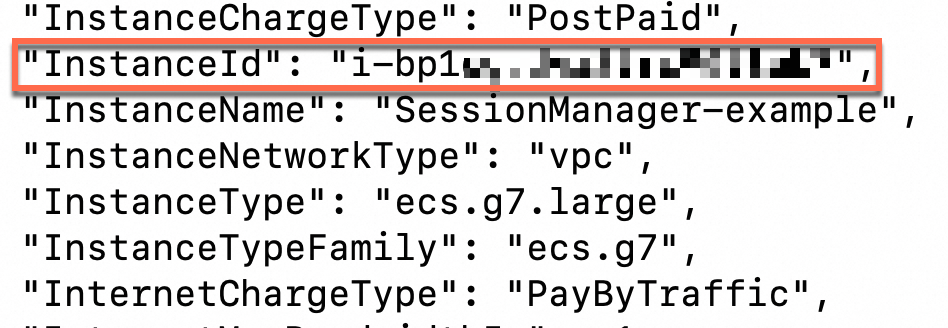
If you configured Alibaba Cloud CLI, run a command to call the DescribeInstances operation to query the ID of the instance to which you want to connect. For information about the parameters of the DescribeInstances operation, see DescribeInstances.
For example, run the following command to query the ID of an instance named SessionManager-example that resides in the China (Hangzhou) region: aliyun ecs DescribeInstances --region cn-hangzhou --RegionId 'cn-hangzhou' --InstanceName 'SessionManager-example'The value of the InstanceId parameter in the command output is the ID of the instance.
Call API operations
Call the DescribeInstances operation to query the ID of the instance to which you want to connect. For more information, see DescribeInstances.
2.2 Generate a key pair
Generate a key pair on your computer. The public key file is used as the temporary public key in Step 2.3.
Windows computer
Open Command Prompt and run the following command to generate a key pair.
In this example, the OpenSSH client is used to generate a key pair in the C:\Users\test directory. ssh-keygen -t rsa -b 2048 -f id_rsa-t rsa: theRivest-Shamir-Adleman (RSA)key type.-b 2048: a key length of 2,048 bits.-f id_rsa: outputs the key files named id_rsa to the working directory.
You are prompted to enter a passphrase. If set, the passphrase is required each time the private key is used.
Press Enter to skip if you do not need a passphrase.
The public key file id_rsa.pub and private key file id_rsa are generated in the working directory. In this example, the working directory is C:\Users\test.
macOS or Linux computer
Open Terminal and run the following command to generate a key pair.
In this example, the OpenSSH client is used to generate a key pair.
ssh-keygen -t rsa -b 2048 -f id_rsa-t rsa: theRSAkey type.-b 2048: a key length of 2,048 bits.-f id_rsa: outputs the key files named id_rsa to the working directory.
You are prompted to enter a passphrase. If set, the passphrase is required each time the private key is used.
Press Enter to skip if you do not need a passphrase.
The public key file id_rsa.pub and private key file id_rsa are generated in the working directory.
2.3 Send the public key as a temporary public key to the instance
Windows computer
Open Command Prompt, go to the directory of ali-instance-cli.exe, and run the following command to register the temporary public key with an instance.
Replace<instance_id>with the instance ID,<public_key_path>with the path of the public key file generated in Step 2.2, and<ecs_username>with the username to assign the temporary public key to:
ali-instance-cli.exe send_public_key --instance <instance_id> --public-key <public_key_path> --user-name <ecs_username>Example: register the public key at C:\Users\test\id_rsa.pub with instance i-bp1****** and assign it to the ecs-user user:
ali-instance-cli.exe send_public_key --instance i-bp1****** --public-key C:\Users\test\id_rsa.pub --user-name ecs-userAfter the command succeeds, connect to the instance with the corresponding private key within 60 seconds.
macOS or Linux computer
Open Terminal, go to the directory of ali-instance-cli, and run the following command to register the temporary public key with an instance.
Replace<instance_id>with the instance ID,<public_key_path>with the path of the public key file generated in Step 2.2, and<ecs_username>with the username to assign the temporary public key to:
./ali-instance-cli send_public_key --instance <instance_id> --public-key <public_key_path> --user-name <ecs_username>Example: register the public key at ~/id_rsa.pub with instance i-bp1****** and assign it to the ecs-user user:
./ali-instance-cli send_public_key --instance i-bp1****** --public-key ~/id_rsa.pub --user-name ecs-userAfter the command succeeds, connect to the instance with the corresponding private key within 60 seconds.
3. Connect to the instance over SSH
If you are prompted that the password or public key is incorrect, the public key may have expired. A temporary public key is valid for 60 seconds.
Open Command Prompt or Terminal and run the following command to connect to the instance.
Replace<private_key_path>with the path of the private key file generated in Step 2.2,<ecs-username>with the username specified in Step 2.3, and<ecs_ip>with the public IP address of the instance.
ssh -i <private_key_path> <ecs-username>@<ecs_ip>Example: connect to instance 223.***.***.187 as ecs-user with private key ~/id_rsa:
ssh -i ~/id_rsa ecs-user@223.***.***.187You can also use the port forwarding feature of ali-instance-cli to connect to an instance without a public IP address. See Use the port forwarding feature of Session Manager CLI to connect to an instance without a public IP address.
FAQ
The command line does not respond after you run a command (The instance is not in the Running state)
If the command line does not respond after you run an ali-instance-cli command, the instance may not be in the Running state. To view the instance status, see Check whether the instance is in the Running state in this topic.
The command line does not respond after you run a command (Security group configuration issue)
If the command line does not respond after you run an ali-instance-cli command, the required outbound ports may not be open in the security group. By default, basic security groups allow all outbound traffic. This issue may occur if you modify the outbound rules or use an advanced security group.
When you use Session Manager to connect to an ECS instance, make sure that Cloud Assistant Agent running on the ECS instance is connected to the Cloud Assistant server by adding the following rules to an outbound security group:
Compared with connection methods, such as SSH and Remote Desktop Protocol (RDP), Cloud Assistant Agent actively establishes a WebSocket connection to the Session Manager server. You need to only open the outbound WebSocket port of the Cloud Assistant server in a security rule. For information about how Session Manager works, see the How Session Manager works section of this topic.
If you use basic security groups including the default security group, all outbound traffic is allowed. No additional configuration is required.
If you use an advanced security group, all outbound traffic is denied. You must configure the relevant rules. The following table describes the rules. For information about security groups, see Basic and advanced security groups.
For information about how to add rules to a security group, see Add a security group rule.
Action | Priority | Protocol type | Port range | Authorization object | Description |
Allow | 1 | Custom TCP | 443 |
| This port is used to access the Cloud Assistant server. |
Allow | 1 | Custom TCP | 443 |
| This port is used to access the server on which the Cloud Assistant Agent installation package is stored when you want to install or update Cloud Assistant Agent. |
Allow | 1 | Custom UDP | 53 |
| This port is used to resolve domain names. |
If you want to connect to an instance by using only Session Manager, delete the inbound rules that allow the SSH port (default 22) and RDP port (default 3389) from a security group to improve the security of the ECS instance.
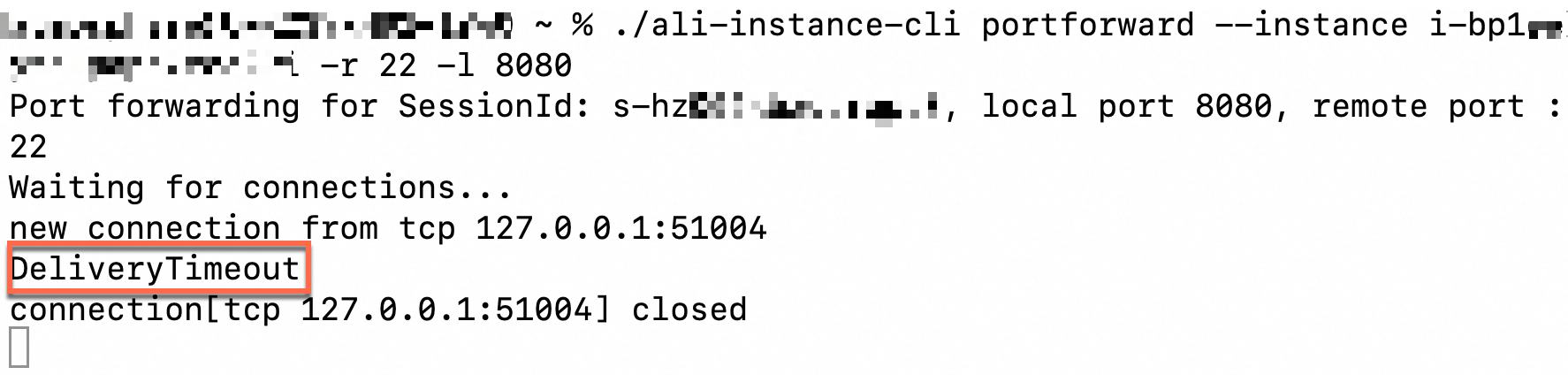
The DeliveryTimeout error is reported after you run a command (Cloud Assistant Agent is offline)
If the DeliveryTimeout error occurs when you run an ali-instance-cli command, Cloud Assistant Agent may be unavailable. Check whether Cloud Assistant Agent is installed on the instance.

The "session manager is disabled, please enable first" error is reported after you run a command
If the session manager is disabled, please enable first error occurs after running an ali-instance-cli command, enable Session Manager in the console.
The connection is automatically closed due to a long period of inactivity
Session Manager connections close after idle timeout. The default is 3 minutes. Use the --idle-timeout parameter to set a custom idle timeout in seconds.
Example: connect with a 10-minute idle timeout:
./ali-instance-cli session --instance instance-id --idle-timeout 600This feature requires ali-instance-cli version:
Linux:
1.2.0.48Windows:
1.1.0.48macOS:
1.3.0.48
How to analyze ali-instance-cli logs
Analyze ali-instance-cli logs to identify issues.
Session Manager CLI logs: When you use ali-instance-cli, a log folder (e.g.
~/log/aliyun_ecs_session_log.2022XXXX) is generated in the tool's directory.Cloud Assistant Agent logs:
Linux
/usr/local/share/aliyun-assist/<Cloud Assistant Agent version>/log/Windows
C:\ProgramData\aliyun\assist\<Cloud Assistant Agent version>\log