File Backup Essential Edition provides automatic daily backups and file-level recovery for your Elastic Compute Service (ECS) files.
ECS File Backup Essential Edition is an automated data protection solution that requires no extra configuration after activation. The system automatically creates a full backup every day. You can retain these backups for up to 30 days for data restoration.
How it works
File Backup Essential Edition uses a client installed by Cloud Assistant to back up data. The client is automatically installed when you activate backups and uninstalled when you cancel them. No manual intervention is required.
Backups use a forever-incremental mechanism. After an initial full backup, subsequent tasks only upload changed data blocks. These blocks are then used to synthesize a new, complete backup version in the cloud, ensuring both speed and efficiency.
Procedure
Activate ECS file backup
You can start a backup from the File Backup page in the navigation pane on the left of the ECS console. Alternatively, you can enable backups on the Backup tab when you create an instance or on the instance details page. Then, you can modify the backup configuration as needed.
Activate during instance creation
When you create an ECS instance, in the Storage section, find File Backup and select Activate Backup.
Backup time: By default, the system randomly selects a time between 00:00 and 06:00. This becomes the fixed time for daily backups.
Retain the latest version: Enabled by default. This option ensures your most recent backup is never deleted, even after its 30-day retention period ends.
Backup priority: The default is low priority, which reduces the system load during the backup process.
You can modify the backup configuration as needed.
Activate for an existing instance
Go to the File Backup page in the navigation pane on the left of the ECS console. Alternatively, you can enable backups with a single click on the Backup tab of the instance details page. Then, you can modify the backup configuration as needed.
Log on to the ECS console - File Backup. In the upper-left corner, select the region where the target instance is located.
If this is your first time using the service, follow the on-screen instructions to create and grant a service-linked role.
Click Add ECS Instance with Inactive Backup, configure the parameters, and click OK.
Parameter
Description
ECS to Be Backed-up
Select the target instance for which you want to activate backups from the drop-down list.
Start Time
Default Time: The system automatically selects a time between 00:00 and 06:00 by default.
Specified Time: Set a specific time for the daily backup.
Advanced Settings
Backup Priority:
Low: Reduces the system load during backups.
Maximum backup throughput is 10 MB/s and uses 1 vCPU.
High: Increases backup speed and reduces backup time.
Maximum backup throughput is 30 MB/s and uses up to 2 vCPUs.
Keep At Least One Backup Version: When enabled, your most recent backup is preserved indefinitely and will not be deleted even after its 30-day retention period expires. This guarantees you always have at least one recovery point. Note that fees will continue to be incurred for this retained backup.
ImportantIf you disable this option, all backup versions are automatically deleted after their 30-day retention period expires when you pause backups.
When the backup status of the target instance changes to Ready, the backup becomes active.
View the backup task.
At the scheduled backup time, if an ECS instance is in the Running state, go to the ECS File Backup Essential Edition page. In the Actions column, click to monitor the backup progress. The backup is complete when the Task Status is Completed.
If a backup fails, the system automatically sends an alert by email, or internal message to the Alibaba Cloud account. Review the alert promptly and refer to FAQ about ECS File Backup Essential Edition for troubleshooting.
Restore ECS files
Log on to the ECS console - File Backup. In the upper-left corner, select the region where the target instance is located.
In the Actions column for the target ECS instance, click .
In the Backup History, click a backup point and select Restore.
A backup point represents a backup of a single disk partition, such as the
C:orD:drive on Windows, or the/directory on Linux.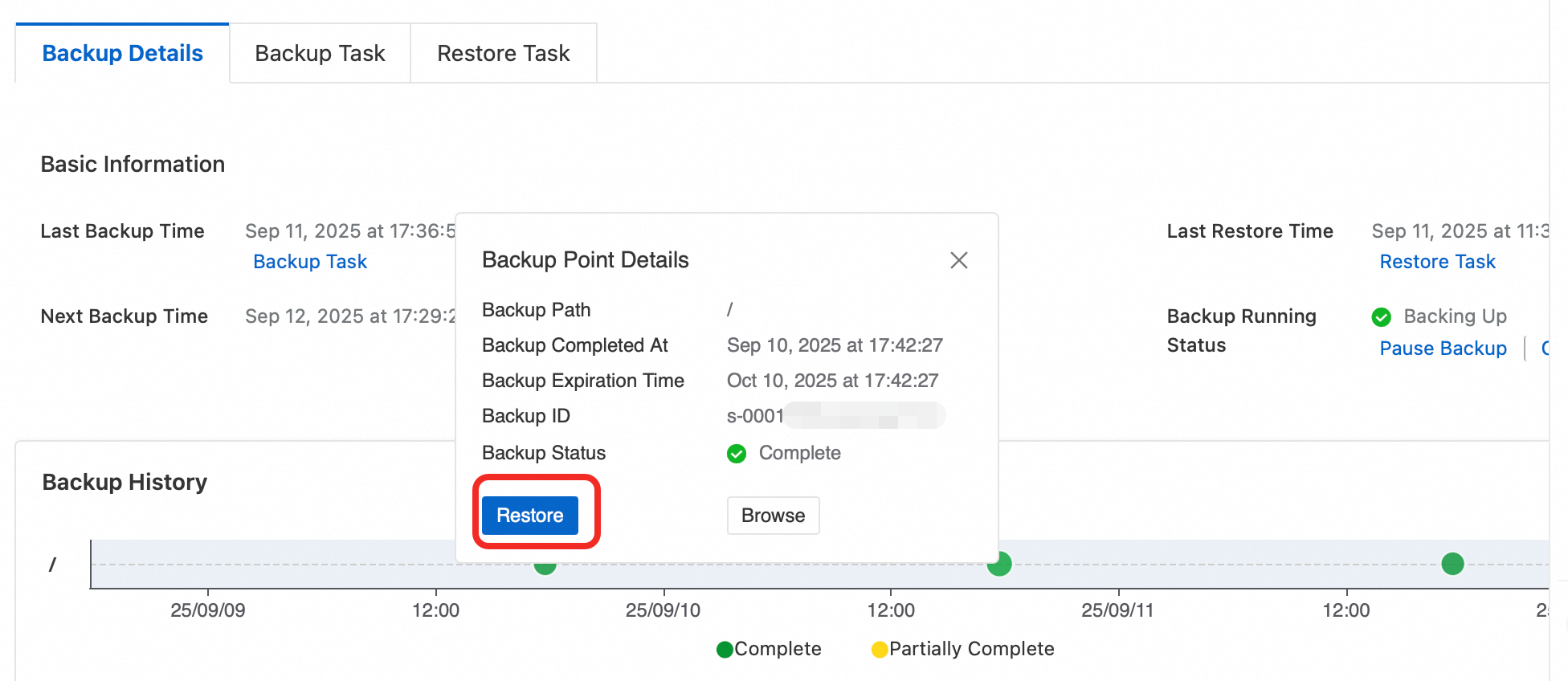
On the Create Restore Job page, configure the parameters and click OK.
Parameter
Description
Restore Item
All Files: Selected by default. Restores all files from the backup point.
Include Specified Files: Restores only the selected files.
Exclude Specified Files: Restores all files except the selected ones.
Restore Destination
By default, Original ECS is selected for restoration. You can select another ECS instance in the same region as the destination.
The instance status must be Running.
Restore Path
By default, files are restored to the Original Path. If you select Other Path, make sure the destination path exists on the destination instance. Otherwise, the restore task will fail.
If a file with the same name exists in the restore path
By default, Skip This File is selected.
ImportantIf you select Overwrite the file in the restore path, the original file content will be lost, which may affect your services. Choose this option with caution.
View the restore task.
Log on to the ECS console - File Backup. In the Actions column of the target ECS instance, click . The restoration is complete when the Task Status is Complete.
Billing
Billing details: You are billed daily, and daily consumption details are provided. Billing is based on the total capacity of all block storage (disks) attached to the instance, not the amount of data you actually back up. You can purchase a resource plan to offset pay-as-you-go fees. For more information, see Benefits of File Backup Essential Edition.
Free quota: Each Alibaba Cloud account and its associated Resource Access Management (RAM) users share a 100 GiB free quota across all regions. Usage that exceeds this quota is billed based on actual consumption.
Limitations
Supported regions: For the latest list of supported regions, see the ECS console - File Backup page.
Backups are not supported for the following types of files or storage.
Backups for externally attached network storage, such as NAS, ossfs, and GlusterFS, are not supported.
Backups of the following directories or files are not supported:
Linux:
/bin/,/usr/bin/,/sbin/,/boot/,/proc/,/sys/,/srv/,/lib/,/selinux/,/usr/sbin/,/run/,/lib32/,/lib64/, and/lost+found/.Windows:
Windows\,python27\,Program Files (x86)\,Program Files\,ProgramData\,Boot\,$RECYCLE.BIN\,System Volume Information\,Users\Administrator\NTUSER.DAT,pagefile.sys, andUsers\Administrator\ntuser.dat.LOG1.
Multiple backup tasks cannot run simultaneously on a single ECS instance.
If the total size of the files to be backed up exceeds a specified value (2 TiB for high priority or 600 GiB for low priority), the backup task may take longer than 24 hours to complete. In this case, the next day's scheduled backup will be skipped. The system will attempt to run the backup again at the next scheduled interval.
Activation is not supported for the following types of ECS instances:
Instances with 32-bit operating systems.
Instances in a classic network.
More operations
Modify the backup configuration
Log on to the ECS console - File Backup. In the upper-left corner, select the region where the target instance is located.
In the Actions column of the target instance, modify the backup configuration.
Operation
Description
Pause Backup or Resume Backup
Pause Backup: Subsequent backup tasks are not executed. Existing backups and backup points are not affected. All backup points are automatically deleted after their 30-day retention period expires.
If Keep At Least One Backup Version is enabled, the last completed backup version is retained regardless of the 30-day retention period.
Resume Backup: This option is available only when the backup status is Paused. It also resumes billing for file backups of the instance.
Cancel Backup
This operation stops billing and removes the ECS instance from the backup list.
ImportantAll backups for this instance will be deleted and the data cannot be recovered. Perform this operation with caution.
Enable or disable Keep At Least One Backup Version
After you enable this feature, the configuration takes effect immediately. The latest backup is not deleted when its 30-day retention period expires. This prevents the risk of having no available backups.
After you disable this feature, the configuration change takes effect within one hour. Backups are automatically deleted after their 30-day retention period expires. This may result in no available backups due to paused backups or other reasons.
ImportantWhen you disable the Keep At Least One Backup Version feature, the configuration takes effect within one hour. If only the last backup version remains and its 30 day retention period has expired, it will be deleted within one hour.
Change backup priority
The change takes effect when the next backup task is executed.
Modify Next Backup Time
You can only modify the backup time, not the date.
If the backup for the current day has not yet been executed:
If the new time is later than the current time, the backup for the current day is executed at the new time.
If you set a new time that has already passed on the current day, today's backup will be skipped. The next backup will run at the new time tomorrow. Use this option with caution.
If the backup for the current day has already been executed, the next backup is executed at the new time on the following day.
Cancel a backup or restore task
Canceling a backup or restore task does not affect completed backups.
Log on to the ECS console - File Backup. In the upper-left corner, select the region where the target instance is located.
In the Actions column for the target instance, click View Details.
Cancel the task.
To cancel a backup task, click the Backup Task tab. In the Actions column of the task, click Cancel.
To cancel a restore task, go to the Restore Task tab. In the Actions column of the task, click Cancel.
References
For databases that require high data consistency, you can use Database Backup or the create an application-consistent snapshot feature for backups.
Cloud Backup provides multiple data protection methods, including ECS File Backup Essential Edition, ECS Backup Essential Edition, and ECS Standard Backup. For more information, see Feature comparison of ECS backup editions.
Alibaba Cloud also provides disk-level snapshot backups. Following Comparison between snapshots and File Backup Essential Edition to help you choose a suitable data protection solution.