Add NVMe driver support to a custom image so it can boot on NVMe-based ECS instance types with enhanced storage performance.
NVMe is a high-speed protocol designed for solid-state storage, such as flash-based SSDs. Compared with SCSI and virtio-blk, NVMe delivers higher speed and greater bandwidth.
Use cases
Follow this procedure if:
You import a custom image to Alibaba Cloud and the Image Check reports that the NVMe driver is missing.
You cannot select a custom image when creating an ECS instance type that supports NVMe because the image's NVMe attribute does not match the instance type's requirement.
NoteFor NVMe-compatible instance families, see Instance family overview. You can also check the
NvmeSupportparameter in the DescribeInstanceTypes API operation.To check whether a custom image supports NVMe, check the
NvmeSupportparameter in the DescribeImages API operation.If some images do not appear when you create ECS instances, see Unable to find specific images.
Procedure
Launch an ECS instance from your existing custom image. This instance serves as an intermediate environment to update the image. Connect to the instance.
ImportantThe intermediate instance incurs charges. Release the instance after you create the new custom image to avoid ongoing charges.
Based on your instance's operating system, select a method to verify and install the NVMe driver.
Console configuration
In the ECS console - Instances, locate the target instance and go to its details page. In the upper-right corner, click All actions and then select Configure NVMe Driver Status.
Click Install to install the NVMe driver. The system automatically sets the NVMe driver status to Installed.
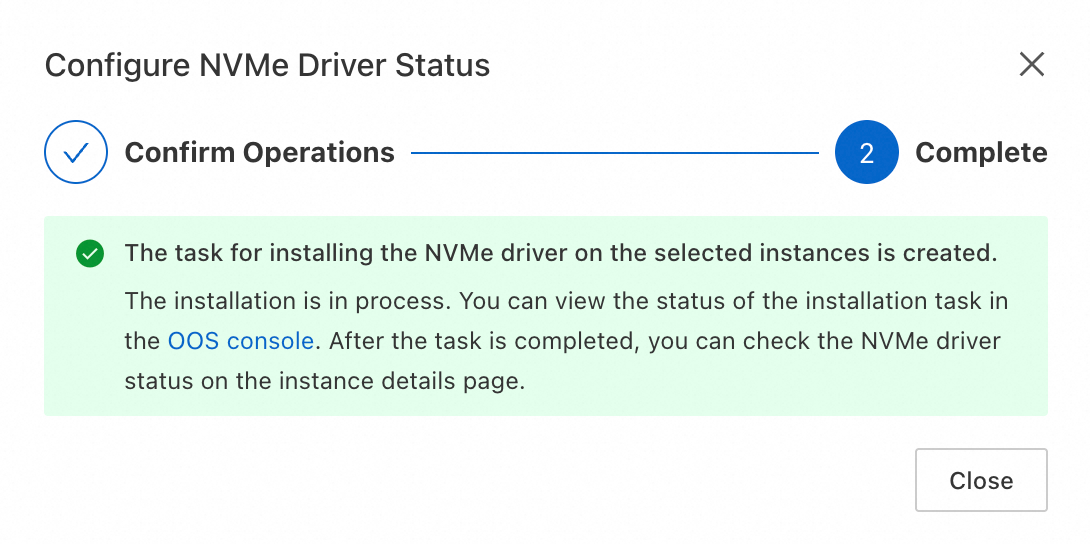
Automatic configuration using Cloud Assistant
Cloud Assistant provides the
ecs_nvme_configplug-in to quickly configure the NVMe driver. It supports only specific operating systems.Check whether Cloud Assistant Agent is installed and the
ecs_nvme_configplug-in is available:acs-plugin-manager --list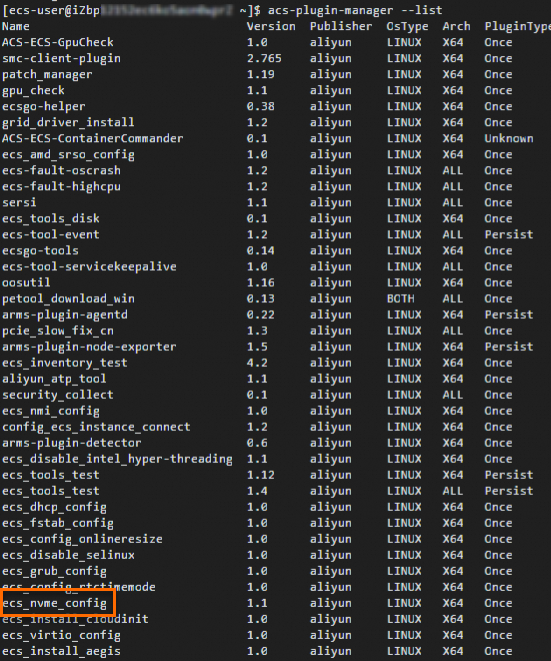
If no Cloud Assistant-related output appears, install the Cloud Assistant Agent first.
If the plug-in list includes
ecs_nvme_config, proceed to the next step.
Use the
ecs_nvme_configplug-in to configure the NVMe driver.Use the
ecs_nvme_configplug-in to check whether the NVMe module exists and can be configured:sudo acs-plugin-manager --exec --plugin ecs_nvme_config --params --checkIf the output contains the following message, the NVMe driver is already installed. Skip to creating a custom image.
[SUCCESS] Summary: Your image can Runnig on nvme instanceIf the output contains an
[ERROR]message similar to the following, proceed to the next step.[ERROR] 1.initrd/initramfs not has nvme module, Please run acs-plugin-manager --exec --plugin ecs_nvme_config --params -f/--fix to enable nvme;
Configure the NVMe driver based on the check result:
sudo acs-plugin-manager --exec --plugin ecs_nvme_config --params --fixRestart the instance after the configuration completes.
sudo rebootAfter the instance restarts, verify successful configuration:
sudo acs-plugin-manager --exec --plugin ecs_nvme_config --params --checkSample success output:
[OK]  1.initrd/initramfs already contain nvme module;

[OK]  2.fstab file looks fine and does not contain any device names;

[OK]  3.The nvme parameters already included.

[SUCCESS]  Summary: Your image can Runnig on nvme instance
Create a new custom image from the instance where you installed the driver. Then modify the attributes of the new custom image and set the NVMe driver attribute to Supported.
ImportantIf you do not set the NVMe driver attribute to Supported, the system will not recognize the image as NVMe-compatible. You will be unable to select NVMe-capable instance types when creating instances from this image.
Manual configuration (CentOS/Alibaba Cloud Linux)
Check whether the kernel has loaded the NVMe driver:
cat /boot/config-`uname -r` | grep -i nvme | grep -v "^#"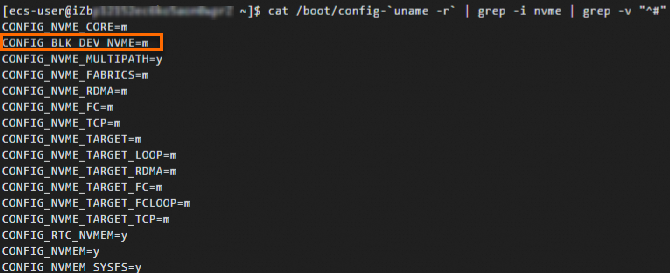
If the output contains
CONFIG_BLK_DEV_NVME=y, the operating system can boot directly on NVMe-enabled instance families. Proceed to Console configuration.If the output contains
CONFIG_BLK_DEV_NVME=m, perform the following steps.
Check whether the initramfs contains the NVMe driver:
sudo lsinitrd /boot/initramfs-`uname -r`.img | grep -i nvme | awk '{print $NF}'
If the output matches the figure, the operating system can boot on NVMe-enabled instance families. Proceed to step d.
If no output is returned, perform step c.
Add the NVMe driver to the initramfs:
mkdir -p /etc/dracut.conf.d echo 'add_drivers+=" nvme nvme-core "' | sudo tee /etc/dracut.conf.d/nvme.conf > /dev/null sudo dracut -v -fNoteIf the dracut tool is not installed, run sudo yum -y install dracut to install it.
Add the
io_timeoutparameter for NVMe in GRUB.NoteAdd the
io_timeoutparameter for NVMe in GRUB to prevent I/O failures caused by device timeouts. Setting this value to the maximum supported limit ensures the system continues processing I/O requests without premature failure.In most Linux distributions, the
io_timeoutparameter defaults to 30 seconds. Before adding a value for theio_timeoutparameter, runecho 4294967295 > /sys/module/nvme_core/parameters/io_timeoutorecho 4294967295 > /sys/module/nvme/parameters/io_timeoutto verify whetherio_timeoutcan be set to the maximum value of 4,294,967,295 seconds. If the command returns-bash: echo: write error: Invalid argument, the Linux version only supports 255 seconds.Method 1: Add parameters using grubby
Check whether
grubbyis available:which grubbyIf the output includes the path to
grubby(for example,/usr/sbin/grubby), the system supportsgrubby. Proceed to the next step.If no output appears, your system does not support
grubby. Use Method 2 instead.
Add kernel parameters with
grubby:sudo grubby --update-kernel=ALL --args="nvme_core.io_timeout=4294967295 nvme_core.admin_timeout=4294967295"
Method 2: Add parameters by editing the GRUB configuration file
Open the grub file:
sudo vi /etc/default/grubPress i to enter insert mode. Locate the
GRUB_CMDLINE_LINUX=line and add thenvme_core.io_timeout=4294967295 nvme_core.admin_timeout=4294967295parameters.File content after adding the parameters:
 Note
NoteIf these parameters already exist in the configuration file, do not add them again.
Press Esc to exit insert mode. Enter
:wqand press Enter to save and close the file.Apply the GRUB configuration.
Select the command that matches the instance startup mode:
Legacy BIOS boot mode
sudo grub2-mkconfig -o /boot/grub2/grub.cfgUEFI boot mode
View the GRUB configuration file:
# For CentOS, run:
cat /boot/efi/EFI/centos/grub.cfg
# For Alibaba Cloud Linux, run:
cat /boot/efi/EFI/alinux/grub.cfg
Run the appropriate command based on the output:
If the configuration file points to another config file (for example,
/boot/grub/grub.cfg), run:
sudo grub2-mkconfig -o /boot/grub2/grub.cfgOtherwise, run the appropriate command for your system:
# For CentOS
sudo grub2-mkconfig -o /boot/efi/EFI/centos/grub.cfg
# For Alibaba Cloud Linux
sudo grub2-mkconfig -o /boot/efi/EFI/alinux/grub.cfg
Create a new custom image from the instance where you installed the driver. Then modify the attributes of the new custom image and set the NVMe driver attribute to Supported.
ImportantIf you do not set the NVMe driver attribute to Supported, the system will not recognize the image as NVMe-compatible. You will be unable to select NVMe-capable instance types when creating instances from this image.
Verify NVMe-related output:
sudo lsinitrd /boot/initramfs-`uname -r`.img | grep -i nvme | awk '{print $NF}'If the command returns driver filenames (for example, nvme.ko), the configuration is complete. The operating system can now boot on NVMe-enabled ECS instance types.

Manual configuration (Ubuntu/Debian)
(Optional) Check whether the initrd contains the NVMe driver:
lsinitramfs /boot/initrd.img-`uname -r` | grep -i nvmeThe following output indicates that Ubuntu loads the NVMe driver in the initrd by default.
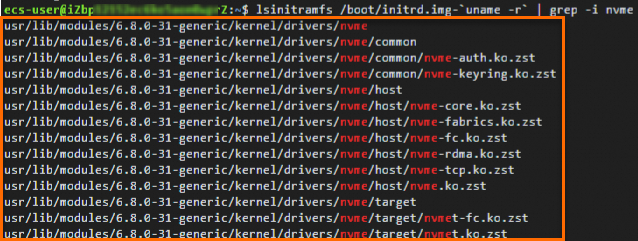
Add the
io_timeoutparameter for NVMe in GRUB.NoteAdd the
io_timeoutparameter for NVMe in GRUB to prevent I/O failures caused by device timeouts. Setting this value to the maximum supported limit ensures the system continues processing I/O requests without premature failure.In most Linux distributions, the
io_timeoutparameter defaults to 30 seconds. Before adding a value for theio_timeoutparameter, runecho 4294967295 > /sys/module/nvme_core/parameters/io_timeoutorecho 4294967295 > /sys/module/nvme/parameters/io_timeoutto verify whetherio_timeoutcan be set to the maximum value of 4,294,967,295 seconds. If the command returns-bash: echo: write error: Invalid argument, the Linux distribution only supports 255 seconds.Open the /etc/default/grub file:
sudo vi /etc/default/grubPress i to enter edit mode. Add the following parameters to the
GRUB_CMDLINE_LINUX=line:nvme_core.multipath=n nvme_core.io_timeout=4294967295 nvme_core.admin_timeout=4294967295.File content after adding the parameters:
 Note
NoteIf these parameters already exist in the configuration file, do not add them again.
Press Esc to exit insert mode. Enter
:wqand press Enter to save and close the file.
Apply the GRUB settings.
Based on the ECS instance's instance startup mode, select one of the following commands:
This command works for Ubuntu and Debian regardless of boot mode:
sudo update-grub2Legacy BIOS boot mode
sudo grub-mkconfig -o /boot/grub/grub.cfgUEFI boot mode
sudo grub-mkconfig -o /boot/efi/EFI/debian/grub.cfg
Create a new custom image from the instance where you installed the driver. Then modify the attributes of the new custom image and set the NVMe driver attribute to Supported.
ImportantIf you do not set the NVMe driver attribute to Supported, the system will not recognize the image as NVMe-compatible. You will be unable to select NVMe-capable instance types when creating instances from this image.
(Optional) Redeploy your workload with the new NVMe-compatible custom image. For example, create an instance from a custom image or shared image and select an NVMe-compatible instance type.
After verifying the deployment, delete the original custom image to avoid charges for idle resources.
References
NVMe-based ECS instance types support only ESSD and ESSD AutoPL disks. These disks support multi-attach for simultaneous attachment to multiple ECS instances. See Attach a cloud disk to multiple ECS instances (multi-attach).
If improper
io_timeoutconfiguration causes an NVMe disk to become unavailable on a Linux ECS instance, see What do I do if an NVMe disk on a Linux ECS instance is unavailable due to an invalid I/O timeout parameter?.