Alibaba Cloud Workspace Cloud Phone provides virtual phones that run on the cloud. Powered by Arm servers and the SHENLONG virtualization technology, Cloud Phone provides an Android application platform for cloud users. Cloud Phone users can remotely control the Android system and applications in real time in streaming mode from their computers, phones, or other clients. This topic provides an overview of Cloud Phone.
Use cases
Cloud Phone is suitable for mobile offices, cloud gaming, and enterprise marketing activities.
-
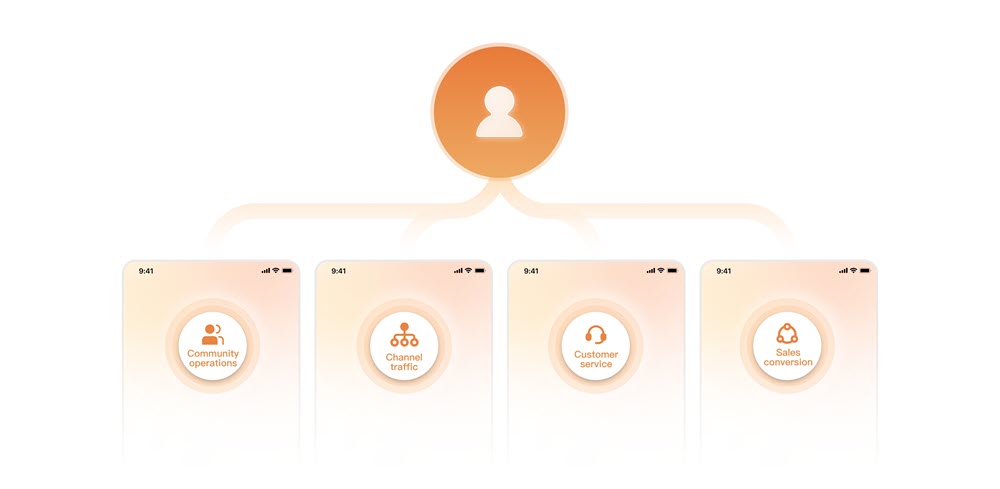
Enterprise marketing activities
Cloud Phone supports enterprise marketers, customer service teams, and other customer-facing roles by driving traffic, delivering customer service, managing community operations, converting leads, and completing various tasks.
-

Cloud gaming
Cloud Phone provides a download-free service for game developers, video platforms, and other users to trial and play mobile games in the cloud.
-
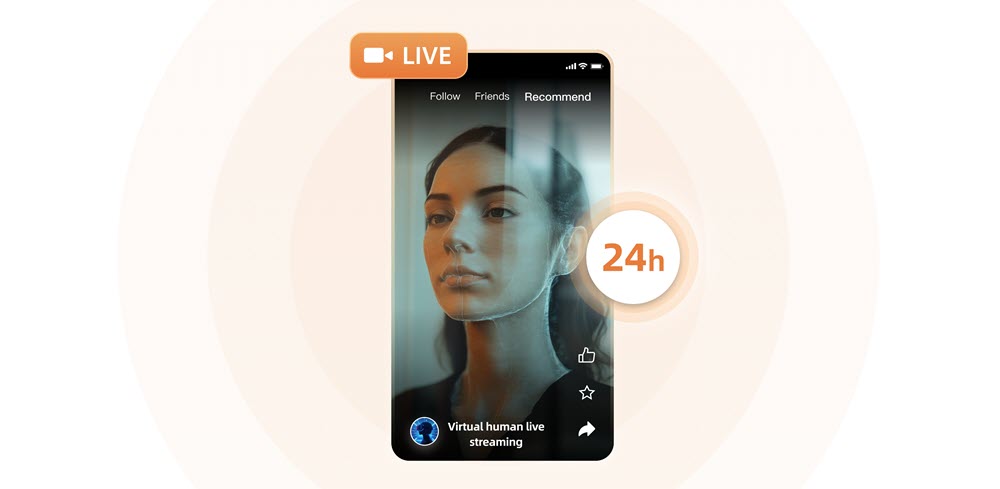
Cloud livestreaming
Cloud Phone enables live broadcast organizations, individual live broadcasters, and other customer groups to engage in new broadcasting techniques, including multicasting and VTuber.
-
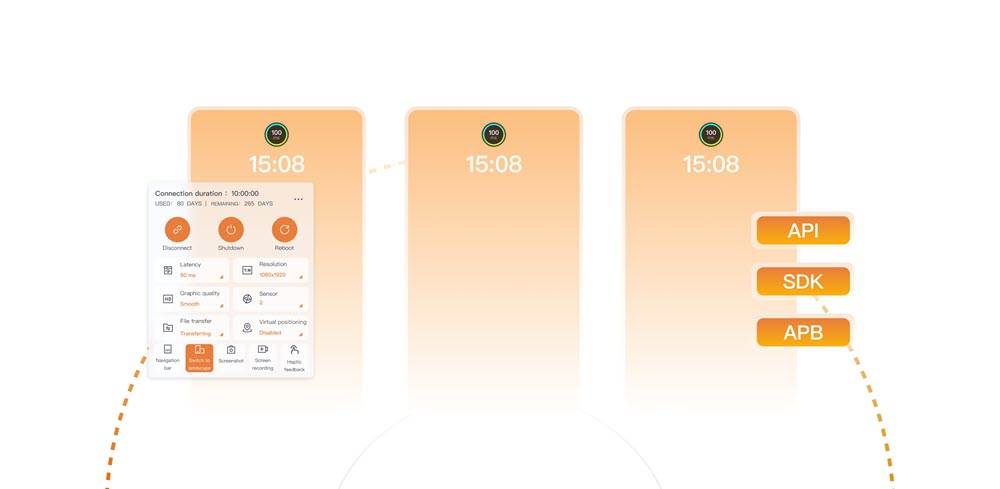
Simulation test
Cloud Phone reduces phone procurement costs and simplifies management and O&M for app launches and feature iterations.
-
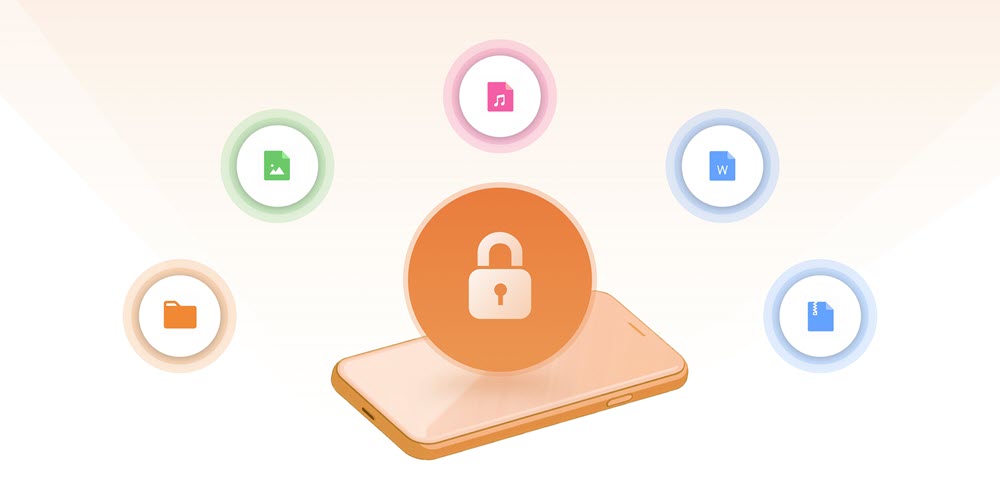
Mobile office
Cloud Phone is specifically designed to protect sensitive data in office settings, ensuring that technical and customer information remains secure.
Benefits
Unlimited scalability
Cloud Phone provides a range of specifications and supports on-demand procurement. Cloud Phone services are available in many parts of the world and can be purchased for immediate use.
Cutting-edge technologies
Cloud Phone utilizes the Adaptive Streaming Protocol (ASP) of Alibaba Cloud and is powered by Arm servers and SHENLONG virtualization components.
Ease of use
Users can centrally manage cloud phone instances in the Alibaba Cloud Management Console. This includes batch operations and centralized O&M.
High security and reliability
Data is stored in the cloud with top-notch security and protection measures, and has a 99.9999999% reliability rate.
On-demand development
Cloud Phone facilitates faster development of business applications by supporting secondary development based on APIs and SDKs.
Real machine simulation
Cloud phone instances have the same features as physical phones and operate on the Android 12 OS, allowing them to work with the newest applications.
Specifications and prices
The following table lists the instance specifications Cloud Phone provides. Select an instance type based on your workloads, and select an appropriate region based on the service requirements.
Instance
Specification | Chinese mainland regions | Regions outside Chinese mainland | ||||
Name | Instance type | CPU/memory/storage | Monthly subscription (USD/month) | Pay-as-you-go (USD/hour) | Monthly subscription (USD/month) | Pay-as-you-go (USD/hour) |
Lightweight | acp.basic.small | 2 vCPU/4 GiB/32 GiB | 9.9057 | 0.0457 | 15.3538 | 0.0709 |
General | acp.std.small | 4 vCPU/4 GiB/32 GiB | 13.8679 | 0.0579 | 21.4953 | 0.0898 |
Balanced | acp.std.medium | 3 vCPU/6 GiB/32 GiB | 14.9347 | 0.0610 | 23.1488 | 0.0945 |
Standard | acp.std.large | 4 vCPU/8 GiB/32 GiB | 21.3353 | 0.0808 | 33.0697 | 0.1252 |
Performance | acp.perf.large | 8 vCPU/16 GiB/32 GiB | 36.4224 | 0.1524 | 56.4546 | 0.2362 |
Terms
The following table describes the terms related to Cloud Phone.
No. | Term | Description | References |
① | administrator | The person in charge of creating, assigning, and managing cloud phone instances. Example: Kevin, an O&M engineer at a new media company. | |
② | console | The administrator-facing management tool provided by Alibaba Cloud. If you are an administrator, you can manage instance groups, instances, and applications and perform other O&M operations in the Cloud Phone console. | |
③ | region | The physical location of a data center. Regions are independent of each other. | |
④ | instance group | The logical group of cloud phones delivered to end users, including the underlying resources and general configurations such as resource specifications, pre-installed applications, display resolutions, office networks, and billing methods. | |
⑤ | instance | The smallest usable computing unit. Cloud phone instances run the Android 12 operating system. Administrators can assign cloud phone instances to end users. Then, end users can connect to the instances from Alibaba Cloud Workspace clients. | |
⑥ | application | The pre-installed software on each cloud phone instance. An administrator can upload on-premises applications to the Cloud Phone console and install them on all cloud phone instances within a specific instance group. | |
⑦ | end user | The personnel who use cloud phone instances. After administrators assign cloud phone instances to end users, end users can connect to the instances from Alibaba Cloud Workspace clients. Example: Kevin, an anchor at a new media company. | |
⑧ | client | The channel used by end users to connect to cloud phone instances. Sample clients include Windows clients, macOS clients, Web clients, and Android clients of Alibaba Cloud Workspace. | |
⑨ | developer | The R&D personnel in charge of developing cloud phone applications. Example: Tom, an application developer of a new media company. | |
⑩ | ADB | A versatile command-line tool that allows you to communicate with your Android devices. You can install, debug, or manage cloud phones by using Android Debug Bridge (ADB). Note We recommend that end users connect to cloud phone instances over virtual private clouds (VPCs) by using ADB from cloud computers. VPC-based connections provide better security and more reliable and faster transmission than Internet-based connections. |
Obtain a client
You can connect to cloud phone instances only from clients. You can connect to cloud phone instances from Alibaba Cloud Workspace clients for trial or demonstration purposes. You can also use the Cloud Phone SDK or API to develop clients based on your business requirements.
You can open or download an Alibaba Cloud Workspace client to connect to cloud phone instances on this page. You can also go to the Download Alibaba Cloud Workspace Client page to download your required client.
If you want to download a client on the Download Alibaba Cloud Workspace Client page, take note that different clients are tailored to different cloud phone types. Elastic Desktop Service (EDS) Android and iOS clients do not support Cloud Phone. Make sure that you download the Cloud Phone Android client.
If you have questions or special requirements on the operating system versions of Alibaba Cloud Workspace mobile clients, submit a ticket.
Operation guides
You can refer to the operation guide that corresponds to your role.

Purchase and assign cloud phones as enterprise users
Administrator guide

Use cloud phones as individuals
View User Guide

Use APIs or SDKs for secondary development
View Development References
FAQ
For more information, see FAQs about cloud phones.
How do I check the billing details of a cloud phone?
Log on to the Expenses and Costs console.
In the left-side navigation pane, choose Bills > Bill Details.
Click the Billing Details tab, set your filter conditions, and click Search.
Use the Statistic Item and Statistic Period parameters to specify the aggregation dimension and statistical period.
Why am I still being charged after releasing my cloud phone?
Dependent resources such as NAT gateways, elastic IP addresses (EIPs), and Internet Shared Bandwidth instances are not automatically released with the cloud phone. Verify that the following resources have been released:
| Resource | Console |
|---|---|
| NAT Gateway | NAT Gateway console |
| EIP | EIP console |
| Internet Shared Bandwidth | Internet Shared Bandwidth console |
Why can't my cloud phone access the Internet?
The troubleshooting steps depend on the network type of the instance group.
Log on to the Cloud Phone console.
In the left-side navigation pane, choose Manage Resource > Instance Group.
On the Instance Group page, find the instance group and click the value in the Network column.
On the Network page, check the Network Type value.
Shared network
Cloud phones in shared-network instance groups have Internet access enabled by default.
Virtual private cloud (VPC)
For VPC-based instance groups, enable Internet access by using one of the following methods:
Method 1: Use the Enable Now button
Log on to the Cloud Phone console.
In the left-side navigation pane, choose Network & Security > Network.
Select the region where the cloud phone resides.
Find the target network and click Enable Internet Access in the Actions column.
In the Enable Internet Access dialog box, click Enable Now.
Enabling Internet access automatically purchases pay-as-you-go NAT gateways and EIPs. For pricing details, see Billing of Internet NAT gateways and Billing overview.
The dialog box displays the progress of the operation.
Method 2: Manual configuration
For more information, see How cloud phones access the Internet.