Configure DNS records to point your domain name to a web server or email provider, enabling website access and custom email addresses.
Overview
DNS translates domain names (such as www.example.com) into IP addresses (such as 192.0.2.1). When a user enters your domain name in a browser, DNS resolves it to the correct IP address and connects the browser to your server.
Before you begin
-
Obtain your server's public IP address: Get the IPv4 address of your web server, such as
192.0.2.0.-
ECS users: Find the public IP address in the ECS console.
-
Other cloud servers: Contact your provider for the public IP address.
-
-
Verify your domain name status: Use a WHOIS lookup tool to confirm that your domain name status is
ok.
This topic uses Alibaba Cloud DNS as an example. If you use a different DNS provider, follow their documentation.
Quick links: Configure website resolution | Configure email resolution | Configure subdomain resolution
Use case 1: Configure DNS records for a Website
Point a domain name (such as example.com) to your web server's IP address.
-
Go to the Domain Names page in the Domain Names console.
-
Find your domain name and click Resolve in the Actions column.
-
On the page that appears, click the ··· icon next to Add Record and click Quick Add Website DNS.
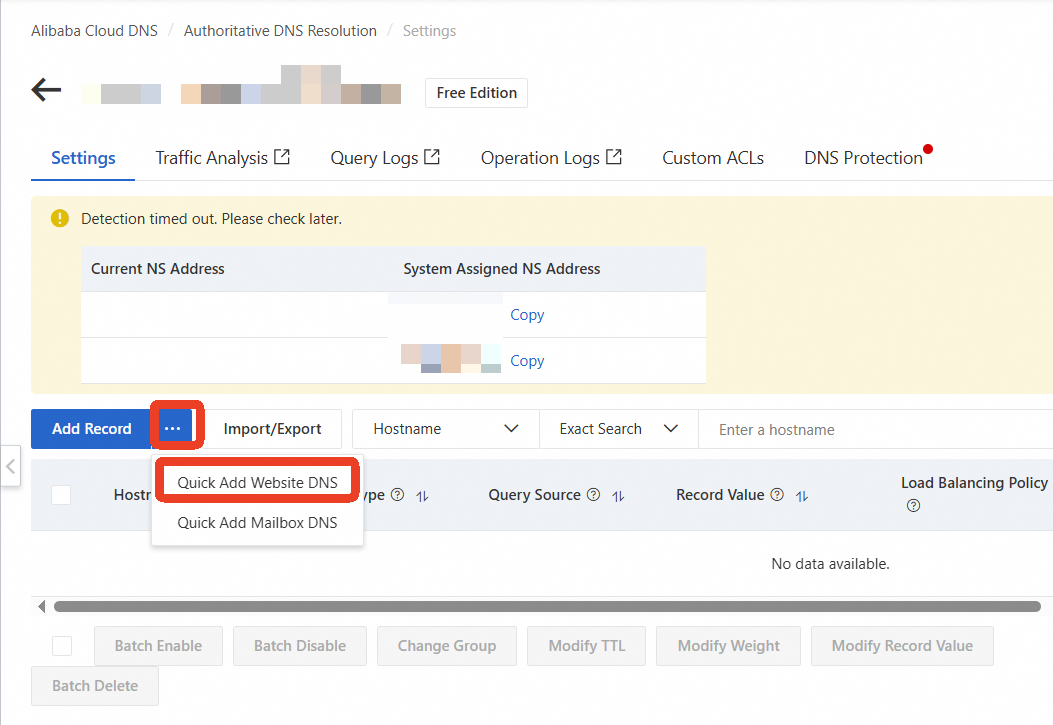
Check the status message at the top of the page to verify your DNS servers are configured correctly. If an error is displayed, resolve the DNS server issue before proceeding. Otherwise, your DNS records will not take effect.
-
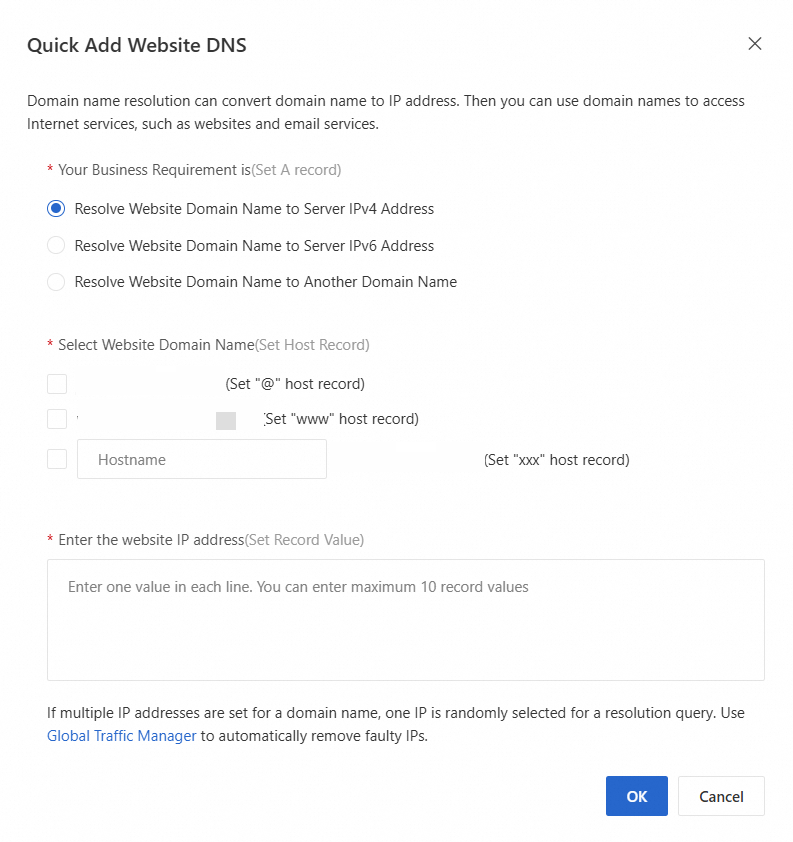
In the Quick Add Website DNS dialog box, configure the parameters.
-
The
@hostname represents the root domain (example.com). -
To configure a subdomain, select the corresponding checkbox.
-
-
Enter your server's public IP address and click OK to save the record.
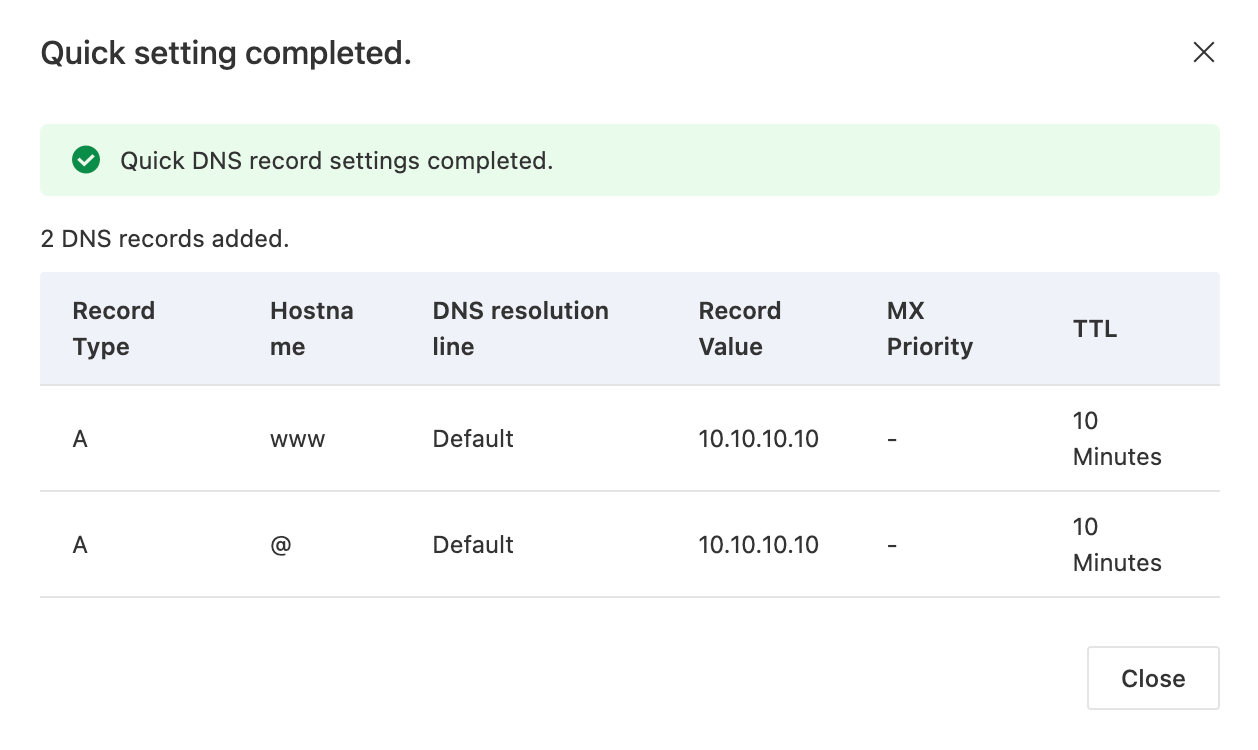
This procedure creates common DNS records (A record, AAAA record, CNAME record). To add other record types, click Add Record on the DNS settings page. For more information, see Add a DNS record.
Use case 2: Configure DNS records for an email service
Configure MX records for your email service.
-
Go to the Domain Names page in the Domain Names console.
-
Find your domain name and click Resolve in the Actions column.
-
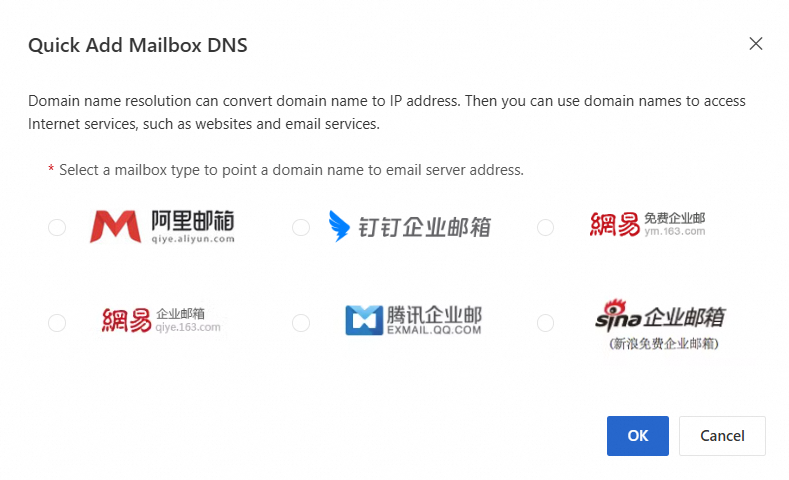
On the page that appears, click the ··· icon next to Add Record and click Quick Add Mailbox DNS.
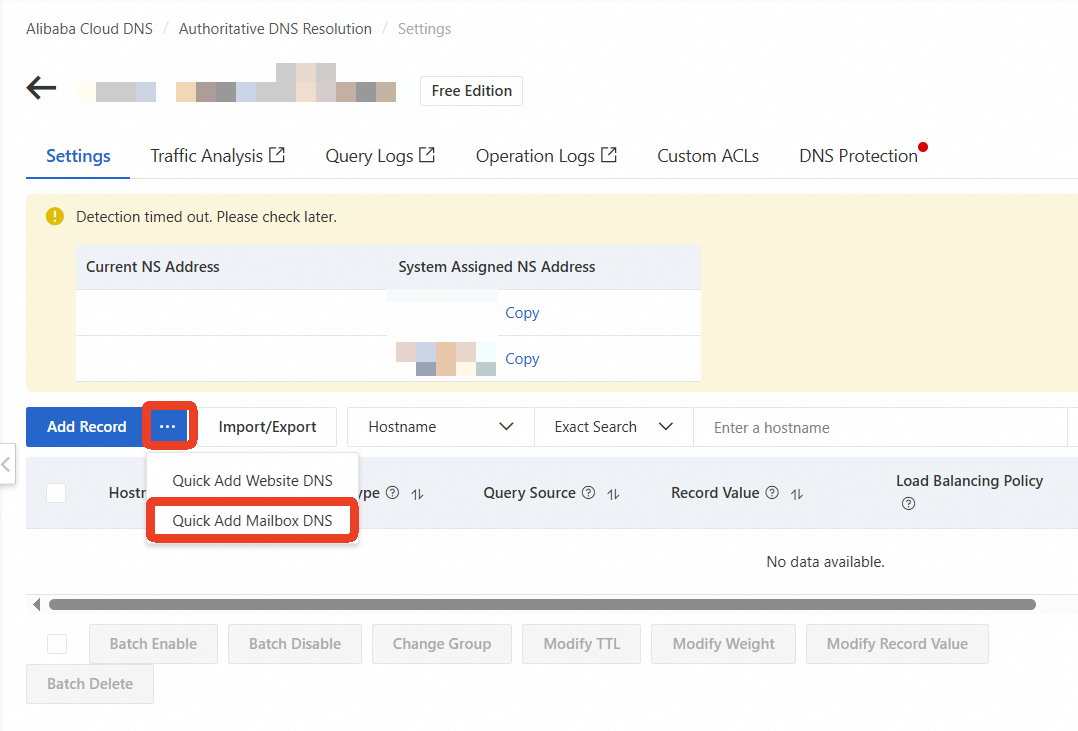
-
In the Quick Add Mailbox DNS dialog box, select your mail service provider.
-
Click OK. The system automatically adds the required MX records.
MX records typically take up to 2 hours to propagate globally. Wait for propagation before testing your email service.
If your email provider is not listed in the Quick Add Mailbox DNS dialog box, you must add the records manually.
Use case 3: Configure DNS records for a subdomain
A subdomain is a prefix added to your root domain, such as blog.example.com or api.example.com. Use subdomains to point different parts of your domain to different services or servers.
Configuration examples:
|
Use case |
Hostname |
Record type |
Record value |
|
Point blog.example.com to a server IP address |
blog |
A |
192.0.2.10 |
|
Point api.example.com to another service |
api |
CNAME |
cname.otherservice.com |
Procedure:
Subdomains do not require separate registration. Follow the website DNS record procedure, but specify the subdomain in the Hostname field.
-
Go to the Domain Names page in the Domain Names console.
-
Find your domain name and click Resolve in the Actions column.
-
On the page that appears, click Add Record.
-
Configure the parameters:
-
Record Type: Select
AorCNAMEas required. -
Hostname: Enter the subdomain, such as
blog,shop, orapi. -
Record Value: Enter the IP address or domain name of the destination server.
-
-
Click OK to save the record.
Verify DNS resolution
Propagation time
-
New DNS records: Take effect almost immediately.
-
Modified DNS records: Propagation time depends on the record's TTL value. A record with a 10-minute TTL should propagate globally within 10 minutes.
However, some recursive name servers may not honor the TTL, causing propagation to take up to 48 hours. Keep the service available at both the old and new IP addresses during this period.
-
Before modifying a DNS record, lower its TTL and wait for the original TTL to expire.
-
After the change, keep the service running on both the old and new IP addresses for at least one full TTL cycle.
Verify propagation
-
Browser test: Enter your domain name (such as
http://your-domain.com) in a browser to verify your website loads correctly. -
CLI test: Use the dig or nslookup command in your local terminal to query the DNS record.
-
If the query result matches the Record Value you configured, the record has propagated to your local DNS resolver.
-
If they do not match, your local DNS cache may be stale. You can wait for the cache to update or see Troubleshoot DNS resolution issues for troubleshooting steps.
-
Troubleshoot common DNS issues
Problem: DNS records are not taking effect after being added
Symptom: A DNS record was added, but the website or service is inaccessible via the domain name.
Troubleshooting steps
-
Verify DNS server status
Go to your domain's DNS settings page. If the status message shows an error, follow the instructions to troubleshoot. -
Check domain name status
Perform a WHOIS lookup on your domain name to check its status. Ensure the status is notClientHoldorServerHold. -
Inspect DNS record configuration
-
Host record: Verify the host record is correct (
@for the root domain,wwwfor the www subdomain). -
Record value: Verify the value is correctly formatted (valid IP address) and any target domain names are spelled correctly.
-
Record conflicts: Check for conflicts, such as an A record and a CNAME record for the same host.
-
-
Check server health and configuration
-
Server availability: Confirm the server is running by accessing it directly via its IP address (such as
http://192.0.2.1). -
Port accessibility: Verify that your security group or firewall allows traffic on ports
80(HTTP) and443(HTTPS).
-
-
Wait for DNS propagation
DNS changes take time to propagate.-
New records: Typically take effect within 10 minutes.
-
Modified records: May take up to 48 hours to propagate, depending on the record's TTL.
-
For a comprehensive guide, see Troubleshoot DNS resolution issues.
Problem: DNS record conflicts
Symptom: A conflict error occurs when adding a DNS record, or DNS resolution results are unexpected.
Conflict rules and solutions
|
Conflict type |
Description |
Solution |
|
A + CNAME |
A single host record cannot have both an A and a CNAME record. |
Delete one of the conflicting records based on your requirements. |
|
Multiple SPF records |
A domain name can only have one SPF TXT record. |
Consolidate all mechanisms from multiple SPF records into a single one. |
For a complete list of DNS record limitations, see DNS record conflict rules.
Common record types
|
Record type |
Description |
Record value |
Common use cases |
|
A |
Points a domain name to an IPv4 address. |
An IPv4 address, such as 192.0.2.1 |
Website DNS resolution |
|
AAAA |
Points a domain name to an IPv6 address. |
An IPv6 address, such as 2001:db8::1 |
Providing IPv6 access for a website |
|
CNAME |
Points a domain name to another domain name (alias) for indirect resolution. |
Another valid domain name |
Pointing a domain name to a CDN or SaaS service |
|
MX |
Specifies the mail server that handles emails for the domain name. |
A priority (a number) followed by a mail server domain name |
Business email configuration |
|
TXT |
Associates text with a domain name for verification or email security policies such as SPF. |
A free-form text string |
Domain ownership verification (such as for SSL and email) and email security (SPF, DKIM, DMARC). |