Use Data Transmission Service (DTS) to set up bidirectional data replication between two PolarDB for PostgreSQL clusters. Two-way synchronization keeps both clusters in sync by running a forward task (cluster A to cluster B) and a reverse task (cluster B to cluster A) simultaneously.
To prevent data conflicts, partition write traffic at the application layer so that records with the same primary key are updated in only one cluster at a time. Without this partitioning, simultaneous writes to the same primary key on both clusters cause conflicts that DTS cannot fully prevent.
Prerequisites
Before you begin, make sure that:
-
Both the source and destination PolarDB for PostgreSQL clusters exist. See Create a database cluster.
-
A database exists in the destination cluster to receive data. See Database management.
-
The
wal_levelparameter is set tologicalon both clusters. See Set cluster parameters. -
Both clusters support and have enabled Logical Replication Slot Failover. Without this, a primary/secondary switchover in the source cluster may cause the synchronization instance to fail and become unrecoverable.
If the source PolarDB for PostgreSQL cluster does not support Logical Replication Slot Failover (for example, if the Database Engine of the cluster is PostgreSQL 14), a high-availability (HA) switchover in the source database may cause the synchronization instance to fail and become unrecoverable. For supported database versions, see Synchronization overview. Match the destination cluster specifications to those of the source cluster.
Billing
| Synchronization type | Pricing |
|---|---|
| Schema synchronization and full data synchronization | Free |
| Incremental data synchronization | Charged. See Billing overview. |
Limitations
Source database requirements
-
Tables must have a primary key or a non-null unique index.
-
Avoid long-running transactions on the source cluster. Uncommitted transactions cause write-ahead log (WAL) accumulation, which can exhaust disk space.
-
If a single incremental change exceeds 256 MB, the synchronization instance fails and cannot be recovered. Reconfigure the task from scratch.
-
Do not run DDL operations during schema synchronization or full data synchronization. DTS creates metadata locks during full sync that can block DDL on the source.
Unsupported objects
DTS does not synchronize:
-
TimescaleDB extension tables
-
Tables with cross-schema inheritance
-
Tables with unique indexes based on expressions
-
Schemas created by installing plugins
Partitioned tables
Include both the parent table and all child partitions as synchronization objects. A PostgreSQL partitioned table stores no data in the parent table — all data lives in child partitions. If you omit any child partition, that data is not synchronized.
SERIAL columns and sequences
If a synchronized table has a SERIAL column, PostgreSQL automatically creates a backing sequence. When Schema Synchronization is selected, also select Sequence or synchronize the entire schema to avoid synchronization instance failures.
After a business switchover to the destination cluster, sequences do not automatically resume from the source's maximum value. Before switching over, run the following query on the source cluster to get current sequence values, then apply the returned setval statements on the destination cluster:
do language plpgsql $$
declare
  nsp name;
  rel name;
  val int8;
begin
  for nsp,rel in select nspname,relname from pg_class t2 , pg_namespace t3 where t2.relnamespace=t3.oid and t2.relkind='S'
  loop
    execute format($_$select last_value from %I.%I$_$, nsp, rel) into val;
    raise notice '%',
    format($_$select setval('%I.%I'::regclass, %s);$_$, nsp, rel, val+1);
  end loop;
end;
$$;
The query returns setval statements for all sequences in the source database. Run only the statements relevant to the tables you synchronized.
Tables requiring REPLICA IDENTITY FULL
Run ALTER TABLE schema.table REPLICA IDENTITY FULL; on source tables before writing data in any of these three situations:
-
When the synchronization instance runs for the first time.
-
When using schema-level object selection and a new table is added to the schema, or an existing table is rebuilt with
RENAME. -
When using the modify synchronization objects feature.
Run this command during off-peak hours and avoid table locks to prevent deadlocks. If you skip the related precheck items, DTS runs this command automatically during initialization.
Foreign keys, triggers, and event triggers
For tables with foreign keys, triggers, or event triggers, DTS temporarily sets session_replication_role to replica at the session level if the destination database account is a privileged account or has superuser permissions. If the account lacks those permissions, set session_replication_role to replica on the destination manually. Cascade update or delete operations on the source during this period may cause data inconsistency. After the DTS task is released, reset session_replication_role to origin.
Replication slots
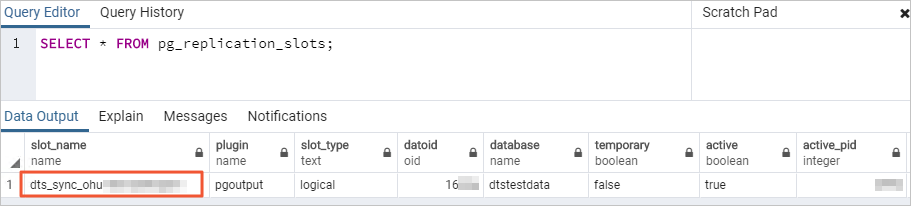
DTS creates a replication slot with the dts_sync_ prefix in the source database to read incremental logs from up to 15 minutes prior. When a synchronization task fails or its instance is released, DTS attempts to clean up the slot automatically.
The slot cannot be cleaned automatically if you change the source database account password or remove DTS IP addresses from the source cluster's whitelist. In those cases, manually delete the replication slot in the source database to prevent disk exhaustion. If a failover occurs, log on to the secondary node to clear the slot.
Temporary tables
DTS creates the following temporary tables in the source database to capture DDL statements, incremental table structures, and heartbeat data. Do not delete these tables while the task is running — they are removed automatically when the DTS instance is released:
public.dts_pg_class, public.dts_pg_attribute, public.dts_pg_type, public.dts_pg_enum, public.dts_postgres_heartbeat, public.dts_ddl_command, public.dts_args_session, public.aliyun_dts_instance
Other limits
-
A single synchronization task can synchronize only one database. Create a separate task for each additional database.
-
Do not write data to the destination cluster from sources other than DTS during synchronization. This causes data inconsistency.
-
A two-way synchronization task includes forward and reverse synchronization tasks. When you configure or reset the task, if the destination object of one task matches the synchronization object of the other task: only one task can perform full and incremental synchronization; the other supports incremental synchronization only. Data from the source of one task syncs only to that task's destination — it does not become source data for the other task.
-
Full data synchronization runs concurrent INSERT operations and consumes read and write resources on both clusters. Run full synchronization during off-peak hours when CPU load on both clusters is below 30%. Expect the destination table space to be larger than the source after full synchronization due to table fragmentation.
-
DTS validates data content but does not validate metadata such as sequences. Validate metadata manually.
-
If a task fails, DTS support attempts to restore it within 8 hours. Restoration may involve restarting the task or adjusting task parameters (not database parameters). See Modify instance parameters for the list of adjustable parameters.
Conflict detection and resolution
In two-way synchronization, the same record can be modified on both clusters simultaneously. DTS detects the following conflict types and applies the conflict resolution policy you configure:
| Conflict type | What DTS detects | How DTS responds |
|---|---|---|
| Duplicate INSERT | Two clusters insert a row with the same primary key | Applies the configured conflict resolution policy when syncing the conflicting INSERT to the peer cluster |
| UPDATE with no matching row | The row to update does not exist in the destination | Converts the UPDATE to an INSERT; applies conflict policy if a uniqueness conflict results |
| UPDATE with key conflict | The UPDATE causes a primary key or unique key violation | Applies the configured conflict resolution policy |
| DELETE with no matching row | The row to delete does not exist in the destination | Ignores the DELETE regardless of the configured policy |
DTS cannot guarantee 100% conflict prevention due to network latency and clock differences between clusters. To ensure consistency, update records with the same primary or unique key on only one cluster at a time.
Conflict resolution policies
Select a policy when configuring the two-way synchronization task:
| Policy | Behavior |
|---|---|
| TaskFailed | The task stops and enters a failed state if a conflict occurs. Manual intervention is required to resume. |
| Ignore | The conflicting statement is skipped. The existing record in the destination cluster is retained. |
| Overwrite | The conflicting record in the destination cluster is overwritten with data from the source. |
These policies apply only when the task is running normally. If the task is paused or restarted with latency, DTS defaults to overwriting destination data regardless of the configured policy.
Supported synchronization objects
DTS synchronizes SCHEMA and TABLE objects, including PRIMARY KEY, UNIQUE KEY, FOREIGN KEY, built-in data types, and DEFAULT CONSTRAINT.
Supported objects vary by destination database type. Check the DTS console for details.
Supported SQL operations
DDL operations are synchronized in the forward task only (source to destination). The reverse task automatically filters out DDL operations.
| Operation type | Supported statements |
|---|---|
| DML | INSERT, UPDATE, DELETE |
| DDL | CREATE TABLE, DROP TABLE, ALTER TABLE (RENAME TABLE, ADD COLUMN, ADD COLUMN DEFAULT, ALTER COLUMN TYPE, DROP COLUMN, ADD CONSTRAINT, ADD CONSTRAINT CHECK, ALTER COLUMN DROP DEFAULT), TRUNCATE TABLE (requires source engine PostgreSQL 11 or later), CREATE INDEX ON TABLE |
DDL support conditions:
-
DDL synchronization is available only for tasks created after October 1, 2020.
-
For tasks created before May 12, 2023, create triggers and functions in the source database to capture DDL statements before configuring the task. See Use triggers and functions to implement incremental DDL migration for PostgreSQL.
-
Bit-type data is not supported during incremental data synchronization.
Unsupported DDL patterns:
-
DDL statements containing CASCADE or RESTRICT clauses
-
DDL statements run in sessions where
SET session_replication_role = replicais active -
DDL statements invoked through functions
-
Transactions that mix DML and DDL statements (the DDL is not synchronized)
-
DDL for objects not included in the synchronization scope
Required database account permissions
| Database | Required permission | How to create and grant |
|---|---|---|
| Source and destination PolarDB for PostgreSQL clusters | A privileged account that owns the database | Create a database account and Database management |
Configure two-way synchronization
Two-way synchronization requires a forward task and a reverse task. Configure the forward task first (steps 1–7), then configure the reverse task (step 8).
Forward vs. reverse task configuration differences
Before you start, review how the two tasks differ. Configuring the wrong settings in the reverse task is the most common source of errors.
| Parameter | Forward task (A to B) | Reverse task (B to A) |
|---|---|---|
| Source database | Cluster A | Cluster B (same as forward destination) |
| Destination database | Cluster B | Cluster A (same as forward source) |
| Instance Region | Configurable | Cannot be changed |
| Schema synchronization | Selectable | Not applicable (fewer options available) |
| Full data synchronization | Selectable | Not selectable — incremental only |
| DDL synchronization | Configurable | Automatically filtered out |
| Object name mapping | Supported | Not recommended — can cause data inconsistency |
| Conflicting tables check | Checks all destination tables | Does not check tables already synced by forward task |
Step 1: Open the data synchronization task list
Open the DTS task list using either the DTS console or the DMS console.
DTS console
-
Log on to the DTS console.DTS console
-
In the left navigation pane, click Data Synchronization.
-
In the upper-left corner, select the region of the synchronization instance.
DMS console
Steps may vary based on your DMS console mode. See Simple mode console and Customize the layout and style of the DMS console.
-
Log on to the DMS console.DMS console
-
In the top menu bar, choose Data + AI > DTS (DTS) > Data Synchronization.
-
To the right of Data Synchronization Tasks, select the region of the synchronization instance.
Step 2: Create the task
Click Create Task to open the task configuration page.
Step 3: Configure source and destination databases
| Field | Value |
|---|---|
| Task Name | DTS generates a name automatically. Enter a descriptive name for easy identification. Names do not need to be unique. |
| Source Database | |
| Select Existing Connection | Select a registered database instance from the list to auto-populate the fields below. In the DMS console, this field is labeled Select a DMS database instance. If no registered instance is available, fill in the fields below manually. |
| Database Type | Select PolarDB for PostgreSQL. |
| Access Method | Select Alibaba Cloud Instance. |
| Instance Region | Select the region of the source PolarDB for PostgreSQL cluster. |
| Replicate Data Across Alibaba Cloud Accounts | Select No if the source cluster belongs to the current Alibaba Cloud account. |
| Instance ID | Select the ID of the source PolarDB for PostgreSQL cluster. |
| Database Name | Enter the name of the database containing the objects to synchronize. |
| Database Account | Enter the account for the source cluster. See Required database account permissions. |
| Database Password | Enter the password for the account. |
| Destination Database | |
| Select Existing Connection | Select a registered database instance from the list. In the DMS console, this field is labeled Select a DMS database instance. |
| Database Type | Select PolarDB for PostgreSQL. |
| Access Method | Select Alibaba Cloud Instance. |
| Instance Region | Select the region of the destination PolarDB for PostgreSQL cluster. |
| Instance ID | Select the ID of the destination PolarDB for PostgreSQL cluster. |
| Database Name | Enter the name of the database in the destination cluster that will receive data. |
| Database Account | Enter the account for the destination cluster. See Required database account permissions. |
| Database Password | Enter the password for the account. |
Click Test Connectivity and Proceed at the bottom of the page.
DTS must be able to reach both clusters. Add the DTS service IP address blocks to the security settings of both clusters — either automatically during the connectivity test or manually beforehand. See Add the IP address whitelist of DTS servers.
Step 4: Configure synchronization objects
On the Configure Objects page, set the following options:
| Option | Description |
|---|---|
| Synchronization Types | Incremental Data Synchronization is always selected. By default, Schema Synchronization and Full Data Synchronization are also selected. DTS uses the full data of the selected source objects to initialize the destination cluster, which becomes the baseline for incremental synchronization. |
| Synchronization Topology | Select Two-way Synchronization. |
| Exclude DDL Operations | Select Yes to skip DDL synchronization. Select No to synchronize DDL operations. DDL sync applies to the forward task only; the reverse task filters DDL automatically. |
| Global Conflict Resolution Policy | Select one of the following policies based on your business needs: TaskFailed — the task stops if a conflict occurs and requires manual intervention; Ignore — the conflicting statement is skipped and the existing destination record is retained; Overwrite — the destination record is overwritten with data from the source. See Conflict resolution policies for details. |
| Processing Mode of Conflicting Tables | Precheck and Report Errors: Reports an error during precheck if destination tables with the same name exist. Use object name mapping to avoid naming conflicts without renaming tables. Ignore Errors and Proceed: Skips this check. During full sync, existing destination records are kept and source records with the same primary or unique key are skipped. During incremental sync, source records overwrite destination records. If schemas differ, initialization may fail or result in partial synchronization. Use with caution. |
| Capitalization of Object Names in Destination Instance | Configure the case-sensitivity policy for database, table, and column names in the destination. The default is DTS default policy. See Case policy for destination object names. |
| Source Objects | Click objects in the Source Objects box, then click the right arrow to move them to Selected Objects. Select schemas or tables. If you select tables, views, triggers, and stored procedures are excluded. If a table has a SERIAL column and Schema Synchronization is selected, also select Sequence or synchronize the entire schema. |
| Selected Objects | To rename an object in the destination, right-click it in Selected Objects and edit the name. See Map database, table, and column names. To remove an object, click it and then click the left arrow to move it back. To filter rows using a WHERE clause, right-click a table in Selected Objects and set the condition. See Set filter conditions. To limit which DML operations to sync, right-click an object and select the operations. Note
Object name mapping may cause synchronization failures for dependent objects. |
Click Next: Advanced Settings.
Step 5: Configure advanced settings
| Option | Description |
|---|---|
| Dedicated Cluster for Task Scheduling | DTS uses a shared cluster by default. For greater stability, purchase a dedicated cluster. See What is a DTS dedicated cluster? |
| Retry Time for Failed Connections | How long DTS retries after a connection failure. Default: 720 minutes. Range: 10–1,440 minutes. Set 30 minutes or more for most cases. If multiple DTS instances share the same source or destination, DTS uses the shortest configured retry duration across those instances. DTS charges for task runtime during retries, so release the DTS instance promptly if you release the source or destination cluster. |
| Retry Time for Other Issues | How long DTS retries after non-connection errors (for example, DDL or DML execution failures). Default: 10 minutes. Range: 1–1,440 minutes. Must be less than Retry Time for Failed Connections. |
| Enable Throttling for Full Data Synchronization | Limit the full synchronization rate to reduce load on the destination. Set Queries per second (QPS) to the source database, RPS of Full Data Migration, and Data migration speed for full migration (MB/s). Available only when Full Data Synchronization is selected. You can also adjust the rate while the task is running. |
| Enable Throttling for Incremental Data Synchronization | Limit the incremental synchronization rate. Set RPS of Incremental Data Synchronization and Data synchronization speed for incremental synchronization (MB/s). |
| Environment Tag | Select a tag to identify the environment. |
| Configure ETL | Select Yes to enable extract, transform, and load (ETL) and enter data processing statements. Select No to skip. See What is ETL? and Configure ETL in a data migration or data synchronization task. |
| Monitoring and Alerting | Select Yes to receive alerts when the task fails or latency exceeds a threshold. Set the threshold and notification contacts. See Configure monitoring and alerting during task configuration. |
Step 6: Configure data verification (optional)
Click Data Verification to set up a data verification task. See Configure data verification.
DTS validates data content but does not validate metadata such as sequences. Validate metadata manually after synchronization.
Step 7: Save settings, run precheck, and purchase the instance
-
To preview API parameters before saving, hover over Next: Save Task Settings and Precheck and click Preview OpenAPI parameters.
-
Click Next: Save Task Settings and Precheck. DTS runs a precheck before starting the task.
-
If the precheck fails, click View Details next to the failed item, fix the issue, and rerun the precheck.
-
If the precheck shows warnings:
-
For non-ignorable warnings: click View Details, fix the issue, and rerun.
-
For ignorable warnings: click Confirm Alert Details > Ignore > OK > Precheck Again. Ignoring warnings may cause data inconsistencies.
-
-
-
When Success Rate reaches 100%, click Next: Purchase Instance.
-
On the Purchase page, select billing and instance options:
Option Description Billing Method Subscription: Pay upfront for a fixed duration. Suited for long-term continuous tasks. Pay-as-you-go: Billed hourly. Suited for short-term or test tasks. Resource Group Settings The resource group for the instance. Default: default resource group. See What is Resource Management? Instance Class Select based on your required synchronization throughput. See Data synchronization link specifications. Subscription Duration Available when Subscription is selected. Monthly: 1–9 months. Yearly: 1, 2, 3, or 5 years. -
Select the Data Transmission Service (Pay-as-you-go) Service Terms checkbox, then click Buy and Start > OK.
The forward synchronization task appears on the data synchronization page.
Step 8: Configure the reverse synchronization task
-
Wait until the forward task's Status shows Running.
-
In the Actions column for the reverse task, click Configure Task.
-
Repeat steps 3–6 for the reverse task, with the following differences:
Important-
The source and destination are swapped: the destination in the forward task is the source in the reverse task, and vice versa. Verify instance IDs, database names, accounts, and passwords carefully.
-
Instance Region cannot be changed for the reverse task. Fewer configuration options are available.
-
Processing Mode of Conflicting Tables for the reverse task does not check for tables already synchronized by the forward task.
-
The reverse task can only synchronize objects already in the forward task's Selected Objects list.
-
Do not use the object name mapping feature in the reverse task — this can cause data inconsistency.
-
-
When Success Rate shows 100%, click Back.
-
Wait until both the forward and reverse tasks show Status as Running.
Two-way synchronization is now active.
What's next
-
Monitor synchronization latency and set up alerts: Configure monitoring and alerting
-
Validate synchronized data: Configure data verification
-
Review task parameters: Modify instance parameters