Object Storage Service (OSS) supports server-side encryption to protect stored data at rest. If an encryption rule is deleted — accidentally or maliciously — the data it protected becomes exposed. Data Security Center (DSC) monitors OSS bucket operations in real time, triggers audit alerts when encryption rules are deleted, and notifies the designated security administrator by email so the issue can be investigated and remediated immediately.
This tutorial walks through a complete setup: create an OSS bucket with server-side encryption enabled, connect it to DSC, configure audit alert rules and email notifications, and handle an alert after an encryption rule deletion is detected.
Prerequisites
Before you begin, make sure you have:
The free edition of DSC activated, with DSC authorized to access other Alibaba Cloud resources. The free edition includes data auditing, audit alerting, and alert notification features, and provides 500 TB of OSS protection capacity per month at no cost
OSS activated. To activate OSS, go to the OSS buy page
Steps at a glance
Step 1: Create an OSS bucket
On the Buckets page in the OSS console, click Create Bucket.
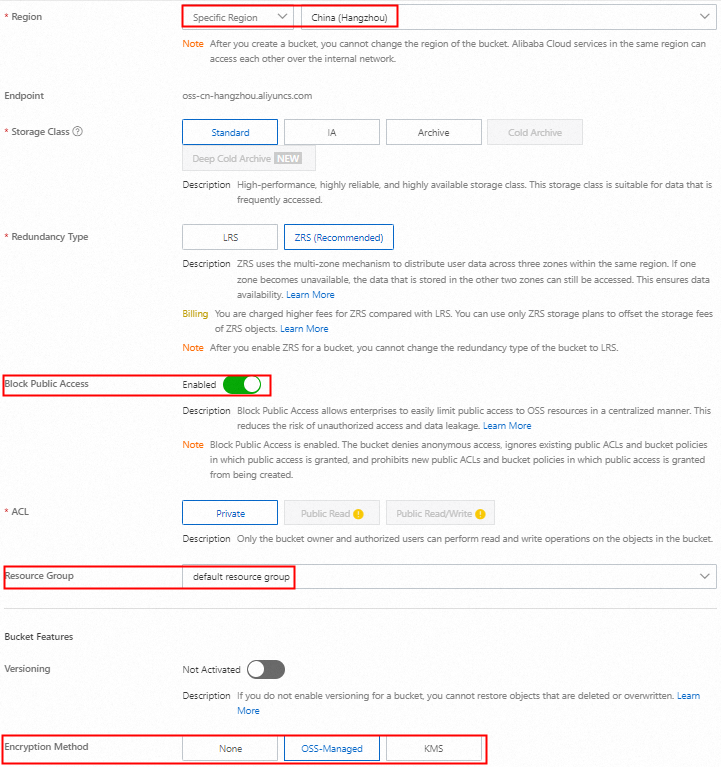
In the Create Bucket panel, configure the parameters as shown in the following figure. Leave other parameters at their default values, then click Create.
Step 2: Connect the OSS bucket to DSC
On the Authorization Management page in the DSC console, click Asset Authorization Management.
In the Asset Authorization Management panel, click OSS under Unstructured Data, then click Asset synchronization.
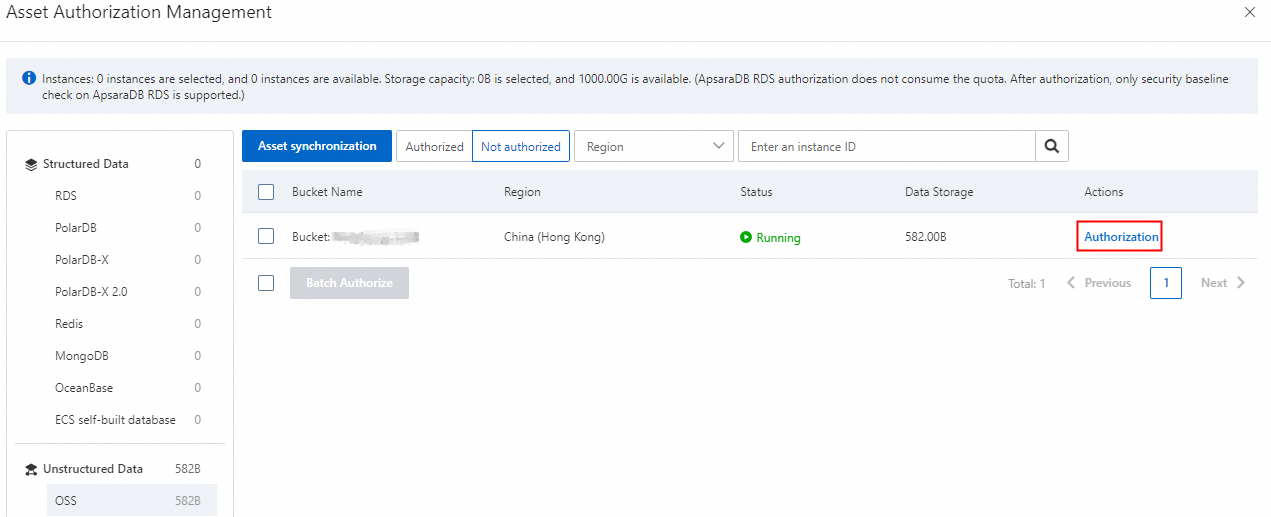
After synchronization completes, find the OSS bucket and click Authorization in the Actions column.
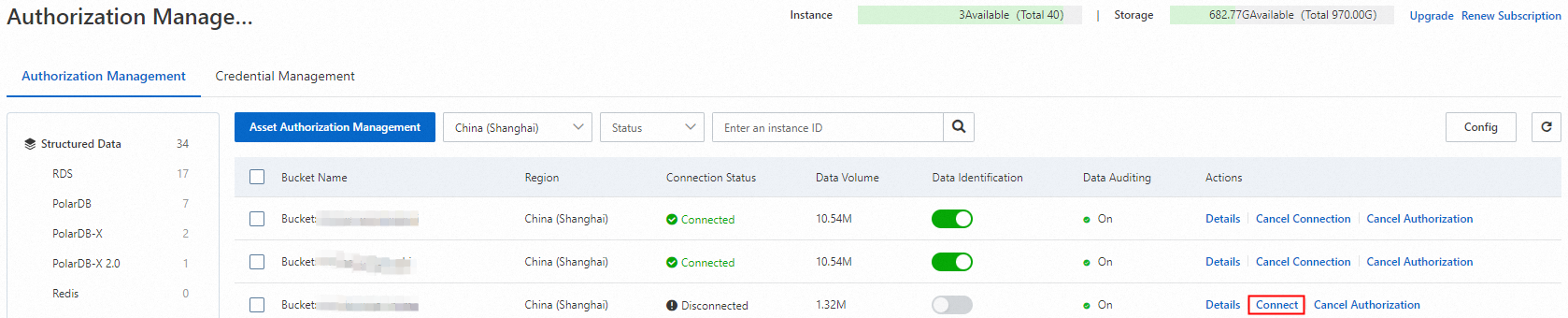
After authorization is complete, find the OSS bucket on the Authorization Management page and click Connect in the Actions column.
In the Batch Connect dialog box, click OK. Do not select Immediately scan database assets and identify data.
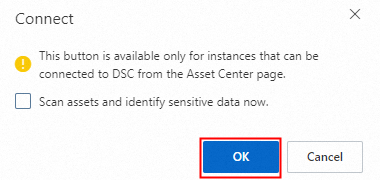
Wait until the Connection Status of the OSS bucket changes to Connected.
Step 3: Configure audit alert rules and alert notifications
3.1 Enable cloud-native audit log collection
On the Asset Configurations tab of the Config page, click Authorize Now to authorize Simple Log Service to access cloud resources.
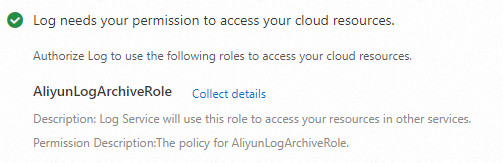
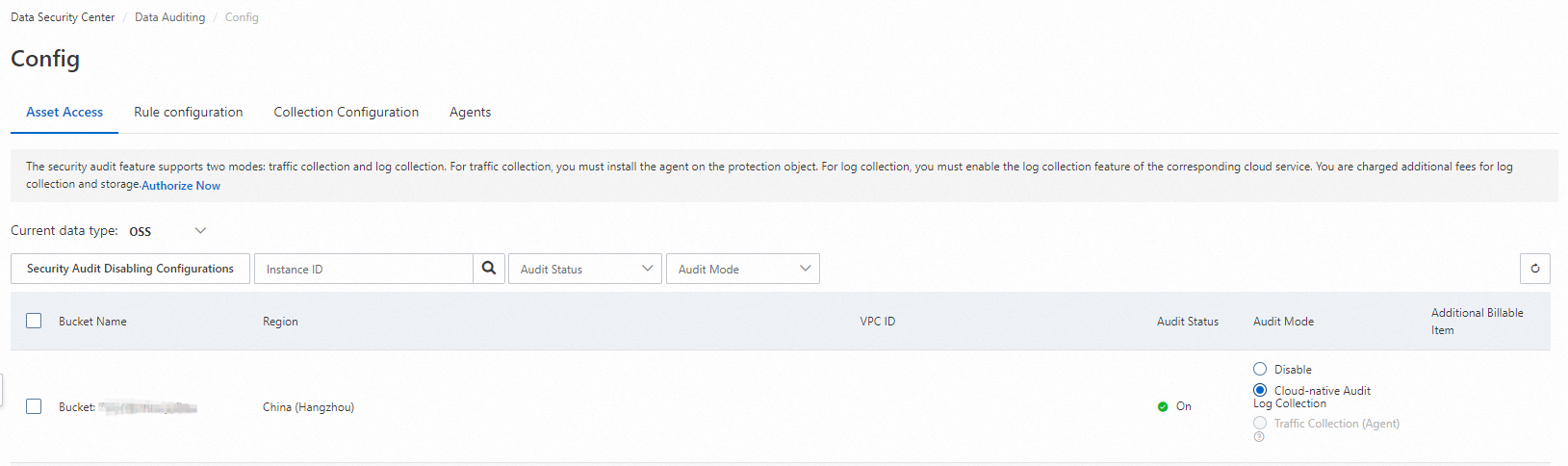
On the Asset Configurations tab, select OSS from the Current Data Type drop-down list.
Find the OSS bucket and select Cloud-native Audit Log Collection in the Audit Mode column. In the confirmation message, click OK.
3.2 Enable audit alert rules
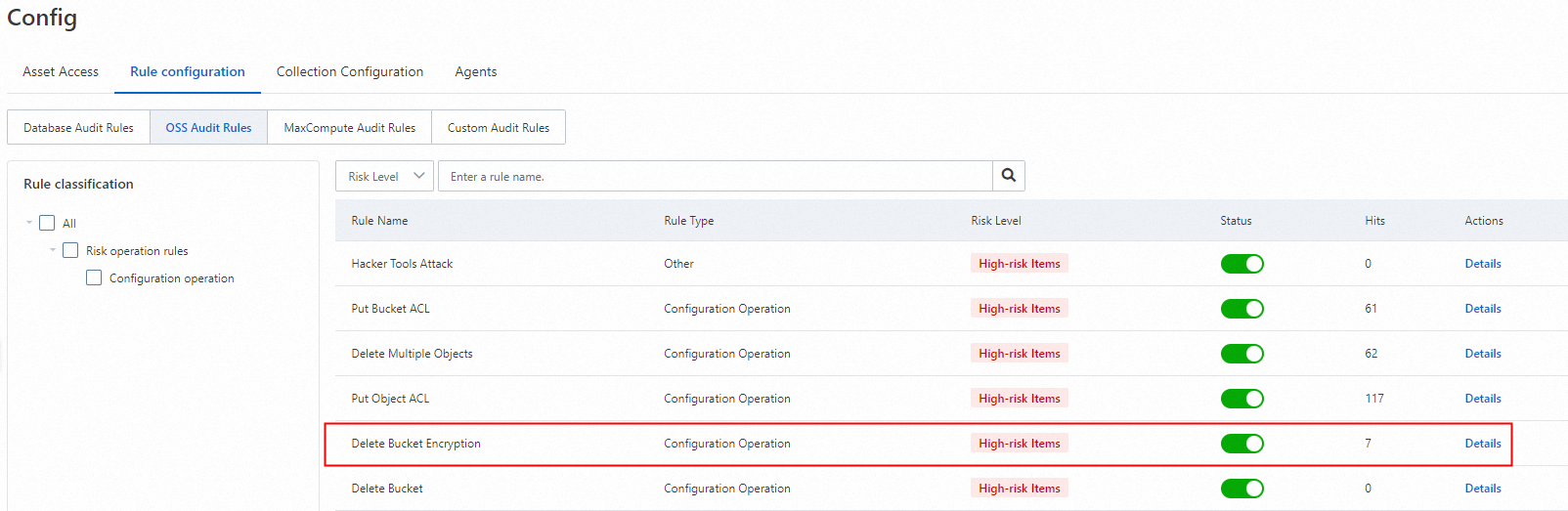
On the Rule Configurations tab of the Config page, click the OSS Audit Rules tab.
In the rule list, turn on Delete Bucket Encryption.
3.3 Configure alert notifications
On the Alert notification tab, click Create Alert Configuration.
In the Create Alert Rule panel, set Alert Method to Mailbox, select all severity levels under audit alert rules, then click OK.
Step 4: View and handle alerts
When a server-side encryption rule is deleted from the OSS bucket, DSC triggers the Delete Bucket Encryption alert rule and sends an alert notification email to the designated recipients.
4.1 View alert notification emails
Alert recipients receive an email with the alert details. Review the email to get an initial picture of what triggered the alert.
4.2 View alert details
On the Audit Alerts page, view OSS alerts.
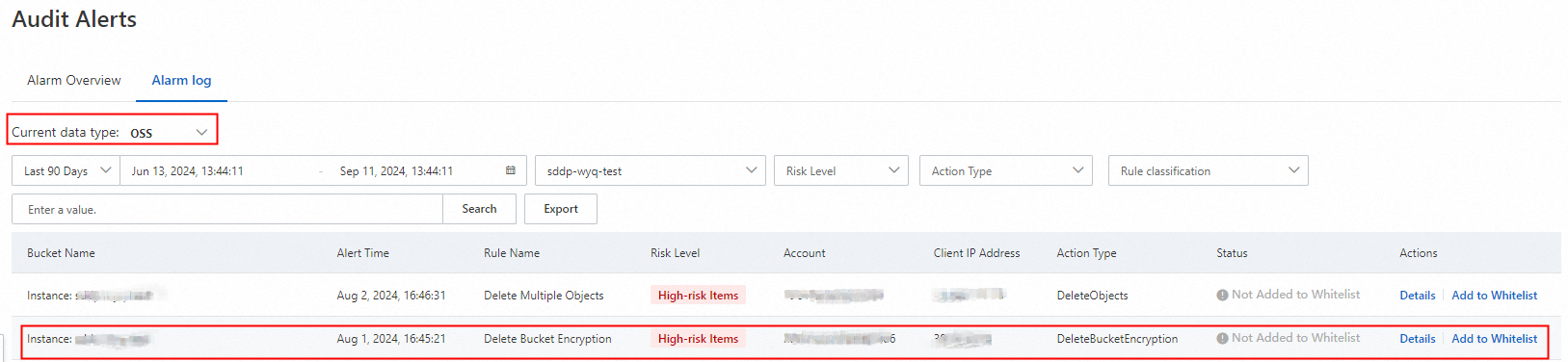
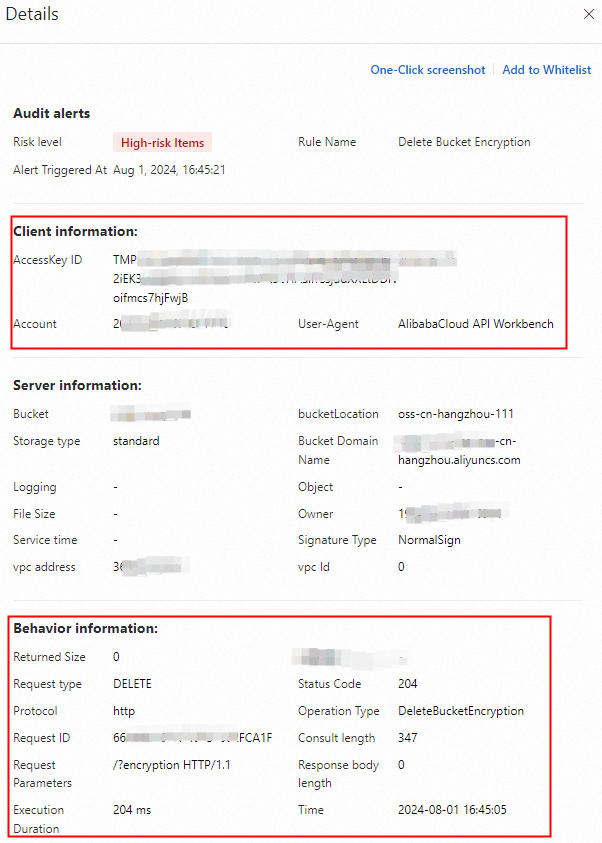
Find the alert and click Details in the Actions column. The Details panel shows the client information, server information, and operation information — including the account and source IP address used to delete the encryption rule.
4.3 Handle the alert
Check whether the account and source IP address that deleted the encryption rule are expected. If sensitive data may have been exposed, take the following remediation actions.
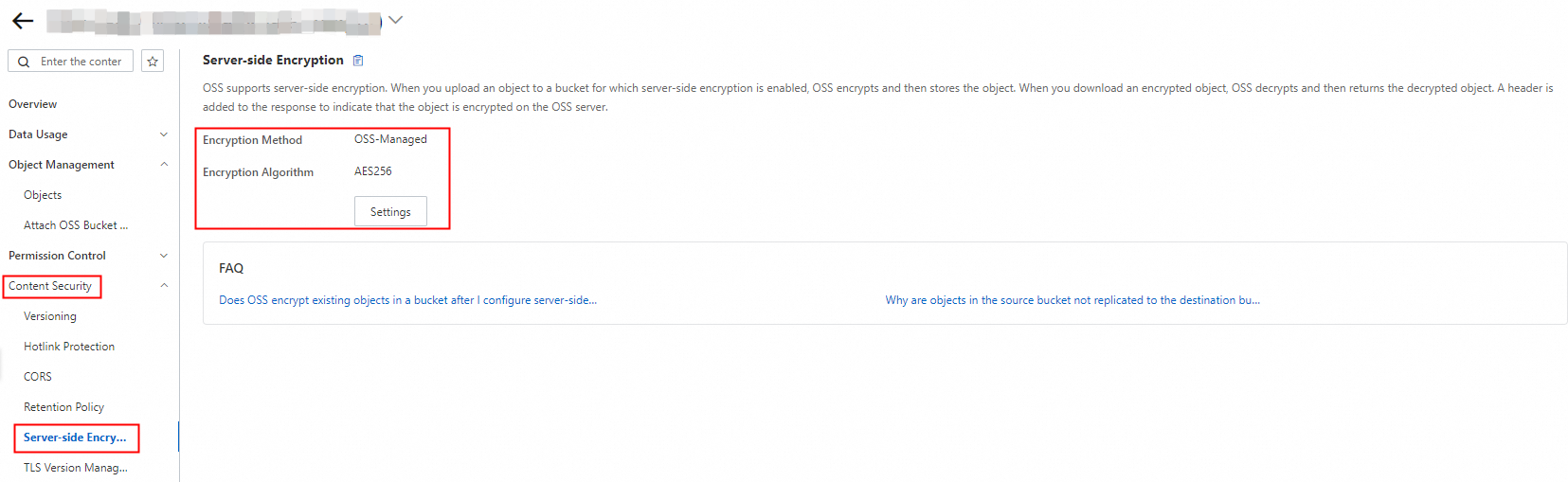
Re-enable server-side encryption:
On the Server-side Encryption page of the OSS bucket, configure the Encryption Method and Encryption Algorithm parameters to restore encryption.
Restrict bucket access:
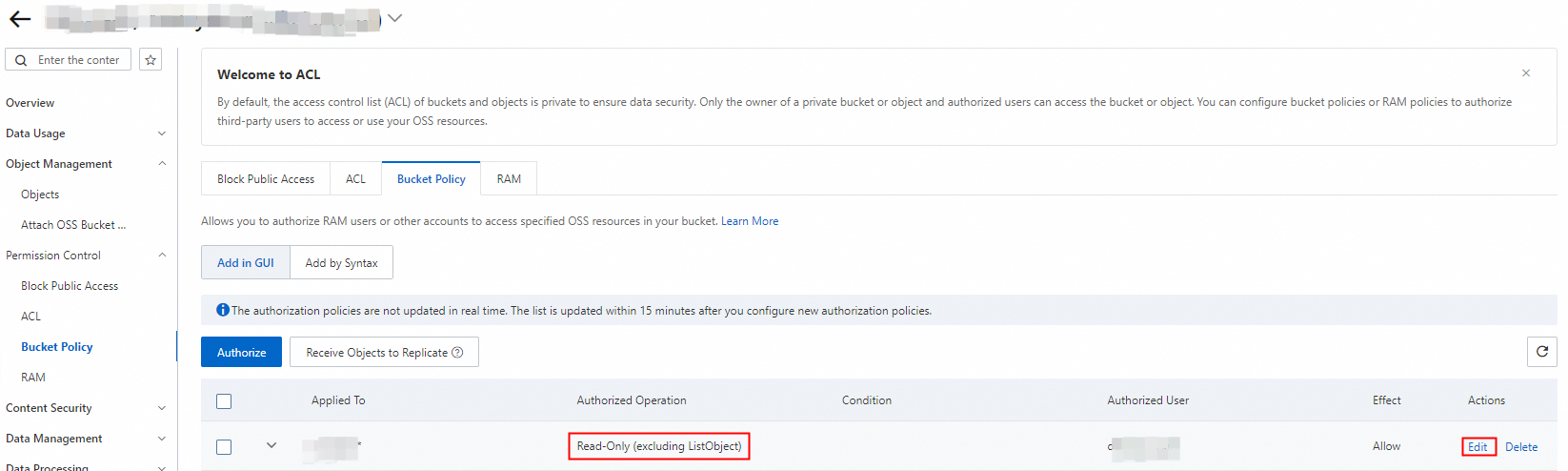
If the account that deleted the encryption rule no longer needs that level of access, go to the Bucket Policy tab in the OSS console and revoke the unnecessary permissions. For example, downgrade the account to read-only access.
What DSC audit covers
DSC can monitor a broad range of OSS bucket and object operations, not just encryption rule changes. The following sections describe the built-in capabilities you can use alongside or instead of the Delete Bucket Encryption rule.
Built-in audit alert rules
DSC includes seven built-in audit alert rules for OSS:
| Rule | Trigger condition |
|---|---|
| Hacker Tools Attack | Access patterns consistent with known hacker tool signatures are detected |
| Put Bucket ACL | The access control list (ACL) of an OSS bucket is modified |
| Delete Multiple Objects | Multiple objects are deleted from an OSS bucket in a single operation |
| Put Bucket Encryption | An encryption rule is added or updated for an OSS bucket |
| Put Object ACL | The ACL of an individual object is modified |
| Delete Bucket Encryption | The server-side encryption rule of an OSS bucket is deleted |
| Delete Bucket | An OSS bucket is deleted |
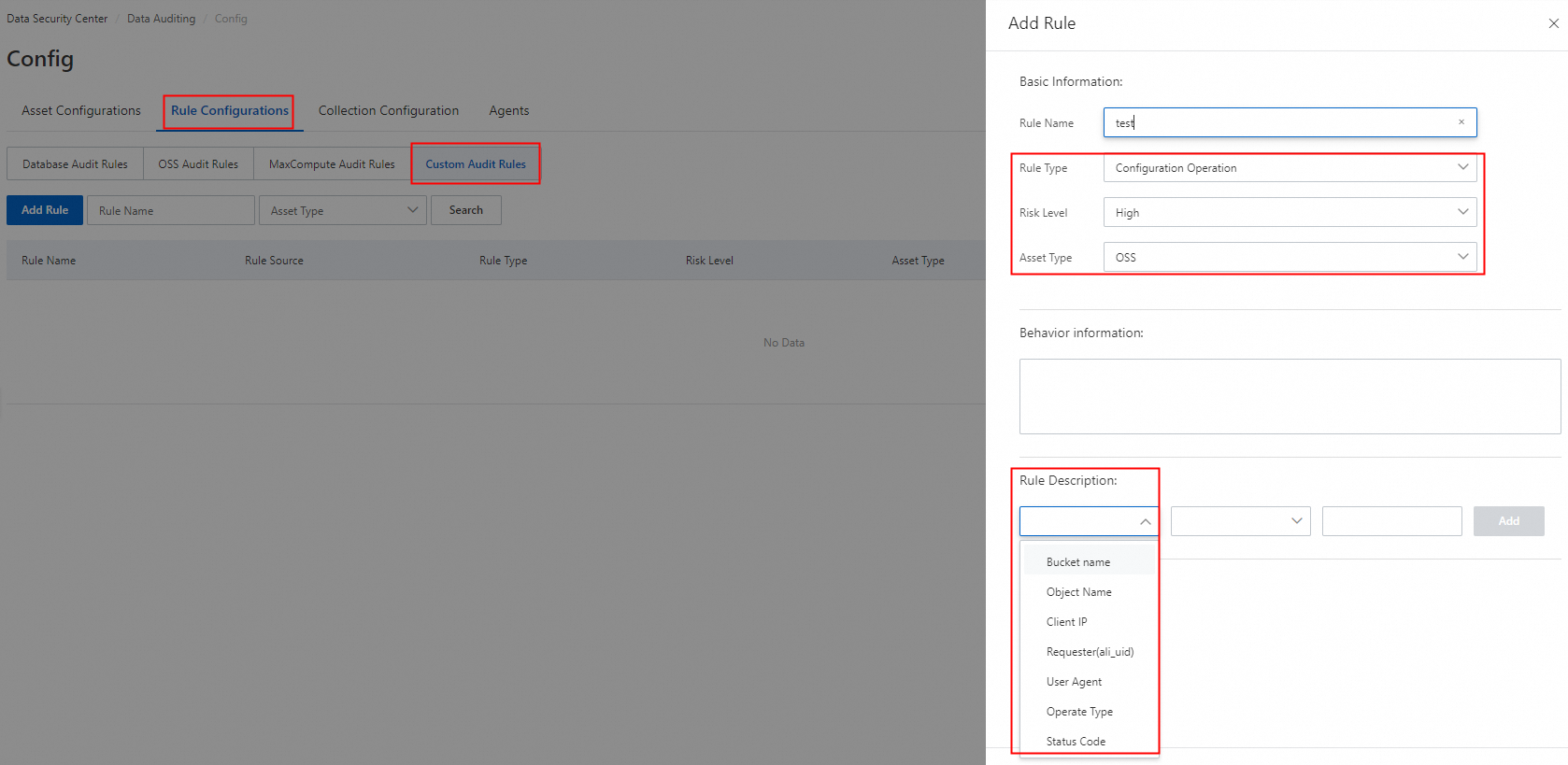
DSC also supports custom audit alert rules. Filter conditions include: bucket name, object name, client IP address, visitor UID, operation type, and status code. For details, see Configure and enable an audit alert rule.
Alert notification methods
DSC supports two notification channels:
Email: Alert details are sent directly to the recipient's mailbox. See Configure email, text message, and phone alert notifications.
DingTalk chatbot: Alerts are delivered to a DingTalk group channel. See Configure custom DingTalk chatbot alert notifications.
Audit log analysis
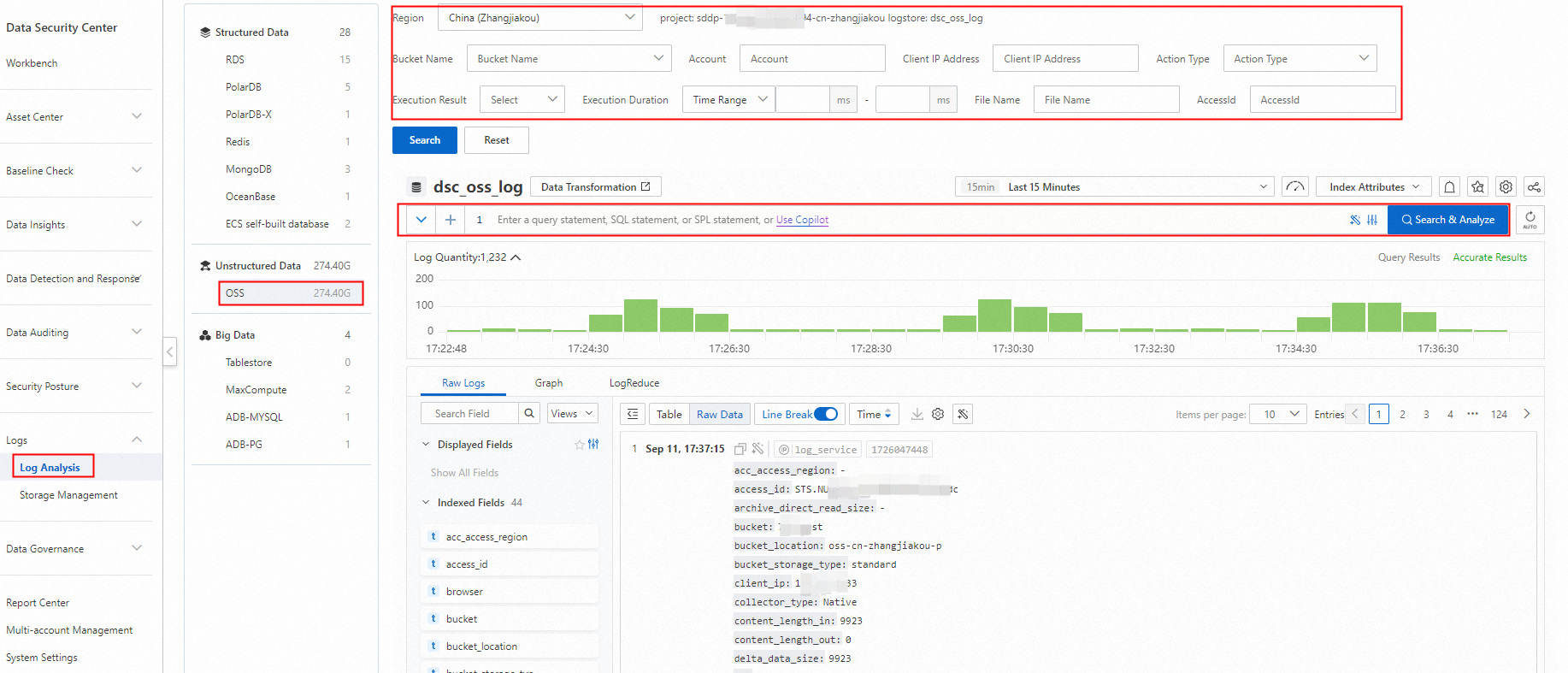
Every OSS bucket operation is recorded in audit logs. Use the logs to track access patterns, investigate suspicious activity, and analyze the root cause of security events. For details, see View audit logs.
Whitelist management
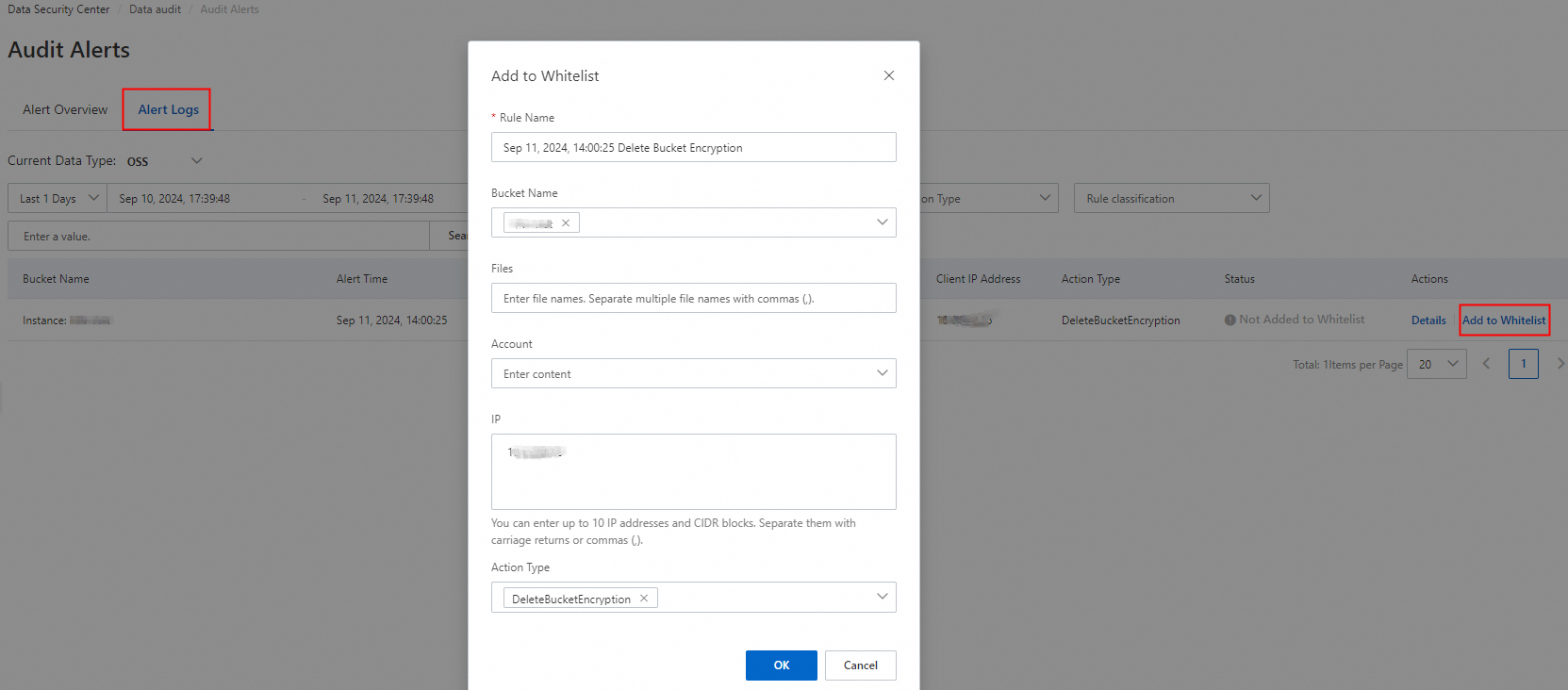
If a specific alert is confirmed as benign — such as a routine operation by a trusted account — add it to the whitelist. DSC stops reporting alerts and sending notifications for operations that match the whitelist criteria.
On the Audit Alerts page, find the alert and click Add to Whitelist in the Actions column. Whitelist filters include: bucket, object, account, IP address, and operation type.
Whitelist management is not available in the free edition of DSC. To use this feature, upgrade to DSC Enterprise Edition.