This topic walks you through setting up three IPsec-VPN connections over the Internet between an on-premises data center and a virtual private cloud (VPC). Attached to a Cloud Enterprise Network (CEN) transit router, these connections automatically form an Equal-Cost Multipath Routing (ECMP) group that load-balances traffic between the data center and the VPC.
This configuration is designed for traffic load balancing, not high availability. To verify load balancing, send traffic from multiple clients simultaneously rather than through a single connection.
Use cases
Use this setup when your data center needs higher aggregate bandwidth to Alibaba Cloud than a single IPsec-VPN connection provides, and you want encrypted tunnels distributed across multiple on-premises gateway devices.
If your goal is failover rather than bandwidth aggregation, see the active-standby VPN Gateway configuration instead.
How it works

The example in this topic connects an enterprise data center in the China (Hangzhou) region to a VPC in the China (Shanghai) region, where applications run on an Elastic Compute Service (ECS) instance.
The setup works as follows:
-
Three IPsec-VPN connections are created in the China (Hangzhou) region, each paired with one on-premises gateway device.
-
All three connections are bound to a CEN transit router. CEN automatically forms an ECMP group from connections with equal-cost routes.
-
BGP dynamic routing propagates data center routes to the transit router and VPC routes back to the data center.
-
An inter-region connection links the transit router in China (Hangzhou) to the transit router in China (Shanghai), completing the path to the VPC.
Requirements
Three conditions must be met for ECMP to work:
-
Gateway type must be Public. The IPsec-VPN connections use the Internet as the transport.
-
Connections must be bound to CEN. Only CEN-attached IPsec-VPN connections form an ECMP group automatically.
-
BGP dynamic routing must be enabled. BGP is required for the connections to exchange equal-cost routes and for ECMP to take effect.
Network planning
CIDR block planning
The CIDR blocks of the data center and the VPC must not overlap.
| Resource | CIDR blocks and IP addresses |
|---|---|
| VPC | Primary CIDR block: 10.0.0.0/16<br>- vSwitch 1: 10.0.0.0/24, Zone F<br>- vSwitch 2: 10.0.1.0/24, Zone G<br>- ECS instance: 10.0.0.1 (in vSwitch 1) |
| IPsec-VPN connections (BGP) | Connection 1: tunnel 169.254.10.0/30, Alibaba Cloud BGP IP 169.254.10.1, ASN 65531<br>Connection 2: tunnel 169.254.11.0/30, Alibaba Cloud BGP IP 169.254.11.1, ASN 65531<br>Connection 3: tunnel 169.254.12.0/30, Alibaba Cloud BGP IP 169.254.12.1, ASN 65531 |
| On-premises gateway devices (public IPs) | Device 1: 11.XX.XX.1<br>Device 2: 11.XX.XX.2<br>Device 3: 11.XX.XX.3 |
| On-premises gateway devices (BGP) | Device 1: tunnel 169.254.10.0/30, data center BGP IP 169.254.10.2, ASN 65530<br>Device 2: tunnel 169.254.11.0/30, data center BGP IP 169.254.11.2, ASN 65530<br>Device 3: tunnel 169.254.12.0/30, data center BGP IP 169.254.12.2, ASN 65530 |
| Data center | CIDR blocks: 192.168.0.0/24, 192.168.1.0/24, 192.168.2.0/24 |
Prerequisites
Before you begin, make sure that you have:
-
A VPC in the China (Shanghai) region with an ECS instance deployed. For more information, see Create a VPC with an IPv4 CIDR block.
-
A CEN instance with an Enterprise Edition transit router in both the China (Hangzhou) and China (Shanghai) regions. For more information, see Create a CEN instance and Create a transit router.
-
A CIDR block configured on each transit router. IPsec-VPN connections cannot be associated with a transit router that has no CIDR block. If you have an existing transit router without a CIDR block, see Transit router CIDR blocks.
-
Security group rules on the ECS instance that allow inbound traffic from the data center CIDR blocks. For more information, see Query security group rules and Add a security group rule.
Configuration overview

Step 1: Create customer gateways
Register each on-premises gateway device with Alibaba Cloud by creating a customer gateway for it.
-
Log on to the VPN Gateway consoleVPN Gateway console.
-
In the left navigation pane, choose Interconnections > VPN > Customer Gateways.
-
In the top navigation bar, select China (Hangzhou).
-
On the Customer Gateway page, click Create Customer Gateway.
-
In the Create Customer Gateway panel, configure the parameters and click OK.
Create three customer gateways with the following settings. Keep the default values for all other parameters. For more information, see Create and manage a customer gateway.
| Parameter | Description | Customer gateway 1 | Customer gateway 2 | Customer gateway 3 |
|---|---|---|---|---|
| Name | Name of the customer gateway. | Customer-Gateway1 |
Customer-Gateway2 |
Customer-Gateway3 |
| IP address | Public IP address of the on-premises gateway device. | 11.XX.XX.1 |
11.XX.XX.2 |
11.XX.XX.3 |
| ASN | BGP autonomous system number (ASN) of the on-premises gateway device. | 65530 |
65530 |
65530 |
Step 2: Create IPsec-VPN connections
Create three IPsec-VPN connections, one for each customer gateway. Each connection is bound directly to the CEN transit router.
-
Log on to the VPN Gateway consoleVPN Gateway console.
-
In the left navigation pane, choose Interconnections > VPN > IPsec Connections.
-
On the IPsec Connections page, click Bind CEN.
-
On the Create IPsec-VPN Connection page, configure the parameters and click OK.
Create three connections in the China (Hangzhou) region with the following settings. Keep the default values for all other parameters. For more information, see Manage a single-tunnel IPsec-VPN connection.
| Parameter | Description | Connection 1 | Connection 2 | Connection 3 |
|---|---|---|---|---|
| Name | Name of the connection. | IPsec-VPN Connection 1 |
IPsec-VPN Connection 2 |
IPsec-VPN Connection 3 |
| Region | Region of the transit router to attach. | China (Hangzhou) | China (Hangzhou) | China (Hangzhou) |
| Gateway type | Network type of the connection. | Public | Public | Public |
| Bind CEN | Account that owns the transit router. | Same Account | Same Account | Same Account |
| CEN instance ID | CEN instance to attach. | Select the CEN instance created in the prerequisites. The system shows the transit router ID and CIDR block for the China (Hangzhou) region. | Same | Same |
| Zone | Zone to deploy the connection. | Hangzhou Zone H | Hangzhou Zone H | Hangzhou Zone H |
| Routing mode | Route distribution mode. | Destination Routing Mode | Destination Routing Mode | Destination Routing Mode |
| Effective immediately | Whether negotiations start immediately after configuration. | Yes | Yes | Yes |
| Customer gateway | Customer gateway to associate. | Customer-Gateway1 |
Customer-Gateway2 |
Customer-Gateway3 |
| Pre-shared key | Authentication key. Must match the key configured on the on-premises device. The key is 1–100 characters and can contain digits, letters, and special characters: ` ~!@#$%^&*()_-+={}[]|;:',.<>/?`. Spaces are not allowed. If left blank, the system generates a random 16-character key — view it afterward by clicking Edit on the tunnel. |
fddsFF123**** |
fddsFF456**** |
fddsFF789**** |
| Enable BGP | Enable BGP dynamic routing. | Enabled | Enabled | Enabled |
| Local ASN | ASN for the IPsec-VPN connection. | 65531 |
65531 |
65531 |
| Encryption configuration | IKE and IPsec encryption settings. | Keep defaults except: set DH Group to group14 in both IKE Configurations and IPsec Configurations. Match these settings on the on-premises device. | Same | Same |
| Tunnel CIDR block | CIDR block for the encrypted tunnel. Must be a /30 subnet within 169.254.0.0/16. Certain subnets are reserved and cannot be used. | 169.254.10.0/30 |
169.254.11.0/30 |
169.254.12.0/30 |
| Local BGP IP address | BGP IP address for the connection. Must be within the tunnel CIDR block. | 169.254.10.1 |
169.254.11.1 |
169.254.12.1 |
| Advanced configuration | Enables automatic route distribution and learning. | Keep defaults (all enabled) | Keep defaults | Keep defaults |
After the connections are created, the system assigns a public gateway IP address to each one. This address is the Alibaba Cloud endpoint that the on-premises device connects to.
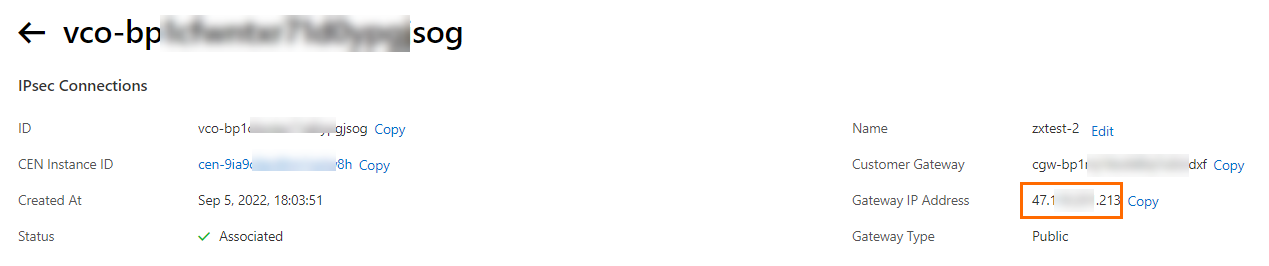
The gateway IP address is assigned only after the connection is attached to a transit router.
In this example, the assigned gateway IP addresses are:
| Connection | Gateway IP address |
|---|---|
| IPsec-VPN connection 1 | 120.XX.XX.191 |
| IPsec-VPN connection 2 | 47.XX.XX.213 |
| IPsec-VPN connection 3 | 47.XX.XX.161 |
-
On the IPsec Connections page, find each connection you created. In the Actions column, click Generate Peer Configuration and save the downloaded configuration file. You will use these files to configure the on-premises gateway devices.
Step 3: Configure on-premises gateway devices
Apply VPN and BGP configuration to each on-premises gateway device using the settings from the downloaded configuration files.
The examples below use Cisco ASA software version 9.19.1. Commands may differ across software versions — consult your device documentation or vendor for your actual environment. For more information, see Configure local gateways. The following content contains third-party product information provided for reference only. Alibaba Cloud makes no guarantees regarding the performance, reliability, or operational impacts of third-party products.
On-premises gateway device 1
-
Log on to the Cisco firewall CLI and enter configuration mode.
ciscoasa> enable Password: ******** # Enter the password for the enable mode. ciscoasa# configure terminal # Enter configuration mode. ciscoasa(config)# -
Verify the interface configuration. The firewall must have a complete interface configuration with all interfaces enabled.
# View the interface configuration of on-premises gateway device 1. ciscoasa(config)# show running-config interface ! interface GigabitEthernet0/0 # Internet-facing interface. nameif outside1 security-level 0 ip address 11.XX.XX.1 255.255.255.255 # Public IP address. ! interface GigabitEthernet0/1 # Data center-facing interface. nameif private security-level 100 ip address 192.168.50.216 255.255.255.0 ! -
Enable IKEv2 on the public interface.
crypto ikev2 enable outside1 -
Create an IKEv2 policy. These settings must match the Alibaba Cloud side.
crypto ikev2 policy 10 encryption aes # Encryption algorithm. integrity sha # Authentication algorithm. group 14 # DH group. prf sha # Must match integrity. lifetime seconds 86400 # SA lifetime. -
Create an IPsec proposal and profile.
crypto ipsec ikev2 ipsec-proposal ALIYUN-PROPOSAL protocol esp encryption aes protocol esp integrity sha-1 crypto ipsec profile ALIYUN-PROFILE set ikev2 ipsec-proposal ALIYUN-PROPOSAL set ikev2 local-identity address # Use IP address format for local ID. set pfs group14 set security-association lifetime seconds 86400 set security-association lifetime kilobytes unlimited -
Create a tunnel group with the pre-shared key. Use the gateway IP address of IPsec-VPN connection 1 (120.XX.XX.191).
tunnel-group 120.XX.XX.191 type ipsec-l2l tunnel-group 120.XX.XX.191 ipsec-attributes ikev2 remote-authentication pre-shared-key fddsFF123**** ikev2 local-authentication pre-shared-key fddsFF123**** ! -
Create the tunnel interface.
interface Tunnel1 nameif ALIYUN1 ip address 169.254.10.2 255.255.255.252 tunnel source interface outside1 tunnel destination 120.XX.XX.191 tunnel mode ipsec ipv4 tunnel protection ipsec profile ALIYUN-PROFILE no shutdown ! -
Configure static routes and BGP.
route outside1 120.XX.XX.191 255.255.255.255 192.XX.XX.172   # Route to IPsec-VPN connection 1 gateway IP.
route private 192.168.0.0 255.255.255.0 192.168.50.215
route private 192.168.1.0 255.255.255.0 192.168.50.215
route private 192.168.2.0 255.255.255.0 192.168.50.215

router bgp 65530
 address-family ipv4 unicast
  neighbor 169.254.10.1 remote-as 65531       # BGP peer: Alibaba Cloud BGP IP of connection 1.
  neighbor 169.254.10.1 ebgp-multihop 255
  neighbor 169.254.10.1 activate
  network 192.168.0.0 mask 255.255.255.0       # Advertise data center CIDR blocks.
  network 192.168.1.0 mask 255.255.255.0
  network 192.168.2.0 mask 255.255.255.0
 exit-address-family
On-premises gateway device 2
-
Log on to the Cisco firewall CLI and enter configuration mode.
ciscoasa> enable Password: ******** ciscoasa# configure terminal ciscoasa(config)# -
Verify the interface configuration.
# View the interface configuration of on-premises gateway device 2. ciscoasa(config)# show running-config interface ! interface GigabitEthernet0/0 nameif outside1 security-level 0 ip address 11.XX.XX.2 255.255.255.255 ! interface GigabitEthernet0/1 nameif private security-level 100 ip address 192.168.50.218 255.255.255.0 ! -
Enable IKEv2 on the public interface.
crypto ikev2 enable outside1 -
Create an IKEv2 policy.
crypto ikev2 policy 10 encryption aes integrity sha group 14 prf sha lifetime seconds 86400 -
Create an IPsec proposal and profile.
crypto ipsec ikev2 ipsec-proposal ALIYUN-PROPOSAL protocol esp encryption aes protocol esp integrity sha-1 crypto ipsec profile ALIYUN-PROFILE set ikev2 ipsec-proposal ALIYUN-PROPOSAL set ikev2 local-identity address set pfs group14 set security-association lifetime seconds 86400 set security-association lifetime kilobytes unlimited -
Create a tunnel group. Use the gateway IP address of IPsec-VPN connection 2 (47.XX.XX.213).
tunnel-group 47.XX.XX.213 type ipsec-l2l tunnel-group 47.XX.XX.213 ipsec-attributes ikev2 remote-authentication pre-shared-key fddsFF456**** ikev2 local-authentication pre-shared-key fddsFF456**** ! -
Create the tunnel interface.
interface Tunnel1 nameif ALIYUN1 ip address 169.254.11.2 255.255.255.252 tunnel source interface outside1 tunnel destination 47.XX.XX.213 tunnel mode ipsec ipv4 tunnel protection ipsec profile ALIYUN-PROFILE no shutdown ! -
Configure static routes and BGP.
route outside1 47.XX.XX.213 255.255.255.255 192.XX.XX.173
route private 192.168.0.0 255.255.255.0 192.168.50.217
route private 192.168.1.0 255.255.255.0 192.168.50.217
route private 192.168.2.0 255.255.255.0 192.168.50.217

router bgp 65530
 address-family ipv4 unicast
  neighbor 169.254.11.1 remote-as 65531
  neighbor 169.254.11.1 ebgp-multihop 255
  neighbor 169.254.11.1 activate
  network 192.168.0.0 mask 255.255.255.0
  network 192.168.1.0 mask 255.255.255.0
  network 192.168.2.0 mask 255.255.255.0
 exit-address-family
On-premises gateway device 3
-
Log on to the Cisco firewall CLI and enter configuration mode.
ciscoasa> enable Password: ******** ciscoasa# configure terminal ciscoasa(config)# -
Verify the interface configuration.
# View the interface configuration of on-premises gateway device 3. ciscoasa(config)# show running-config interface ! interface GigabitEthernet0/0 nameif outside1 security-level 0 ip address 11.XX.XX.3 255.255.255.255 ! interface GigabitEthernet0/1 nameif private security-level 100 ip address 192.168.50.213 255.255.255.0 ! -
Enable IKEv2 on the public interface.
crypto ikev2 enable outside1 -
Create an IKEv2 policy.
crypto ikev2 policy 10 encryption aes integrity sha group 14 prf sha lifetime seconds 86400 -
Create an IPsec proposal and profile.
crypto ipsec ikev2 ipsec-proposal ALIYUN-PROPOSAL protocol esp encryption aes protocol esp integrity sha-1 crypto ipsec profile ALIYUN-PROFILE set ikev2 ipsec-proposal ALIYUN-PROPOSAL set ikev2 local-identity address set pfs group14 set security-association lifetime seconds 86400 set security-association lifetime kilobytes unlimited -
Create a tunnel group. Use the gateway IP address of IPsec-VPN connection 3 (47.XX.XX.161).
tunnel-group 47.XX.XX.161 type ipsec-l2l tunnel-group 47.XX.XX.161 ipsec-attributes ikev2 remote-authentication pre-shared-key fddsFF789**** ikev2 local-authentication pre-shared-key fddsFF789**** ! -
Create the tunnel interface.
interface Tunnel1 nameif ALIYUN1 ip address 169.254.12.2 255.255.255.252 tunnel source interface outside1 tunnel destination 47.XX.XX.161 tunnel mode ipsec ipv4 tunnel protection ipsec profile ALIYUN-PROFILE no shutdown ! -
Configure static routes and BGP.
route outside1 47.XX.XX.161 255.255.255.255 192.XX.XX.174
route private 192.168.0.0 255.255.255.0 192.168.50.214
route private 192.168.1.0 255.255.255.0 192.168.50.214
route private 192.168.2.0 255.255.255.0 192.168.50.214

router bgp 65530
 address-family ipv4 unicast
  neighbor 169.254.12.1 remote-as 65531
  neighbor 169.254.12.1 ebgp-multihop 255
  neighbor 169.254.12.1 activate
  network 192.168.0.0 mask 255.255.255.0
  network 192.168.1.0 mask 255.255.255.0
  network 192.168.2.0 mask 255.255.255.0
 exit-address-family
After completing these configurations, IPsec-VPN tunnels are established between the data center and Alibaba Cloud, and data center routes are propagated to the BGP route table of each IPsec-VPN connection.
Also add routes on the data center side so that traffic from clients in the data center to the VPC can be sent through all three on-premises gateway devices simultaneously. For the specific commands, consult your device vendor.
Step 4: Create a VPC connection
The IPsec-VPN connections are automatically attached to the transit router in China (Hangzhou) when created. Now attach the VPC in China (Shanghai) to its local transit router so that the data center can reach the VPC.
-
Log on to the CEN console.
-
On the Instances page, click the ID of your CEN instance.
-
On the Basic Settings > Transit Router tab, find the transit router in China (Shanghai). In the Actions column, click Create Connection.
-
On the Connection with Peer Network Instance page, configure the parameters and click OK.
Use the following settings. Keep the default values for all other parameters. For more information, see Create a VPC connection.
| Parameter | Description | Value |
|---|---|---|
| Instance type | Type of network instance to connect. | Virtual Private Cloud (VPC) |
| Region | Region of the VPC. | China (Shanghai) |
| Resource owner ID | Whether the VPC belongs to your current account. | Your Account |
| Billing method | Billing method for the VPC connection. | Pay-As-You-Go |
| Attachment name | Name for the VPC connection. | VPC-connection |
| Network instance | The VPC to attach. | Select the VPC in China (Shanghai). |
| vSwitch | vSwitches in the zones supported by the transit router. Select one vSwitch per zone to minimize traffic detours. Each selected vSwitch must have at least one idle IP address. | vSwitch 1 in Zone F and vSwitch 2 in Zone G |
| Advanced settings | Enables automatic route distribution and route table association. | Keep defaults (all enabled) |
Step 5: Create an inter-region connection
The transit router in China (Hangzhou) is connected to the IPsec-VPN connections, and the transit router in China (Shanghai) is connected to the VPC — but the two transit routers are in different regions and cannot communicate by default. Create an inter-region connection to link them.
-
On the Instances page, click the ID of your CEN instance.
-
On the Basic Information > Bandwidth Plans tab, click Allocate Bandwidth for Inter-region Communication.
-
On the Connection with Peer Network Instance page, configure the parameters and click OK.
Use the following settings. For more information, see Create an inter-region connection.
| Parameter | Description |
|---|---|
| Instance type | Select Inter-region Connection. |
| Region | Select China (Hangzhou). |
| Attachment name | Enter Cross-Region-test. |
| Peer region | Select China (Shanghai). |
| Bandwidth allocation mode | Select Pay-By-Data-Transfer. |
| Default line type | Use the default link type. |
| Bandwidth | Enter a bandwidth value for the inter-region connection. Unit: Mbit/s. |
| Advanced settings | Keep defaults (all enabled). |
After the inter-region connection is created, CEN automatically distributes and learns routes. BGP propagates VPC routes from the transit router to the data center, and data center routes from the IPsec-VPN connections to the transit router. The data center and VPC can now communicate.
Step 6: Verify connectivity
Test network connectivity and confirm that traffic is load-balanced across all three connections.
Test network connectivity
-
Log on to the ECS instance in the VPC. For more information, see Connect to an ECS instance.
-
Run the ping command to a client in the data center:
ping <IP address of the client in the data center>
A successful response confirms that the data center and VPC can reach each other.
Verify load balancing
Send traffic from multiple clients in the data center to the ECS instance simultaneously, then check whether all three IPsec-VPN connections show traffic.
Use multiple clients sending traffic at the same time to verify that all three connections are being used.
-
Log on to the VPN Gateway consoleVPN Gateway console.
-
In the top navigation bar, select China (Hangzhou).
-
In the left navigation pane, choose Interconnections > VPN > IPsec Connections.
-
On the IPsec Connections page, click the ID of an IPsec-VPN connection.
-
On the connection details page, go to the Monitor tab and check the traffic monitoring data.
Repeat for all three connections. If all three show traffic, load balancing is working.
Routing description
The default route configurations used in this topic let CEN automatically distribute and learn routes without manual intervention. The following sections explain how routing works for each component.
IPsec-VPN connections
When you create an IPsec-VPN connection and bind it directly to a transit router with all advanced configurations enabled, the system applies these route configurations automatically:
-
The IPsec-VPN connection is associated with the default route table of the transit router. The transit router uses this table to forward traffic from the connection.
-
Routes learned from the data center via BGP — or destination-based routes you add manually — are propagated to the default route table of the transit router.
-
The transit router automatically propagates other routes in its default route table to the BGP route table of the IPsec-VPN connection.
-
The connection propagates the learned cloud routes back to the data center through BGP.
VPC connections
When you create a VPC connection with all advanced configurations enabled, the system applies these route configurations automatically:
-
Associate with default route table of transit router: The VPC connection is associated with the default route table. The transit router uses this table to forward traffic from the VPC.
-
Propagate system routes to default route table of transit router: The VPC propagates its system routes to the transit router's default route table, enabling communication between network instances.
-
Automatically create routes pointing to transit router: The system adds three routes — 10.0.0.0/8, 172.16.0.0/12, and 192.168.0.0/16 — to all route tables in the VPC, with the next hop pointing to the VPC connection.
If a route with the destination CIDR block 10.0.0.0/8, 172.16.0.0/12, or 192.168.0.0/16 already exists in the VPC route table, the system cannot add it automatically. Add the route manually, pointing to the VPC connection. Click Initiate Route Check to verify whether these routes already exist.
Inter-region connections
When you create an inter-region connection with all advanced configurations enabled, the system applies these route configurations automatically:
-
Associate with default route table of transit router: The inter-region connection is associated with the default route table. The transit router uses this table to forward cross-region traffic.
-
Propagate system routes to default route table of transit router: The inter-region connection is associated with the default route tables of transit routers in both connected regions.
-
Automatically advertise routes to peer region: Routes in the current region's transit router route table are automatically advertised to the peer transit router, and vice versa.