The MaxCompute client (odpscmd) is a command-line interface for running commands and managing MaxCompute projects from your local machine. This topic describes how to install, configure, and use odpscmd.
Requirements and compatibility
Java: Java 8 or later is required. odpscmd v0.28.0 and later support JDK 1.9. Earlier versions support only JDK 1.8.
Version compatibility: Command syntax and output formats may differ across client versions. Client output formats are not forward-compatible — do not parse client output for automation. After starting the client, verify the version number in the command-line interface. For all available versions, see aliyun-odps-console releases.
Encoding: The client uses UTF-8 encoding by default. If your local environment uses a different encoding, Chinese characters in query results or uploaded files may appear as garbled text. This can happen when querying MaxCompute tables or uploading local data files with Tunnel commands.
Billing
Connecting to a MaxCompute project with odpscmd is free. Operations you run through the client — such as SQL queries and write commands — may incur charges for compute and storage. For details, see Billing items and methods.
Install and configure odpscmd
Starting with v0.27.0, odpscmd supports MaxCompute V2.0 data types. For the full list of supported types, see MaxCompute V2.0 data types.
Download the MaxCompute client package from GitHub. Download the latest
odpscmd_public.zipfrom the releases page.If the GitHub link is not accessible, download the package from OSS instead.
Extract the package. The extracted directory contains four folders:
bin,conf,lib, andplugins.In the
conffolder, openodps_config.iniand configure the parameters below. The file uses#for comments. The following table describes the parameters.Parameter Required Description Example project_nameYes The MaxCompute project to access. If your workspace is in standard mode, distinguish between production and development ( _dev) project names. To find your project name: log on to the MaxCompute console, select your region, then go to Manage Configurations > Projects. See Differences between workspace modes.doc_test_devaccess_idYes Your Alibaba Cloud account or RAM user AccessKey ID. Get it from the AccessKey management page. — access_keyYes The AccessKey secret that matches your AccessKey ID. — end_pointYes The MaxCompute service endpoint. Set this based on your project's region and network type. For endpoints by region and network, see Endpoint. This must be the MaxCompute endpoint, not the Tunnel endpoint. An incorrect endpoint causes connection errors. http://service.cn-hangzhou.maxcompute.aliyun.com/apilog_view_hostNo The LogView URL for viewing job runtime information and troubleshooting failures. We recommend setting this parameter. Without it, you cannot quickly locate issues when jobs fail. Fixed value: http://logview.odps.aliyun.com.http://logview.odps.aliyun.comhttps_checkNo Whether to use HTTPS for requests. TrueorFalse. Default:False.Truedata_size_confirmNo Maximum input data size in GB. No limit applies. Recommended: 100.100update_urlNo Reserved parameter. Leave blank. — use_instance_tunnelNo Whether to use InstanceTunnel to download SQL query results. TrueorFalse. Default:False.Trueinstance_tunnel_max_recordNo Maximum number of records returned for SQL query results when use_instance_tunnelisTrue. Maximum:10000.10000tunnel_endpointNo The public endpoint for the Tunnel service. If not set, Tunnel auto-routes based on your MaxCompute endpoint's region and network. If set, Tunnel uses that endpoint and does not auto-route. For Tunnel endpoints by region and network, see Endpoint. http://dt.cn-hangzhou.maxcompute.aliyun.comset.<key>No Set properties for your MaxCompute project. For available properties, see Property list. set.odps.sql.decimal.odps2=true
Start the MaxCompute client
Before you begin, ensure that you have:
A MaxCompute project. See Create a MaxCompute project.
(If connecting as a RAM user) The RAM user added to the target project. See Grant permissions to other users.
Start the client using one of the following methods.
Method 1: Double-click the script
In the bin folder of your installation directory:
Windows: Double-click
odpscmd.bat.macOS: Double-click
odpscmd.
When the client starts and connects successfully, you see a confirmation message.
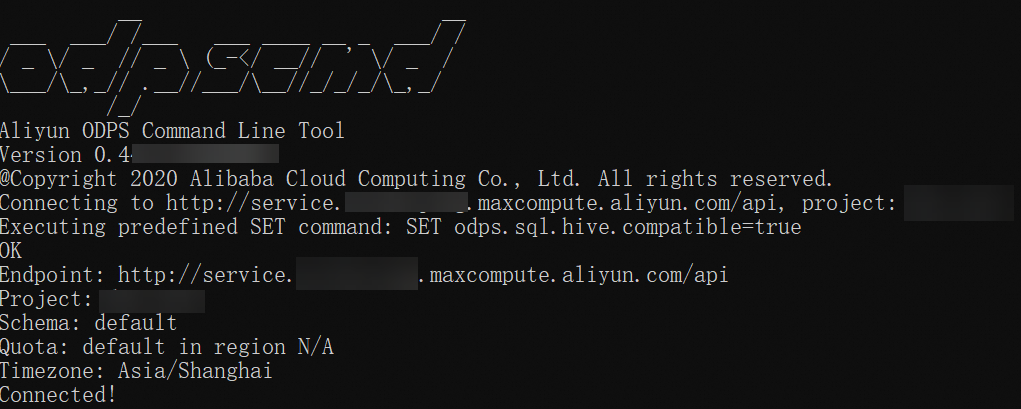
Method 2: Run from the command line
Navigate to the bin folder in your command-line window, then run:
Windows:
odpscmdLinux or macOS:
sh odpscmdUbuntu:
./odpscmd(runningsh odpscmdreturns an error on Ubuntu)
When the client starts and connects successfully, you see a confirmation message.
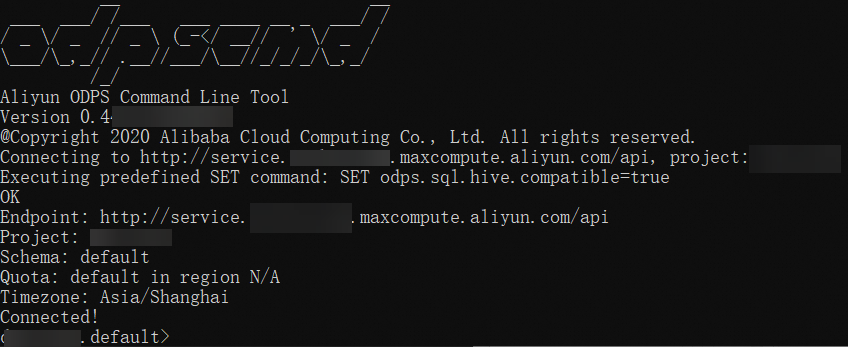
When starting from the command line, you can pass startup parameters to run commands directly. See Startup parameters.
Verify your connection
After the client starts, run the following command to confirm your connection:
odps@project_name>whoami;A successful connection returns your account details:
Name: Your account name.
Source IP: The IP address of your local machine.
End_Point: The MaxCompute service endpoint.
Project: Your MaxCompute project name.
Schema: The schema in your project.
Common operations
Get command help
View command help in the MaxCompute client
Inside the MaxCompute client:
-- View help for all commands.
odps@project_name>help;
-- Equivalent to:
odps@project_name>h;

-- View help for commands matching a keyword (for example, table-related commands).
odps@project_name>help table;The read command uses SQL syntax and is subject to SQL pricing.
View command help in the system command-line window
From the system command-line window:
...\odpscmd\bin>odpscmd -hExit the client
odps@project_name>quit;
-- Equivalent to:
odps@project_name>q;
Run the tunnel download command
The first time you run tunnel download, the client creates a session folder at plugins/dship in your installation directory.
If multiple users share the same device, keep data secure by using one of these approaches:
Use your operating system's folder permissions to restrict access to the session folder.
Add
-sd <session-folder>or-session-dir <session-folder>to thetunnel downloadcommand to store data in a separate session folder. For full command details, see Download.
Startup parameters
Use startup parameters to pass commands directly when launching odpscmd from the command line.
Usage: odpscmd [OPTION]...
    --help                                  (-h) for help
    --config=<config_file>                  specify another config file
    --project=<prj_name>                    use project
    --endpoint=<http://host:port>           set endpoint
    -k <n>                                  skip beginning queries and start from specified position
    -r <n>                                  set retry times
    -f <"file_path;">                       execute commands in file
-e <"command;[command;]..."> execute commands, including SQL commands| Parameter | Description | Example |
|---|---|---|
--help or -h | View help for all commands. | odpscmd --help |
--config | Path to odps_config.ini. Default: odpscmd_public/conf/odps_config.ini. | odpscmd --config=D:/odpscmd/conf/odps_config.ini |
--project | The MaxCompute project to access. | odpscmd --project=doc_test |
--endpoint | The MaxCompute service endpoint. See Endpoint. | odpscmd --endpoint=http://service.cn-shanghai.maxcompute.aliyun.com/api |
-k | Run statements starting from a specific position. If n≤0, starts from the first statement. Statements are separated by semicolons. | Skip 2 statements, start from the 3rd: odpscmd -k 3 -e "drop table t;create table t (dummy string);insert overwrite table t select count(*) from t;" |
-r | Number of retries for failed jobs. | odpscmd -r 2 -e "select * from sale_detail;select * from table_test;" |
-f | Read commands from a file. | Create D:/script.txt containing SQL statements, then run: ...\odpscmd\bin>odpscmd -f D:/script.txt; |
-e | Run commands directly. | odpscmd -e "select * from sale_detail;" |
Capture raw query output
To capture the output of -e without extra metadata (runtime info, table headers), set use_instance_tunnel=false in odps_config.ini, then suppress headers at query time:
-- Windows command prompt: redirect output to a file with no headers.
...\odpscmd\bin>odpscmd -e "set odps.sql.select.output.format={""needHeader"":false,""fieldDelim"":"" ""};select * from noheader;" >D:\test.txt

-- Shell: redirect output to a file with no headers.
/Users/.../odpscmd/bin/odpscmd -e "set odps.sql.select.output.format={\"needHeader\":false,\"fieldDelim\":\"\"};select * from noheader;" >/Users/A/temp/test.txt
-- Output (no headers, raw data only):
-- 1
-- 2
-- 3
Troubleshooting
Error: no java found
Java is not installed on your machine. Install Java and set the JAVA_HOME environment variable. odpscmd v0.28.0 and later support JDK 1.9; earlier versions require JDK 1.8.
Error: Could not find or load main class com.aliyun.openservices.odps.console.ODPSConsole
The folder name contains spaces or special characters — typically because the package was downloaded a second time and renamed to odpscmd_public (1). Remove all spaces and special characters from the folder name.
Error: Accessing project '\<projectname\>' failed: ODPS-0420111: Project not found
The project name in odps_config.ini is incorrect. Log on to the MaxCompute console, select your region, go to Manage Configurations > Projects, and copy the correct project name.
Error: ODPS-0420095: Access Denied - Authorization Failed [4002], You don't exist in project \<projectname\>
Your account is not added to the target project, or the project name is wrong. Contact the project owner to add your Alibaba Cloud account or RAM user. See Add an Alibaba Cloud account (project level) or Add a RAM user (project level).
Error: InvalidProjectTable or connect timed out
The end_point value is wrong. Common mistakes include using the classic network endpoint for an internal network connection, or entering the Tunnel endpoint instead of the MaxCompute endpoint. Use the Endpoint documentation to find the correct endpoint for your project's region and network. The end_point parameter must hold the MaxCompute endpoint, not the Tunnel endpoint.
Error: Accessing project '\<projectname\>' failed: \<endpoint\>
The end_point value contains a typo — for example, ch-hangzhou instead of cn-hangzhou. Copy the endpoint directly from the Endpoint documentation instead of typing it manually.
Version history
The following table lists recent updates to odpscmd. For the full changelog, see aliyun-odps-console releases.
| Version | Type | Description |
|---|---|---|
| v0.52.3-public | New feature | Support STS tokens as temporary security credentials. |
| Bug fix | Update Apache Arrow library to fix dependency compatibility issues. | |
| v0.52.2-public | New feature | Add skip_progress to control progress reporting for MaxCompute Query Acceleration (MCQA) 2.0 jobs. |
| Enhancement | Improve MCQA V2 support and enhance compact command with support for specific compact IDs. | |
| v0.51.2-public | Bug fix | Upgrade dependencies to fix CVE vulnerabilities. |
| v0.51.1-public | New feature | Add acceleration for external volume downloads. |
| Enhancement | Refactor DescribeTableCommand, ShowPartitionsCommand, and ShowTablesCommand to better handle external projects V2. | |
| v0.51.0-public | New feature | Quota caching, enhanced compact command, and SQL TUNE command for query plan analysis and optimization. Evaluate candidate execution plans. Add tuning history and reports. |
| Enhancement | Improve MCQA 2.0 session management and rework network_read_timeout and network_connect_timeout configuration. | |
| v0.50.0-public | New feature | Support MCQA 2.0 job submission and UseQuotaCommand for specifying interactive quota groups. |
| v0.48.0-public | New feature | Upgrade odps-sdk from 0.47.0-public to 0.48.6-public. Add data masking info to DESC EXTENDED. |
| Bug fix | MCQA mode now detects fallback behavior more accurately and avoids duplicate LogView displays. | |
| v0.47.0-public | New feature | Add http command and --keep-session-variables startup parameter. |
| Enhancement | Add TIMESTAMP_NTZ and JSON support for read, Tunnel QuotaName (-qn) and DATETIME format (-dfp) parameters for Tunnel upload/download, grep for HistoryCommand, DROP project syntax, and improved setproject for complex types. | |
| v0.46.5-public | New feature | Support JSON data type for Tunnel operations. |
| v0.46.4-public | New feature | UPSERT operations through Tunnel, timezone handling with SET odps.sql.timezone=UTC, and improved security config commands. |
| Enhancement | Expand DescribeTableCommand to show more storage layer details. | |
| v0.45.1-public | New feature | Show storage layer info, last modified times, and storage sizes per layer in DescribeTableCommand. |
| v0.45.0-public | New feature | Add attach_session_timeout to control MCQA session attach timeout. |
| Enhancement | Add attachTimeout to session builder config and improve dship command and TopInstanceCommand. | |
| v0.43.2-public | New feature | Support external volume creation and show commands for built-in functions. |
| v0.40.10-public | Bug fix | Remove Log4j dependency. |
| v0.40.8-public | New feature | Support schema-based project storage. See Schema operations. |
| v0.37.5-public | New feature | Support complex data types for Tunnel uploads and downloads. |
| v0.37.4-public | Enhancement | Improve command help text and add additional partition property info to desc extended partition. |
| v0.36.0-public | New feature | Support external project connections to Data Lake Formation (DLF). |
| Bug fix | Fix nanosecond handling when downloading TIMESTAMP data. |
What's next
To run SQL commands in your project, see Use MaxCompute with the client.
To explore all available commands, see Common commands and SQL commands and functions.
If the client does not connect, see Troubleshooting.