Scenarios
Most application services of enterprises use the IP addresses provided by multiple Internet service providers (ISPs). This may cause issues such as cross-network delay, packet loss, and unavailability. Global Traffic Manager (GTM) can detect the ISP of a user and respond to the Domain Name System (DNS) requests of this user with the IP addresses of application servers nearby to this user. This enables the user to access the nearby application servers and accelerates network access. GTM can also perform failovers, which efficiently reduces fault impact and ensures service access continuity.
Prerequisites
The domain name
cloud-example.comis hosted by Alibaba Cloud DNS. You want to connect the business domain namewww.cloud-example.comto GTM.NoteIf your business domain name is not hosted by Alibaba Cloud DNS, you can also use GTM. You need to add a canonical name (CNAME) record to DNS settings of the current DNS service provider of the business domain name to map the business domain name to the corresponding access domain name in GTM.
A GTM instance, for example,
gtm-cn-jmp3qnw**03, is purchased. To purchase an instance, see Purchase an instance.The following intelligent resolution is required:
Source of DNS requests
IP address of application service
IP address after failover
China Mobile
1.1.XX.XX
4.4.XX.XX
China Telecom
2.2.XX.XX
5.5.XX.XX
China Unicom
3.3.XX.XX
6.6.XX.XX
Global
1.1.XX.XX, 2.2.XX.XX, 3.3.XX.XX
4.4.XX.XX, 5.5.XX.XX, 6.6.XX.XX
Architecture

Procedure
Log on to the Alibaba Cloud DNS console.
In the left navigation bar, click Global Traffic Manager to go to the Global Traffic Manager3.0 page.
On the Access Domain Name tab, click Create Access Domain Name.
In the Select Scenario dialog box, select Custom Scenario.
On the Create Access Domain Name page, move the pointer over the Access Domain Name icon and click Basic Configuration.
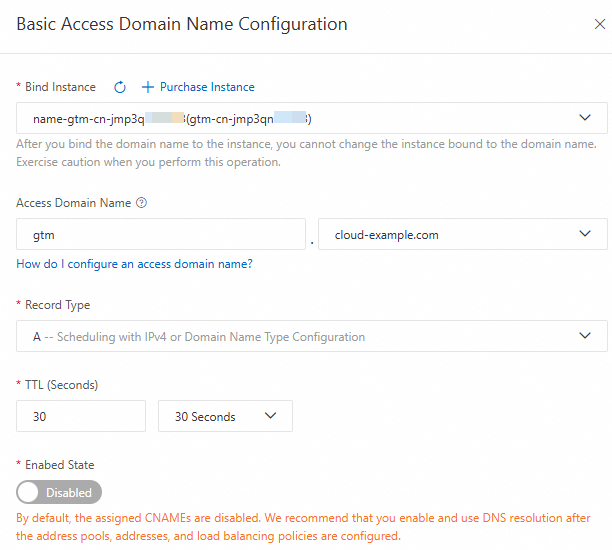
In the Basic Access Domain Name Configuration panel, configure the parameters and click Submit. For more information about how to configure an access domain name, see Configure an access domain name.
On the Access Domain Name page, move the pointer over an Address Pool icon and click Basic Configuration. On the Basic Configuration page, configure the parameters and click Submit. For more information, see Basic configuration parameters in the Configure an address pool topic. Configure five address pools named Mobile, Telecom, Unicom, default-1, default-2.

On the Access Domain Name page, move the pointer over an Address Pool icon and click Add Address. Add addresses to the five address pools based on your business requirements. On the Add Address pane, configure the parameters and reference one or more health check template. In this example, TCP and Port 80 are selected.
NoteIf no health check template is created, click Quickly Add Detection Template to add one. For more information, see Health check templates.
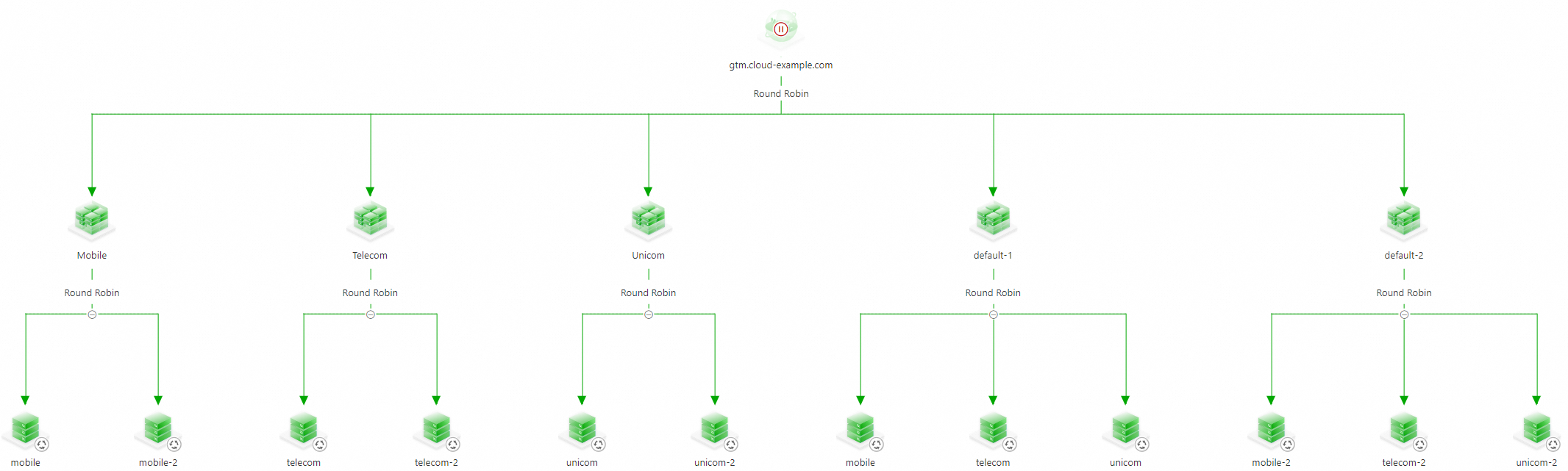 Important
This example demonstrates the configuration procedure. If red or orange alert items appear in the actual configuration, check the address health status at the earliest opportunity.
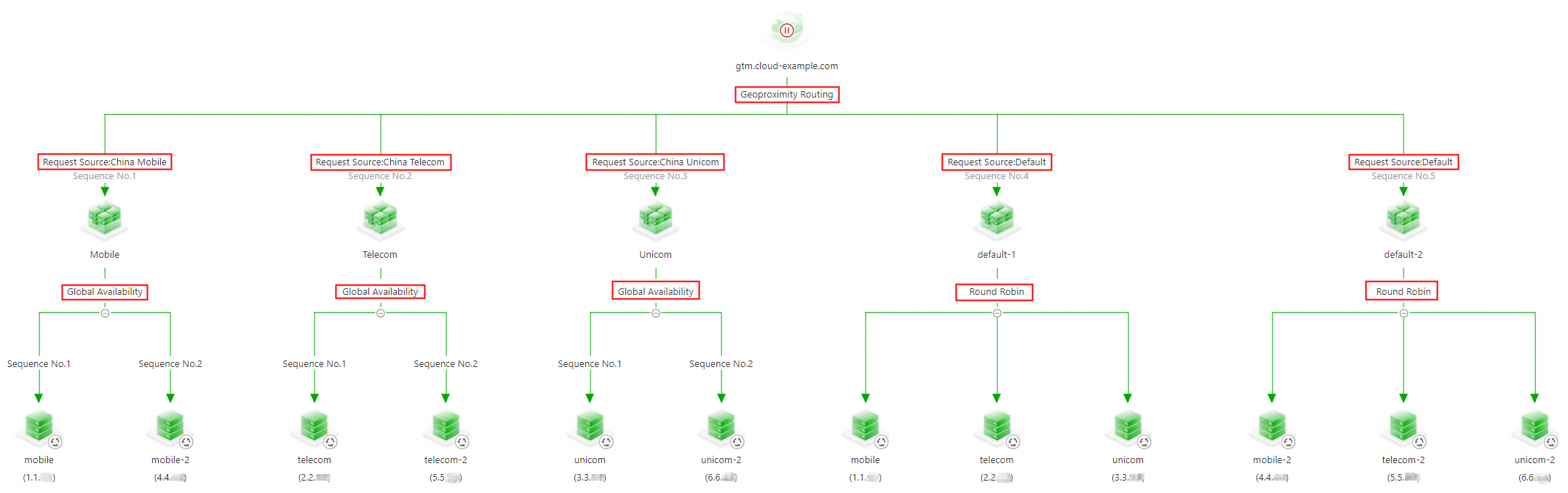
The load balancing policy is divided into two levels of scheduling. The first level is the load policy between address pools, and the second level is the load policy between addresses within an address pool. In this example, the two-level load policy configuration is as follows:
 Important
If you want to schedule the addresses configured for the global default line based on a policy such as weight or sequence, you can adjust settings based on your business requirements. For more information, see Parameters for configuring the policies of load balancing between addresses in the Configure an address pool topic.
If the address pools configured for an intelligent line are unavailable, the addresses configured for the global default line are returned.
If health checks determine that all address pools are unavailable, the addresses in the global default address pool are returned based on a round-robin basis. If the default line is configured with multiple address pools, addresses in a non-empty address pool with the smallest sequence number are returned. If no global default line is configured, addresses in a non-empty address pool with the smallest sequence number are returned.
Configure alert settings for the instance. For more information, see Procedure in the Configure alert settings topic.
On the Access Domain Name page, move the pointer over the Access Domain Name icon and click Enable.
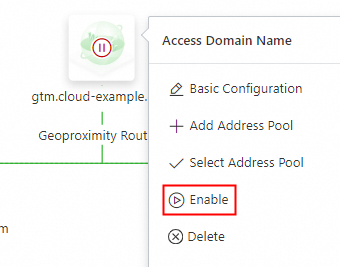
In the Confirm Access Domain Name Enabling dialog box, confirm that the configuration of the access domain name is correct and click OK.
ImportantIf a domain name record with the same name and the same type exists in the Authoritative DNS Resolution module of Alibaba Cloud DNS, the system first intelligently schedules and resolves DNS requests for this domain name based on the policy configured in GTM to implement advanced features such as traffic load balancing and failovers.
If you disable or delete this access domain name in GTM, requests for this domain name will be resolved by the Authoritative DNS Resolution module of Alibaba Cloud DNS.
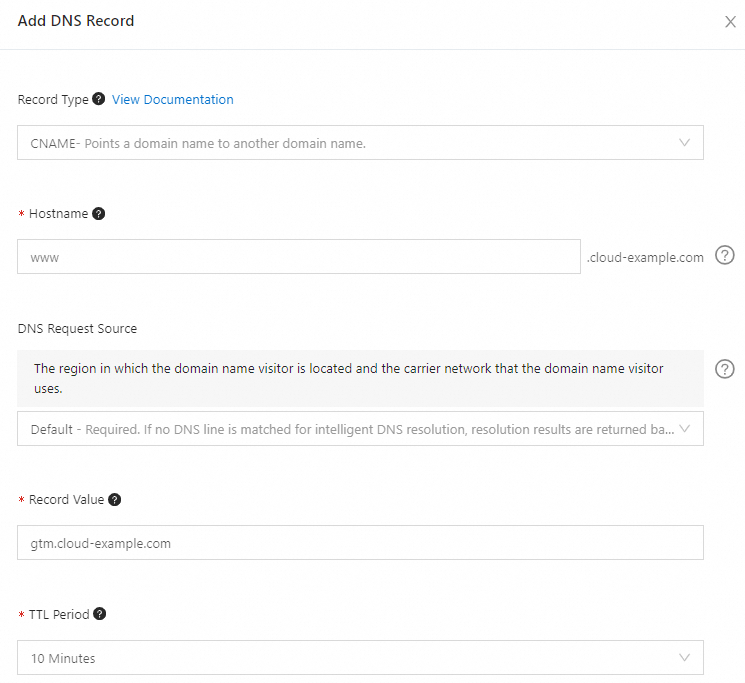
At the third-party DNS provider, add a CNAME record for the business domain
www.cloud-example.comto point the domain name to the GTM access domaingtm.cloud-example.com. In this example, the DNS provider is Alibaba Cloud, you can add a DNS record in the Alibaba Cloud DNS console: