This topic describes how to access a Data Lake Formation (DLF) catalog from a Trino environment in E-MapReduce (EMR) on ECS using Apache Paimon's REST Catalog protocol.
Prerequisites
Before you begin, ensure that you have:
-
An EMR cluster running version 5.13.0 or later with the Trino component selected
-
(Optional) If you need support for a different version, join the DingTalk group (ID: 106575000021) to contact DLF developers
Create a catalog
See Set up DLF.
Grant DLF permissions to a role
Grant the required permissions to the AliyunECSInstanceForEMRRole role so that EMR nodes can access DLF. This involves two steps: granting a Resource Access Management (RAM) access policy and granting DLF catalog permissions.
You can skip step 1 after the EMR product integration with DLF is complete.
-
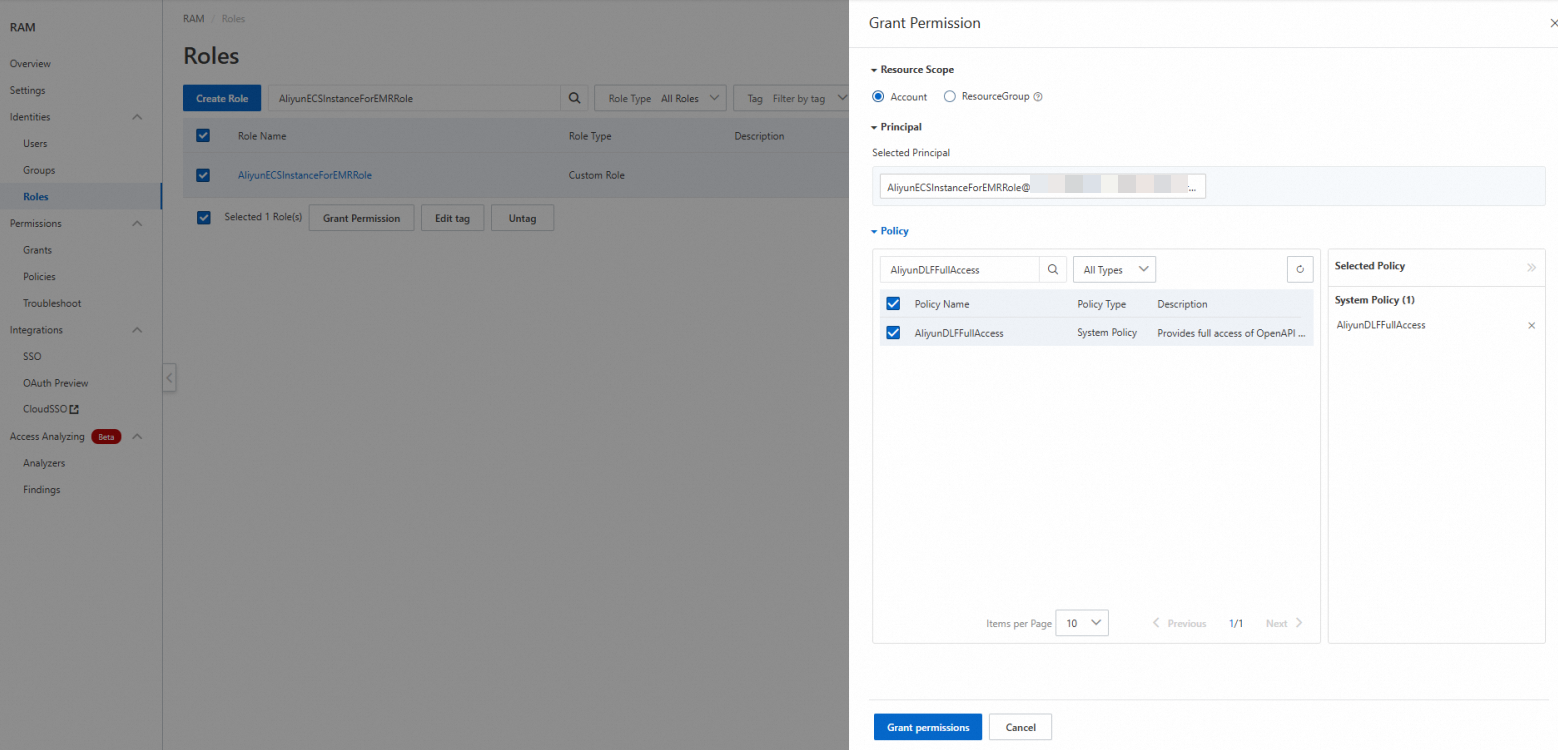
Grant RAM permissions to the AliyunECSInstanceForEMRRole role.
-
Log on to the RAM console using your Alibaba Cloud account or as a RAM administrator.
-
In the navigation pane, choose Identity Management > Roles. Search for AliyunECSInstanceForEMRRole.
-
In the Actions column, click Add Permissions.
-
In the Access Policy section, search for and select AliyunDLFFullAccess, then click Confirm to Add Permissions.
-
-
Grant DLF permissions to the AliyunECSInstanceForEMRRole role.
-
Log on to the Data Lake Formation console.
-
On the Catalogs page, click the name of a catalog to open its details page.
-
Click the Permissions tab, then click Grant.
-
On the Grant page, configure the following parameters and click OK.
-
Set User/Role to RAM User/RAM Role.
-
For Select Authorization Object, select AliyunECSInstanceForEMRRole from the drop-down list.
Note: If AliyunECSInstanceForEMRRole is not in the drop-down list, go to the user management page and click Sync.
-
Set Preset Permission Type to Data Editor.
-
-
Upgrade Paimon dependencies for the EMR cluster
EMR is a managed cluster environment, so you must update the Paimon plugin JARs through a script action rather than replacing files directly on each node.
-
Import Paimon dependencies.
-
Download the two required JAR files and upload them to Object Storage Service (OSS). Set the file permissions to public-read. For upload instructions, see Simple upload.
-
Create the following upgrade script and upload it to OSS.
#!/bin/bash echo 'backup paimon-trino-ali-.*' sudo mkdir /tmp/upgrade-trino-dlf2.5 sudo cp -r /opt/apps/TRINO/trino-current/plugin/paimon /tmp/upgrade-trino-dlf2.5 echo 'clear old paimon plugin jars' sudo rm -rf /opt/apps/TRINO/trino-current/plugin/paimon/* echo 'download paimon-ali-trino-1.4.jar' cd /opt/apps/TRINO/trino-current/plugin/paimon/ wget ${paimon-ali-jindo-1.4.jar} wget ${paimon-trino-422-1.4-plugin.jar}ImportantReplace
${paimon-ali-jindo-1.4.jar}and${paimon-trino-422-1.4-plugin.jar}with the OSS download paths of the corresponding files. For example:https://<bucket>.oss-cn-hangzhou-internal.aliyuncs.com/jars/paimon-ali-jindo-1.4.jar.
-
-
Run the script in the EMR cluster as a manual script action. For more information, see Manually run a script.
-
In the EMR cluster, go to Script Operation > Manual Execution, then click Create and Execute.
-
In the dialog box, set the following parameters and click OK.
-
Name: Enter a name for the script.
-
Script Location: Select the upgrade script that you uploaded to OSS. The path must follow the
oss://**/*.shformat. -
Execution Scope: Select Cluster.
-
-
Configure Trino to connect to the catalog
In the EMR cluster, go to Cluster Services, click Configure for the Trino service, and add or modify the following settings in the paimon.properties file.
connector.name=paimon
warehouse=dlf_test
metastore=rest
token.provider=dlf
uri=http://<region-id>-vpc.dlf.aliyuncs.com
dlf.token-loader=ecs
In the REST Catalog context,warehouseis the name of your DLF catalog instance, not a file system path. In traditional Hive or filesystem catalogs,warehousepoints to a storage path such ashdfs:///path/to/warehouse. With DLF REST Catalog, it must be the catalog instance name — for example,dlf_test.
The following table describes each parameter.
| Parameter | Description | Required | Example |
|---|---|---|---|
connector.name |
The connector type. Set this to paimon. |
Yes | paimon-1-ali-11.0 |
warehouse |
The name of the DLF catalog instance. | Yes | dlf_test |
metastore |
The metastore type. Set this to rest. |
Yes | rest |
token.provider |
The token provider. Set this to dlf. |
Yes | dlf |
uri |
The URI of the DLF REST Catalog server. The format is http://[region-id]-vpc.dlf.aliyuncs.com. For a list of region IDs, see Endpoints. |
Yes | http://cn-hangzhou-vpc.dlf.aliyuncs.com |
dlf.token-loader |
Authenticates using a temporary token issued by the ECS instance role. Set this to ecs. This is the recommended approach for EMR-on-ECS deployments because the ECS instance role is already attached to the EMR nodes, eliminating the need to manage AccessKey credentials. |
Yes | ecs |
After saving the configuration, restart the Trino service for the changes to take effect.
Read a Paimon table with Trino
-
Enter the Trino command-line interface (CLI).
sh /opt/apps/TRINO/trino-current/bin/trino --server master-1-1:9090 -
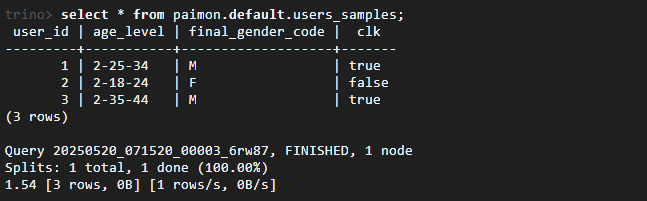
Query a table from the DLF catalog. The following example reads from
users_samples, an existing table in the catalog.select * from paimon.default.users_samples;