If your domain is attacked or traffic resources are maliciously consumed, bandwidth usage and traffic spikes may occur. In this case, you receive bills that are higher than expected. Such high bills cannot be waived or refunded. This topic describes how to prevent fraudulent traffic.
DCDN will phase out WAF for new users starting from May 1, 2025 at 00:00 (UTC+8). Current users won't be affected.
We recommend you upgrade to ESA to use WAF, which provides enhanced protection.
Background
In recent years, as the Internet industry continues to grow, attacks that use fraudulent traffic are becoming more common. Designed to accelerate content delivery and optimize user experience, Dynamic Content Delivery Network (DCDN) charges customers for the outbound traffic of their websites. This means that fees are determined by the amount of data downloaded from websites, which leaves DCDN vulnerable to exploitation by malicious actors.
By causing frequent downloads for a long time, these malicious actors can cause unexpected surges in fees. This not only increases the operations costs of customers, but also holds back their business development.
Scenarios
The following table describes common fraudulent traffic attack methods and the corresponding solutions.
Attack type | Description | Attack signature | Solution |
User-Agent spoofing | Attackers attempt to bypass security checks by using forged User-Agent headers to send a high volume of requests. | Common forged User-Agent headers:
| Configure a User-Agent whitelist or blacklist to reject requests that contain an untrusted User-Agent header. For example, you can reject User-Agent headers that are empty or contain invalid random strings. |
Referer spoofing | Attackers forge Referer headers in requests to pretend to be legitimate referring sources and initiate malicious requests. | The URL in the Referer header has no reasonable connection with the requested resource, or the Referer header is inconsistent with the User-Agent. | Configure a Referer whitelist or blacklist to allow access from only verified Referers, such as the Referers of your domain. |
Frequent requests for the same resource | In a short period of time, excessive requests are sent from the same IP address or user for the same resource, such as an API operation, leading to high server loads, resource consumption, and increased costs. | The requests come from the same IP address or the same group of IP addresses. | Configure a rate limiting rule to control the number of requests from the same IP address or user within a specific period of time. For example, you can allow a maximum of 10 requests from the same IP address per second. Alternatively, you can configure an IP address blacklist or whitelist to restrict access based on IP addresses. |
Malicious crawling | Malicious crawlers crawl a large amount of website content, which not only wastes bandwidth and resources, but may also lead to data breaches. | Frequent requests are made to the same resource. | Use the bot management feature of DCDN to detect and block abnormal requests and malicious crawlers. Analyze the request characteristics such as frequency and request patterns to identify and block bad requests. |
Solutions
You can select an appropriate solution based on the attack characteristics. In actual practice, attack characteristics are varied. You can configure multiple policies to enable comprehensive protection for your website.
Solution 1: Configure access control
Solution 2: Configure WAF rules
Dynamic Content Delivery Network (DCDN) is integrated with Web Application Firewall (WAF) to provide security services on points of presence (POPs). WAF identifies and filters out malicious requests and then forwards only legitimate requests to origin servers. WAF can protect web servers against intrusions, secure important business data, and prevent server anomalies that are caused by attacks.
If you have not activated WAF, log on to the console. In the left-side navigation pane, choose . On the page that appears, click Activate Now.

DCDN WAF provides a built-in basic web protection policy to defend against more than 1,000 common attacks, such as SQL injection, cross-site scripting (XSS), code execution, webshell upload, and command injection. If the built-in basic protection policy cannot meet your requirements, you can configure a custom one. For example, if you want to specify different protection actions for requests intended for different protected objects, configure a custom default protection policy. For more information, see Configure a default protection policy.
In the left-side navigation pane, choose . On the page that appears, click Add Domain Name. In the Add Domain Name dialog box, configure the parameters as required.

Configure a custom protection policy if needed.
HTTP flood protection
For more information about how to configure a custom protection policy, see Configure custom protection policies.
A sudden increase in API calls triggers an alert. In real-time logs, an operation is called more than 3,000 times from an IP address in 60 seconds. When the domain name is not attacked, an operation is called up to 100 times from an IP address in 60 seconds. You can set the maximum number of times that an operation is called from an IP address in 60 seconds to 2 to 3 times the number of times that the operation is usually called when the domain name is not attacked.
NoteYou need to view real-time logs, locate the attacked resources, and then compare the access frequency between the attacked period and the period in which the domain name is not attacked. If there is a difference, you can configure a protection policy.
In most cases, the server calls operations to request resources over the Internet. If internal IP addresses are frequently accessed, you need to add a match condition that ignores the IP addresses.
You need to specify custom protected URIs and the thresholds for triggering protection based on your workloads and the access frequency of attackers in the real-time logs. The following example describes how to configure a rule.
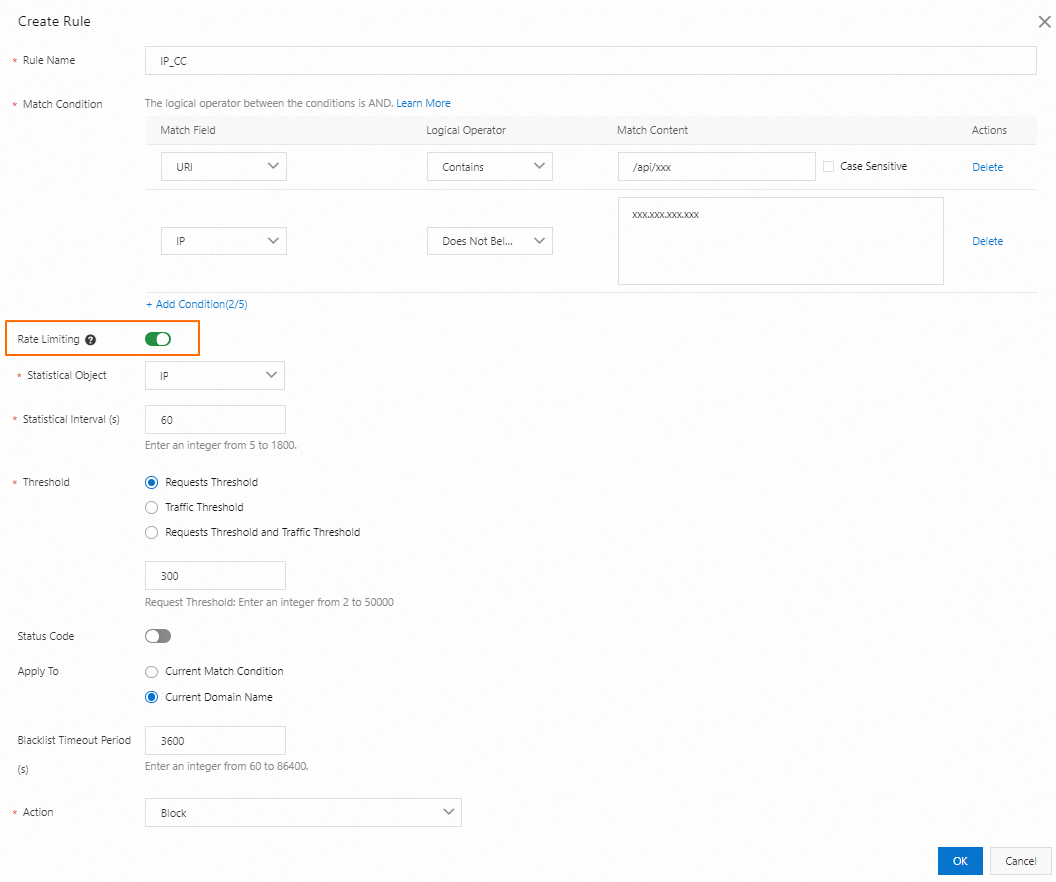
Configuration item
Example value
Description
Rule Name
The name of the custom rule. The name must meet the following requirements:
The name can contain letters, digits, and underscores (_).
It can be up to 64 characters in length.
Indicates that when the requested path contains
/and the IP address does not belong to the target IP address, the request matches the rule.Match Condition
For Match Field, select URI. For Logical Operator, select Contains. For Match Content, enter
/.For Match Field, select IP. For Logical Operator, select Does Not Belong To. For Match Content, enter the target IP address.
Frequency Settings
Turn on the Frequency Settings switch.
Indicates that if the number of times that a client IP address matches the condition exceeds 300 in 60 seconds, the IP address is added to the blacklist.
Statistical Object
Select IP.
Statistical Period (Seconds)
Enter
60.Statistical Threshold (Times)
Enter
300.Response Code
By default, this feature is disabled.
Indicates that the statistical object that matches the frequency detection condition is added to the blacklist. All requests from the object are blocked for 3600 seconds.
Blacklist Effective Scope
Select Apply To The Entire Domain Name.
Blacklist Timeout (Seconds)
Enter
3600.Rule Action
Select Block.
Block requests that contain abnormal User-Agent headers
For more information about how to configure a custom protection policy, see Configure custom protection policies.
NoteIn most cases, the User-Agent header is empty for applications. You do not need to use this policy.
If the value of a User-Agent header is an application name, you need to add the name of the application that is used in your business to the match content.
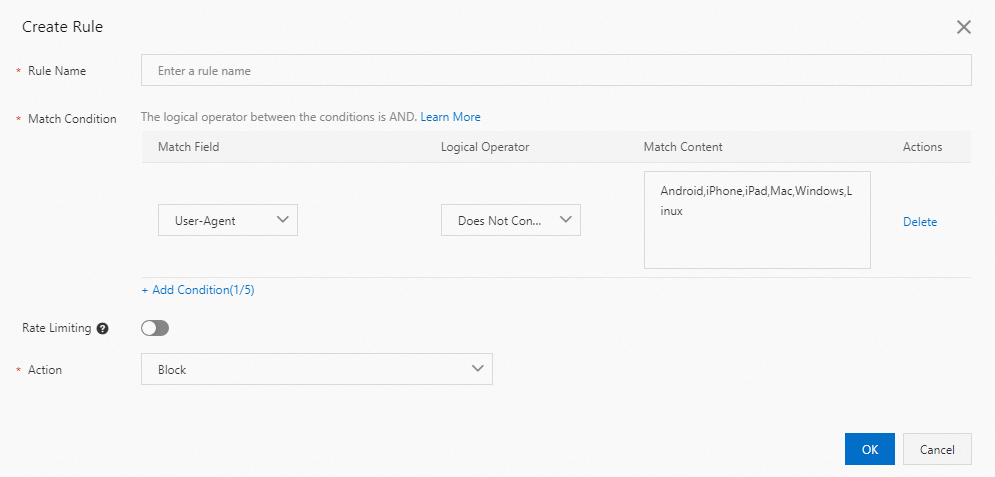
Configuration item
Example value
Description
Rule Name
The name of the custom rule. The name must meet the following requirements:
The name can contain letters, digits, and underscores (_).
It can be up to 64 characters in length.
Indicates that when the User-Agent header of a request does not contain
Android,iPhone,iPad,Mac,Windows,Linux, the request is blocked.Match Condition
For Match Field, select User-Agent.
For Logical Operator, select Does Not Equal Any Value.
For Match Content, enter
Android,iPhone,iPad,Mac,Windows,Linux.
Frequency Settings
By default, this feature is disabled.
Rule Action
Select Block.
Enable bandwidth throttling for requests that contain abnormal User-Agent headers
For more information about how to configure a custom protection policy, see Configure custom protection policies.
Frequent access to a domain name or an API operation by attackers result in a sudden increase in traffic fees. In this case, you check real-time logs and find that these requests come from scattered IP addresses but have similar User-Agent headers. When a domain name is not attacked, the number of requests that contain the same User-Agent header is much less than that when the domain name is attacked.
NoteYou need to specify custom protected URIs and the thresholds for triggering protection based on your workloads and the characteristics and access frequency of attackers in the real-time logs. The following example describes how to configure a rule.
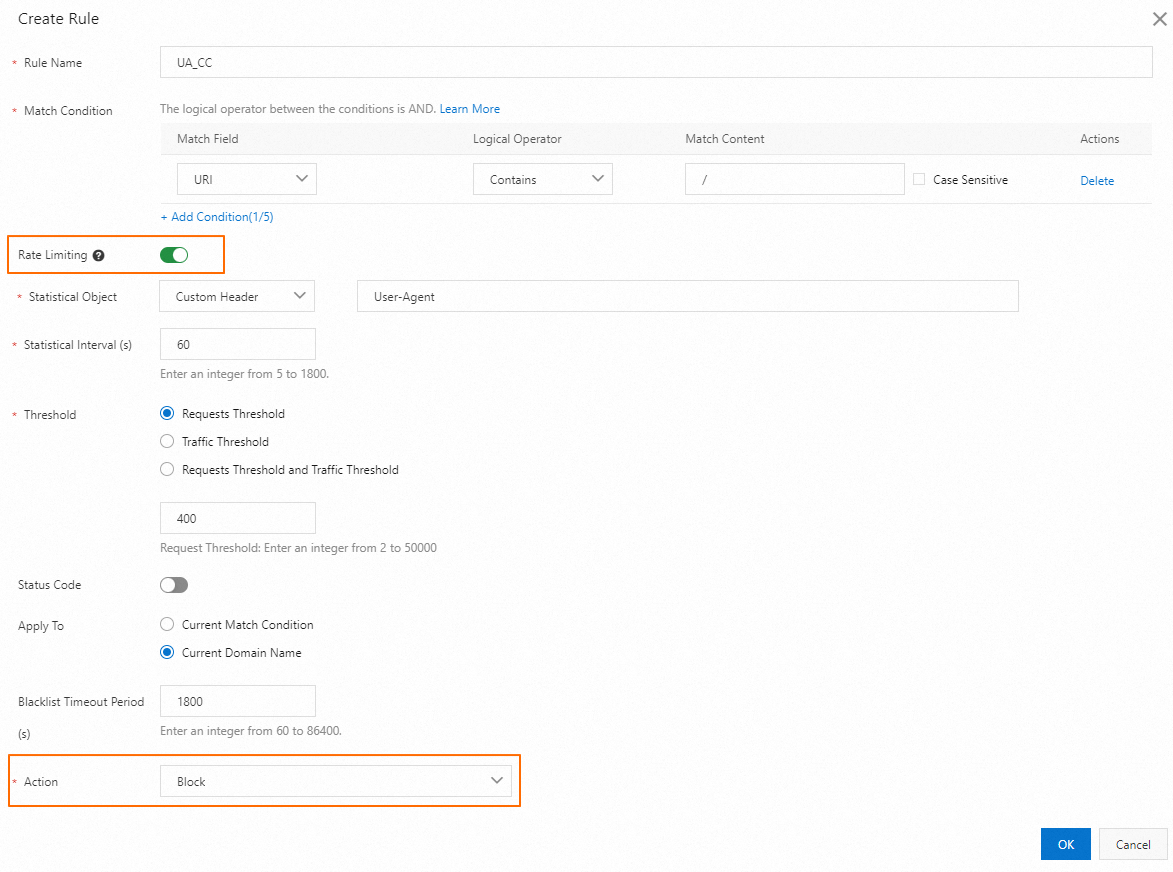
Configuration item
Example value
Description
Rule Name
The name of the custom rule. The name must meet the following requirements:
The name can contain letters, digits, and underscores (_).
It can be up to 64 characters in length.
Indicates that when the requested path contains
/, the request matches the rule.Match Condition
For Match Field, select URI.
For Logical Operator, select Contains.
For Match Content, enter
/.
Frequency Settings
Turn on the Frequency Settings switch.
Indicates that if the request from a client contains a
User-Agentheader, and the number of times that the sameUser-Agentheader matches the condition exceeds 400 in 60 seconds, the IP address is added to the blacklist.Statistical Object
Select Custom Header and enter
User-Agent.Statistical Period (Seconds)
Enter
60.Statistical Threshold (Times)
Enter
400.Response Code
By default, this feature is disabled.
Indicates that the statistical object that matches the frequency detection condition is added to the blacklist. All requests from the object are blocked for 1800 seconds.
Blacklist Effective Scope
Select Apply To The Entire Domain Name.
Blacklist Timeout (Seconds)
Enter
1800.Rule Action
Select Block.
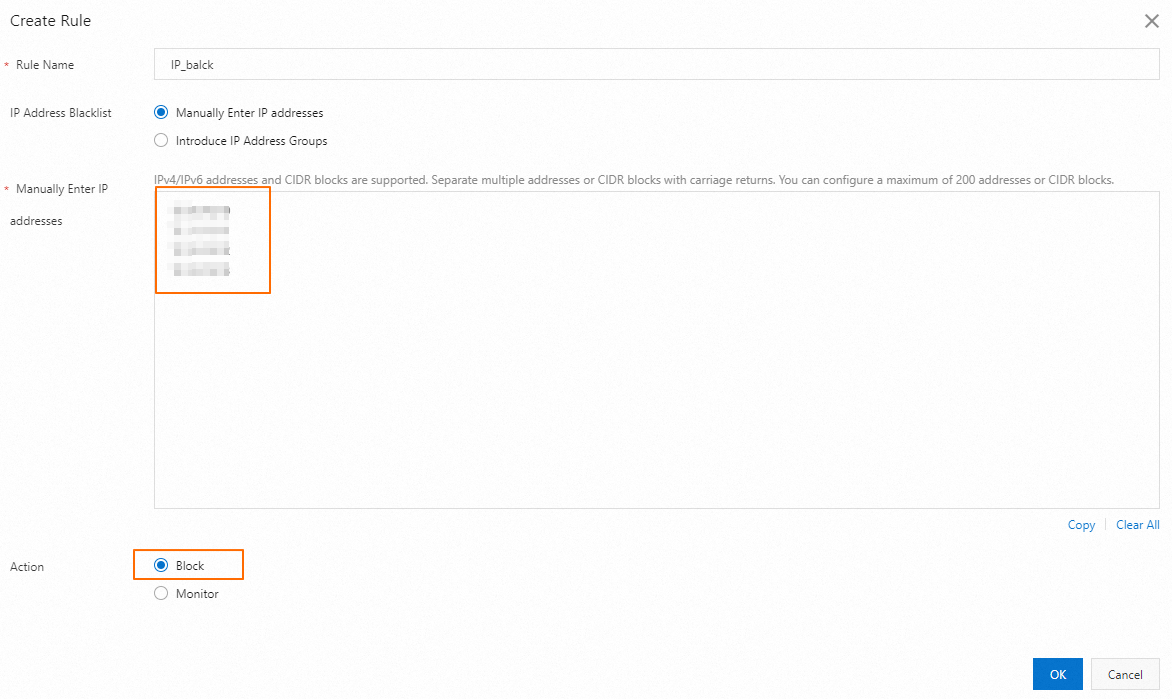
Block requests from abnormal IP addresses
For more information about how to configure an IP address blacklist, see Configure an IP address blacklist.
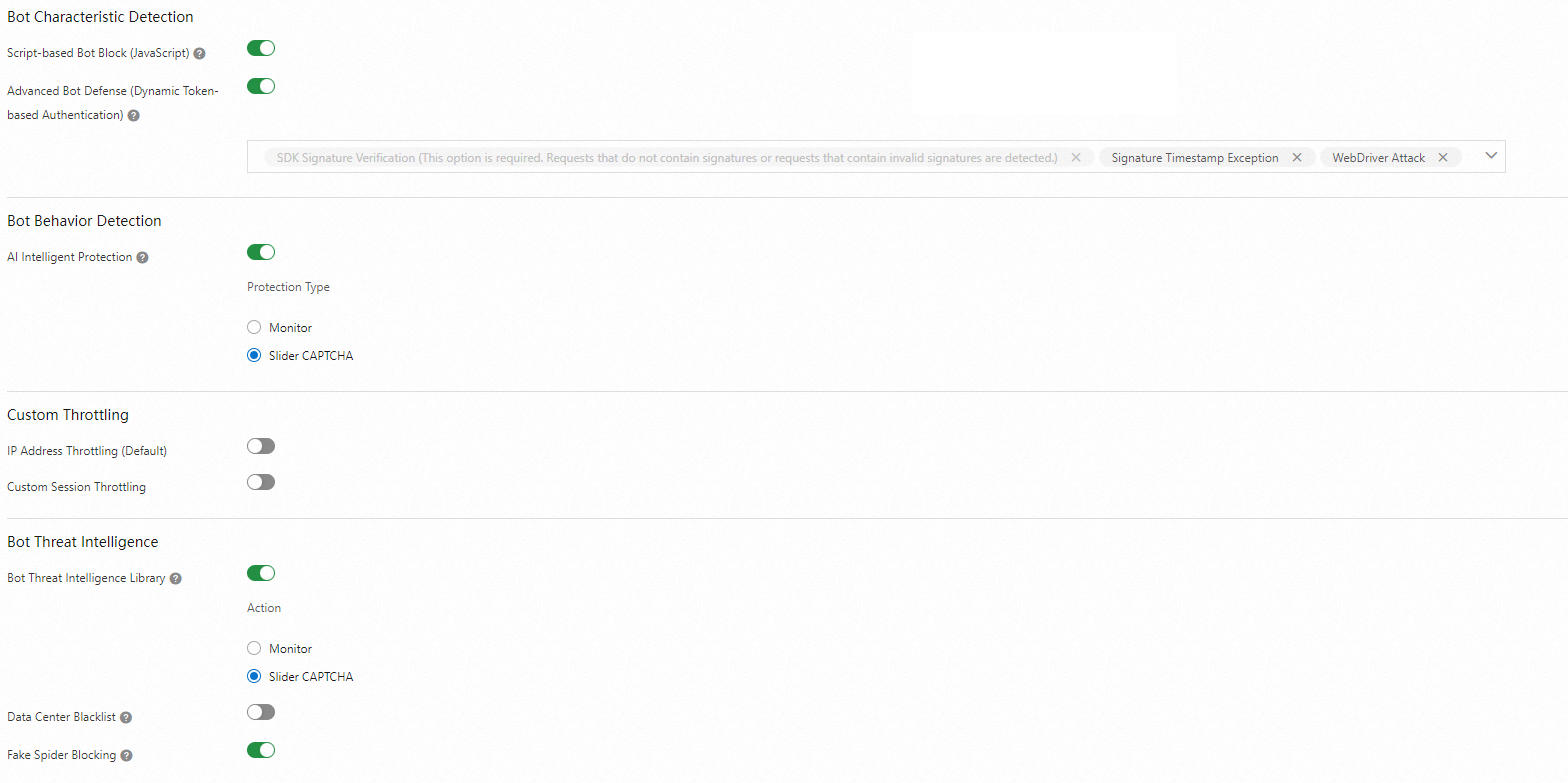
Block web crawlers
For more information about how to configure bot management, see Configure bot management. Enable the required protection items based on your business requirements.
Troubleshooting
DCDN provides standard logs, real-time logs, and operations reports. Based on this data, you can analyze your website traffic during periods of high traffic and define protection policies that suit your website best.
Obtain logs and reports
Download standard logs or configure real-time log delivery to obtain the logs for days with spiky pageviews.
Customize and subscribe to operations reports to analyze top domain names, Referers, URLs, and client IP addresses.
ImportantThe operations report contains only data for access after the custom operations report is created for your website.
Analyze request characteristics
By referring to logs or reports, you can analyze attack types based on request characteristics. In most cases, you can analyze the top ranking information, such as top IP addresses, URLs, User-Agent headers, and Referer headers, to find patterns.
Distribution of IP addresses: You can analyze top IP addresses to identify IP address ranges and attacker IP addresses, and implement access control accordingly.
Requested resources: You can identify the most frequently requested resources based on top URLs and implement access control accordingly.
Client characteristics: You can analyze attacker client characteristics based on top User-Agent headers and implement access control accordingly.
Crawler identification: You can identify bad crawlers based on the request frequency and patterns and take corresponding measures.
The following procedure shows how to analyze attack characteristics based on standard logs.
Analyze standard logs
Upload the log file to the local Linux server.
Log on to the local Linux server and count the number of lines in the file, which indicates the total number of requests.
wc -l [$Log_Txt]Count the number of requests by hour.
awk -F' ' '{print \$4}' [$Log_Txt] | sed 's/^\[\(.*\/.*\/.*\):\(.*\):.*$/\1 \2:00/' | sort | uniq -c | sort -nr | head -n 10The output shows that the number of requests is abnormal.
ImportantPerform the following steps based on your actual business scenario.
Query the top 10 IP addresses.
cat [$Log_Txt] | awk '{print $3}' |sort|uniq -c|sort -nr |head -10Restrict access from identified suspicious IP addresses. For more information, see Configure an IP address blacklist or whitelist.
Query the top 10 User-Agent headers.
grep -o '"Mozilla[^"]*' [$Log_Txt] | cut -d'"' -f2 | sed 's/ ANCHASHI-SCAN[^)]*)//g' | sort | uniq -c | sort -nr | head -n 10Filter suspicious User-Agent headers. For more information, see Configure a User-Agent blacklist or whitelist.
Query the top 10 URLs.
grep -oP '"https?://[^"]+"' [$Log_Txt] | sort | uniq -c | sort -nr | head -n 10Use cases
Fraudulent traffic to trigger downloads of game installation packages
Background
A gaming customer launched a game two years ago and ran the game by using DCDN without problems since then. However, they recently received surprisingly high DCDN bills.
Exception identification
They configured real-time log delivery to monitor and analyze the traffic and logs. It was discovered that the website experienced multiple spikes in installation package downloads, with up to 310,000 downloads by PCs and 18,000 downloads by Android devices within only 1 hour.
After you enable real-time log delivery, you are charged for log entries that are delivered to Simple Log Service (SLS).

According to analysis of the APK download request packets, the User-Agent headers indicated the clients were not Android devices but PCs.

This seemed unusual because most users would directly download APK files to their mobile phones, rather than downloading to PCs and then transferring the files to their mobile phones through USB. Therefore, it was concluded that the downloads were generated by attackers.
Also, the request frequency and requested resources, were abnormal, with over 300 requests for APK files and over 5,100 requests for EXE files from a single IP address per minute.
Solutions
Take access control measures to filter user identities and limit the download frequency.
Block suspicious IP addresses: Include the top IP addresses to your IP address blacklist. For more information, see Configure an IP address blacklist or whitelist.

Limit the request frequency: Create a rule to limit the number of requests originating from the same IP address for EXE or APK resources to 20 per minute. For more information, see Configure custom protection policies.

Prevent bad crawlers: Turn on the Bot Threat Intelligence Library switch and select Slider CAPTCHA for Action. For more information, see Configure the bot management module.

Website content theft
Background
The website of e-commerce customer A had been running stably, until recently it was discovered that its images were frequently stolen by other websites in a short period of time.
Exception identification
According to traffic monitoring and analysis of the logs collected after configuring real-time log delivery, there were forged Referer headers.

A query result from executing a SQL statement showed that forged domain names, indicated by refer_domain, requested the website images more than 10,000 times in about 10 minutes.

Based on the inconsistency between refer_domain and domain and the unusually high number of visits, it can be concluded that the website suffered content theft and malicious attacks.
Solutions
Block suspicious Referer headers: Add the refer_domain values that are inconsistent with domain to the blacklist. For more information, see Configure a User-Agent blacklist or whitelist.

More protection features
Set up real-time monitoring
Set up bandwidth peak monitoring for specified domain names under the DCDN product. When the set bandwidth peak is reached, alerts will be sent to administrators (via text message, email, and DingTalk), allowing for more timely detection of potential threats. For more information, see Set alerts.
Set cost alerts
You can use the following features to monitor and limit the expenses. To configure the features, move your pointer over Expenses in the top navigation bar of the console and select Expenses and Costs.
Low balance alerts: If you enable this feature, the system sends an alert by text message when your balance is lower than the threshold that you specified.
Service suspension protection: If you disable this feature, the service immediately stops running after a payment becomes overdue to prevent high overdue payments.
High bill alert: After this feature is enabled, notifications are sent to you by text message if a daily bill reaches a specified amount.
To ensure the integrity of the statistics and the accuracy of bills, DCDN issues the bill approximately 3 hours after a billing cycle ends. The point in time at which the relevant fees are deducted from your account balance may be later than the point in time at which the resources are consumed within the billing cycle. DCDN is a distributed service. Therefore, Alibaba Cloud does not provide the consumption details of resources in bills. Other CDN providers use a similar approach.