Data Integration supports the real-time synchronization of entire databases from sources such as ApsaraDB for OceanBase, MySQL, Oracle, PolarDB, and PolarDB-X 2.0 to MaxCompute. This topic describes how to synchronize full and incremental data from an entire Oracle database to a MaxCompute Delta Table, using Oracle as the source and MaxCompute as the destination.
Background
The real-time synchronization feature for an entire Oracle database in Data Integration lets you synchronize all data from a source Oracle database to a MaxCompute Delta Table. The Delta Table can be a partitioned or non-partitioned table. After the initial full synchronization, the task synchronizes incremental data changes in real time. The synchronized data is visible in near real-time, with latency at the minute level. Currently, incremental data synchronized to a Delta Table is visible in as little as five minutes.
For more information about MaxCompute Delta Tables, see Overview of near real-time data warehouses.
Prerequisites
Purchase a Serverless resource group.
Create an Oracle data source and a MaxCompute data source. For more information, see Data Source Configuration.
Oracle: Enable the archive log feature. For more information, see Prepare an Oracle environment.
MaxCompute: The Decimal data type is supported only in MaxCompute V2.0. Before you synchronize data, enable MaxCompute V2.0 data types. For more information, see V2.0 data types.
Establish a network connection between the resource group and the data source. For more information, see Network connectivity solutions.
Limits
Synchronizing source data to MaxCompute external tables is not supported.
Procedure
1. Select the synchronization task type
Go to the Data Integration page.
Log on to the DataWorks console. In the top navigation bar, select the desired region. In the left-side navigation pane, choose . On the page that appears, select the desired workspace from the drop-down list and click Go to Data Integration.
In the navigation pane on the left, click Sync Task. At the top of the page, click Create Sync Task to open the task creation page. Configure the following basic information.
Source and Destination:
OracletoMaxComputeNew Task Name: Enter a custom name for the sync task.
Synchronization Type:
Real-time synchronization of an entire database.Synchronization Steps: Select Full Synchronization and Incremental Synchronization.
2. Configure the network and resources
In the Network and Resource Configuration section, select a Resource Group for the sync task. You can also allocate a specific number of CUs for Task Resource Usage.
For Source Data Source, select your
Oracledata source. For Destination Data Source, select yourMaxComputedata source. Then, click Test Connectivity.
After you confirm that the source and destination data sources are connected, click Next.
3. Select the database and tables to synchronize
In the Source Database and Tables section, select the source tables that you want to synchronize. Click the  icon to move them to the Selected Database and Tables list on the right.
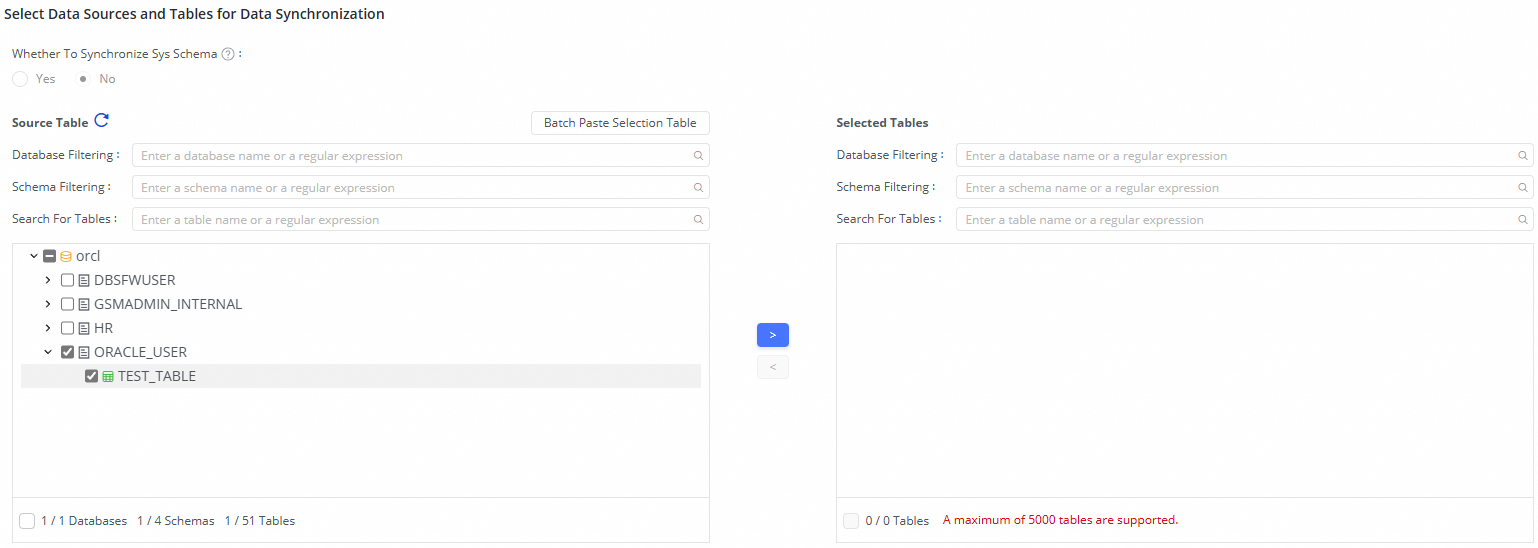
4. Configure target table mapping
After you select the tables from which you want to synchronize data, the selected tables are automatically displayed in the Mapping Rules for Destination Tables section. The properties of the destination tables are waiting to be mapped. You must manually define mappings between the source tables and destination tables to determine the data reading and writing relationships. Then, you can click Refresh in the Actions column. You can directly refresh mappings between source tables and destination tables. You can also refresh mappings between source tables and destination tables after you configure settings related to destination tables.
Select the tables to synchronize and click Batch Refresh Mapping. If you do not configure mapping rules, the default table naming rule is
${SourceDBName}_${TableName}. If a table with the same name does not exist in the destination, a new table is automatically created.In the Customize Target Table Name Mapping column, click Edit to customize the naming rules for the target table.
You can combine built-in variables and manually entered strings to create the final target table name. You can also edit the built-in variables. For example, you can create a new table naming rule that adds a suffix to the source table name to form the target table name.
To synchronize data to a MaxCompute Delta Table, you must specify a primary key for the target table. By default, the primary key of the source table is used. If the source table does not have a primary key, you can specify a custom primary key column. If you do not specify a primary key, the sync task cannot be saved.
By default, the number of buckets for an automatically created Delta Table is 16. You can specify a different number in the Table Bucket Count field in the target table mapping.
You cannot change the bucket count for an existing table. The table bucket count determines the number of buckets into which table data is divided. Operations such as queries, writes, and data merges can be performed concurrently at the bucket level. However, many buckets can increase the number of small files. Set the bucket count based on your requirements. For more information, see Table operations and Data storage and bucketing.
By default, the historical data query time for an automatically created Delta Table is 0 hours. You can specify a different time in the Historical Data Query Time field in the target table mapping.
You cannot change the historical data query time for an existing table. This setting determines the time range within which you can query historical data versions. Historical data that is outside the specified time range cannot be queried. A longer time range means more historical data is retained, which increases storage costs. Set this parameter based on your requirements. For more information, see Table operations and Time Travel.
a. Modify data type mappings for fields
Default mappings exist between data types of source fields and data types of destination fields. You can click Edit Mapping of Field Data Types in the upper-right corner of the Mapping Rules for Destination Tables section to configure data type mappings between source fields and destination fields based on your business requirements. After the configuration is complete, click Apply and Refresh Mapping.
b. Modify the schema of a destination table to add fields to the table and assign values to the fields
If a destination table is in the To Be Created state, you can perform the following steps to add fields to the table and assign values to the fields:
Add fields to one or more destination tables.
Add fields to a single destination table: Find the destination table to which you want to add fields and click the
 icon in the Destination Table Name column. In the dialog box that appears, add fields.
 Add fields to multiple destination tables at a time: Select the destination tables to which you want to add fields at a time, click Batch Modify in the lower part of the page, and then click Destination Table Schema - Batch Modify and Add Field.
Assign values to the fields. You can perform one of the following operations to assign values to the fields:
Assign values to the fields that are added to a single destination table: Find the destination table in which you want to assign values to newly added fields and click Configure in the Value assignment column. In the Additional Field dialog box, assign values to the fields.
Assign values to the fields that are added to multiple destination tables at a time: Select the destination tables in which you want to assign values to newly added fields, click Batch Modify in the lower part of the page, and then click Value assignment to assign values to the same fields in the selected destination tables at a time.
NoteYou can click the
 icon to switch the value assignment method and assign constants and variables to the fields that are added to a destination table.
c. Configure DML processing rules
Data Integration provides default DML processing rules. You can also configure DML processing rules for destination tables based on your business requirements.
Configure DML processing rules for a single destination table: Find the destination table for which you want to configure DML processing rules and click Configure in the Configure DML Rule column to configure DML processing rules for the table.
Configure DML processing rules for multiple destination tables at a time: Select the destination tables for which you want to configure DML processing rules, click Batch Modify in the lower part of the page, and then click Configure DML Rule.
4. Perform full synchronization
If you selected Full Synchronization for Synchronization Steps when you selected the synchronization task type, you can also disable full synchronization for specific tables on this page.
5. Configure alert rules
To prevent the failure of the synchronization task from causing latency on business data synchronization, you can configure different alert rules for the synchronization task.
In the upper-right corner of the page, click Configure Alert Rule to go to the Alert Rule Configurations for Real-time Synchronization Subnode panel.
In the Configure Alert Rule panel, click Add Alert Rule. In the Add Alert Rule dialog box, configure the parameters to configure an alert rule.
NoteThe alert rules that you configure in this step take effect for the real-time synchronization subtask that will be generated by the synchronization task. After the configuration of the synchronization task is complete, you can refer to Run and manage real-time synchronization tasks to go to the Real-time Synchronization Task page and modify alert rules configured for the real-time synchronization subtask.
Manage alert rules.
You can enable or disable alert rules that are created. You can also specify different alert recipients based on the severity levels of alerts.
6. Configure advanced parameters
You can change the values of specific parameters configured for the synchronization task based on your business requirements. For example, you can specify an appropriate value for the Maximum read connections parameter to prevent the current synchronization task from imposing excessive pressure on the source database and data production from being affected.
To prevent unexpected errors or data quality issues, we recommend that you understand the meanings of the parameters before you change the values of the parameters.
In the upper-right corner of the configuration page, click Configure Advanced Parameters.
In the Configure Advanced Parameters panel, change the values of the desired parameters.
7. Configure DDL processing rules
DDL operations may be performed on the source. You can click Configure DDL Capability in the upper-right corner of the page to configure rules to process DDL messages from the source based on your business requirements.
For more information, see Configure rules to process DDL messages.
8. View and change resource groups
You can click Configure Resource Group in the upper-right corner of the page to view and change the resource groups that are used to run the current synchronization task.
9. Run the synchronization task
After the configuration of the synchronization task is complete, click Complete in the lower part of the page.
In the Synchronization Task section of the Data Integration page, find the created synchronization task and click Start in the Operation column.
Click the Name/ID of the synchronization task in the Tasks section and view the detailed running process of the synchronization task.
Synchronization task O&M
View the task running status
After you create a sync task, you can view a list of the sync tasks that you created and their basic information on the sync task page.

In the Actions column, you can Start or Stop a sync task. Under More, you can perform other operations, such as Edit and View.
For a running task, you can view its basic running status in the Execution Overview section. You can also click a specific area of the overview to view execution details.
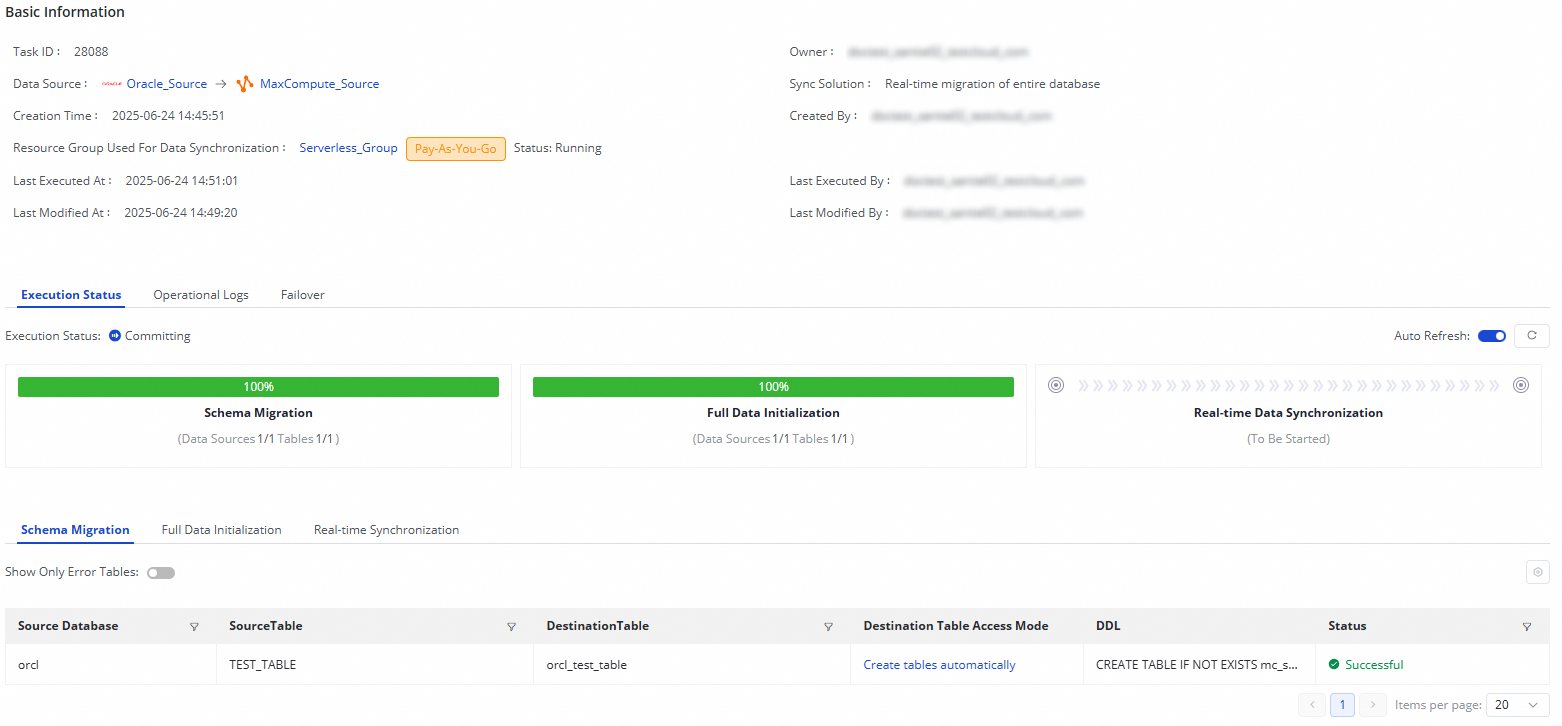
A real-time synchronization task for an entire Oracle database to MaxCompute consists of three steps:
Schema migration: This step includes the creation method for the target table (existing table or automatic creation). If a table is automatically created, the DDL statement is displayed.
Full initialization: This step includes information about the tables synchronized offline, the synchronization progress, and the number of written rows.
Real-time data synchronization: This step includes statistics about the real-time synchronization, such as the real-time progress, DDL records, DML records, and alert information.
Rerun the synchronization task
In some special cases, if you add tables to or remove tables from the source, or change the schema or name of a destination table, you can click More in the Operation column of the synchronization task and then click Rerun to rerun the task after the change. During the rerun process, the synchronization task synchronizes data only from the newly added tables to the destination or only from the mapped source table to the destination table whose schema or name is changed.
If you want to rerun the synchronization task without modifying the configuration of the task, click More in the Actions column and then click Rerun to rerun the task to perform full synchronization and incremental synchronization again.
If you want to rerun the synchronization task after you add tables to or remove tables from the task, click Complete after the change. In this case, Apply Updates is displayed in the Actions column of the synchronization task. Click Apply Updates to trigger the system to rerun the synchronization task. During the rerun process, the synchronization task synchronizes data from the newly added tables to the destination. Data in the original tables is not synchronized again.