This topic uses a MySQL-to-Hive scenario to demonstrate how to configure a Batch Synchronization of an Entire Database task to synchronize an entire MySQL database to Hive.
Prerequisites
-
Data Sources
-
You have created a MySQL Data Source and a Hive Data Source. For more information, see Configure data sources.
-
-
Resource Group: You have purchased a Serverless Resource Group.
-
Network Connectivity: You have established network connectivity between the resource group and the data sources. For more information, see Network connectivity solutions.
Applicability
You can configure a Batch Synchronization of an Entire Database task in both DataStudio and Data Integration. The functionality is identical in both modules.
-
Consistent configuration: Creating a task in either Data Studio or Data Integration provides an identical configuration interface, parameter settings, and underlying capabilities.
-
Bidirectional synchronization: Tasks created in Data Integration automatically appear in the
data_integration_jobsdirectory of Data Studio. These tasks are categorized bySourceType-DestinationTypefor unified management.
Configure a synchronization task
Step 1: Create a synchronization task
Go to the Data Integration page.
Log on to the DataWorks console. In the top navigation bar, select the desired region. In the left-side navigation pane, choose . On the page that appears, select the desired workspace from the drop-down list and click Go to Data Integration.
-
In the left-side navigation pane, click Synchronization Task. At the top of the page, click Create Synchronization Task and configure the task information:
-
Source Type:
MySQL. -
Destination Type:
Hive. -
Specific Type:
Batch Synchronization of an Entire Database. -
Synchronization Mode: The Synchronization Steps you select determine the subsequent Full and Incremental Control settings. You can combine them to create different synchronization strategies.
-
Schema Migration: Automatically creates database objects in the destination that match the source, such as tables, columns, and data types, without transferring data.
-
Full Synchronization (Optional): Performs a one-time copy of all historical data from specified source objects, such as tables, to the destination. This is typically used for initial data migration or initialization.
-
Incremental Sync (Optional): After a full synchronization is complete, this step continuously captures new data from the source based on the Incremental Condition and synchronizes it to the destination.
-
-
Step 2: Configure data sources and runtime resources
-
In the Source Data Source section, select the
MySQLData Source that you added to the Workspace. In the Destination section, select theHiveData Source that you added. -
In the Running Resources section, select the Resource Group for the synchronization task and allocate Resource Group CU for the task. If your synchronization task encounters an Out of Memory (OOM) error due to insufficient resources, adjust the Resource Group CUs allocation accordingly.
-
Ensure that both the source and destination data sources pass the Connectivity Check check.
Step 3: Configure the synchronization strategy
3. Select the databases and tables to sync
In the Source Table area, select the tables to sync from the source data source. Click the  icon to move the tables to the Selected Tables list.
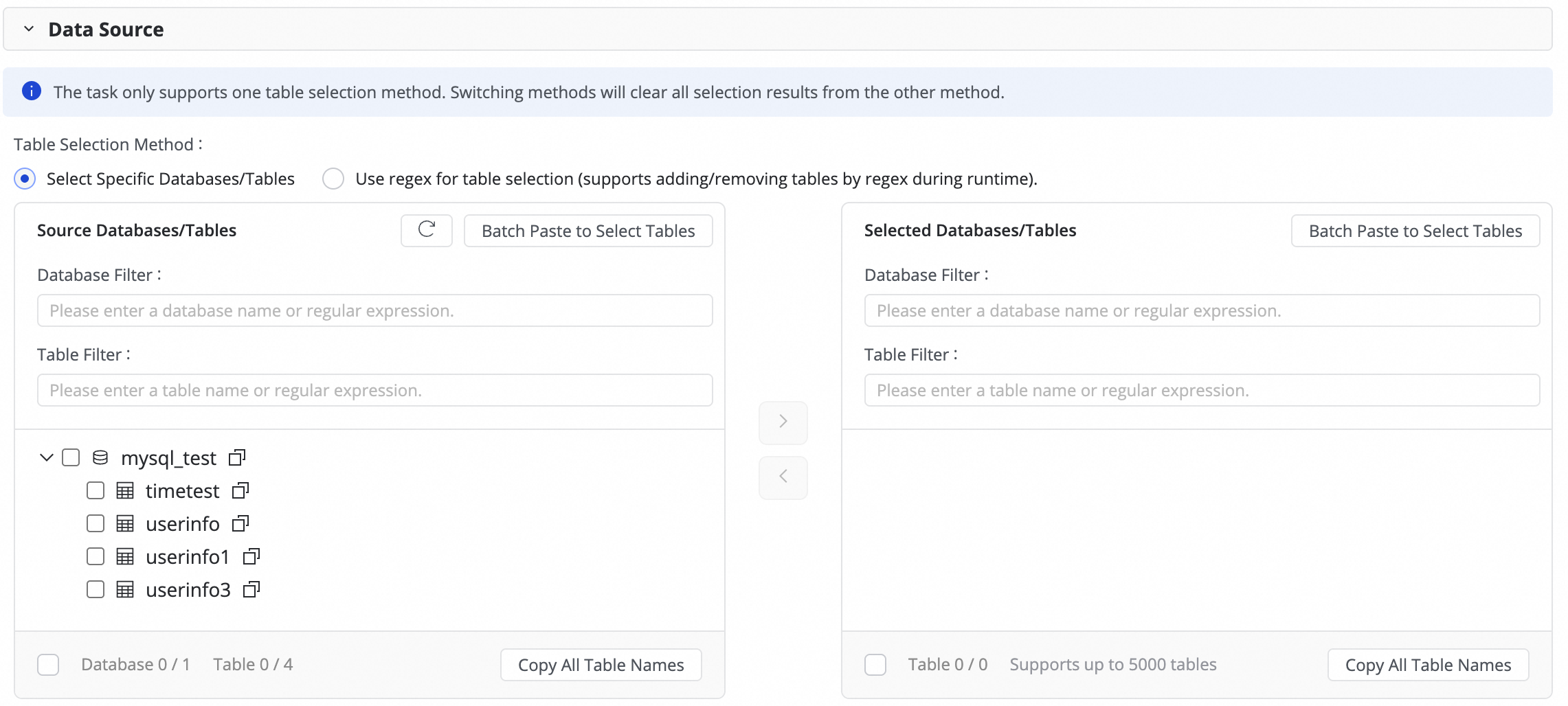
If you have many databases and tables, you can use Database Filtering or Search For Tables to select the tables you want to sync by configuring a regular expression.
2. Configure the destination
This operation affects the table schema of new tables created by Data Integration. It does not affect the table schema of existing tables.
-
Storage Type of Newly Created Table: You can select Internal Table or External Table to determine whether new destination tables are created as internal or external tables.
-
Format of Newly Created Table: You can select parquet, orc, or txt to determine the storage format for new destination tables.
-
Write mode: Determines whether the task clears the destination table or retains historical data during writes. The synchronization process first writes data to an HDFS file and then loads the file into the destination table. This parameter controls whether to keep existing data during the load operation.
-
Partition Initialization Configuration: Determines the initial Partition value for new tables. By default, there is only one Partition level. This can be modified.
5. Configure full and incremental control
Configure the full and incremental synchronization type for the task.
If you select Full Synchronization or Incremental Synchronization, you can choose to run the task as a One-time task or a Recurring task.
If you select both Full Synchronization and Incremental Synchronization, the system uses the built-in mode: One-time full sync first, then recurring incremental sync. This option cannot be changed.
Synchronization steps
Full and incremental control
Data write description
Scenarios
Full synchronization
One-time
After the task starts, all data from the source table is synchronized to the destination table or a specified partition at one time.
Data initialization, system migration
Recurring
All data from the source table is periodically synchronized to the destination table or a specified partition based on the configured scheduling cycle.
Data reconciliation, T+1 full snapshot
Incremental synchronization
One-time
After the task starts, incremental data is synchronized to a specified partition at one time based on the incremental condition you specify.
Manually fix a batch of data
Recurring
After the task starts, incremental data is periodically synchronized to a specified partition based on the configured scheduling cycle and incremental condition.
Daily extract, transform, and load (ETL), building zipper tables
Full synchronization & Incremental synchronization
(Built-in mode, cannot be selected)
First run: The system automatically performs an initial schema synchronization and a full synchronization of historical data.
Subsequent runs: Incremental data is periodically synchronized to a specified partition based on the configured scheduling cycle and incremental condition.
One-click data warehousing/data lake ingestion
NoteFor full database offline synchronization, instances for recurring schedules are generated immediately after you publish the task. For more information, see Instance generation method: Generate immediately after publishing.
You can define how partitions are generated in the Value assignment step. You can use constants or dynamically generate partitions using system-predefined variables and recurring schedule parameters.
The configurations for the scheduling cycle, incremental condition, and partition generation method are interconnected. For more information, see Incremental condition.
Configure recurring schedule parameters.
If your task involves recurring synchronization, click Configure Scheduling Parameters for Periodical Scheduling to configure them. You can use these parameters later when configuring the incremental condition and field value assignment in the destination table mapping.
4. Destination table mapping
In this step, you define the mapping rules between source and destination tables, and specify the data write method by configuring the Recurrence and Incremental Condition.

|
Actions |
Description |
||||||||||||
|
Refresh mapping |
The system automatically lists your selected source tables, but destination table properties take effect only after you refresh and confirm.
|
||||||||||||
|
Edit column type mapping (Optional) |
The system provides default mappings between source and destination column types. You can click Edit Mapping of Field Data Types in the upper-right corner of the table to customize the mappings. After configuration, click Apply and Refresh Mapping. When editing column type mapping, ensure the type conversion rules are correct. Otherwise, type conversion failures may generate Dirty Data and affect task execution. |
||||||||||||
|
Customize destination table name mapping (Optional) |
The default table name generation rule is:
This feature can be used for the following scenarios:
|
||||||||||||
|
Customize destination database name mapping (Optional) |
Some destination Data Sources, such as Hologres, support defining mapping rules for the destination database. The configuration method is similar to Customize destination table name mapping. |
||||||||||||
|
Customize destination schema name mapping (Optional) |
Some destination Data Sources, such as Hologres, support defining mapping rules for the destination schema. The configuration method is similar to Customize destination table name mapping. |
||||||||||||
|
Edit destination Table Schema (Optional) |
The system automatically generates the destination table schema based on the source table structure. In most cases, manual changes are unnecessary. If special handling is required, you can customize it as follows:
|
||||||||||||
|
Assign values to destination table Columns |
Regular columns are automatically mapped based on matching names between the source and destination tables. You must manually assign values for Partition Columns and any newly added columns from the previous step. To do this:
You can assign both constants and variables. You can switch the assignment type for Table Columns and Partition Columns in the Value Type field. The supported methods are as follows:
Both variables and periodic scheduling parameters are automatically replaced with the corresponding date when the scheduler runs the task. |
||||||||||||
|
Set Source Chunking Column |
In the Source Chunking Column dropdown, you can select a column from the source table or choose Disable. DataWorks splits the synchronization task into multiple sub-tasks based on this column for concurrent, batched data reading. Use the table's primary key as the Source Chunking Column. String, float, date, and other types are not supported. Currently, the Source Chunking Column is only supported when the source is MySQL. |
||||||||||||
|
Customize advanced parameters |
You can set Runtime Configurations for each sub-task individually. Modify these parameters only if you fully understand their meaning to avoid unexpected issues such as task delays, excessive resource consumption blocking other tasks, or data loss. |
 icon and combining Manually enter and Built-in Variable. Supported variables include source data source name, source database name, and source table name.

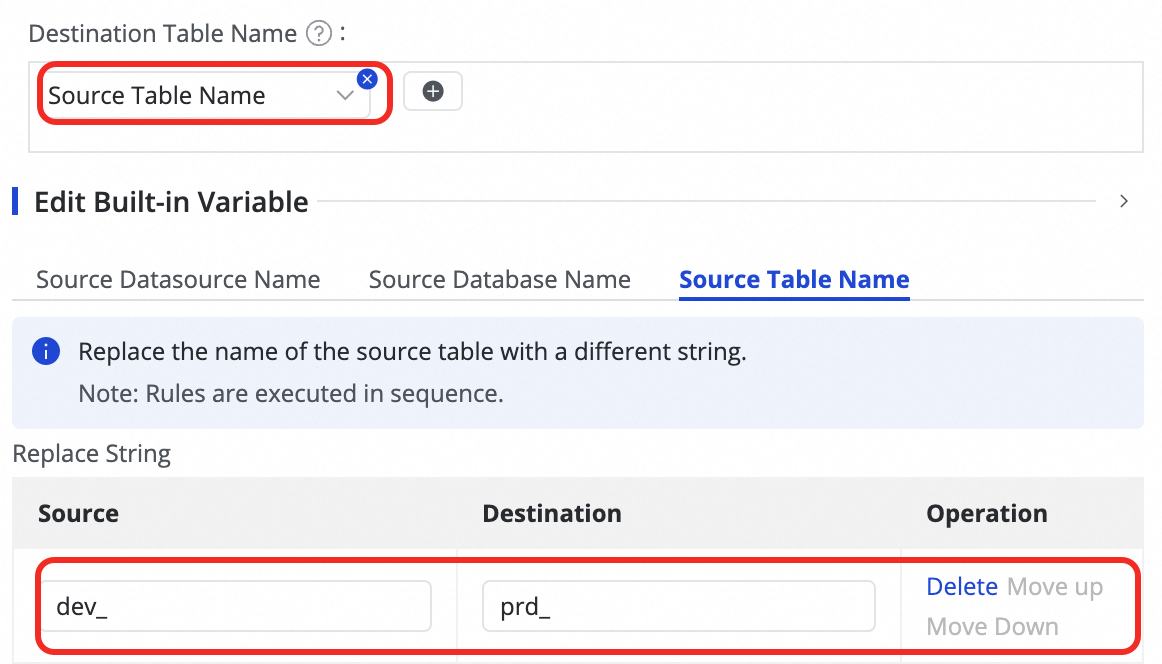

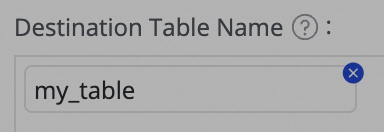

 icon in the Target Table column.
 tooltip on the interface.
5. Schedule configuration
If Incremental Synchronization is configured as Periodic, you need to complete the Recurrence Configuration for the destination table. This includes Scheduling Frequency, Data Timestamp, Resource Group for Scheduling, and more. The scheduling configuration for this synchronization is consistent with that of tasks in Data Studio. For parameter details, see Node scheduling configuration.
If you are synchronizing a large number of tables at once, configure the scheduling time to run them in batches. This prevents task pile-up and resource contention.
6. Incremental condition
If the task needs to synchronize incremental data, you must configure an incremental condition. This condition determines the data that each scheduled instance synchronizes.
-
Function and syntax
-
Function: The incremental condition is essentially a
WHEREclause that filters the source data. -
Syntax: When configuring, enter only the conditional expression that follows
WHERE. Do not include theWHEREkeyword itself.
-
-
Achieving incremental synchronization with scheduling parameters
To achieve periodic incremental synchronization, you can use scheduling parameters in the incremental condition. For example, configure it as
STR_TO_DATE('${bizdate}', '%Y%m%d') <= columnName AND columnName < DATE_ADD(STR_TO_DATE('${bizdate}', '%Y%m%d'), INTERVAL 1 DAY)to synchronize data generated on the previous day. -
Write to a specified partition
By combining the incremental condition with the destination table's Partition Column, you can ensure that each batch of incremental data is written to the correct Partition.
For example, with the incremental condition from the previous step, you can set the Partition Column to
ds=${bizdate}and configure the destination table to be partitioned by day. This way, each day's instance will only synchronize data from the corresponding date at the source and write it to the same-named Partition in the destination.
By correctly combining the time range specified by the incremental condition, the time interval of Partition generation, and the Recurrence from the recurrence configuration, you can create an automated T+n incremental ETL pipeline where business rules and physical Partitions are strictly aligned.
Step 4: Advanced settings
The sync task provides several parameters that you can modify as needed. For example, you can limit the maximum number of connections to prevent the sync task from exerting too much pressure on your production database.
Modify these parameters only if you fully understand what they do. Incorrect settings can cause unexpected errors or data quality issues.
In the upper-right corner of the page, click Configure Advanced Parameters to go to the advanced parameter configuration page.
On the Configure Advanced Parameters page, modify the parameter values.
8. Run the sync task
After you finish the configuration, click Complete at the bottom of the page.
On the page, find the created sync task and click Deploy in the Operation column. If you select Start immediately after deployment, the task will execute immediately after you click Confirm; otherwise, you will need to start it manually.
NoteData Integration tasks must be deployed to the production environment to run. Therefore, both newly created and edited tasks must be deployed to take effect.
In the Tasks, click the Name/ID of the task to view the execution details.
Alert configuration
After the task runs, a scheduling task is generated in the Operation Center. To avoid business data synchronization delays caused by task errors, you can set an alert policy for the sync task.
In the Tasks, find the running sync task. In the Actions column, click to open the task configuration page.
Click Next, and then click Configure Alert Rule in the upper-right corner of the page to open the alert settings page.
In the Scheduling Information column, click the generated scheduling task to open the task details page in the Operation Center and retrieve the Task ID.
In the navigation pane on the left of the Operation Center, click to open the rule management page.
Click Create Custom Rule. Set the Rule Object, Trigger Condition, and Alert Details. For more information, see Rule management.
You can search for the retrieved Task ID in the Rule Object section to find the target task and set an alert for it.
Manage synchronization tasks
Rerun a task
Click Rerun to rerun the task without changing the task configuration.
Effect: This operation reruns a one-time task or updates the properties of a recurring task.
To rerun a task after modifying it by adding or removing tables, edit the task and click Complete. The task status then changes to Apply Update. Click Apply Update to immediately trigger a rerun of the modified task.
Effect: Only the new tables are synced. Tables that were previously synced are not synced again.
After you edit a task (for example, by changing a destination table name or switching to a different destination table) and click Complete, the available operation for the task changes to Apply Update. Click Apply Update to immediately trigger a rerun of the modified task.
Effect: The modified tables are synced. Unmodified tables are not synced again.
View tasks
After creating a synchronization task, you can view the list of created tasks and their basic information on the Synchronization Task page.

-
In the Actions column, you can Start or Stop a synchronization task. Under More, you can perform actions like Edit and View.
-
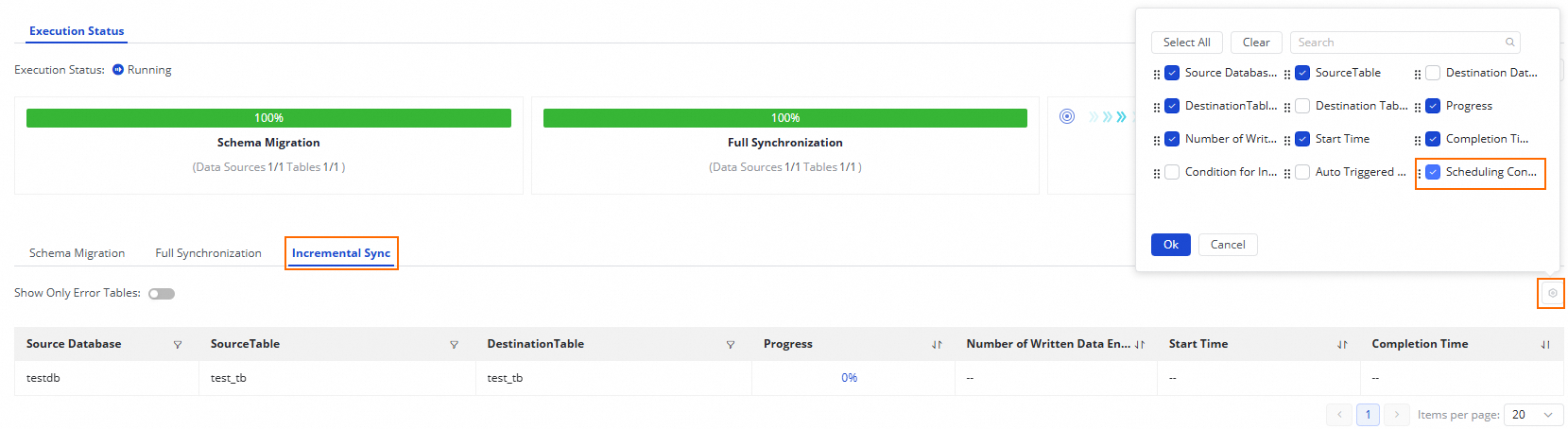
The Execution Overview section shows the status of a running task. Click any area in the overview to view execution details.
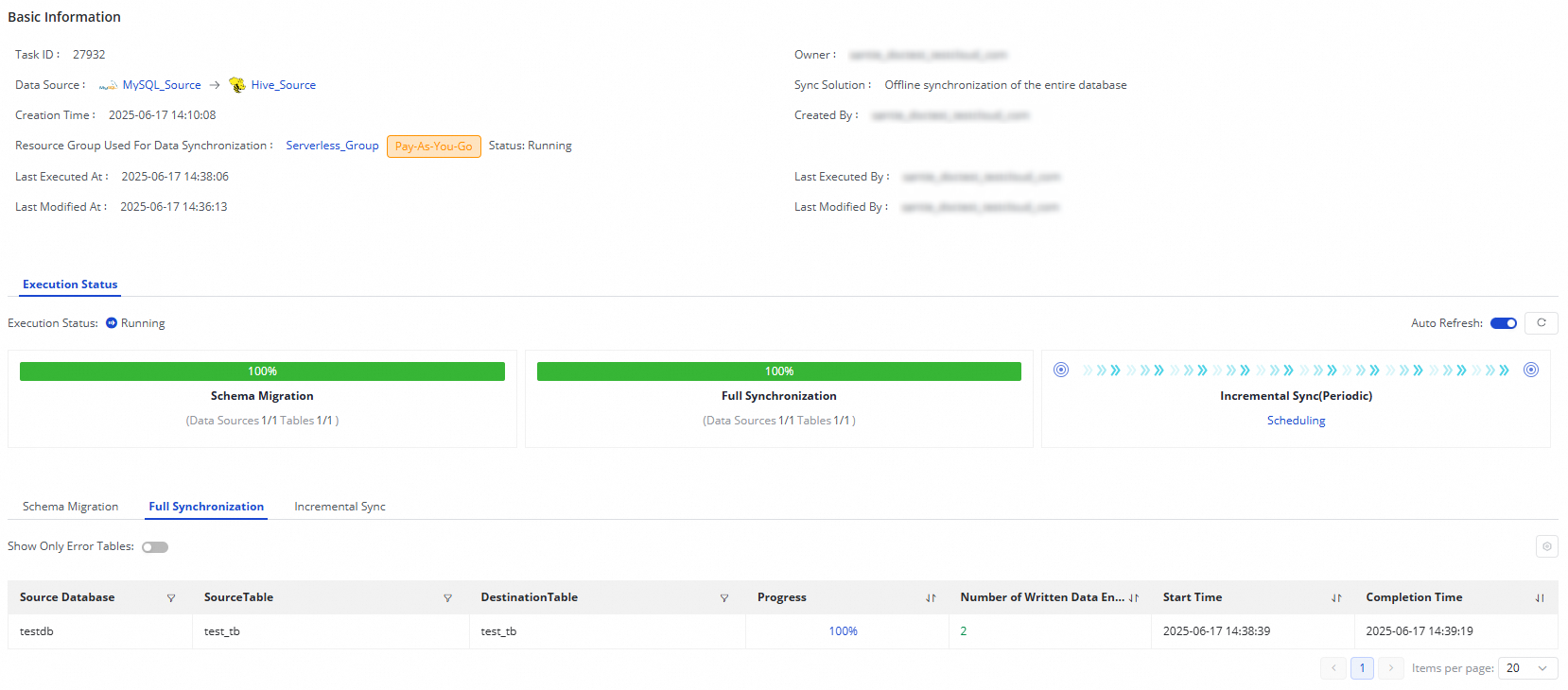
For a Batch Synchronization of an Entire Database task from MySQL to Hive:
-
If your task's synchronization step is Full Synchronization, this section displays Schema Migration and Full Synchronization.
-
If your task's synchronization step is Incremental Sync, this section displays Schema Migration and Incremental Synchronization.
-
If your task's synchronization steps are Full Synchronization + Incremental Sync, this section displays Schema Migration, Full Synchronization, and Incremental Synchronization.
-
Use cases
If you have downstream data dependencies and need to perform data development operations, you can set upstream and downstream dependencies for the node as described in Configure node scheduling. You can view the corresponding recurring task node information in the Scheduling Configuration column.
Next steps
After the task starts, you can click the task name to view its execution details and perform task operation and optimization.