You can use the DataWorks HTTP Trigger node to start a task from an external scheduling system when a task in that system completes. This topic describes how to integrate the node with an external system and provides important notes.
Prerequisites
You have activated DataWorks Enterprise Edition or a more advanced edition.
A workflow and the compute nodes to be triggered are created. For example, if you use MaxCompute for SQL-based computation, you can create an ODPS SQL task. For more information, see Develop an ODPS SQL task.
Background information
An external scheduling system can trigger a task in two typical scenarios:
The HTTP Trigger node has no ancestor nodes
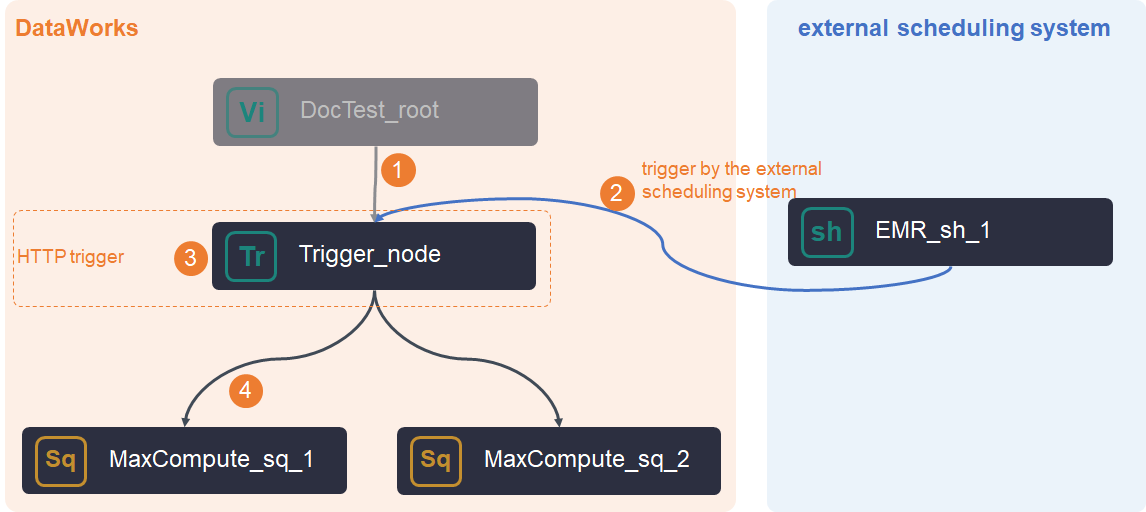 In this scenario, create the HTTP Trigger node, configure the external trigger, and then set the scheduling properties and dependencies for all nodes in DataWorks. For more information, see Create an HTTP Trigger node and Configure a trigger in an external scheduling system.
The HTTP Trigger node has one or more ancestor nodes
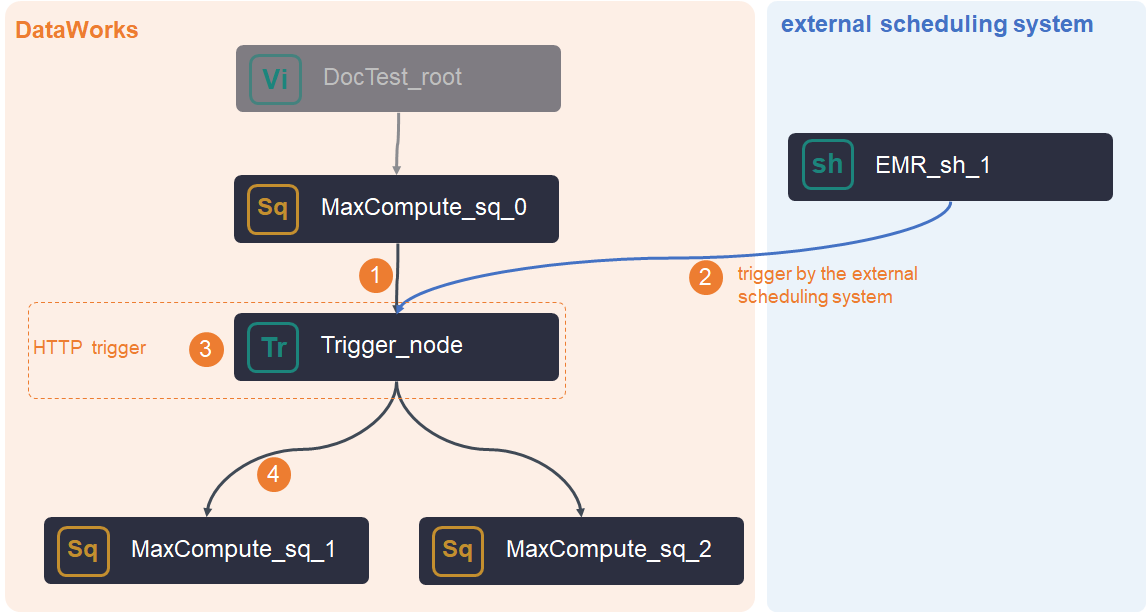 In this scenario:
You need to create the HTTP Trigger node, configure the external trigger, and then set the scheduling properties and dependencies for all nodes in DataWorks. For more information, see Create an HTTP Trigger node and Configure a trigger in an external scheduling system.
By default, an HTTP Trigger node depends on the root node of the workflow. If it has other ancestor nodes, you must manually change the dependency to the correct ancestor node.
The HTTP Trigger node starts its descendant nodes only after its ancestor nodes run successfully and the external scheduling system sends a trigger request.
If the external system sends the trigger request before the ancestor nodes complete, the HTTP Trigger node holds the request and waits. Once the ancestors finish, the node starts its descendant nodes.
ImportantThis trigger request is held for only 24 hours. If the ancestor nodes do not complete within this period, the request expires.
Limitations
The HTTP Trigger node feature is available only in DataWorks Enterprise Edition and later. For more information about DataWorks editions, see Features by edition.
An HTTP Trigger node only supports generating instances for the next day (T+1 scheduling). Data backfill instances cannot be triggered. Therefore, an external system can trigger an HTTP Trigger node only on the day after the node is deployed to the production environment.
An HTTP Trigger node is only a trigger and cannot run computations. You must configure the actual task as a descendant node.
To rerun an HTTP Trigger node in a running workflow, you must rerun the node and send a new trigger request from the external system. Rerunning an HTTP Trigger node does not trigger descendant nodes that have already succeeded.
To get historical results from descendant nodes in a running workflow, perform a data backfill. For more information, see Manage data backfill instances. A data backfill operation does not require a trigger request from an external scheduling system. The HTTP Trigger node directly triggers its descendants. This means an external system cannot trigger a backfill task for the node.
Supported regions: China (Hangzhou), China (Shanghai), China (Beijing), China (Shenzhen), China (Chengdu), China (Hong Kong), Japan (Tokyo), Singapore, Malaysia (Kuala Lumpur), Germany (Frankfurt), and US (Silicon Valley).
Triggering conditions
An HTTP Trigger node runs only if the following conditions are met:
A cycle instance for the node must exist. You can find this instance in Auto Triggered Instances on the Cycle Instance page. Until the RunTriggerNode API is called successfully, the instance remains in a waiting-for-trigger state, blocking its descendant nodes. After the call succeeds, the node runs.
All ancestor nodes have run successfully.
The node's scheduled time has arrived.
The node's scheduling resource group has sufficient resources.
The HTTP Trigger node is not in a frozen state.
A node can be triggered only if it is in a waiting-for-trigger state. A successful instance cannot be triggered again.
Create an HTTP Trigger node
Go to the Data Studio page.
Log on to the DataWorks console. In the target region, click in the left-side navigation pane. Select a workspace from the drop-down list and click Go to Data Development.
On the DataStudio page, move the pointer over the
 icon and choose .
Alternatively, open the target workflow, right-click General, and choose .
In the Create Node dialog box, select a Path and enter a Name.
- Click Confirm.
Click Scheduling Settings on the right side of the node configuration tab to configure the scheduling properties for the node. For more information, see Configure basic properties.
NoteBy default, an HTTP Trigger node depends on the root node of the workflow. If it has other ancestor nodes, you must manually change the dependency to the correct ancestor node.
Save and commit the node.
ImportantYou must set the Rerun and Parent Nodes parameters before you can commit the node.
Click the
 icon in the toolbar to save the node.
Click the
 icon in the toolbar.
In the Commit Node dialog box, enter your comments in the Change description field.
Click OK.
Test the node. For more information, see Manage scheduled tasks.
Configure external triggers
To configure the external trigger, call the 2020-05-18 version of the RunTriggerNode API in one of the following ways to start the node.
Java
Install the Java SDK. For more information, see Get started.
Use the following pom configuration for the DataWorks SDK.
<dependency>
  <groupId>com.aliyun</groupId>
  <artifactId>dataworks_public20200518</artifactId>
  <version>8.0.0</version>
</dependency>
Sample code
You can go to the RunTriggerNode debugging page and view the complete Java sample on the SDK Sample tab. In OpenAPI Explorer, on the RunTriggerNode (run a trigger node) page, set the Endpoint to China (Shanghai). On the left Parameter Configuration Tab, fill in the following required parameters: NodeId (the ID of the trigger node), CycleTime (the 13-digit millisecond timestamp of the task that corresponds to the trigger node), BizDate (the business date timestamp of the instance where the trigger node resides), and AppId (the ID of the DataWorks workspace to which the trigger node belongs). On the right, select the SDK Sample Tab and select the Java language to view the Java SDK sample code. In the code, the endpoint is
dataworks.cn-shanghai.aliyuncs.com, and you can use an AccessKey pair (AK&SK) to initialize the client. Click Run Sample to make the call, or click Download Full Project to obtain the complete code.
Python
Install the Python SDK. For more information, see Integrate an SDK.
Run the following command to install the DataWorks SDK.
pip install aliyun-python-sdk-dataworks-public==2.1.2Sample code
You can go to the RunTriggerNode debugging page and view the complete Python example on the SDK Example tab. On the RunTriggerNode API page in OpenAPI Explorer, switch the language to Python, select China (Shanghai) as the endpoint, and enter the four required parameters in the input parameter area: NodeId, CycleTime, BizDate, and AppId. The code area on the right automatically generates sample Python SDK code that includes the client initialization logic for the
alibabacloud_dataworks_public20200518SDK (creating an account client by using an AccessKey pair). You can click Run Example to debug online, or click Download Full Project to obtain the complete code.
API call
For details on calling the API, see RunTriggerNode.
References
You can also use an HTTP Trigger node to start tasks across tenants. For more information, see Use an HTTP Trigger node to start a node in a cross-tenant environment.