Use DataWorks Data Integration batch synchronization tasks to synchronize basic user information from the MySQL table ods_user_info_d and website access logs from the Object Storage Service (OSS) file user_log.txt to the MaxCompute tables ods_user_info_d_odps and ods_raw_log_d_odps, respectively.
Prerequisites
-
Review the experiment introduction for background on this tutorial. For more information, see Experiment introduction.
-
Set up the required environment. For detailed steps, see Environment setup.
Objective
Synchronize data from the public data sources to MaxCompute to complete the data synchronization step of the workflow.
|
Source type |
Source data |
Source schema |
Destination type |
Destination table |
Destination schema |
|
MySQL |
Table: ods_user_info_d Basic user information |
|
MaxCompute |
|
|
|
HttpFile |
Object: user_log.txt User website access logs |
Each line is a user access record. |
MaxCompute |
|
|
-
To access the test data provided for this tutorial, add the corresponding data source to your workspace.
-
The data for this tutorial is mocked for hands-on practice in DataWorks and can only be read in the Data Integration module.
Go to DataStudio
Log on to the DataWorks console. In the target region, click in the left-side navigation pane. Select a workspace from the drop-down list and click Go to Data Development.
Step 1: Design the workflow
Design the workflow
-
Create a workflow.
In DataWorks, you perform data development within workflows using development components. You must create a workflow before you create a node. For more information, see Create a workflow.
Name the workflow
user_profile_analysis_MaxCompute. -
Design the workflow.
After you create the workflow, its canvas automatically opens. Based on the workflow design, click New Node on the canvas. Drag the required nodes to the canvas and draw lines between them to set dependencies for the data synchronization stage.
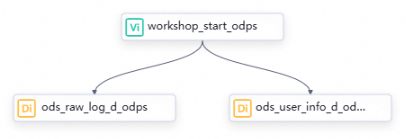
-
In this tutorial, there is no data lineage between the zero load node and the batch synchronization nodes. Therefore, you must define their dependencies by drawing lines in the workflow. For more information about other ways to configure dependencies, see Configure scheduling dependencies. The following table describes the category, type, name, and function of each node.
Category
Type
Node name
(Named after the final output table)
Description
General
zero load node
workshop_start_odpsManages the entire user profile analysis workflow, such as setting when the workflow is triggered. When a workflow is complex, this node helps clarify the data flow path. This is a dry-run node and does not require code editing.
data integration
batch synchronization
ods_user_info_d_odpsSynchronizes basic user information from MySQL to the MaxCompute table
ods_user_info_d_odps.data integration
batch synchronization
ods_raw_log_d_odpsSynchronizes user website access logs from OSS to the MaxCompute table
ods_raw_log_d_odps.
Configure the scheduling logic
The workshop_start_odps zero load node triggers the workflow to run at 00:30 every day. The following table describes its key scheduling configurations. You do not need to change the scheduling settings for other nodes. For more information about the implementation logic, see Advanced time property configuration. For more information about other scheduling configurations, see Overview of task scheduling properties.
|
Scheduling configuration |
Example |
Description |
|
Scheduling time configuration |
Set the scheduling time field to 00:30 to run the node at this time every day. |
With its scheduling time set to 00:30, the zero load node triggers the workflow to run at this time every day. |
|
Scheduling dependency configuration |
In the Upstream Dependencies section, select the Use Root Node of Workspace checkbox. The system automatically adds a dependency on the upstream node whose output name is |
Because the zero load node |
All nodes in DataWorks must depend on upstream nodes. All tasks in the data synchronization stage depend on the workshop_start_odps zero load node. In other words, the workshop_start_odps node triggers the data synchronization workflow.
Step 2: Build the synchronization pipeline
Create the destination MaxCompute tables
Create MaxCompute tables to store the raw data synchronized by Data Integration. For more information, see Create and use MaxCompute tables.
-
Create a table.
In the left-side navigation pane, right-click the Table node under MaxCompute and select Create Table from the shortcut menu.
-
Create the ods_raw_log_d_odps table.
In the Create Table dialog box, enter the name
ods_raw_log_d_odps. On the table editor page, click DDL, enter the following DDL statement, click Generate Table Schema, and then click Confirm to overwrite the current configuration.CREATE TABLE IF NOT EXISTS ods_raw_log_d_odps ( col STRING ) PARTITIONED BY ( dt STRING ) LIFECYCLE 7; -
Create the ods_user_info_d_odps table.
In the Create Table dialog box, enter the name
ods_user_info_d_odps. On the table editor page, click DDL, enter the following DDL statement, click Generate Table Schema, and then click Confirm to overwrite the current configuration.CREATE TABLE IF NOT EXISTS ods_user_info_d_odps ( uid STRING COMMENT 'User ID', gender STRING COMMENT 'Gender', age_range STRING COMMENT 'Age range', zodiac STRING COMMENT 'Zodiac sign' ) PARTITIONED BY ( dt STRING ) LIFECYCLE 7; -
Commit and deploy the tables.
After you confirm the table information, click Commit to Development Environment and Commit to Production Environment for both the ods_user_info_d_odps and ods_raw_log_d_odps tables. This action creates the physical tables in the corresponding computing engine projects for the development and production environments based on your node configuration.
NoteYou can view the table in the computing engine project of the corresponding environment only after a successful commit.
-
Committing a table to the DataWorks development environment creates the table in the MaxCompute computing engine bound to the development environment.
-
Committing a table to the DataWorks production environment creates the table in the MaxCompute computing engine bound to the production environment.
-
Create the source data sources
This tutorial uses test data from a MySQL database and Object Storage Service (OSS). Create a MySQL data source named user_behavior_analysis_mysql and an HttpFile data source named user_behavior_analysis_httpfile in your workspace to access the test data.
-
Before you configure a Data Integration synchronization task, you can add and configure the source and destination databases or data warehouses on the Data Source page in DataWorks. This lets you select the data sources by name during the task configuration to specify the source and destination of the data.
-
The data provided in this tutorial is for hands-on practice in DataWorks only. All data is mocked and can only be read by the Data Integration module.
-
The test data for the HttpFile and MySQL data sources that you create in this step is located on the internet. Make sure that you have configured an Internet NAT gateway for your DataWorks resource group as described in Step 2. Otherwise, you will receive the following error messages when you test network connectivity:
-
HttpFile:
ErrorMessage:[Connect to dataworks-workshop-2024.oss-cn-shanghai.aliyuncs.com:443 [dataworks-workshop-2024.oss-cn-shanghai.aliyuncs.com/106.14.XX.XX] failed: connect timed out]. -
MySQL:
ErrorMessage:[Exception:Communications link failure The last packet sent successfully to the server was 0 milliseconds ago. The driver has not received any packets from the server.<br><br>ExtraInfo:Resource Group IP:****,detail version info:mysql_all],Root Cause:[connect timed out].
-
MySQL data source
Create a MySQL data source in your workspace to read user information from the MySQL database, and then test the network connectivity between the data source and the resource group.
Log on to the DataWorks console. In the target region, click in the left-side navigation pane. Select a workspace from the drop-down list and click Go to Management Center.
On the Workspace Management page, click Data Sources in the left-side navigation pane to open the data source page.
-
Create a MySQL data source.
-
On the Management Center page, navigate to and click Add Connection.
-
In the Add Data Source dialog box, search for and select MySQL.
-
In the Create MySQL Data Source dialog box, configure the parameters.
Parameter
Description
Data source name
Enter user_behavior_analysis_mysql.
Data source description
Enter a description for the data source. This data source is for the DataWorks workshop. When you configure a batch synchronization task, you can read test data from the platform. This data source supports read-only access in Data Integration and cannot be used by other modules.
Configuration mode
Select Connection String Mode.
Environment
Select Development and Production.
NoteYou must create data sources for both the development environment and production environment. Otherwise, an error is reported when the task runs in the production environment.
Connection address
Host IP address
rm-bp1z69dodhh85z9qa.mysql.rds.aliyuncs.comPort number
3306Database name
workshopUsername
workshopPassword
workshop#2017Authentication option
No authentication.
Connection configuration
In the Connection Configuration section, find the Serverless resource group. In the Connected state column, click Test Connectivity to test the network connectivity for both the development and production environments. Wait for the test to complete and the connection status to change to Connectable.
ImportantThe test data for the MySQL data source created in this step is located on the internet. Make sure that you have configured an Internet NAT gateway for your DataWorks resource group as described in Step 2. Otherwise, you will receive the following error when you test the network connectivity:
ErrorMessage:[Exception:Communications link failure The last packet sent successfully to the server was 0 milliseconds ago. The driver has not received any packets from the server.<br><br>ExtraInfo:Resource Group IP:****,detail version info:mysql_all],Root Cause:[connect timed out].
-
HttpFile data source
Create an HttpFile data source in your workspace to read user website access logs from OSS, and then test the network connectivity between the data source and the resource group.
Log on to the DataWorks console. In the target region, click in the left-side navigation pane. Select a workspace from the drop-down list and click Go to Management Center.
On the Workspace Management page, click Data Sources in the left-side navigation pane to open the data source page.
-
Create an HttpFile data source.
-
On the Management Center page, navigate to and click Add Connection.
-
In the Add Connection dialog box, search for and select HttpFile.
-
In the Create HttpFile Data Source dialog box, configure the parameters. The following table describes the key parameters.
Key parameter
Description
Data source name
Enter a name for the data source. This name identifies the data source within your workspace. For this tutorial, set the data source name to user_behavior_analysis_httpfile.
Data source description
Enter a description for the data source. This data source is for the DataWorks workshop. When you configure a batch synchronization task, you can read test data from the platform. This data source supports read-only access in Data Integration and cannot be used by other modules.
Environment
Select Development and Production.
NoteYou must create data sources for both the development environment and production environment. Otherwise, an error is reported when the task runs in the production environment.
URL domain
Enter
https://dataworks-workshop-2024.oss-cn-shanghai.aliyuncs.com.Connection configuration
In the Connection Configuration section, find the Serverless resource group. In the Connected state column, click Test Connectivity to test the network connectivity for both the development and production environments. Wait for the test to complete and the connection status to change to Connectable.
ImportantThe test data for the HttpFile data source created in this step is located on the internet. Make sure that you have configured an Internet NAT gateway for your DataWorks resource group as described in Step 2. Otherwise, you will receive the following error when you test the network connectivity:
ErrorMessage:[Connect to dataworks-workshop-2024.oss-cn-shanghai.aliyuncs.com:443 [dataworks-workshop-2024.oss-cn-shanghai.aliyuncs.com/106.14.XX.XX] failed: connect timed out].
-
Configure the user data synchronization pipeline
Configure a batch synchronization node to synchronize basic user information from the MySQL table ods_user_info_d to the MaxCompute table ods_user_info_d_odps.
-
Double-click the
ods_user_info_d_odpsbatch synchronization node to open the node editor. -
Configure network and resources.
After you configure the Data source, My Resource Group, and Data going, click The next Step and complete the connectivity test as prompted. The following table describes the required configuration.
Parameter
Configuration
Data source
-
Data source:
MySQL -
Data Source Name:
user_behavior_analysis_mysql
My Resource Group
Select the Serverless resource group that you purchased in the Prepare the environment step.
Data going
-
Data going:
MaxCompute -
Data Source Name:
user_behavior_analysis_odps
-
-
Configure the task.
-
Configure the source and destination.
Module
Parameter
Configuration
Data source
Table
Select the MySQL table
ods_user_info_d.Shard Key
Use the primary key or an indexed column as the split key. Only integer-type fields are supported.
For this tutorial, set the split key to the
uidfield.Data going
Tunnel Resource Group
This tutorial uses common transmission resources by default. If you have an exclusive Tunnel quota, you can select it from the drop-down list.
NoteFor more information about MaxCompute data transmission resources, see Purchase and use exclusive resource groups for data transmission. If an exclusive Tunnel quota is unavailable due to an overdue payment or expiration, the task automatically switches to use common transmission resources.
Schema
This tutorial uses the default schema. If you have other schemas in your MaxCompute project, you can select one from the drop-down list.
Table
Select the
ods_user_info_d_odpstable that you created earlier.Partition Information
For this tutorial, enter the
${bizdate}parameter.Write Method
-
For this tutorial, select Clean up existing data before writing (Insert Overwrite).
-
The following write modes are supported:
-
insert into: Inserts data directly into a table or static partition.
-
insert overwrite: Clears the existing data in a table or static partition before inserting new data.
-
Write by Converting Empty Strings into Null
For this tutorial, select No.
-
-
Confirm field mapping and general settings.
DataWorks lets you map source fields to destination fields. This ensures data from specified source fields is written to the correct destination fields. It also provides features for setting concurrent read/write operations, rate limiting to prevent synchronization from affecting database performance, defining dirty data handling, and executing distributed tasks. This tutorial uses the default settings. For more information about other configuration options, see Configure a batch synchronization node by using the codeless UI.
-
-
Configure scheduling properties.
On the configuration page, click Scheduling settings in the right-side pane to open the Scheduling Configuration panel. Here, you can configure scheduling and node information. For details, see Configure scheduling properties for a node. For this tutorial, use the following configuration:
Parameter
Configuration
Scheduling Parameters
Use the default value
$bizdate.Notebizdate=$bizdate retrieves the date of the previous day in the
yyyymmddformat.Time attribute
-
Scheduling period:
Day. -
Scheduling Time:
00:30. -
RUN Attribute: Allows the task to be rerun regardless of its previous success or failure.
Use the default values for other parameters.
NoteThe node runs only after 00:30 every day.
Resource Group
Select the Serverless resource group that you created in the Prepare the environment step.
Scheduling Dependency
-
Confirm the Parent Nodes: Confirm that the
workshop_startnode is displayed as a parent node of the current node. The parent dependencies that you set by connecting nodes are displayed here. If theworkshop_startnode is not displayed, make sure that you have designed the business flow for the data synchronization stage by referring to Design a business flow.In this use case, the current node is triggered after the
workshop_startnode runs at its scheduled time and completes successfully. -
Confirm that a node output named
[Name of the MaxCompute production project].ods_user_info_d_odpsexists. If not, you must manually add it with this output name.
Note-
DataWorks uses node outputs to manage dependencies. The automatic parsing feature uses table lineage to help downstream SQL nodes process the output of a synchronization task by automatically adding the required dependency. You must confirm whether a node output exists with the same name as the synchronization output table,
[Name of the MaxCompute production project].ods_user_info_d_odps.
-
Configure the user log synchronization pipeline
Configure a batch synchronization node to synchronize user website access data from the user_log.txt file in the public HttpFile data source to the MaxCompute table ods_raw_log_d_odps.
-
Double-click the
ods_raw_log_d_odpsbatch synchronization node to open the node editor. -
Configure network and resources.
After you configure the Data source, My Resource Group, and Data going, click The next Step and complete the connectivity test as prompted. The following table describes the required configuration.
Parameter
Configuration
Data source
-
Data source:
HttpFile -
Data Source Name:
user_behavior_analysis_httpfile
My Resource Group
Select the Serverless resource group that you purchased in the Prepare the environment step.
Data going
-
Data going:
MaxCompute -
Data Source Name:
user_behavior_analysis_odps
-
-
Configure the task.
-
Configure the source and destination.
Module
Parameter
Configuration
Data source
File Path
For this tutorial, enter
/user_log.txt.File Type
Select
text.Field Delimiter
For this tutorial, enter
|.Advanced Configuration
Encoding
Select the
UTF-8encoding format.Compression Format
Select
None.Skip Header
Select
No.Data going
Tunnel Resource Group
This tutorial uses common transmission resources by default. If you have an exclusive Tunnel quota, you can select it from the drop-down list.
NoteFor more information about MaxCompute data transmission resources, see Purchase and use exclusive resource groups for data transmission. If an exclusive Tunnel quota is unavailable due to an overdue payment or expiration, the task automatically switches to use common transmission resources.
Schema
This tutorial uses the default schema. If you have other schemas in your DataWorks project, you can select one from the drop-down list.
Table
Select the
ods_raw_log_d_odpstable that you created earlier.Partition Information
For this tutorial, enter the
${bizdate}parameter.Write Method
-
For this tutorial, select Clean up existing data before writing (Insert Overwrite).
-
The following write modes are supported:
-
insert into: Inserts data directly into a table or static partition.
-
insert overwrite: Clears the existing data in a table or static partition before inserting new data.
-
Write by Converting Empty Strings into Null
For this tutorial, select No.
After you configure the source, click Confirm Data Structure to verify that the log file can be read correctly.
-
-
Confirm field mapping and general settings.
DataWorks lets you map source fields to destination fields. This ensures data from specified source fields is written to the correct destination fields. It also provides features for setting concurrent read/write operations, rate limiting to prevent synchronization from affecting database performance, defining dirty data handling, and executing distributed tasks. This tutorial uses the default settings. For more information about other configuration options, see Configure a batch synchronization node by using the codeless UI.
-
-
Configure scheduling properties.
On the configuration page, click Scheduling settings in the right-side pane to open the Scheduling Configuration panel. Here, you can configure scheduling and node information. For details, see Configure scheduling properties for a node. For this tutorial, use the following configuration:
Parameter
Configuration
Scheduling Parameters
Use the default value
$bizdate.Notebizdate=$bizdate retrieves the date of the previous day in the
yyyymmddformat.Time attribute
-
Scheduling period:
Day. -
Scheduling Time:
00:30. -
RUN Attribute: Allows the task to be rerun regardless of its previous success or failure.
Use the default values for other parameters.
NoteThe node runs only after 00:30 every day.
Resource Group
Select the Serverless resource group that you created in the Prepare the environment step.
Scheduling Dependency
-
Confirm the Parent Nodes: Check that the
workshop_startnode is displayed as a parent node of the current node. The parent nodes that you set by connecting nodes are displayed here. If theworkshop_startnode is not displayed, make sure that you have designed the business flow for the business data synchronization phase as described in Design a business flow.In this use case, the current node is triggered after the
workshop_startnode runs at its scheduled time and completes successfully. -
Confirm that a node output named
[Name of the MaxCompute production project].ods_raw_log_d_odpsexists. If not, you must manually add it with this output name.
NoteDataWorks uses node outputs to manage dependencies. The automatic parsing feature uses table lineage to help downstream SQL nodes process the output of a synchronization task by automatically adding the required dependency. You must confirm whether a node output exists with the same name as the synchronization output table,
[Name of the MaxCompute production project].ods_raw_log_d_odps. -
III. Run the flow and view results
Run the business flow
-
On the DataStudio page, double-click
User Profile Analysis_MaxComputeunder Workflow. After the Business Flow panel opens, click the icon in the toolbar to run the Business Flow based on its upstream and downstream dependencies.
 -
Verify the execution:
-
Check the task running status: A node in the
 state indicates that the synchronization process completed successfully.
 -
View the run logs: Right-click the
ods_user_info_d_odpsandods_raw_log_d_odpsnodes and select View Logs. The presence of the following keywords in the logs indicates that the node ran successfully and synchronized the data.Keywords indicating a successful run include
completed successfully,Shell run successfully!, andExit with SUCCESS.
-
Verify the synchronization results
After the Business Flow runs, it synchronizes data from the MySQL ods_user_info_d table to the previous day's partition in workshop2024_01_dev.ods_user_info_d_odps, and logs from the OSS user_log.txt file to the previous day's partition in workshop2024_01_dev.ods_raw_log_d_odps. Since the SQL query does not need to be published to the production environment, you can create an ad hoc query file to verify the results.
-
Create an ad hoc query file.
In the left-side navigation pane of the DataStudio page, click the
 icon to open the Ad Hoc Query pane. Right-click Ad Hoc Query and select New Node > ODPS SQL.
 -
Query the destination tables.
Run the following SQL statements to confirm that the data was written correctly. Check the number of records imported into the
ods_raw_log_d_odpsandods_user_info_d_odpstables.// Replace 'your_business_date' with the actual business date. For example, if the task ran on 20230621, the business date is 20230620 (the day before the run date). select count(*) from ods_user_info_d_odps where dt='your_business_date'; select count(*) from ods_raw_log_d_odps where dt='your_business_date';If the synchronization is successful,
ods_user_info_d_odpsshould return a non-zero count (for example, 6), andods_raw_log_d_odpsshould also return a non-zero count, indicating the data was successfully written to the corresponding partitions.NoteSince this tutorial runs in DataStudio (development environment), data is written by default to the specified tables in the MaxCompute project
workshop2024_01_devfor the development environment.
Next steps
With data synchronization complete, proceed to process basic user information and website access logs in MaxCompute. For more information, see Process Data.