DataWorks DataStudio enables you to add data push nodes to a workflow and supports five push methods: simple push, merge push, script push, conditional push, and MaxCompute data push. This tutorial demonstrates each method.
Background
You can add a data push node to a DataWorks business process. After data is processed by the business process, the node runs a simple query to fetch the results. Based on task scheduling, the node then delivers the data to destinations such as DingTalk, Lark, WeCom, Microsoft Teams, or email.
Approach
Add a node to prepare test data for subsequent push workflows.
Add data query, assignment, and other data processing nodes to process and query the test data.
NoteYou can adapt the nodes for preparing test data and processing queries to your business needs. This tutorial uses a MySQL node to demonstrate how to push data.
Add a data push node to receive the output parameters from the data query node. It then pushes the data, which is passed as context parameters, to DingTalk, Lark, WeCom, Microsoft Teams, or email.
Push methods
This tutorial covers five methods for using data push nodes in a workflow: Simple Push, Combined Push, Script-based Push, Conditional Push, and MaxCompute Data Push.
Simple Push: An upstream workflow runs a SQL query and passes the results to a data push node using Input and Output Parameters.
Combined Push: Multiple upstream workflows run SQL queries and pass their results to a single data push node using Input and Output Parameters.
Script-based Push: An upstream Assignment Node processes data using a script and then passes the results to a push node using Input and Output Parameters. For more information, see Assignment node.
Conditional Push: An upstream workflow uses a Branch Node to evaluate data against configured conditions and passes qualifying data to a data push node using Input and Output Parameters. For more information, see Branch node.
MaxCompute Data Push: Pushes data from a MaxCompute data source. You can use an assignment node to query MaxCompute and then push the results.
Prerequisites
Before you begin, ensure you have the following:
A DataWorks workspace. For details, see Create a workspace.
An ApsaraDB RDS for MySQL instance and a MySQL data source in your workspace. For details, see Data source management.
A MaxCompute data source in your workspace. For details, see Associate a MaxCompute computing resource.
NoteThis tutorial uses a MySQL data source and a MaxCompute data source as examples. You can add other types of data sources based on your business needs.
A serverless resource group. Only serverless resource groups can run data push nodes. To purchase and use one, see Use serverless resource groups.
Limitations
The data push feature has the following limits:
For DingTalk, the data size cannot exceed 20 KB.
For Lark, the data size cannot exceed 20 KB and images must be smaller than 10 MB.
For WeCom, each chatbot can send no more than 20 messages per minute.
For Microsoft Teams, the data size cannot exceed 28 KB.
For email, each data push task supports only one email body. For additional limits, refer to the SMTP limitations of your email service.
The data push feature is available only in DataWorks workspaces in the following regions: China (Hangzhou), China (Shanghai), China (Beijing), China (Shenzhen), China (Chengdu), China (Hong Kong), Singapore, Malaysia (Kuala Lumpur), US (Silicon Valley), US (Virginia), and Germany (Frankfurt).
Preparation
Create a workflow
Log on to the DataWorks console. In the target region, click in the left-side navigation pane. Select a workspace from the drop-down list and click Go to Data Development.
In the Data Studio panel, right-click Workflow and select Create Workflow. Enter a name for the workflow. In this example, name the workflow
Data Push Demo.
Create nodes
After you create the Data Push Demo workflow, double-click the workflow name to open the workflow canvas. Based on the push method you need from the table below, click  to create the corresponding nodes. Name the nodes that you create exactly as specified in the table.
Push method | Node name | Node type | Description |
| MySQL node | Queries last month's total sales from the test data and passes the result as a context parameter to the branch node. | |
| Branch Node | Receives the output parameter from the MySQL node, evaluates it against a condition and, based on the outcome, routes the data as context parameters to different MySQL nodes. | |
| MySQL node | Receives the 'target met' output parameter from the branch node, queries the corresponding data, and passes the result as a context parameter to the Data Push node. | |
| Receives the 'target not met' output parameter from the branch node, queries the corresponding data, and passes the result as a context parameter to the Data Push node. | ||
| Data Push node | Receives the 'target met' output parameter and pushes the data from the input context parameter to the destination. | |
| Receives the 'target not met' output parameter and pushes the data from the input context parameter to the destination. | ||
| MySQL node | Queries last week's total sales for the top three categories and passes the result as a context parameter to the assignment node. | |
| Assignment Node | Uses Python to receive the output parameter from the MySQL node, convert it into a list, and pass the list as a context parameter to the Data Push node. | |
| Data Push node | Receives the list from the assignment node and pushes it to the destination. | |
| MySQL node |
| |
| |||
| Data Push node | Receives output parameters from two MySQL nodes simultaneously and pushes the data from the input context parameters to the destination. | |
| MySQL node | Queries yesterday's total sales from the test data and passes the result as a context parameter to the Data Push node. | |
| Data Push node | Receives the output parameter from the MySQL node and pushes the data from the input context parameter to the destination. | |
| Batch Synchronization node | Uses Data Integration to synchronize data from MySQL to an ODPS data source. | |
| Assignment Node | Queries data from the ODPS data source and passes the result as a context parameter to the Data Push node. | |
| Data Push node | Receives the query result from the assignment node and pushes it to the destination. |
Prepare data
This tutorial demonstrates how to use a data push node with a simple orders table. Follow these steps to create the table and populate it with test data. Skip this section if you do not need test data.
Create a test table
Log on to the DataWorks console. In the target region, click in the left-side navigation pane. Select a workspace from the drop-down list and click Go to Data Development.
In the left-side navigation pane, click the
 icon to open the Ad Hoc Query page. Hover over the
  icon and select to open a new ad hoc query tab.
Node Type: MySQL.
Path: Ad Hoc Query.
Name: Create a test data table.
Run the following SQL statement to create the
orderstable:
CREATE TABLE orders (
     order_id INT NOT NULL AUTO_INCREMENT,
     category VARCHAR(100) NOT NULL, -- Product category
     sales DOUBLE NOT NULL, -- Order sales amount
     datetime DATETIME NOT NULL, -- Order time
     PRIMARY KEY (order_id),
     INDEX (category)
);
Create a stored procedure
The following stored procedure generates random order data for the past two months.
Create the stored procedure in a MySQL client.
DELIMITER $$

CREATE PROCEDURE InsertOrders(IN num_orders INT)
BEGIN
  DECLARE v_category VARCHAR(100);
  DECLARE v_sales DOUBLE;
  DECLARE v_datetime DATETIME;
  DECLARE v_category_list VARCHAR(255);
  DECLARE v_index INT;
  DECLARE i INT DEFAULT 0;

  -- Define a comma-separated string of categories
  SET v_category_list = 'Electronics,Books,Home & Kitchen,Fashion,Toys,Baby,Computers,Electronics,Games,Garden,Clothing,Grocery,Health,Jewelry,Kids';
  -- Get the total number of categories
  SET v_index = ROUND((RAND() * (CHAR_LENGTH(v_category_list) - CHAR_LENGTH(REPLACE(v_category_list, ',', '')) + 1)));

  WHILE i < num_orders DO
    -- Generate a random index to select a category
    SET v_index = FLOOR(1 + (RAND() * (CHAR_LENGTH(v_category_list) - CHAR_LENGTH(REPLACE(v_category_list, ',', '')) + 1)));
    -- Extract a random category from the list
    SET v_category = SUBSTRING_INDEX(SUBSTRING_INDEX(v_category_list, ',', v_index), ',', -1);

    -- Generate a random sales amount between 1,000 and 30,000
    SET v_sales = 1000 + FLOOR(RAND() * 29000);

    -- Generate a random datetime within the last two months
    SET v_datetime = NOW() - INTERVAL FLOOR(RAND() * 61) DAY;

    -- Insert the new random order into the orders table
    INSERT INTO orders (category, sales, datetime) VALUES (v_category, v_sales, v_datetime);

    SET i = i + 1;
  END WHILE;
END$$

DELIMITER ;
Write test data
After you create the stored procedure, run the CALL statement to populate the orders table with random data.
-- Call the stored procedure to insert a specific number of random orders
CALL InsertOrders(1000); -- This inserts 1,000 random orders
Configure the push flow
DataWorks offers several deployment methods to suit your business logic: conditional deployment, script-based deployment, merged deployment, simple deployment, and MaxCompute data deployment. This tutorial uses MySQL to demonstrate the methods for various data sources and provides a specific example for deploying data from MaxCompute.
Conditional data push
Step 1: Build the push workflow
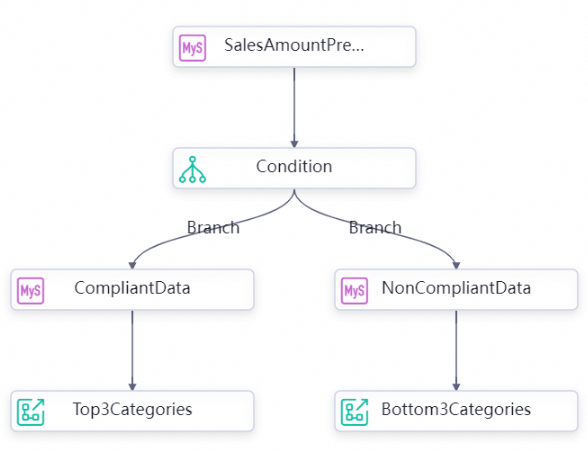
Double-click the Data_Push_Demo workflow to open the workflow canvas. Connect the nodes in sequence to create a conditional data push workflow as shown in the figure below. The workflow routes data from the Query_Last_Month_Sales_Total node to the Check_Sales_Target node. The Check_Sales_Target node then splits the flow into a "compliant" branch (which includes the Last_Month_Sales_Target_Met and Push_Top_3_Categories_Target_Met nodes) and a "non-compliant" branch (which includes the Last_Month_Sales_Target_Not_Met and Push_Bottom_3_Categories_Target_Not_Met nodes).
Step 2: Configure the SQL query node
Configure the SQL query node to query the test data. The query result is passed as an output parameter (outputs) to the downstream branch node using Input and Output Parameters.
Double-click the
Query_Last_Month_Sales_Totalnode and enter the following SQL code.-- Calculate the total sales for the previous month SELECT SUM(sales) AS sales_amount FROM orders WHERE datetime BETWEEN DATE_FORMAT(CURRENT_DATE - INTERVAL 1 MONTH, '%Y-%m-01 00:00:00') AND DATE_FORMAT(LAST_DAY(CURRENT_DATE - INTERVAL 1 MONTH), '%Y-%m-%d 23:59:59');After you enter the SQL code, click Scheduling Settings on the right. In the Properties pane, configure the following parameters.
Scheduling Time:
08:00.Resource Group for Scheduling: Select your serverless resource group.
Upstream Nodes: Select Add Root Node.
Output Parameters: Under Input and Output Parameters, click Add assignment parameter next to Output Parameters to add an output parameter to pass the query result to the downstream node.
Step 3: Configure the branch node
In a branch node, within the Input and Output Parameters, you use the Input Parameters to obtain the outputs output parameter from an upstream SQL query node. The node then performs a conditional judgment and uses the Output Parameters to output the data that meets the condition.
Double-click the
Check_Sales_Targetnode. Click Add Branch to create two branches, one for "compliant" and one for "non-compliant". Configure them as follows.Parameter
Compliant branch
Non-compliant branch
Condition
${inputs[0][0]}>=500000${inputs[0][0]}<500000Associated Node Output
Compliant
Non-compliant
Description
Last month's total sales are compliant.
Last month's total sales are non-compliant.
NoteThe expression [0][0] is a two-dimensional array reference to locate the specific data point for the condition.
When the upstream node is an SQL query node, use a two-dimensional array to locate the conditional data in the parameter.
When the upstream node is a Python node, use a one-dimensional array.
Double-click to open the
Condition Checknode. On the right, click Scheduling Settings and configure the following settings in the dialog box that appears.Parameter type
Description
Schedule
Scheduling Frequency
DayScheduling Time
08:00Rerun
Reruns are allowed after successful and failed runs.
Resource Group
Resource Group for Scheduling
Select your serverless resource group.
NoteThe first time you use a data push node, you must submit a ticket to upgrade the scheduling resource group.
Output Name of Current Node
After you configure the branches, the output names are automatically parsed and added here. The Output Name must match the Associated Node Output defined for the branch.
Input and Output Parameters
Input Parameters
Parameter name:
inputsValue Source: From the upstream node
Query last month's total sales, select the output parameteroutputs.Output Parameters
The system adds
outputsby default.After configuration, click the
 icon to save the
 Check_Sales_Targetnode.
Step 4: Configure branch SQL nodes
In this tutorial, the branch SQL query node is divided into two nodes, Last_Month_Sales_Target_Met_Data and Last_Month_Sales_Target_Not_Met_Data. You need to output the context parameters of the Branch Node to the Last_Month_Sales_Target_Met_Data node and Last_Month_Sales_Target_Not_Met_Data node. Then, use the Output Parameters of the Input and Output Parameters to output the SQL query result from the branch node to the corresponding target-met and target-not-met Data Push nodes.
Double-click the
Last_Month_Sales_Target_Metnode and theLast_Month_Sales_Target_Not_Metnode to open their editors, and then enter the following SQL code for each.Last month sales target met
SET @all_cat_sales_volume_month := 0.0;
SELECT SUM(sales) INTO @all_cat_sales_volume_month FROM orders WHERE datetime BETWEEN DATE_FORMAT(CURRENT_DATE - INTERVAL 1 MONTH, '%Y-%m-01 00:00:00') AND DATE_FORMAT(LAST_DAY(CURRENT_DATE - INTERVAL 1 MONTH), '%Y-%m-%d 23:59:59');

-- Create a temporary table
CREATE TEMPORARY TABLE IF NOT EXISTS temp_array (
  category VARCHAR(255),
  sales DOUBLE,
  all_cat_sales_volume_month DOUBLE
);
-- Query and write to the temporary table
INSERT INTO temp_array (category, sales, all_cat_sales_volume_month) SELECT category, SUM(sales) AS amount, @all_cat_sales_volume_month FROM orders WHERE datetime BETWEEN DATE_FORMAT(CURRENT_DATE - INTERVAL 1 MONTH, '%Y-%m-01 00:00:00') AND DATE_FORMAT(LAST_DAY(CURRENT_DATE - INTERVAL 1 MONTH), '%Y-%m-%d 23:59:59') GROUP BY category ORDER BY amount DESC limit 3;
-- Query the data for the top three compliant categories
SELECT category, sales, all_cat_sales_volume_month FROM temp_array;
Last month sales target not met
SET @all_cat_sales_volume_month := 0.0;
SELECT SUM(sales) INTO @all_cat_sales_volume_month FROM orders WHERE datetime BETWEEN DATE_FORMAT(CURRENT_DATE - INTERVAL 1 MONTH, '%Y-%m-01 00:00:00') AND DATE_FORMAT(LAST_DAY(CURRENT_DATE - INTERVAL 1 MONTH), '%Y-%m-%d 23:59:59');

-- Create a temporary table
CREATE TEMPORARY TABLE IF NOT EXISTS temp_array (
  category VARCHAR(255),
  sales DOUBLE,
  all_cat_sales_volume_month DOUBLE
);

-- Query and write to the temporary table
INSERT INTO temp_array (category, sales, all_cat_sales_volume_month) SELECT category, SUM(sales) AS amount, @all_cat_sales_volume_month FROM orders WHERE datetime BETWEEN DATE_FORMAT(CURRENT_DATE - INTERVAL 1 MONTH, '%Y-%m-01 00:00:00') AND DATE_FORMAT(LAST_DAY(CURRENT_DATE - INTERVAL 1 MONTH), '%Y-%m-%d 23:59:59') GROUP BY category ORDER BY amount ASC limit 3;

-- Query the data for the bottom three non-compliant categories
SELECT category, sales, all_cat_sales_volume_month FROM temp_array;
After you enter the SQL code, click Scheduling Settings on the right. In the Properties pane, configure the following parameters.
Scheduling Time:
08:00.Resource Group for Scheduling: Select your serverless resource group.
Parent Nodes: The workflow was created in Step 1: Build the push workflow, so verify that the upstream dependency is correct.
For the Last_Month_Sales_Target_Met node, the upstream node output name must be Compliant.
For the Last_Month_Sales_Target_Not_Met node, the upstream node output name must be Non-compliant.
Output Parameters: Under Input and Output Parameters, click Add assignment parameter next to Output Parameters to add an output parameter.
Click the
 icon to save the
 Last_Month_Sales_Target_MetandLast_Month_Sales_Target_Not_Metnodes.
Step 5: Configure the branch data push nodes
You need to create two data push nodes. For each node, in the Input and Output Parameters, configure the Input Parameters to obtain the outputs parameter from the Last_Month_Sales_Target_Met_Data and Last_Month_Sales_Target_Not_Met_Data branch SQL query nodes, respectively. Then, use these parameters in the Body and push them to their respective targets.
Double-click the
Push_Top_3_Categories_Target_MetandPush_Bottom_3_Categories_Target_Not_Metnodes. In the node editor, click Scheduling Settings and configure the following in the Scheduling Settings pane.Parameter type
Value
Illustration
Scheduling Parameter
Parameter name
curdate
Parameter Value
$[yyyymmddhh:mi:ss]Schedule
Scheduling Frequency
Day
Scheduling Time
08:00NoteThis tutorial uses 08:00 as an example to ensure the data is pushed to the destination at 08:00. You can configure a different time as needed.
Rerun
Reruns are allowed after successful and failed runs.
Resource Group
Resource Group for Scheduling
Select your serverless resource group.
NoteThe first time you use a data push node, you must submit a ticket to upgrade the scheduling resource group.

Input and Output Parameters
Input Parameters
Click Add to add an input parameter:
Parameter Name:
inputs.Value Source:
In the
Push Top 3 Sales Goal Categoriesnode, select the output parameteroutputsof theLast Month's Sales Goal Datanode.In the
Push Bottom Three Underperforming Categoriesnode, select the output parameteroutputsfrom theLast Month's Underperforming Sales Datanode.
Push_Top_3_Categories_Target_Metnode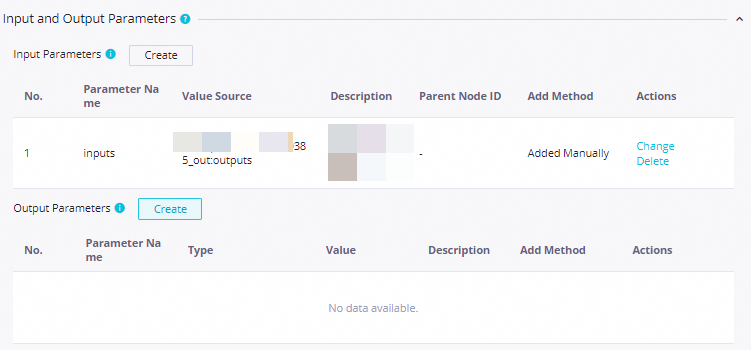
Push_Bottom_3_Categories_Target_Not_Metnode
After configuring the Scheduling Settings, configure the data push content as follows.
Destination: From the Destination drop-down list, select your target. If your target is not listed, click Create Destination at the bottom of the list to create it.
For how to obtain a Lark bot Webhook, see Configure a Lark Webhook trigger.
For how to obtain a Teams Webhook, see Use Microsoft Teams workflows to create an incoming Webhook.
Title:
Push_Top_3_Categories_Target_MetandPush_Bottom_3_Categories_Target_Not_Met.Body: Configure as needed. For details, see Configure the push content.
NoteIn the body, you can reference input parameters from the upstream SQL query node by using its returned field names as placeholders.
Example for Push_Top_3_Categories_Target_Met

Example for Push_Bottom_3_Categories_Target_Not_Met

Parameter
Description
Type
Supports DingTalk, Lark, WeCom, Microsoft Teams, and Email.
Object
Enter a custom name based on your business needs.
Webhook
Obtain the webhook URL for DingTalk, Lark, WeCom, or Microsoft Teams chatbots, or the SMTP details for Email, from the respective platform.
NoteAfter configuration, click the
 icon to save the
 Push_Top_3_Categories_Target_MetandPush_Bottom_3_Categories_Target_Not_Metnodes.
Step 6: Test the conditional push workflow
After you configure the conditional push workflow, test it before you submit and deploy it.
Double-click to open the
Data_Push_Demoworkflow page.Select the
Query Last Month's Total Salesnode, right-click and select Run current node and its downstream nodes, and wait for the run to complete.NoteIf a task fails, right-click the failed node and select View Log to view the log.
Script data push
Step 1: Build the workflow
Double-click theDataPushDemo workflow to open the workflow canvas. Connect theSalesAmountPreWeek,Top3CategoryList, andTop3CategoriesPreWeek nodes in sequence to create a script data push workflow.

Step 2: Configure the SQL query node
You can configure an SQL query node to query test data and use Input and Output Parameters to generate the output parameter outputs for the SQL query node. This allows you to pass the SQL query result to an assignment node.
Double-click the
SalesAmountPreWeeknode to open its editor, and enter the following SQL code.-- Query the top three categories by sales from the previous week SELECT category, SUM(sales) AS amount FROM orders WHERE datetime BETWEEN DATE_FORMAT(DATE_SUB(CURDATE(), INTERVAL 1 WEEK), '%Y-%m-%d 00:00:00') AND DATE_FORMAT(DATE_SUB(CURDATE(), INTERVAL 1 DAY), '%Y-%m-%d 23:59:59') GROUP BY category ORDER BY amount DESC limit 3;After you enter the SQL code, click Scheduling Settings on the right. In the Properties pane, configure the following parameters.
Scheduling Time:
08:00.Resource Group for Scheduling: Select your serverless resource group.
Upstream Nodes: Select Add Root Node.
Output Parameters: Under Input and Output Parameters, click Add assignment parameter next to Output Parameters to add an output parameter to pass the query result to the descendant node.
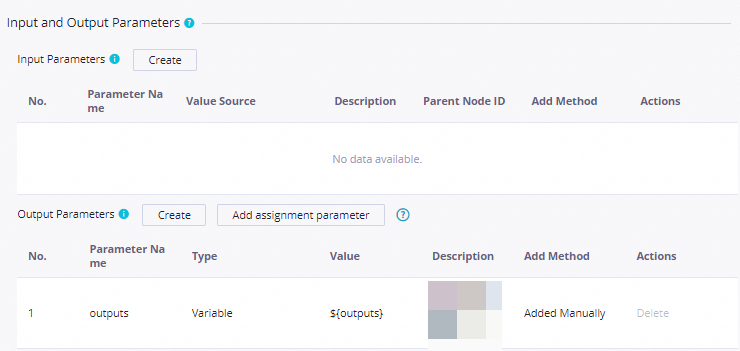
Click
 Save on the
 Query last week's sales datanode.
Step 3: Configure the assignment node
The assignment node uses Input Parameters under Input and Output Parameters to receive theoutputs parameter from the upstream SQL query node. The node then processes this data, generates a new value for Output Parameters, and passes it to the data push node.
Double-click the
Top3CategoryListassignment node. In the node editor, enter the following Python code.def main(): from datetime import date today = date.today() formatted_date = today.strftime('%Y-%m-%d') msg = 'Stat date: ' + formatted_date + ' \\n\\n ' \ '- 1: ${inputs[0][0]}, sales: ${inputs[0][1]} \\n\\n ' \ '- 2: ${inputs[1][0]}, sales: ${inputs[1][1]} \\n\\n ' \ '- 3: ${inputs[2][0]}, sales: ${inputs[2][1]} \\n\\n ' print(msg) if __name__ == "__main__": import sys main()After you enter the code, click Scheduling Settings on the right. In the resulting pane, configure the following parameters.
Scheduling Time:
08:00.Resource Group for Scheduling: Select your scheduling resource group.
Input and Output Parameters.
Input Parameters:
Parameter name:
inputs.Value Source: Select the
outputsparameter from the upstreamSalesAmountPreWeeknode.
Output Parameters: Generated automatically by the system.
Click
to save the Top 3 Sales in Organization Listassignment node.
Step 4: Configure the data push node
Configure Input Parameters under Input and Output Parameters to receive theoutputs parameter from the upstream assignment node. Then, use this parameter in the message body and push it to the destination.
Double-click the data push node named
Push Top 3 Categories of Last Week, click Scheduling Settings, and in the Scheduling Settings panel, configure the settings as follows.Parameter type
Parameter content
Illustration
Scheduling Parameter
Parameter name
curdate.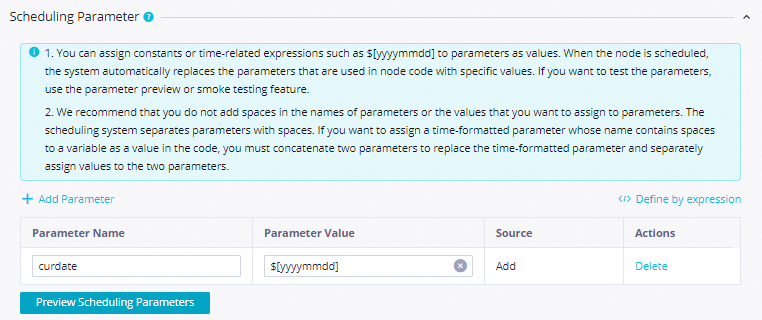
Parameter Value
$[yyyymmddhh:mi:ss].Schedule
Scheduling Frequency
Daily.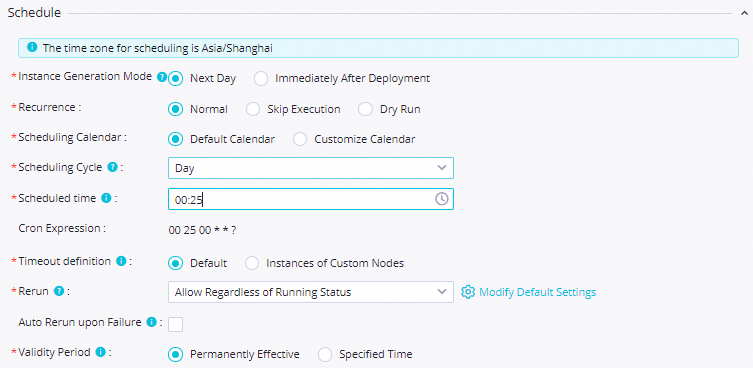
Scheduling Time
08:00.NoteThis tutorial uses 08:00 as an example to ensure the data is pushed to the destination at 08:00. You can configure a different time as needed.
Rerun
The node can be rerun after it succeeds or fails.
Resource Group
Resource Group for Scheduling
Select your scheduling resource group.
NoteThe first time you use a data push node, you must submit a ticket to upgrade the scheduling resource group.

Input and Output Parameters
Input Parameters
Click Add to add an input parameter:
Parameter Name:
inputs.Value source: Select the output parameter
outputsfrom the upstream nodeTop 3 sales categories last week.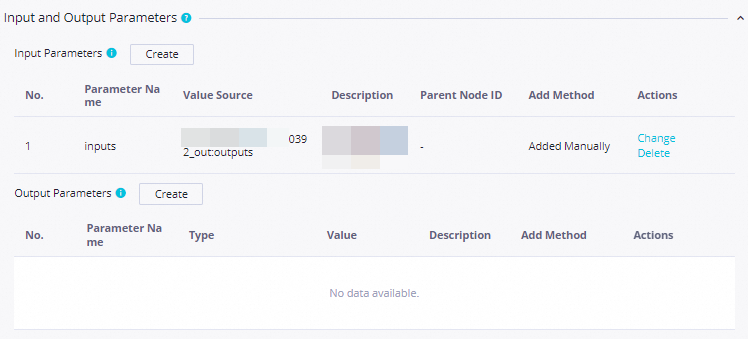
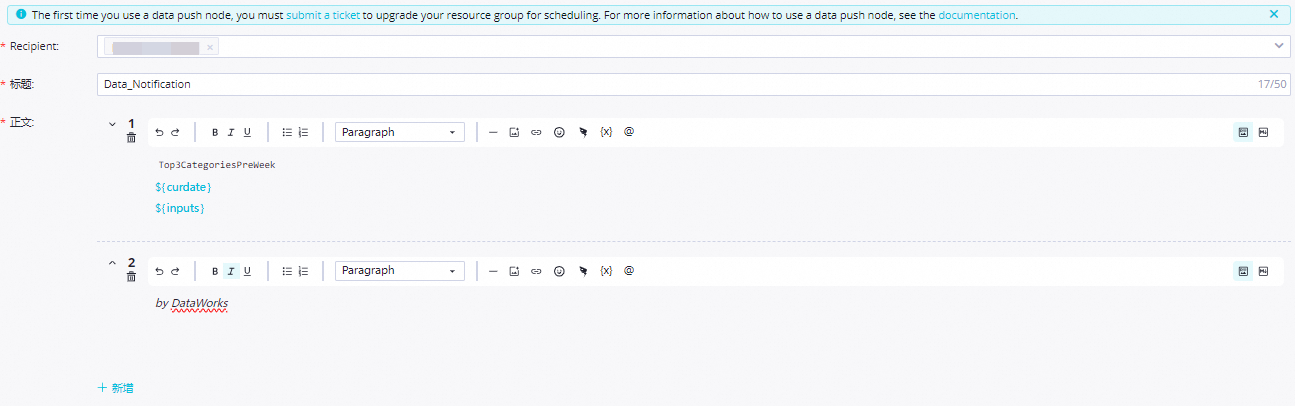
After configuring the Scheduling Settings, configure the data push content as follows.
Destination: Select a destination from the Destination drop-down list. If your destination is not listed, click Create Destination at the bottom of the list to add it.
For how to obtain a Lark bot Webhook, see Configure a Lark Webhook trigger.
For how to obtain a Teams Webhook, see Use Microsoft Teams workflows to create an incoming Webhook.
Title:
Top 3 categories by sales for the previous week.Body: Configure the message body as needed. For details, see Configure push content.
NoteIn the body, you can reference input parameters from the upstream SQL query node by using its returned field names as placeholders.
Parameter
Description
Type
Supports DingTalk, Lark, WeCom, Teams, and Email.
Object
Specify a custom name based on your business needs.
Webhook
Obtain the webhook URL for DingTalk, Lark, WeCom, or Teams bots, and the SMTP server details for email, from their respective platforms.
NoteAfter you complete the configuration, click
 to save the
 Push Top Three Categories of Last Weekpush node.
Step 5: Test the script data push workflow
After you configure the script data push workflow, test it before you submit and deploy it.
Double-click the
DataPushDemoworkflow to open the workflow canvas.Right-click the
SalesAmountPreWeeknode and select Run Current Node and Its Descendant Nodes. Wait for the process to complete.NoteIf a task fails, right-click the failed node and select View Log to view the log.

Simple data push
Step 1: Build the push workflow
Double-click the Data_Push_Demo_Workflow. On the workflow canvas, you can see multiple existing nodes. Drag the MySQL query node Query_Yesterday_Sales_Total as the upstream node and connect it to the downstream data push node Push_Yesterday_Sales_Total. This creates a simple data push workflow, as shown in the following figure.

Step 2: Configure the SQL query node
Use the Input and Output Parameters to generate an outputs parameter that passes the SQL query result to the data push node.
Double-click the
Query_Yesterday_Sales_Totalnode and enter the following SQL code.-- Create a temporary table named temp_array CREATE TEMPORARY TABLE IF NOT EXISTS temp_array ( total_amount DOUBLE ); -- Write the total sales from yesterday into the temp_array table INSERT INTO temp_array (total_amount) SELECT SUM(sales) FROM orders WHERE datetime BETWEEN DATE_FORMAT(DATE_SUB(CURDATE(), INTERVAL 1 DAY), '%Y-%m-%d 00:00:00') AND DATE_FORMAT(DATE_SUB(CURDATE(), INTERVAL 1 DAY), '%Y-%m-%d 23:59:59'); -- Query the temp_array table select total_amount FROM temp_array;After you enter the SQL code, click Scheduling Settings on the right. In the Properties pane, configure the following parameters.
Scheduling Time:
08:00.Resource Group for Scheduling: Select an existing Serverless resource group.
Upstream Nodes: Select Add Root Node.
Output Parameters: In the Input and Output Parameters section, click Add assignment parameter next to Output Parameters to add an output parameter. Downstream nodes can then access its value.
Click
Save to save the Query_Yesterday_Sales_Totalnode.
Step 3: Configure the data push node
Configure the Input Parameters within the Input and Output Parameters section to receive the outputs parameter from the upstream SQL query node. You can then use this parameter in the message body and push it to the destination.
Double-click the
Push_Yesterday_Sales_Totaldata push node. In the node editor, click Scheduling Settings on the right. In the Scheduling Settings pane, configure the following parameters.Parameter type
Details
Illustration
Scheduling Parameter
Parameter name
curdate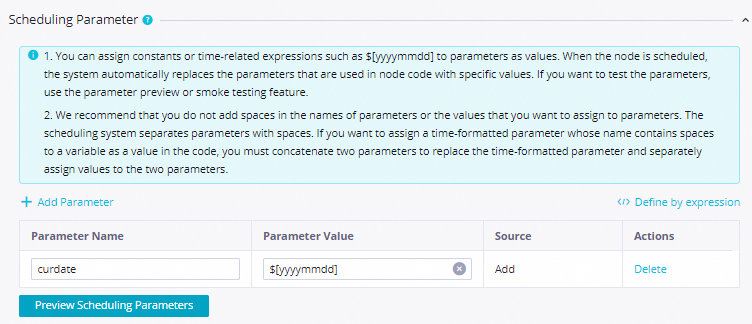
Parameter Value
$[yyyymmddhh:mi:ss]Schedule
Scheduling Frequency
Daily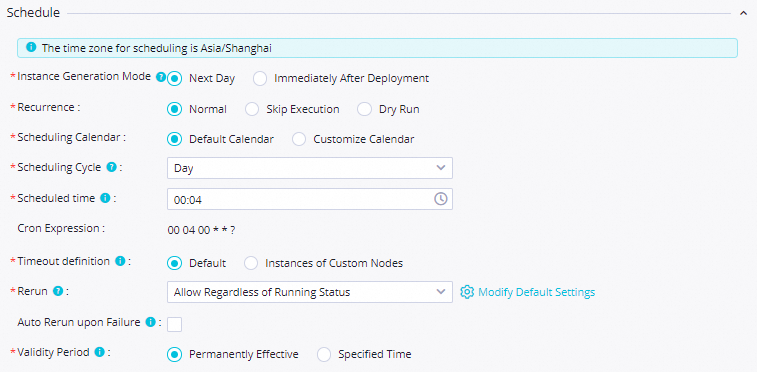
Scheduling Time
08:00NoteThis tutorial uses 08:00 as an example to ensure the data is pushed to the destination at 08:00. You can configure a different time as needed.
Rerun
The node can be rerun after a successful or failed run.
Resource Group
Resource Group for Scheduling
Select an existing scheduling resource group.
NoteThe first time you use a data push node, you must submit a ticket to upgrade the scheduling resource group.

Input and Output Parameters
Input Parameters
Click Add to add an input parameter:
Parameter name:
inputs.Value Source: Select the
outputsparameter from the upstreamQuery_Yesterday_Sales_Totalnode.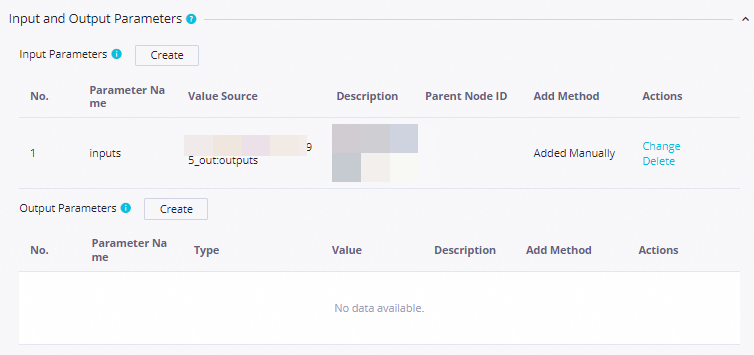
After configuring the Scheduling Settings, configure the data push content as follows.
Destination: From the Destination drop-down list, select a destination. If your destination isn't listed, click Create Destination.
Parameter
Description
Type
Supported types include DingTalk, Feishu, WeCom, Teams, and Email.
Object
Enter a custom name based on your business needs.
Webhook
Obtain the webhook URL for DingTalk, Feishu, or WeCom bots, or for a Microsoft Teams workflow, from the respective platforms. For email, obtain the SMTP details.
NoteFor how to obtain a Lark bot Webhook, see Configure a Lark Webhook trigger.
For how to obtain a Teams Webhook, see Use Microsoft Teams workflows to create an incoming Webhook.
Title:
Push_Yesterday_Sales_Total.Body: Configure the message body as needed. For more information, see Configure the push content.
NoteIn the body, you can reference input parameters from the upstream SQL query node by using its returned field names as placeholders.

Click
 Save to save the
 Push_Yesterday_Sales_Totaldata push node.
Step 4: Test the simple push workflow
After configuring the simple data push workflow, test it before submitting it for deployment.
Double-click
Data_Push_Demo_Workflowto open the workflow canvas.Select the
Query_Yesterday_Sales_Totalnode, right-click it, and select Run current node and its downstream nodes. Wait for the run to complete.NoteIf a task fails, right-click the failed node and select View Log to view the log.

Combined data push
Step 1: Build the workflow
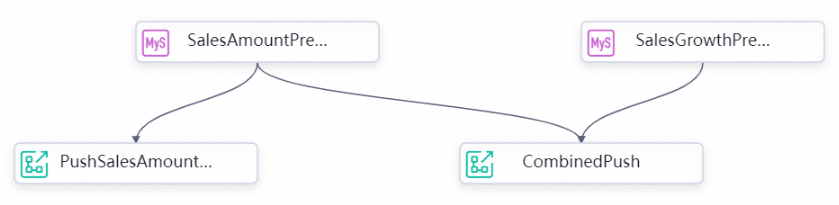
Double-click to open the Data Push Demo Flow workflow canvas. On the canvas, drag and connect the upstream nodes Query Yesterday's Total Sales and Query Yesterday's Sales Growth to the descendant node Push Yesterday's Total Sales and Growth to create a combined data push workflow as shown in the following figure.
The Query yesterday's total sales node can be the same one used in the simple data push workflow.
Step 2: Configure the SQL query node
You can configure an SQL query node to query test data and use a Input and Output Parameters to generate the outputs output parameter, which passes the SQL query result to a data push node.
Click the
Query Yesterday's Sales Growthnode, and write the following query SQL code.-- Create the temporary table temp_array1 to store data from the day before yesterday CREATE TEMPORARY TABLE IF NOT EXISTS temp_array1 ( category VARCHAR(255), sales DOUBLE ); -- Write data from the day before yesterday to temp_array1 INSERT INTO temp_array1 (category, sales) SELECT category, SUM(sales) FROM orders WHERE datetime BETWEEN DATE_FORMAT(DATE_SUB(CURDATE(), INTERVAL 2 DAY), '%Y-%m-%d 00:00:00') AND DATE_FORMAT(DATE_SUB(CURDATE(), INTERVAL 2 DAY), '%Y-%m-%d 23:59:59') GROUP BY category; -- Create the temporary table temp_array2 to store yesterday's data CREATE TEMPORARY TABLE IF NOT EXISTS temp_array2 ( category VARCHAR(255), sales DOUBLE ); -- Write yesterday's data to temp_array2 INSERT INTO temp_array2 (category, sales) SELECT category, SUM(sales) FROM orders WHERE datetime BETWEEN DATE_FORMAT(DATE_SUB(CURDATE(), INTERVAL 1 DAY), '%Y-%m-%d 00:00:00') AND DATE_FORMAT(DATE_SUB(CURDATE(), INTERVAL 1 DAY), '%Y-%m-%d 23:59:59') GROUP BY category; -- Create the result temporary table to store yesterday's sales growth CREATE TEMPORARY TABLE IF NOT EXISTS result ( category VARCHAR(255), diff DOUBLE ); -- Write the growth data to the result table INSERT INTO result (category, diff) SELECT temp_array2.category AS category, temp_array2.sales - temp_array1.sales AS diff FROM temp_array1 LEFT JOIN temp_array2 ON temp_array1.category = temp_array2.category; -- Query the growth data from the result temporary table SELECT category, diff FROM result;After you enter the SQL code, click Scheduling Settings on the right. In the Properties pane, configure the following parameters.
Scheduling Time:
08:00.Resource Group for Scheduling: Select an existing serverless resource group.
Upstream Nodes: Select Add Root Node.
Output Parameters: In the Input and Output Parameters section, click Add assignment parameter next to Output Parameters to add output parameters as values for the input parameters of descendant nodes.
Click
 Save to save the
 Query Yesterday's Sales Growthnode.
Step 3: Configure the data push node
Use the Input Parameters of the Input and Output Parameters to receive the outputs output parameter from the upstream Query Yesterday's Total Sales and Query Yesterday's Sales Growth nodes, so that you can use the parameters in the Body and push them to the target.
Double-click the data push node named
Push Yesterday's Total Sales and Growth. After the node page opens, click Scheduling Settings and configure the following settings in the Scheduling Settings panel.Parameter type
Description
Example
Scheduling Parameter
Parameter name
curdate
Parameter Value
$[yyyymmddhh:mi:ss]Schedule
Scheduling Frequency
Day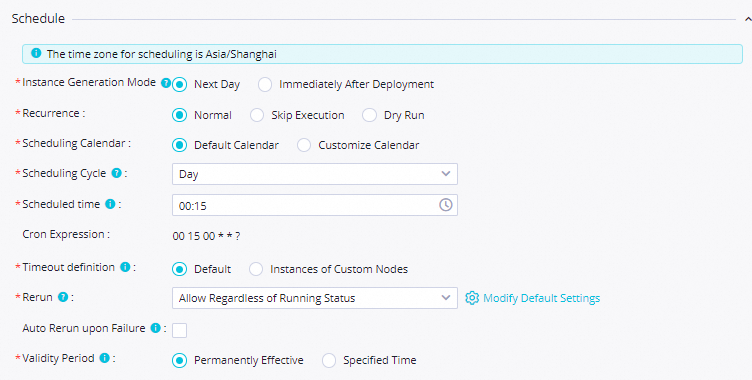
Scheduling Time
08:00NoteThis tutorial uses 08:00 as an example to ensure the data is pushed to the destination at 08:00. You can configure a different time as needed.
Rerun
The node can be rerun regardless of whether the previous run succeeded or failed.
Resource Group
Resource Group for Scheduling
Select an existing resource group.
NoteThe first time you use a data push node, you must submit a ticket to upgrade the scheduling resource group.

Input and Output Parameters
Input Parameters
Click Add to add input parameters for this node:
Parameter 1:
Parameter name:
inputs1.Value Source: Select the output parameter
outputsof the upstream nodeQuery Yesterday's Total Sales.
Parameter 2:
Parameter name:
inputs2.Value Source: Select the output parameter
outputsfrom the upstream nodeQuery Yesterday's Sales Growth.
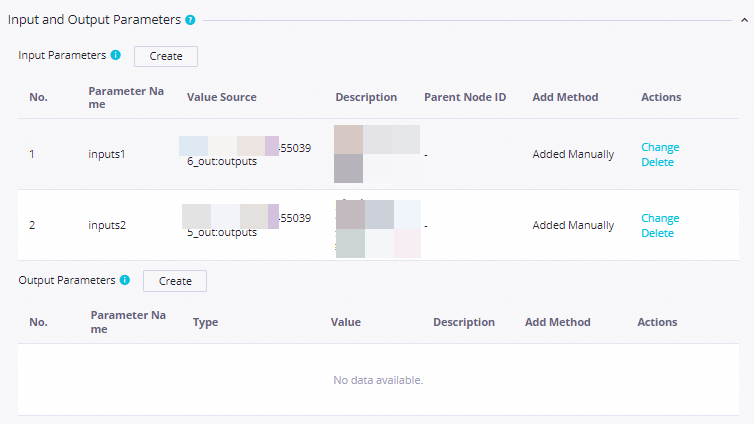
After configuring the Scheduling Settings, configure the data push content as follows.
Destination: From the Destination dropdown list, select a destination. If your desired destination is not available, click Create Destination in the lower-right corner of the dropdown list to create a new one.
For how to obtain a Lark bot Webhook, see Configure a Lark Webhook trigger.
For how to obtain a Teams Webhook, see Use Microsoft Teams workflows to create an incoming Webhook.
Title:
Push Yesterday's Total Sales and GrowthBody: Configure the body as required. For more information, see Configure push content.
NoteIn the body, you can reference input parameters from the upstream SQL query node by using its returned field names as placeholders.
Parameter
Description
Type
Supported types include DingTalk, Lark, WeCom, Microsoft Teams, and Email.
Object
Specify a custom name based on your business requirements.
Webhook
Obtain the webhook URL for DingTalk, Lark, WeCom, or Microsoft Teams chatbots, or the SMTP details for Email, from the respective platform.
NoteAfter the configuration is complete, click
Save to save the Push Yesterday's Total Sales and Growthpush node.
Step 4: Test the combined push workflow
Before you can test the combined push workflow, you must complete the simple push workflow configuration. This configuration is a prerequisite for subsequent deployment.
Double-click
Data Push Demo Flowto open the business process diagram page.Select the
Push Yesterday's Total Sales and Growthnode, right-click and select Run Till Current Node, and wait for the run to complete.NoteIf a task fails, right-click the failed node and select View Log to view the log.

Push data from MaxCompute
Step 1: Build the data push flow
Double-click Data Push Demo Flow. On the workflow canvas, you can see the created nodes. Drag a Batch Synchronization node to be the upstream node of the Assignment Node. Connect the Sync MySQL data to ODPS, Query ODPS data, and Push ODPS data nodes in sequence.
Step 2: Configure the batch synchronization node
Configure the Synchronize MySQL data to ODPS node to synchronize the test data written to MySQL during the Prepare data phase to the ODPS data source for subsequent use.
Double-click the
Synchronize data from MySQL to ODPSnode to configure the batch synchronization node.Parameter
Configuration
Example
Source
Data Source
MySQL

Data Source Name
Select the MySQL data source that you created.
My Resource Group
Select a serverless resource group.
Destination
Destination
MaxCompute (ODPS)
Data Source Name
Select the MaxCompute data source bound to the workspace.
After you complete the configuration, the system automatically tests the connectivity between the data source and the resource group. After the test succeeds, click Next to configure the source and destination details.
Configure the source and destination.
Parameter
Configuration
Example
Data Source
Data Sources
Keep the default settings:
MySQL.
Select the MySQL data source that you created.
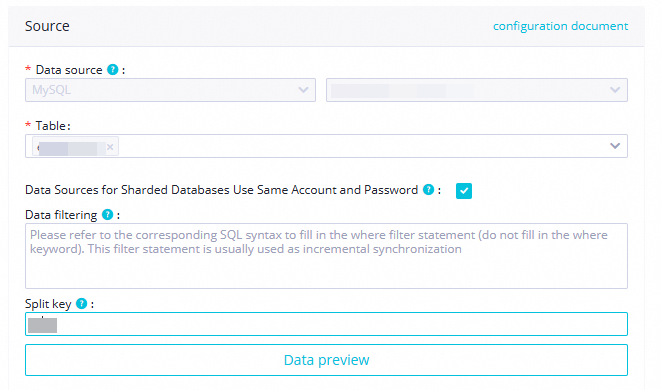
Table
Select the
orderstable.Data Filter
You can configure this as needed. For this tutorial, leave it blank.
Shard Key
You can use a column from the source table as the split key. We recommend using the primary key or an indexed column.
Data Preview
Preview the data retrieved from the MySQL data source to verify that it meets your expectations.
Destination
Data Sources
Keep the default settings:
MaxCompute (ODPS).
Select the MaxCompute data source bound to the workspace.
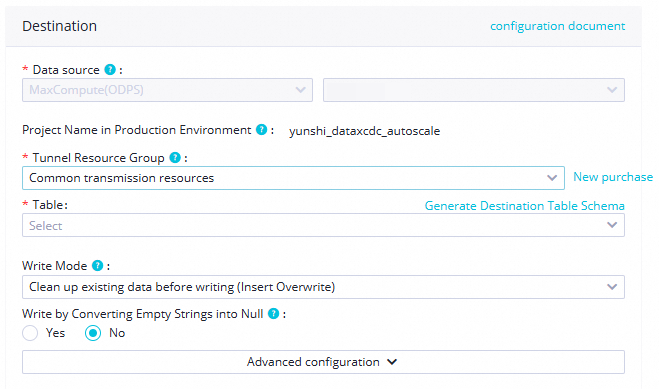
Tunnel Resource Group
This specifies the Tunnel Quota. The default is "Public transmission resources", the free quota for MaxCompute.
Table
Click Generate Destination Table Schema to create the destination table.
Partition Information
To load incremental data daily, configure a date-based partition. For example, set the
ptpartition to${bizdate}.Write Method
Clear existing data before writing (Insert Overwrite)
After you configure the source and destination, you can Map Fields with the Same Name the fields.
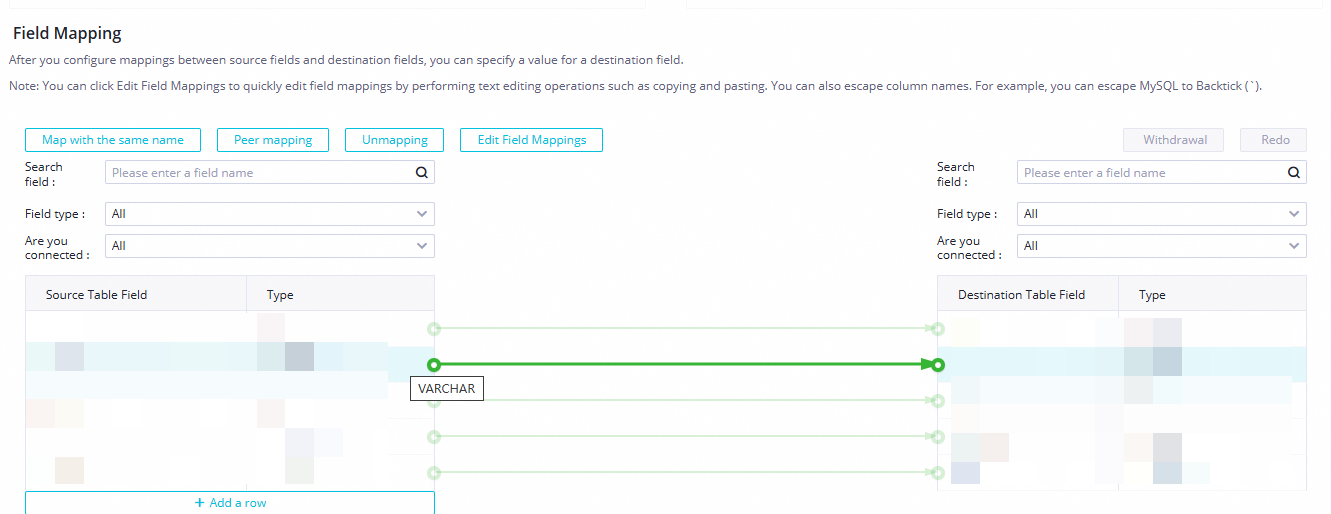
Configure channel control.
Expected Maximum Concurrency: The actual concurrency at runtime may be less than or equal to this value because of resource limitations or the nature of the task. You are charged based on the actual concurrency. For this tutorial, a concurrency of 2 is sufficient.
Bandwidth Throttling: You can use throttling to protect the read/write load on the source or destination. If you do not configure throttling, the system provides the maximum transfer performance that the current hardware supports. For this tutorial, throttling is not configured.
Policy for Dirty Data Records: Dirty data is not tolerated.
Distributed Execution: This feature is disabled by default. A concurrency of 8 or greater is required to enable it.

Configure scheduling properties.
After you configure the integration task, click **Properties** on the right side of the page. In the **Properties** panel, configure the following parameters.
Scheduling Parameter:
Parameter name:
bizdateParameter Value:
$[yyyymmdd-1]
Scheduling Time:
08:00Rerun: From the drop-down list, select Allow Regardless of Running Status.
Resource Group for Scheduling: Select the scheduling resource group that you created.
Dependencies: Select the workspace root node to use it as the upstream dependency for the batch synchronization task.
Click
 Save to save the
 Synchronize MySQL data to ODPSbatch synchronization node.
Step 3: Configure the assignment node
ODPS data sources do not support using an ODPS SQL node to query data and output the data to a data push node by using Input and Output Parameters. You must use an assignment node to query the ODPS data and then use Input and Output Parameters to output the data to the data push node.
Double-click the
Query ODPS datanode to open its configuration page.From the Language drop-down list at the top of the editor, select **ODPS SQL**.
Enter the ODPS SQL code.
-- Create a subquery with a ranking to calculate the descending order of sales within each partition (pt).
-- The DENSE_RANK() function assigns a unique rank to each row within a partition.
-- Rows with equal sales values receive the same rank, and no rank numbers are skipped.
--
-- Subquery details:
-- 1. Select the required columns from the 'orders' table: order_id, category, sales, datetime, and pt (business date).
-- 2. Use DENSE_RANK() OVER (PARTITION BY pt ORDER BY sales DESC):
   -- PARTITION BY pt specifies that ranking is performed separately for each unique value in the pt column.
   -- ORDER BY sales DESC sorts rows within each partition by sales in descending order.
   -- The 'rank' column stores the sales rank of each row within its partition.
--
-- Main query details:
-- The main query selects records from the ranked subquery where the rank is 3 or less.
-- This ensures that for each business date, only the top three orders by sales are retrieved.

SELECT
  order_id,          -- Select the order ID
  category,          -- Select the product category
  sales,             -- Select the sales amount
  datetime,          -- Select the order time
  pt                 -- Select the business date
FROM (
    SELECT
      order_id,
      category,
      sales,
      datetime,
      pt,
      DENSE_RANK() OVER (PARTITION BY pt ORDER BY sales DESC) AS rank  -- Calculate sales rank within each pt partition
    FROM orders
    WHERE pt = '${bizdate}'  -- Filter records for the specified business date
) AS ranked_orders
WHERE rank <= 3  -- Keep only the top three records by sales for each pt partition
After you enter the SQL code, click Scheduling Settings on the right. In the Properties pane, configure the following parameters.
Scheduling Time:
08:00.Resource Group for Scheduling: Select a serverless resource group that you have created.
Parent Nodes: Check if the parent node is a
MySQL to ODPSbatch synchronization node.Input and Output Parameters: Click Add after the output parameters to add an output parameter as the value for an input parameter of a descendant node.

Click
 Save to save the
 ODPS data querynode.
Step 4: Configure the data push node
Configure the Input Parameters of the Input and Output Parameters to obtain the outputs parameter from the upstream assignment node, and then use these parameters in the Body and push them to the target.
Double-click the data push node named
ODPS Data Push, click Scheduling, and configure the following settings in the Scheduling panel.Parameter type
Configuration
Example
Scheduling Parameter
Parameter name
curdate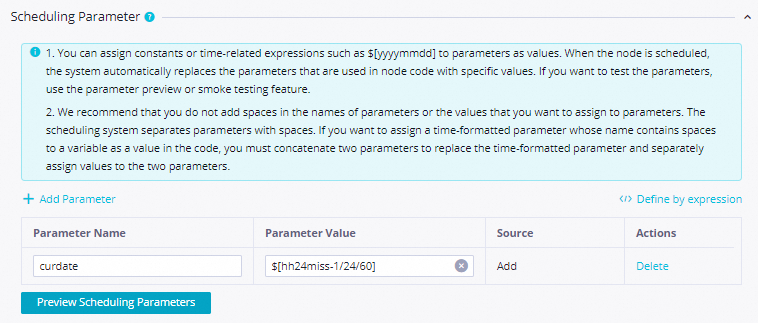
Parameter Value
$[yyyymmddhh:mi:ss]Schedule
Scheduling Frequency
DD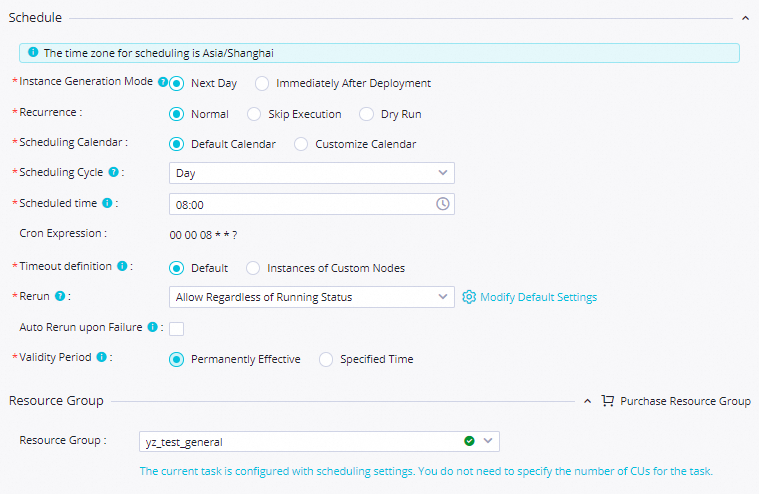
Scheduling Time
08:00NoteThis tutorial uses 08:00 as an example to ensure the data is pushed to the destination at 08:00. You can configure a different time as needed.
Rerun
Allow Regardless of Running Status.
Resource Group
Resource Group for Scheduling
Select a resource group created after the release date of the data push feature. If your resource group was created before this date, submit a ticket to upgrade it.
NoteThe data push node feature was released on June 28, 2024. For more DataWorks release notes, see Release History.

Input and Output Parameters
Input Parameters
Click Add to add input parameters for this node:
Parameter name:
inputsValue Source: Select the outputs output parameter from the upstream
ODPS Data Querynode.

After configuring the Scheduling Settings, configure the data push content as follows.
Destination: Select the required destination from the Destination drop-down list. If the destination does not exist, you can click Create Destination at the bottom right of the drop-down list to create a new one.
For how to obtain a Lark bot Webhook, see Configure a Lark Webhook trigger.
For how to obtain a Teams Webhook, see Use Microsoft Teams workflows to create an incoming Webhook.
Title:
ODPS Data PushBody: Configure as needed. For details, see Configure push content.
NoteIn the message body, you can use the field names from the upstream assignment node's query result directly as placeholders.
Parameter
Description
Type
Supported destinations include DingTalk, Lark, WeChat Work, Microsoft Teams, and Email.
Object
Specify a custom name based on your business requirements.
Webhook
You must obtain the webhook URL for DingTalk, Lark, WeChat Work, or Microsoft Teams bots, or the SMTP details for email, from the respective platforms.
NoteAfter you complete the configuration, click the
 Save icon to save the data push node.
Step 5: Test the MaxCompute data push flow
After configuring all nodes in the data push flow, you must test the flow before committing and deploying it.
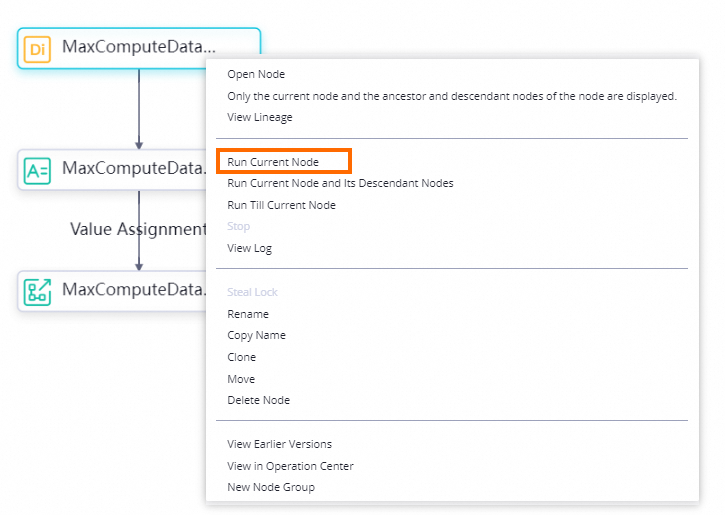
Double-click to open the
Data_Push_Demoworkflow page.Select the
Sync Data from MySQL to ODPSnode, right-click and select Run current node and its downstream nodes, and wait for the run to complete.NoteIf a task fails, right-click the failed node and select View Log to view the log.
Submit and publish
After you configure the data push flow, double-click the Data Push Demo Example business process diagram to verify that all data push flows run correctly. Once the tests succeed, submit and publish the flows.
On the edit page for the data push flow, click the
 icon to run the business process.
After the
 icon appears on all nodes in the data push flow, click the
  icon to submit the flow.
In the Submission dialog box, select the nodes to submit and check the Ignore I/O Inconsistency Alerts checkbox.
Click Submission.
After submitting the flow, you can publish its nodes on the publish page. For more information, see Publish Task.
Next steps
A data push runs on its configured scheduling cycle. From the Operation Center, you can manage the task nodes of a published data push. For details, see Basic operations on scheduled tasks.