Asset health and business assets
Data asset governance lets you manage the health and usage of assets, such as tables and scheduling tasks, in DataWorks. You can use tags to manage business information, which helps you monitor asset health and resolve pending issues promptly.
The asset health and business asset features are in beta and are continuously being improved.
Permissions
To govern all asset issues, you must have one of the following permissions:
An Alibaba Cloud account
A RAM user with the
AliyunDataWorksFullAccesspermissionA tenant administrator
A tenant-level data governance administrator
Other users can only govern issues for assets that they manage.
Go to asset health
Go to the Data Asset Governance page.
Log on to the DataWorks console. In the top navigation bar, select the desired region. In the left-side navigation pane, choose . On the page that appears, click Go to Data Asset Governance.
In the navigation pane on the left, click .
NoteYou can view asset health from different perspectives. The Health Status of Business Assets and Team Asset Health tabs provide different views:
The Health Status of Business Assets tab displays statistics for assets tagged with any custom or system tag.
The Team Asset Health tab displays health analysis and governance leaderboards for team assets from a Global, Workspace View, or Individual perspective.
Tag-based governance workflow
Step 1: Build a tag system
You can create custom tags to define the content, source, or application domain of data assets. For example, a tag like "business_application:order_analysis" provides the data with a clear business context.
On the Asset Health page, click Manage Business Tags.

On the tag management page, view existing tags on the Custom Tag and System Tag tabs. To create a custom tag, click Add Tag on the Custom Tag tab.
NoteFor more information about system tags and how to create custom tags, see Tag management.
Step 2: Tag business assets
Tagging assets helps users quickly find data in specific domains and allows administrators to summarize and analyze business assets.
Although tag management supports various asset types, Data Asset Governance only collects statistics for and displays the following: scheduling tasks, MaxCompute tables, E-MapReduce (EMR) tables, Hologres tables, DLF tables, and StarRocks tables. For a complete list of assets that tag management supports, see Tag management.
In the navigation pane on the left, click , and then select a management scope.
All: All tables and scheduling tasks in the current region.
Managed by Me: Tables and scheduling tasks that you have permission to govern.
Owned by Me: Tables and scheduling tasks that you own.
Filter the assets you want to tag by Asset ID/Name, Label, Owner, Asset Type, and Governance Status.
Tag the filtered assets.
To tag a single asset: In the row of the target asset, click the
 icon in the Tag column, and then click Edit to go to the Modify Tag page.
To tag assets in bulk: Select multiple assets, and then click Configure Tag at the bottom of the page to go to the Modify Tag page.
On the Edit Tag page, you can add new tags, modify the values of existing tags, or click the
 icon to unbind a tag.Note
Each asset can have up to 20 tags, and tag keys must be unique.
For a system tag, you cannot modify its value or unbind it. After the related governance issue is resolved and the system no longer detects the issue on the following day (T+1), the system automatically unbinds it.
Step 3: View asset health
After you tag business assets, you can view their health status on the page.
Business asset health
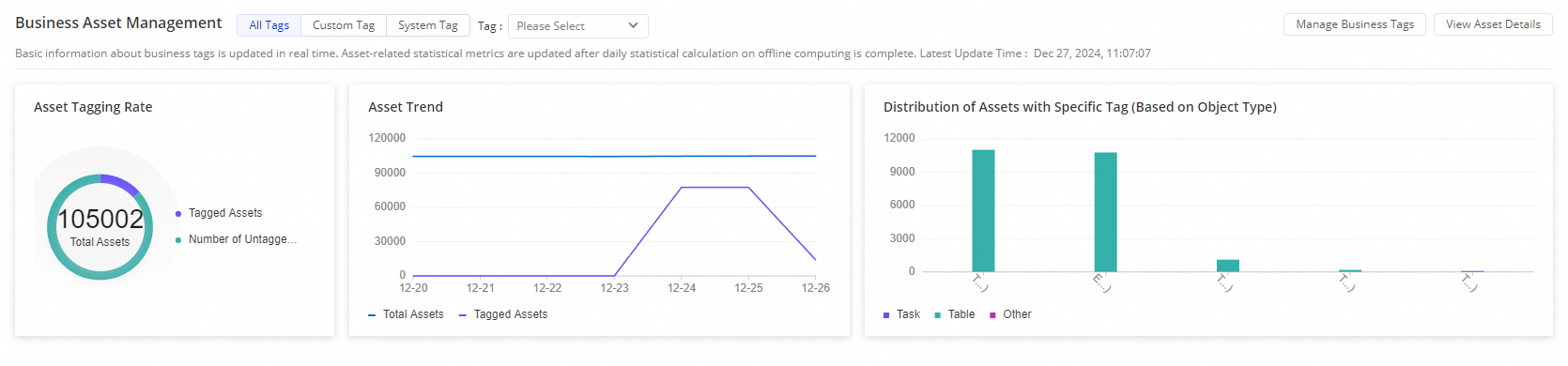
On the All Tags, Custom Tag, or System Tag tab, specify a Label key to view the current asset tagging status.
 Note
NoteClick Business Asset in the upper-right corner to open the Business Asset page and manage asset tags.
Tags on existing assets are updated in real time. For new assets, tag information is updated the next day (T+1).
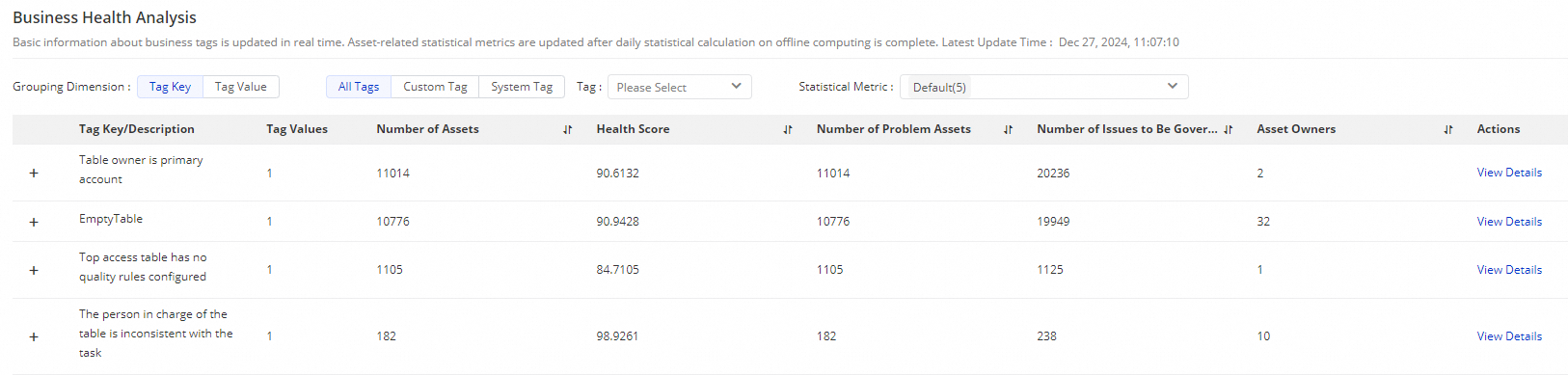
You can view the Business Health Analysis by filtering parameters such as Label and Statistical Metrics. Then, in the Actions column, click View Details to manage the tagged assets in bulk.
NoteStatistical metrics include Computing, Development, and Storage. You can select them as needed.
Team asset health
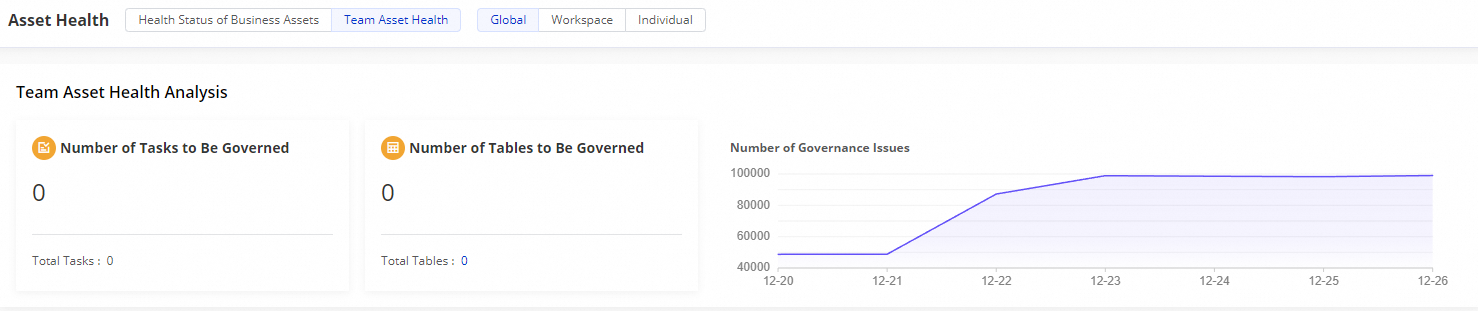
You can view team asset health analysis, dimensional health breakdowns, and governance leaderboards from Global, Workspace, or Individual perspectives.
Team asset health analysis
Permissions required:
To view the team asset health analysis from a Global perspective, you must have one of the following permissions:
An Alibaba Cloud account
A RAM user with the
AliyunDataWorksFullAccesspermissionA tenant administrator
A tenant-level data governance administrator
To view the team asset health analysis from a Workspace View perspective, you must have one of the following permissions:
An Alibaba Cloud account
A RAM user with the
AliyunDataWorksFullAccesspermissionA workspace administrator
A tenant administrator
A tenant-level data governance administrator
A workspace-level data governance administrator
Other users can only view the team asset health analysis from an Individual perspective.
Dimensional health analysis
This section shows the total number of pending governance issues and their associated health score deductions for dimensions such as R&D, Storage, Computing, Quality, and Security. Focus on the dimensions and workspaces with high score deductions to analyze and resolve specific issues.

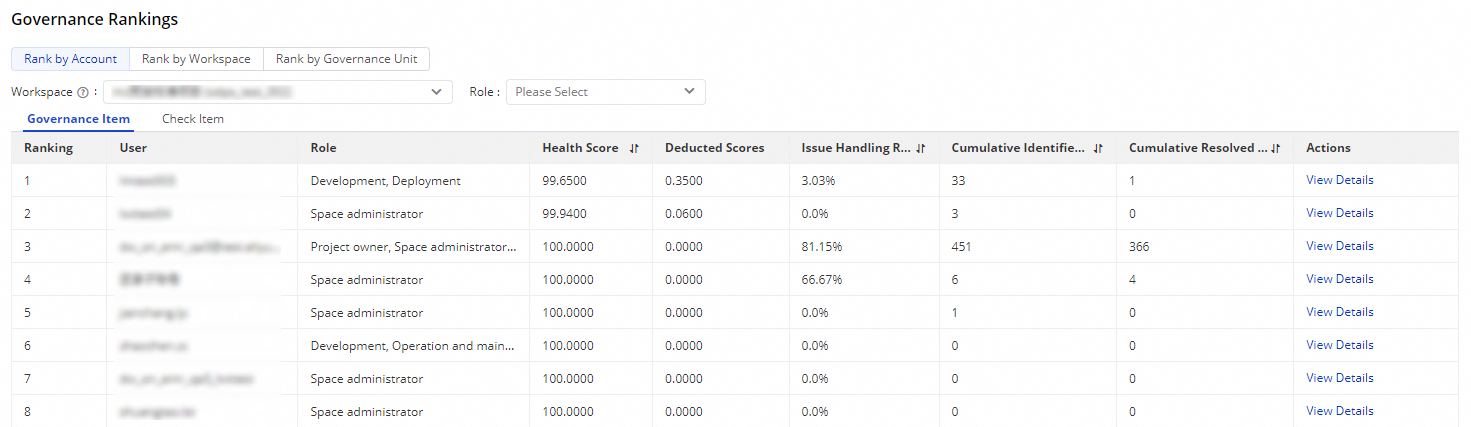
Governance leaderboard
You can select a perspective to view the governance leaderboard.
Rank by Account: Ranks users based on their performance in handling governance issues and check item events. You can filter the leaderboard by user role.
Rank by Governance Unit: Ranks governance units based on their performance in handling governance issues and check item events.
Rank by Workspace: Ranks workspaces based on their performance in handling governance issues and check item events.
Step 4: Business asset governance
After you go to the Business Asset page by clicking View Asset Details in Asset Health, perform the following governance operations as needed.
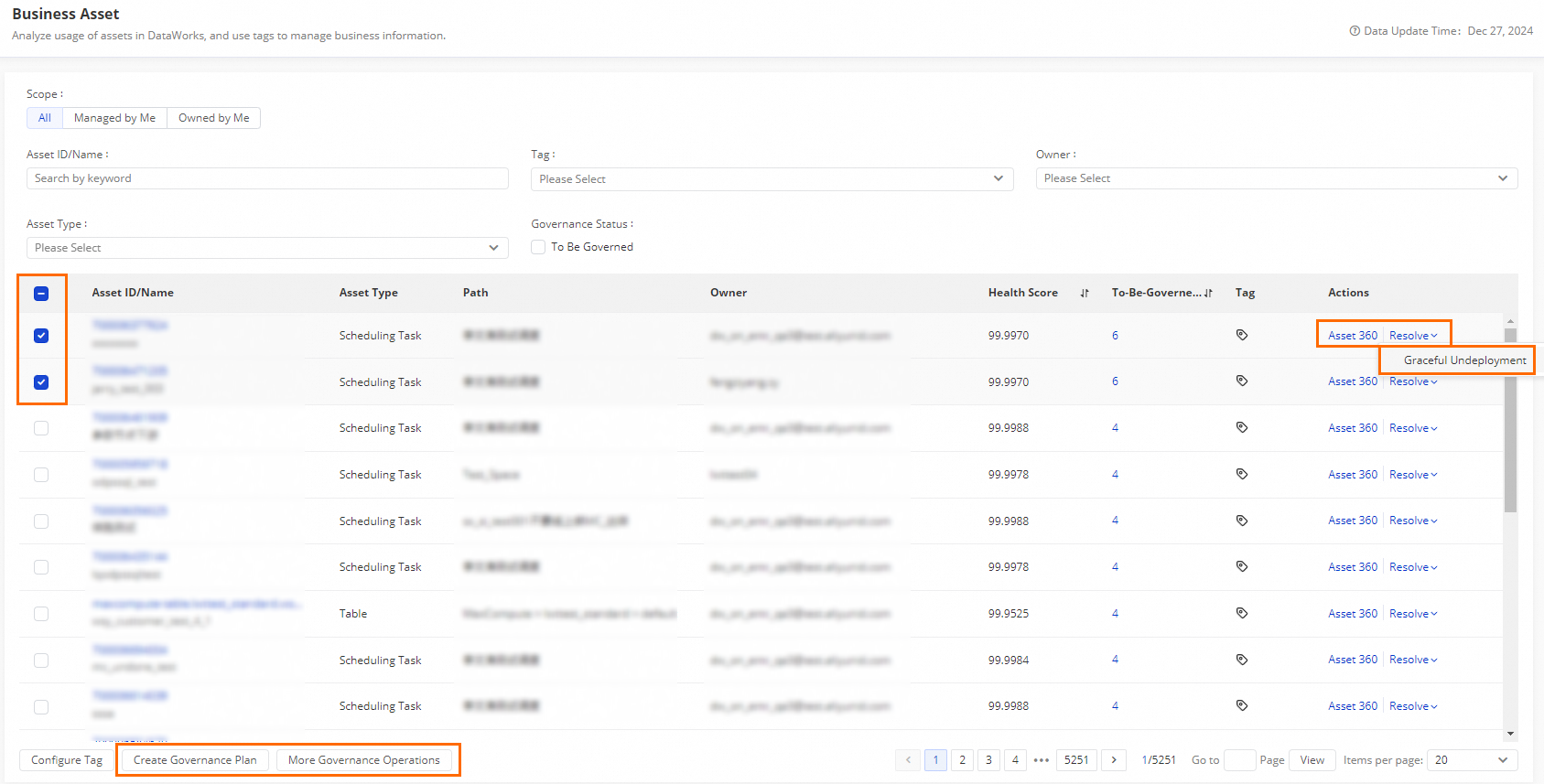
Single asset governance: Find the asset to govern, click Asset 360 in the Actions column to view asset details, and click to govern the asset.
Bulk asset governance: If there are many assets to govern, select them and click Create Governance Plan or at the bottom of the page.
If you select Create Governance Plan, select Custom Governance Plan. This plan will include all selected assets. If you select other governance plans, they might not cover all the selected assets.
If you select Batch Graceful Undeployment, ensure that all selected assets belong to the same data source project and the same workspace. Otherwise, you cannot use batch graceful undeployment.
References
For more information about tags, see tag management.
For more information about creating custom governance plans, see Create a data governance plan.
For more information about graceful undeployment, see graceful undeployment.
For more information about Asset 360, see Asset 360.