After you create a DataWorks workspace, configure its settings to control access, security, compute resources, and member permissions. This topic describes how to view and modify workspace settings, manage members and roles, add data sources, and disable or delete a workspace.
Permissions
| Action | Required role or permission |
|---|---|
| View workspace settings | Any workspace member |
| Modify workspace information, add data sources, associate compute engines | Workspace Administrator role |
| Disable or delete a workspace | Alibaba Cloud account, or RAM user with AliyunDataWorksFullAccess |
Navigate to workspace settings
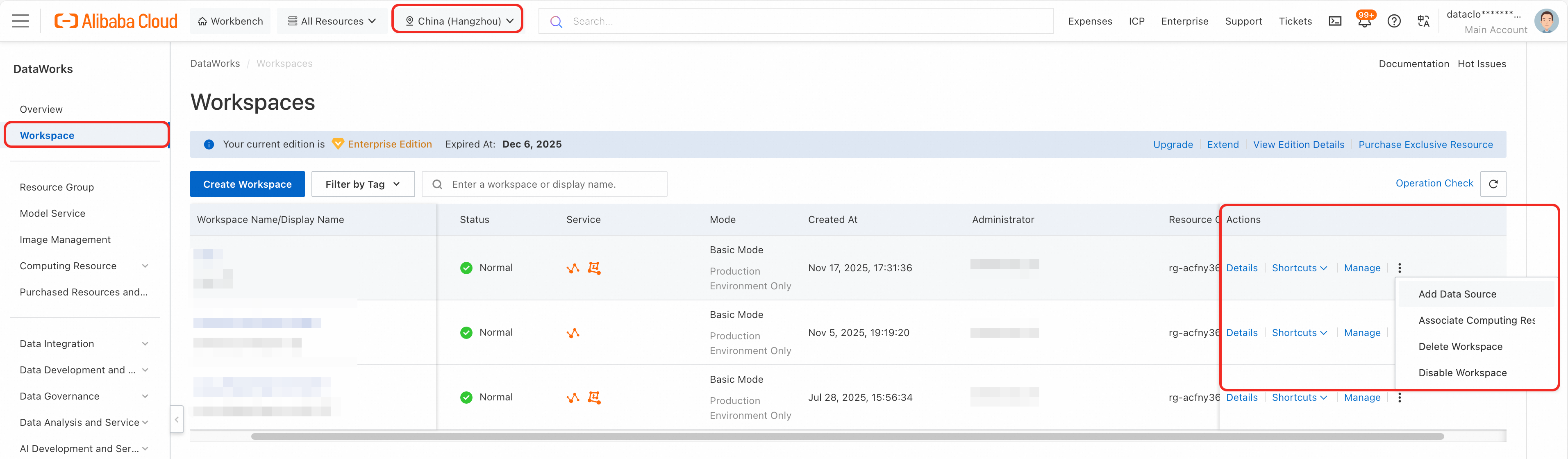
Open the DataWorks workspace page. In the top menu bar, select your region.
Find the workspace and click Details in the Operation column.
Click Manage to go to the Setting Center, where the same settings are available.
General settings
In the section, view and modify workspace properties.
Workspace identity
Parameter
Description
Workspace ID
Unique identifier assigned at creation. Cannot be changed.
Workspace Name
Internal name of the workspace.
Display Name
Human-readable name shown in the console. Editable by accounts with the Workspace Administrator role.
Description
Free-text description of the workspace. Editable by accounts with the Workspace Administrator role.
Owner
The Alibaba Cloud account that owns the workspace. The owner can disable or delete the workspace. Cannot be changed.
Workspace status
The Status field shows the current state of the workspace:
Status Description Normal Running as expected. Disabled Manually disabled by the owner. Overdue Suspended because of overdue payments. Initialization Failed The workspace failed to be created. Try creating it again. For any unexpected status, contact technical support.
Workspace mode
When you create a workspace, enabling Isolate Development and Production Environments sets the workspace to Standard Mode. Otherwise, it uses Basic Mode.
Scenario Upgrade path Basic Mode workspace without the new Data Studio feature Can be upgraded to Standard Mode. The upgrade option is visible only to the Alibaba Cloud account. For details, see Upgrade a workspace mode. Workspace with the new Data Studio feature enabled Cannot be upgraded at this time. Contact technical support if you need to upgrade. Schedule PAI nodes
To schedule PAI algorithm tasks in Data Studio, enable Schedule PAI Nodes. Once enabled, this setting cannot be turned off.
If you selected Create AI Workspace with Same Name when you created the workspace, this option is already enabled.
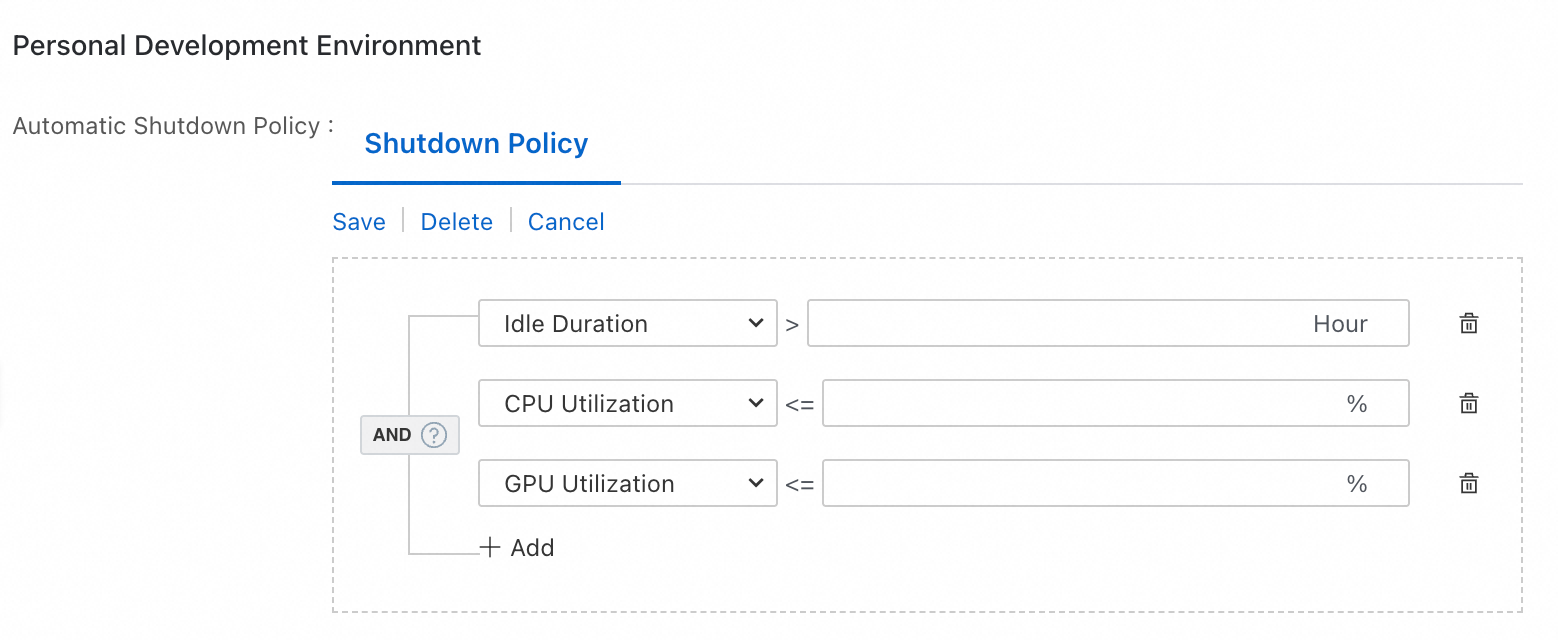
(Optional) In the section, configure the automatic shutdown policy for instances in the current workspace.
ImportantThis feature is available only in certain regions. Check the DataWorks console to confirm availability.
For workspaces with the new Data Studio feature enabled, configure an automatic shutdown policy. The system automatically shuts down any running personal development environment instance that meets the policy criteria. For configuration details, see Set a workspace-level automatic shutdown policy.
In the , control security-related behaviors for the workspace.
Setting
Description
Download SELECT Result
Controls whether users can download data query results during development. When disabled, users cannot download the output of
SELECTstatements.Change Node Owner by RAM User
Controls whether RAM users can reassign ownership of their nodes.
Sandbox Whitelist
Specifies IP addresses or domain names that Shell tasks can access when running on a shared resource group. Enter public IP addresses or domain names only.
ImportantFor internal services, use an exclusive resource group to ensure network connectivity instead of adding addresses to the sandbox whitelist. For more information, see DataWorks resource groups.
Data sources and compute engines
DataWorks integrates with multiple compute engines -- MaxCompute, E-MapReduce, and Realtime Compute for Apache Flink -- and supports running compute tasks on MaxCompute, Hologres, AnalyticDB for PostgreSQL, AnalyticDB for MySQL, and ClickHouse. It also supports data synchronization between different engines.
To run data synchronization tasks, create a data source in the workspace.
To run scheduled tasks, associate a compute engine with the workspace.
Members and roles
In the Workspace Members and Workspace Roles sections, manage who can access the workspace and what they can do.
Add workspace members: When you add a RAM user to a workspace, assign them a workspace role. The user gains the permissions associated with that role. For details, see Add workspace members and manage member role permissions.
NoteDataWorks supports both preset and custom workspace-level roles. Custom roles must be defined by a Workspace Administrator in the Workspace Roles section. Different roles grant different permissions for workspace modules. For more information, see Workspace-level module permission control.
Manage roles: View preset and custom roles in the Workspace Roles section. If preset roles do not meet your needs, create custom roles. Configure role permissions for DataWorks workspace modules and set up permission mappings to MaxCompute project roles. For details, see Workspace-level module permission control.
NoteOnly an Alibaba Cloud account or a RAM user with the Admin or Super_Administrator role for the MaxCompute project can configure permission mappings.
View permissions: On the Permissions tab, view the specific feature permissions for each preset workspace role. For details, see Appendix: List of permissions for preset roles (workspace level).
Disable or delete a workspace
In the workspace list on the DataWorks console, click the  icon in the Actions column and select Delete Workspace or Disable Workspace.
Delete Workspace: Deleting a workspace permanently removes all development assets, including code. This action is irreversible.
ImportantBefore deleting a workspace, go to Operation Center and suspend or delete related scheduled tasks. Then go to DataService Studio and take offline and delete any deployed APIs. This prevents continued billing after the workspace is deleted. If billing continues after deletion, submit a ticket to contact technical support.
Disable Workspace:
Disabling a workspace stops scheduled tasks from generating new instances. However, instances generated before the workspace was disabled still run at their scheduled time. After a workspace is disabled, you cannot log in to the workspace to view instance status.
Disabling a workspace does not stop associated compute engine services. These services may continue to incur storage fees charged by the respective compute engine, not by DataWorks. For billing questions, contact the support team for the relevant compute engine.
Next steps
After you activate DataWorks, purchase resource groups for data synchronization, scheduled tasks, or DataService Studio. For more information, see Manage resource groups.