Manage an existing workspace by viewing its configuration, modifying basic settings, adding data sources, and disabling or deleting the workspace when it is no longer needed.
Permissions
-
Only an Alibaba Cloud account or a RAM user with the AliyunDataWorksFullAccess permission can delete or disable a workspace.
-
Only a Workspace Administrator can modify workspace information, add data sources, and bind compute resources.
Create a workspace
All development occurs within a workspace. Create a workspace before you start developing tasks.
Configure a workspace
Go to the workspace configuration page
-
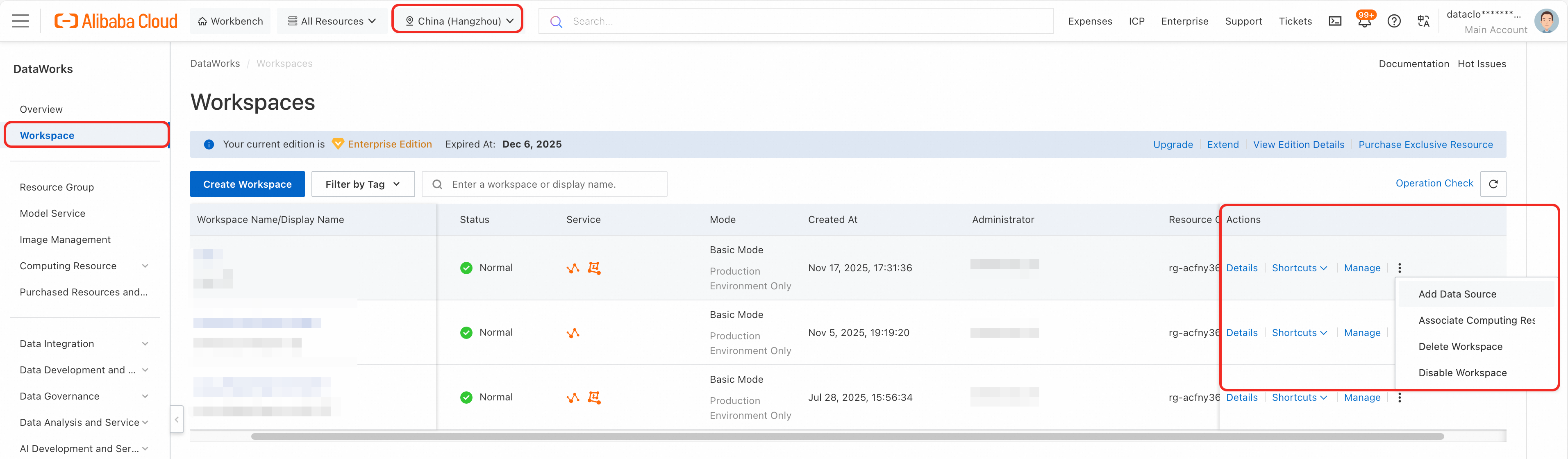
Go to the DataWorks Workspaces page and select a region in the top menu bar.
-
Find the target workspace and click Operation in the Details column to open the workspace details page.
You can also click Manage
 to go to the management center. You can view and manage the workspace from either page.
Click Workspace in the left-side menu and select a region to view the workspace list. The Actions column provides Details, Manage, Quick Entry, and a drop-down menu with Create Data Source, Bind Compute Resource, Delete Workspace, and Disable Workspace.
Configure basic information
-
In the section, view and configure the basic information of the workspace.
Parameter
Description
Workspace ID
Unique workspace identifier. Cannot be modified after creation.
Workspace Name
Status
Current workspace status. You can manually disable a workspace.
-
Normal: Running as expected.
-
Disabled: Manually disabled.
-
Overdue: Frozen due to overdue payment.
-
Other statuses: Contact technical support if an unexpected status appears.
If a workspace fails to be created, its status changes to Initialization Failed. You can try to create the workspace again.
Display Name
Display name of the workspace. It is used only for display in the console. Accounts with the Workspace Administrator role can modify it. Modifying the display name does not affect the execution of scheduled tasks. The scheduling system uses the workspace name (the unique identifier specified at creation) as the scheduling basis, so all tasks, data, and configurations remain unaffected after the change.
Description
Mode
If you enable Isolate Development and Production Environments during workspace creation, the workspace uses Standard Mode. Otherwise, it uses Basic Mode.
ImportantA workspace in Basic Mode without the new data development feature can be upgraded to Standard Mode. Only the Alibaba Cloud account can see the upgrade option. Workspaces with the new data development feature enabled cannot be upgraded — contact technical support if needed. Upgrade a workspace mode.
Owner
Workspace owner, with permissions to delete or disable the workspace. Cannot be modified.
Schedule PAI Nodes
Required for scheduling PAI algorithm tasks. Once enabled, this option cannot be disabled.
If you select Create AI Workspace with Same Name when you create the workspace, this option is enabled by default.
If you did not select Create AI Workspace with Same Name when you created the workspace, you can enable the Schedule PAI Nodes switch here to schedule PAI algorithm tasks in DataStudio without recreating the workspace. This switch invokes the same backend capability as the option on the creation page (attaching the PAI module to the current workspace).
-
-
(Optional) In the section, configure the auto-shutdown policy for individual development environment instances.
ImportantThis feature is available only in some regions. Availability is subject to the console page.
Available only for workspaces with the new data development feature enabled. Running instances that meet the auto-shutdown conditions are shut down automatically. Set a workspace-level auto-shutdown policy.
The policy combines conditions with AND logic — Idle Time, CPU utilization, and GPU utilization. Click + Add to include more conditions.
-
In the section, configure workspace security settings.
Parameter
Description
Download SELECT Result
Controls whether users can download query results. When disabled, SELECT statement results cannot be downloaded.
Change Node Owner by RAM User
Controls whether RAM users can change the owners of their own nodes.
Sandbox whitelist
(IP addresses or domain names that Shell tasks can access)
IP addresses or domain names that Shell tasks can access on a shared resource group.
ImportantEnter accessible public IP addresses or domain names. For internal services, use an exclusive resource group for network reachability. DataWorks resource groups.
Data sources and compute resources
DataWorks supports compute engines such as MaxCompute, E-MapReduce, and Realtime Compute for Apache Flink, and allows data synchronization between them. You can run tasks on compute resources such as MaxCompute, Hologres, AnalyticDB for PostgreSQL, AnalyticDB for MySQL, and ClickHouse, and manage data in the corresponding data sources.
-
To run data synchronization tasks, you must create the corresponding data source in the workspace.
-
To run scheduled tasks, you must bind the corresponding compute resource in the workspace.
Configure workspace members and roles
In the Workspace Members section, add, modify, or remove members and assign roles. In the Workspace Roles section, manage roles for the workspace.
-
Add workspace members: Assign a role when adding a RAM user. The user gains the permissions of that role. Add workspace members and manage member role permissions.
NoteRAM users can be granted preset or custom workspace-level roles. Custom roles are defined by a workspace administrator in the Workspace Roles section. Each role has different module permissions. Workspace-level module permission control.
-
Manage member roles: View and create preset or custom roles. Configure module permissions and MaxCompute project role mappings. Workspace-level module permission control.
NoteOnly the Alibaba Cloud account or a RAM user assigned the Admin or Super_Administrator role of the MaxCompute project can configure permission mappings.
-
View the permission list: The Permissions tab shows feature permissions for each preset role. Appendix: List of permissions for preset roles (workspace level).
Delete or disable a workspace
In the Workspaces list on the DataWorks console, click the  icon in the Actions column for the desired workspace, and then select Delete Workspace or Disable Workspace.
-
Delete Workspace: Deleting a workspace also deletes all its development assets, such as code. This action is irreversible. Proceed with caution.
ImportantBefore deleting a workspace, suspend or delete periodic tasks in Operation Center and take offline and delete any published APIs in DataService Studio to prevent continued billing. If billing continues after deletion, submit a ticket to contact technical support.
-
Disable Workspace:
-
After a workspace is disabled, scheduled tasks stop generating new instances. Previously generated instances still run at their scheduled times, but you cannot log in to check their status.
-
After a workspace is disabled, its compute engine services remain active and may continue to incur storage fees. These fees are charged by the compute engine, not by DataWorks. For storage billing questions, contact the relevant compute engine support team.
-
Next steps
After you activate DataWorks, purchase a resource group for data synchronization, scheduling, or DataService Studio. Resource group management.