This topic answers frequently asked questions (FAQs) about DataWorks exclusive resource groups.
-
Use cases for exclusive resource groups
-
Network configuration for exclusive resource groups
-
Billing and management of exclusive resource groups
-
Usage notes for exclusive resource groups
Use cases for exclusive scheduling resource groups
If your non-data integration tasks need to access databases in a Virtual Private Cloud (VPC) environment or databases protected by a whitelist, you must use an exclusive resource group for scheduling. For more information, see Use an exclusive resource group for scheduling.
Use cases for exclusive data integration resource groups
To synchronize data from a database in a VPC environment, you must use an exclusive resource group for Data Integration. For more information, see Use an exclusive resource group for Data Integration.
Switching the scheduling resource group for a task
-
Switch the resource group for test runs in Data Studio:
To switch the scheduling resource group for a test run, click Advanced Run.
This button is in the toolbar at the top of the code editor. Its icon is a play symbol inside a box, and its tooltip reads Run with Parameters.
-
Switch the scheduling resource group for production runs:
-
Switch the scheduling resource group for a production task during the deployment process in Data Studio.
In Data Studio, open the node and go to the Scheduling Settings tab. In the Resource Group section, select the resource group for the task. Then, submit and deploy the node. For more information, see Configure resource properties.
-
Modify the scheduling resource group for the task in Operation Center.
In the upper-left corner, click the
 icon and choose to go to the Operation Center page and choose Auto Triggered Task.
In the list of auto-triggered nodes, find the target node, click More in the Actions column, and select Modify Scheduling Resource Group.
NoteZero-load nodes do not consume resources. Therefore, you do not need to and cannot modify their scheduling resource group.
-
Switching the data integration resource group for a task
-
Switch the resource group used for a Data Integration task during a test run in the development environment:
In Data Studio, open an offline synchronization task and click Resource Group for Data Integration on the right-side panel. In the dialog box that appears, select the target resource group from the Exclusive Resource Group for Data Integration drop-down list at the bottom of the dialog box. An exclusive resource group can directly access data sources over the internet. Click More Options next to the drop-down list to use the default public resource group or a custom resource group. To create a new resource group, click + New Exclusive Resource Group for Data Integration.
NoteIf the production environment also needs this resource group, you must submit and deploy the node after changing the resource group.
-
Switch the resource group used for a Data Integration task during a production run:
In the upper-left corner, click the
icon and choose to go to the Operation Center page and choose Auto Triggered Task.
Renewing a resource group
In the DataWorks console, go to the resource group list and select the resource group that you want to renew.
-
If a RAM user needs to perform these operations, see How do I grant a RAM user the permissions to purchase related services?
-
To change the renewal method (manual renewal or auto-renewal), go to the Alibaba Cloud Renewal Management page and find the resource group by its instance name.
Scaling or resizing a resource group
You can scale out, scale in, or resize a resource group from the resource list in the DataWorks console.
-
If a RAM user needs to perform these operations, see How do I grant a RAM user the permissions to purchase related services?
-
Scaling out increases, and scaling in decreases, the number of nodes of the same specification within the resource group.
Prerequisites for accessing data in a VPC
To use an exclusive resource group in DataWorks to access a database, meet the following requirements:
-
When you purchase the exclusive resource group, select the availability zone where your data source is located and bind the exclusive resource group to a Virtual Private Cloud (VPC).
-
The VPC and vSwitch that are bound to the exclusive resource group must match the VPC and vSwitch of the data source.
-
If the database is protected by a whitelist, you must add the EIP address of the exclusive resource group and the CIDR block of the VPC or vSwitch bound to the resource group to the database's whitelist and security group rules. For more information, see Add an IP address to a whitelist and Appendix: Configure a security group for a self-managed database on an ECS instance.
Checking the network environment of a data source
-
To check the network environment of an RDS data source, follow these steps:
-
Log on to the RDS console.
-
On the Instances page, click the name of the target instance.
-
In the navigation pane on the left, click Database Connection.
-
Click Switch vSwitch.
-
In the Switch vSwitch dialog box, view the vSwitch where the data source is located.
-
-
To check the network environment of a self-managed database on an ECS instance, follow these steps:
-
Log on to the ECS console.
-
On the Instance page, click the name of the target instance.
-
On the Instance Details page, view the Configuration Information of the instance.
-
Adding an exclusive resource group to a whitelist
-
Access a data source over a VPC
If you want to access the data source over a VPC, you must add the CIDR block of the vSwitch with which the serverless resource group is associated to the IP address whitelist of the data source.
On the Exclusive Resource Groups tab of the Resource Groups page in the DataWorks console, find the desired resource group and click Network Settings in the Actions column. On the VPC Binding tab of the page that appears, view and record the vSwitch CIDR Block of the related vSwitch. Then, add the CIDR block to the IP address whitelist of the data source.
-
Access a data source over the Internet
-
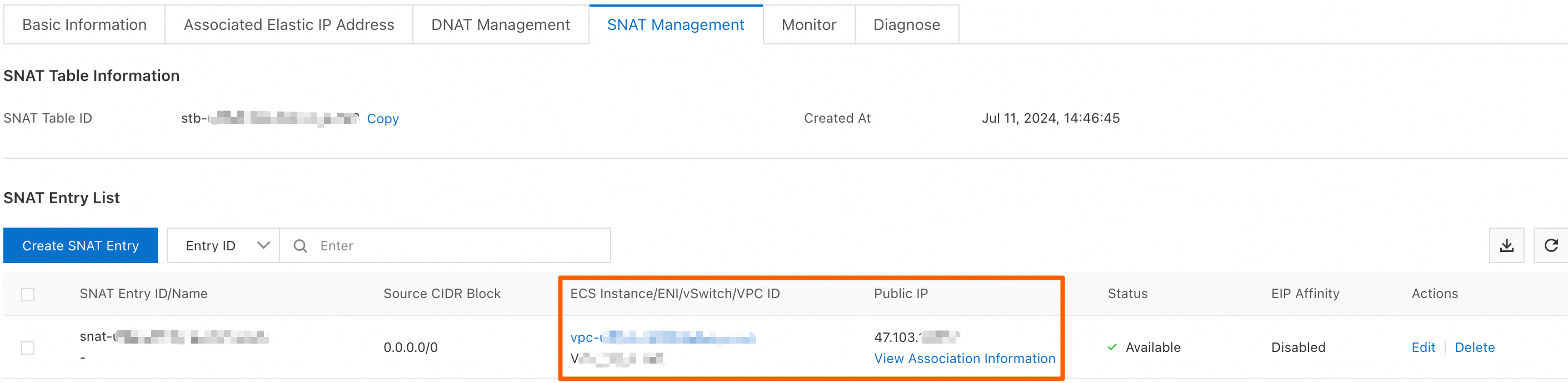
If you use a serverless resource group, you must add the EIP configured for the VPC with which the resource group is associated to the IP address whitelist of the data source.
On the Internet NAT Gateway page of the VPC console, find the source network address translation (SNAT) entry that is configured, and obtain the public IP address that is associated with the related vSwitch. Then, add the public IP address to the IP address whitelist of the data source.
-
If you use an old-version resource group, you must add the EIP of the resource group to the IP address whitelist of the data source.
On the Exclusive Resource Groups tab of the Resource Groups page in the DataWorks console, find the desired resource group and click Details in the Actions column. In the Basic Information section of the page that appears, view and record the EIP displayed next to the EIPAddress parameter. Then, add the EIP to the IP address whitelist of the data source.
-
Binding and unbinding resource groups to a workspace
You can perform this operation on the resource list page in the DataWorks console.
This operation requires workspace administrator permissions.
Which resource group to scale for synchronization tasks
Scale out the exclusive resource group for Data Integration, not the exclusive resource group for scheduling.