The theme tool can switch the overall color scheme of the large screen. You can use the built-in theme of the system or upload an image to obtain and use a custom theme to quickly solve the problem of color matching when designing a data kanban. This topic describes how to use the theme feature of DataV.
Prerequisites
You have clicked the hidden icon in front of the Topic tab title to enable the feature. You can also click Quick Start to use this tool. 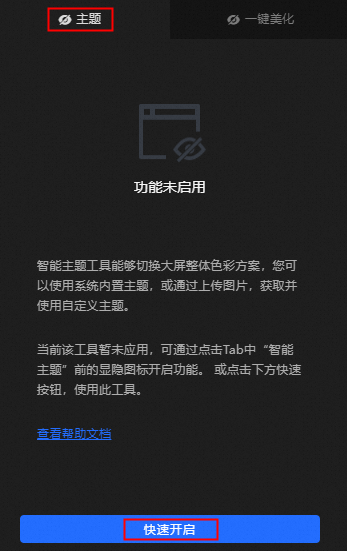
My Themes
The My Themes module provides two modules: Select System Themes and Saved Themes. On the My Topics page, you can perform the following operations:
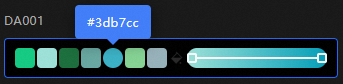
View the color value of a color block in a theme: Move the pointer over a system theme or a saved theme to obtain the color value of the current color block.
Manage topics
NoteSystem themes do not support editing, deleting, or modifying color values of color blocks.
Actions
Description
Select a saved theme
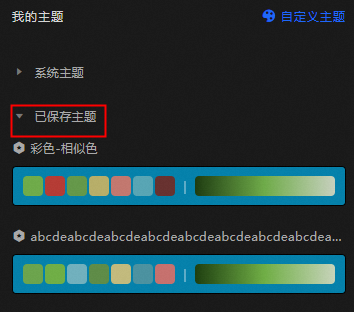
Click the Saved Themes tab under My Themes to view the saved themes except system themes. Click a theme to preview the effect on the dashboard.
Edit a saved theme
Click the Saved Themes tab under My Themes. Select a topic and click the
 icon to change the name of the topic.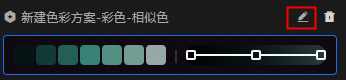
Delete a saved theme
Click the Saved Themes tab under My Themes. Select a topic and click the
 icon to delete the topic.
 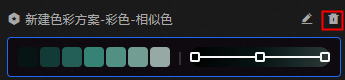 Important
The deleted theme cannot be recovered. Exercise caution when you delete a theme.
Modify the color value of a color block
Click the Saved Themes tab under My Themes. Select a topic and click the
 icon. In the color picker box, select a color as needed. Click anywhere in the outline to modify the color value of the color block.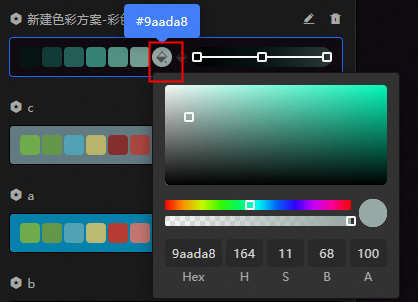
Custom Theme 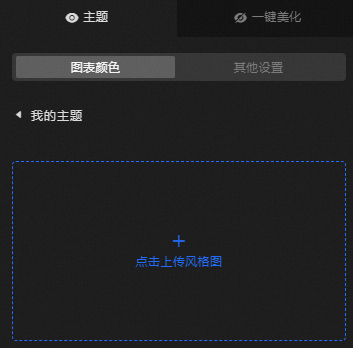
The Custom Themes tab allows you to upload an image to generate multiple themes. On the Custom Themes tab, you can perform the following operations:
Change the value of a theme color: Choose a custom theme, click a color block in the theme, and then drag the color picker circle to adjust the block color. You can also select Gradient Color to change the color value of the theme.
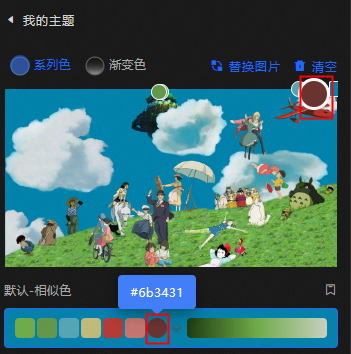
Save Theme
On the Custom Themes tab, select a theme.
Click the
 icon in the upper-right corner of the selected theme. In the Save Theme dialog box, modify the name of the saved theme and click OK.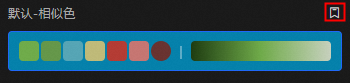
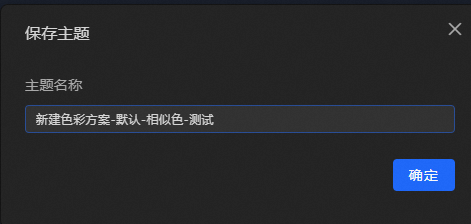
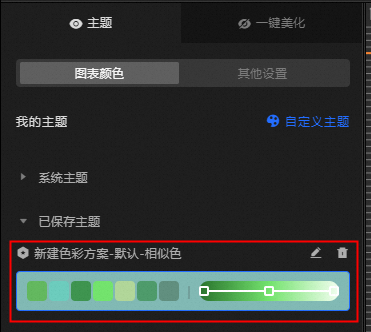
The My Themes page appears. The Saved Themes tab displays the custom theme that you saved.
Replace Image: On the Custom Themes page, click Replace Image or click an image in the Color Source field to select another image to generate a custom theme.
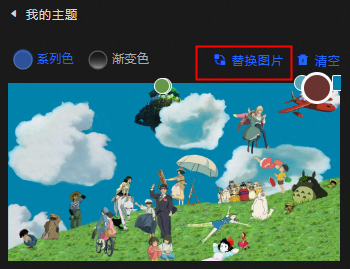
Clear: On the Custom Theme page, click Clear to delete the uploaded image.
Other Settings (Optional) step
You can set the chart text within the theme. Including the font, word weight, font size and font color (dark and light) of the chart, you can also set the style of the chart according to the complexity of the chart, including simple, general and detailed. 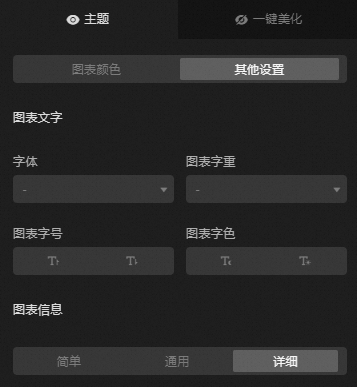
Procedure
Log on to the DataV console.
On the console page, use the template to create a PC dashboard or click Edit for an existing dashboard.
Go to the Canvas Editor page and click the
 icon at the top of the editor page.
 In the Beautify Toolbox panel, click the Themes tab.
If the Theme page displays Not Enabled, you can click the
 icon or click Quick Enable on the page to enable the feature. Note
Click the icon on the left side
 of Theme to enable or hide the feature.
 On the Topics page, configure the topic.
The Themes page contains two modules: My Themes and Custom Themes.
My Theme
Click the My Topics tab.
In System Theme, select a theme.
Preview the effect of the theme on the canvas. After you are satisfied with the effect, click Confirm Application in the lower-right corner of the page.
If the dashboard contains components that do not support the theme feature, the system prompts the component type or component name that does not support the theme feature.

If you are not satisfied with the theme effect, click Cancel to cancel the current theme color scheme.
In the dialog box that appears, click OK to apply the selected theme to the dashboard.
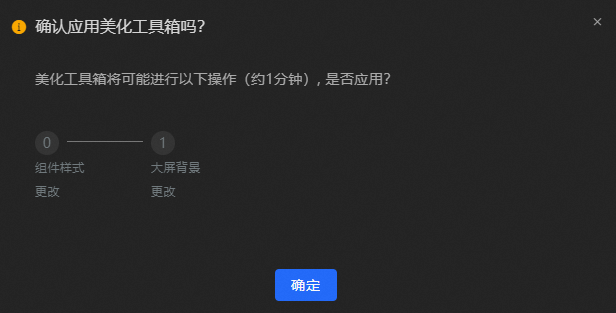 Important
The application theme will overwrite the original data kanban configuration. Please confirm before you proceed.
For more information, see My topics.
Custom Theme
Click the Custom Themes tab.
On the Custom Themes tab, click Click to upload an image in Color Source.
Upload a custom style map (currently, only image files in JPEG, JPG, and PNG formats are supported).
NoteAfter the style chart is uploaded, the system automatically generates a theme swatch and updates the dashboard to the current default swatch style. You can preview the effect of the default theme palette in the current canvas.
In the uploaded custom-styled image, you can drag the color circle to change the color of the theme. For more information, see Custom themes.
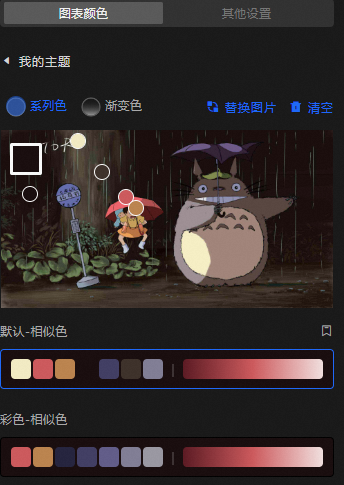
Preview the theme effect in the canvas. If you are satisfied with the effect, click Apply.
If the dashboard contains components that do not support the theme feature, the system prompts the component type or component name that does not support the theme feature.
If you are not satisfied with the theme effect, click Cancel to cancel the current theme color scheme.
In the dialog box that appears, click OK to apply the selected theme to the dashboard.
ImportantThe application theme will overwrite the original data kanban configuration. Please confirm before you proceed.
For more information, see Custom themes.
After the theme is configured, preview and publish the dashboard to show the theme effect online.