favorited-widgets
Manage your favorited widgets by grouping, searching, renaming, upgrading to blocks, configuring quotas, or deleting them.
Widget collection
The Widget Favorites tab displays only widgets that have been added to favorites. For more information, see Layer management.
Component group
-
Log on to the DataV console.
-
On the console page, click the Widgets tab under Resource Management Module.
-
In the left-side navigation pane, click Create Group, enter a group name, and then click Enter.
-
You can click the
 icon to rename the group or click the
  icon to delete the group.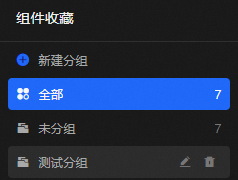
Manage project quotas
To configure the quota for a widget, see Create a workspace.
Component search
-
Log on to the DataV console.
-
In the Resource Management section, click Widgets. The Widgets page appears.
-
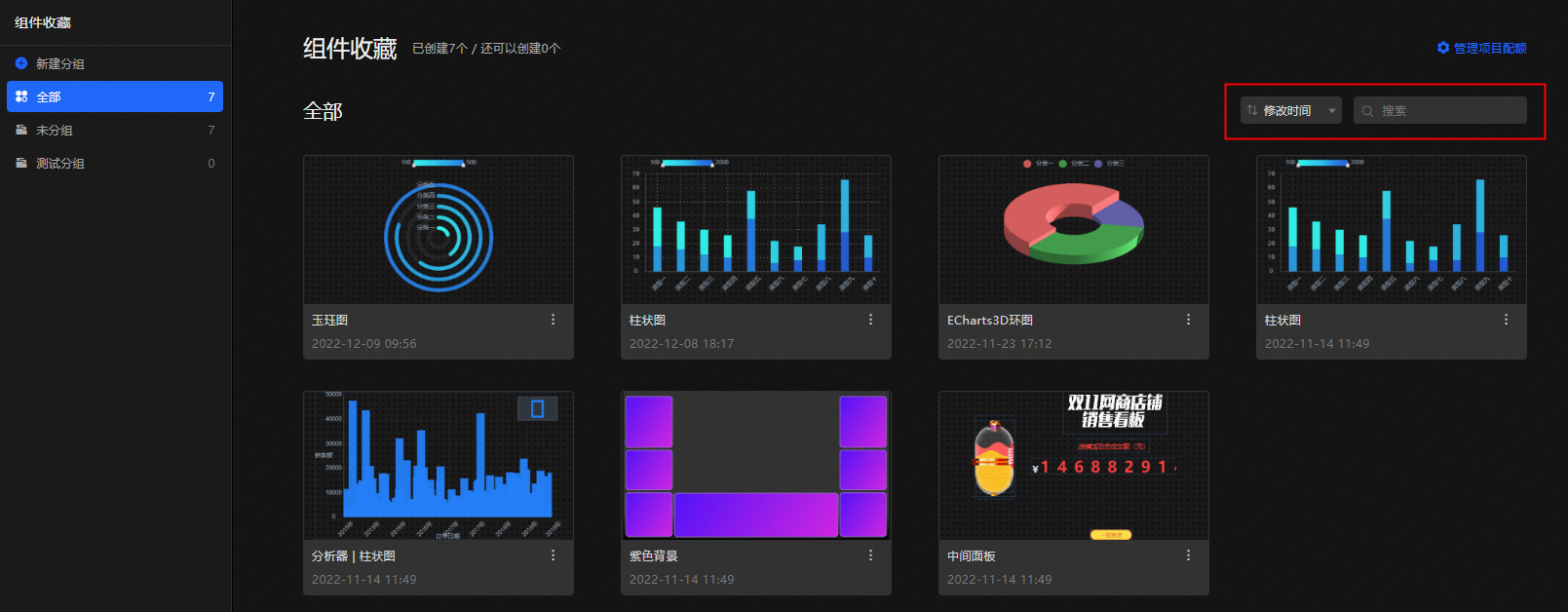
In the upper-right corner of the Widget Favorite Card page, you can perform the following operations:
-
Click the sort dropdown to sort widgets by Name, Modified At, or Created At.
-
Enter a widget name in the search box to locate the widget.
-
Rename Component
-
Log on to the DataV console.
-
On the console page, click the Widget Favorites tab under Resource Management Module.
-
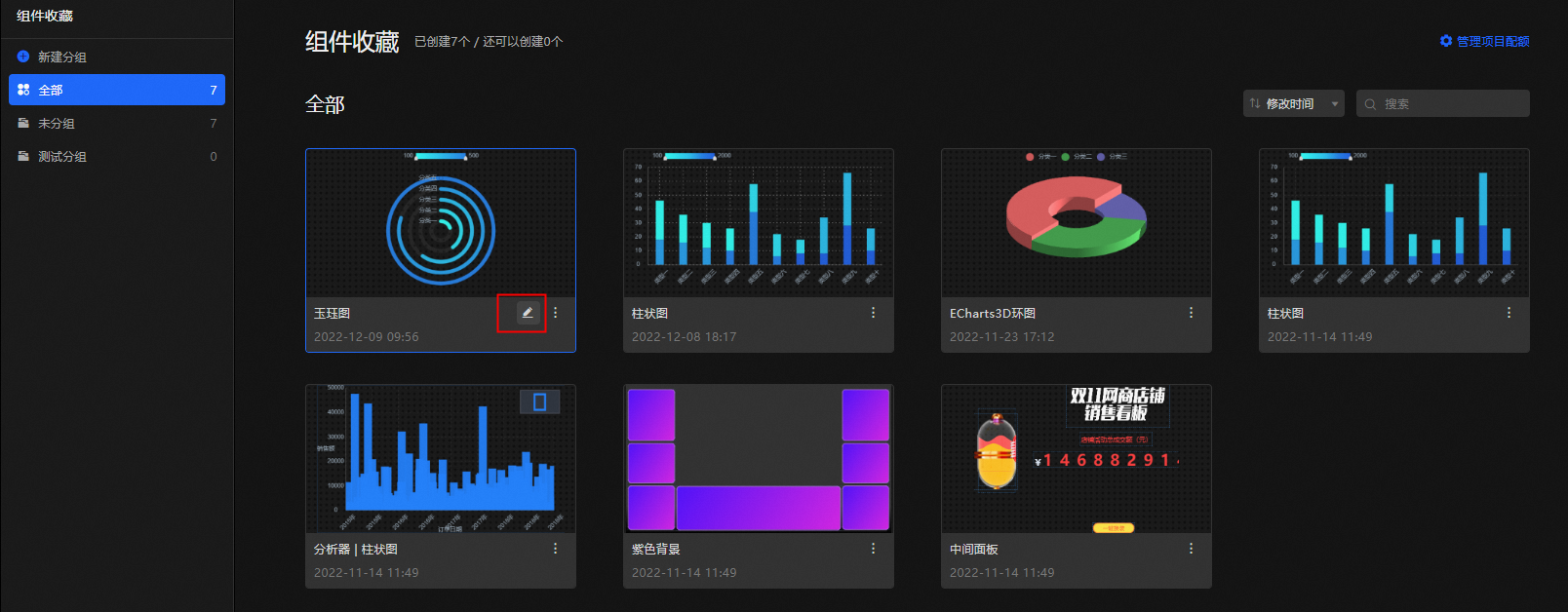
Hover over the widget and click the
 icon to rename it.
Upgrade to Block
-
Log on to the DataV console.
-
On the console page, click the Block tab under Resource Management Module.
-
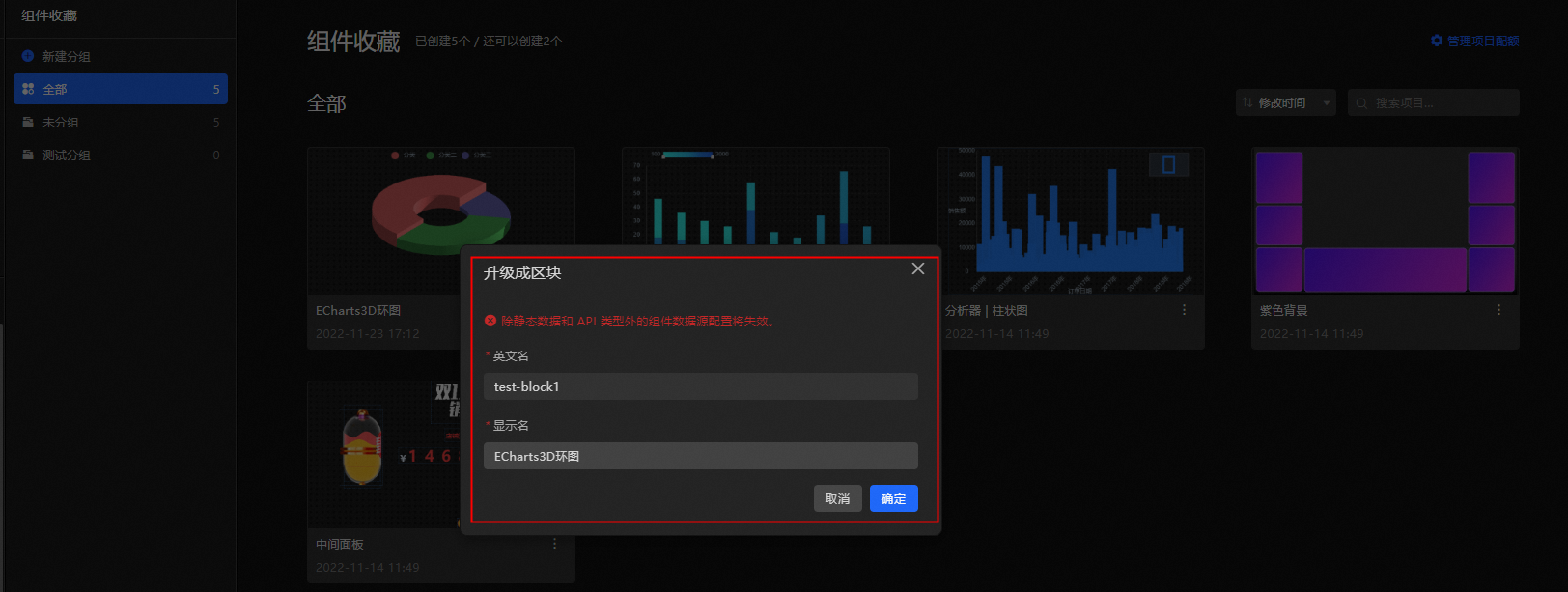
Find the component that you want to upgrade and click
Upgrade to Block in the Actions column. -
In the Upgrade to Block dialog box, set Name and Display Name and click OK.
-
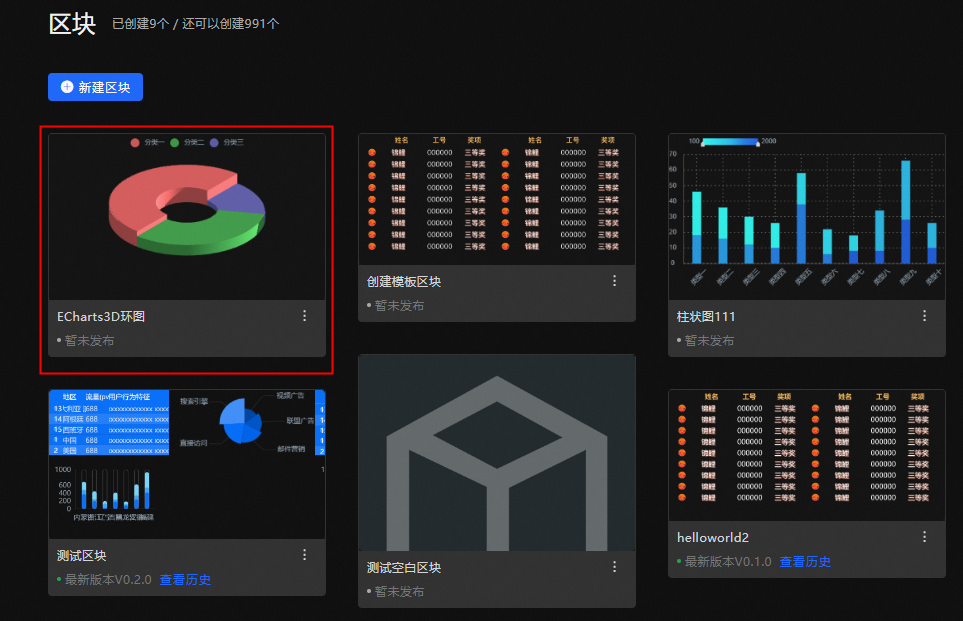
In the left-side navigation pane, click Block under Resource Management to verify the upgrade.
 Upgrade to Block in the Actions column.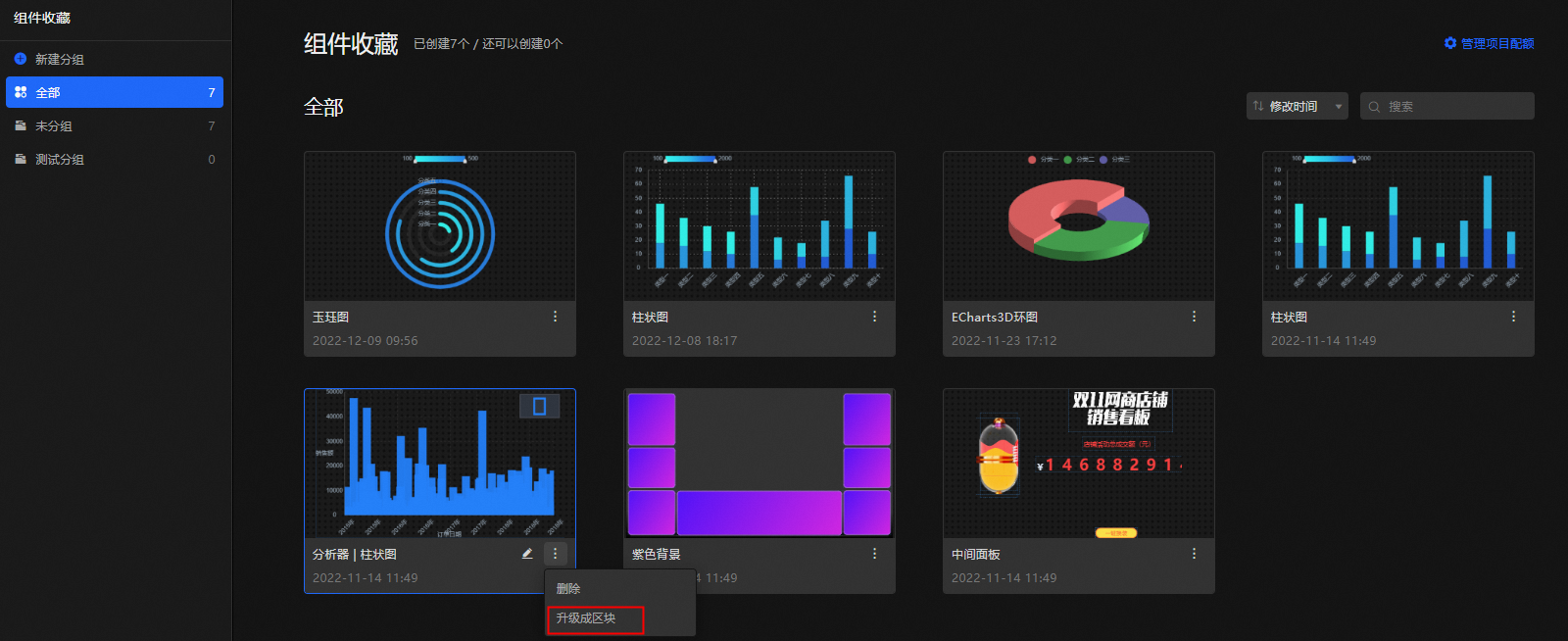
Delete components
-
Log on to the DataV console.
-
On the console page, click the Widget Favorites tab under Resource Management Module.
-
Select the component that you want to delete and click
Delete. ImportantDeleted widgets cannot be restored. Proceed with caution.