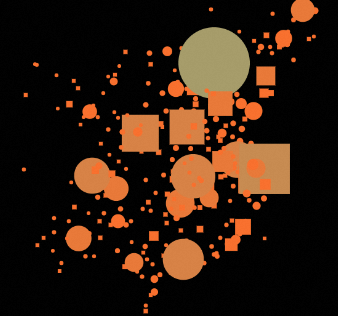
The color mapper configures the mapping between colors and data values in a widget. It provides more than ten built-in color templates and supports custom colors and values. This topic uses the Vector Scatter Layer child component of Basic Flat Map 3.0 as an example to show how to map data to colors.
Configure color mapping
You can adjust scatter dot colors in the map subwidget by using one of the following methods.
-
Method 1: Click the
 icon to the left of the Scatter Color configuration item. When you hover over the icon and see Enable Visual Mapping, this mode uses the color picker. No data binding is required. You can customize a single monochrome or gradient color.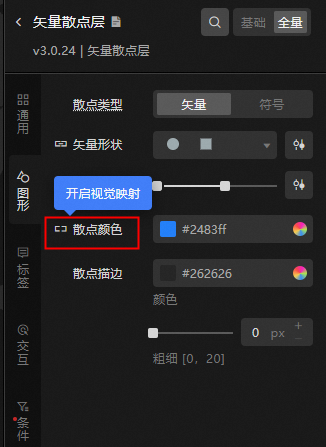
-
Method 2: Click the
 icon on the left of the Scatter Color configuration item. When you hover over the icon and see Disable Visual Mapping, this mode uses the color mapper. Colors are driven by scatter data, and you can select multiple colors.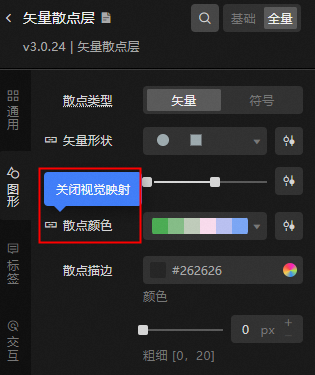
Color Mapper Function Description
|
Description |
Remarks |
|
Toggle configuration color mapping when panel collapses |
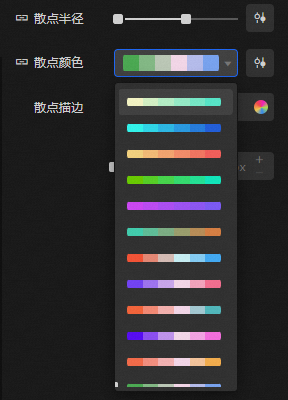
When the color mapper is collapsed, click the color display bar to open the multi-color template. The top row shows the current mapped colors, and the rows below provide additional templates. Click a template color bar to quickly switch the mapping colors. |
|
Panel expansion configuration mapping details |
When the color mapper is expanded, it automatically reads data and maps colors to data values. You can configure the mapping details as follows:
|
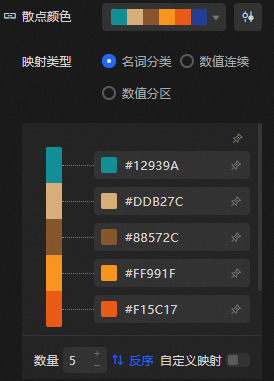
 icon to the right of a color in the template to pin that color. Unpinned colors change when you switch templates.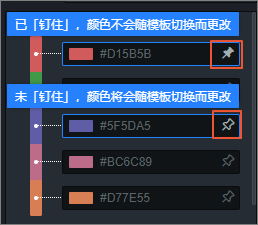
 icon to sort the color mapping list in descending order.
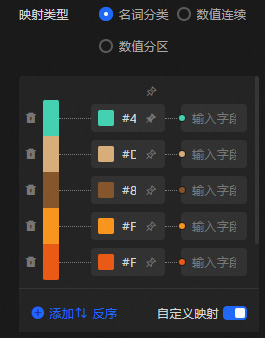
 icon to the left of a row to delete all color entries in that row.
 icon below the color mapping list to add a row of color mapping entries.
The color mapper provides more than 10 built-in color templates. You can also customize colors and values to meet your requirements.
Color mapping classification
Color mapping supports three types: Noun classification, numeric continuous, and numeric partition.
|
Type |
Description |
|
Noun classification |
Suitable for categorical data that needs distinct color differentiation by name or category. The template colors are designed to be visually distinguishable. Noun Classification Color Template Style
|
|
Continuous values |
Assigns a continuous color gradient to numeric data, where each value corresponds to a specific color in the mapping space. numeric continuous color template style
|
|
Numeric partition |
Divides continuous numeric values into ranges, where data within the same range shares one color. This reduces the number of colors and avoids visual clutter. numeric partition color template style
|
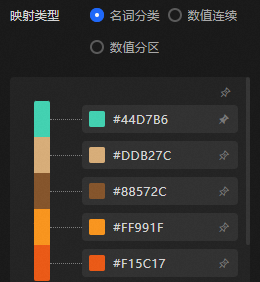 Noun Classification Data Example Figure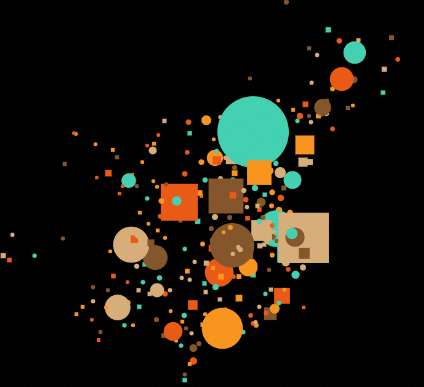
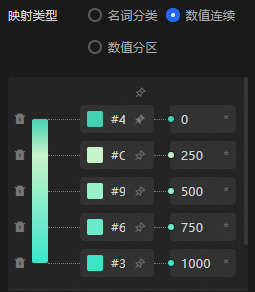 numeric continuous data example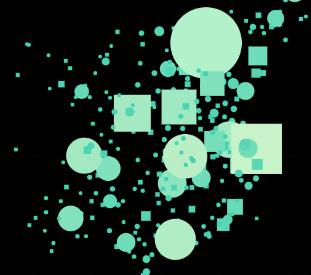
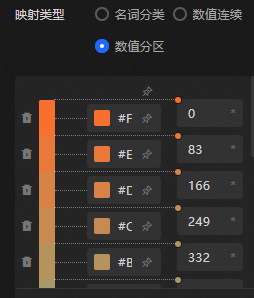 numeric partition data sample graph