You can add an Object Storage Service (OSS) data source in DataV and configure the required parameters to visualize unstructured data files stored in OSS, such as text, images, audio, and video.
Prerequisites
The Object Storage Service (OSS) data source is prepared for addition.
Limits
This feature is available only in DataV Enterprise Edition and later versions.
Add Object Storage Service OSS data source
Access the DataV console.
-
On the Workbench page, click in the navigation pane on the left. On the Data Source page, click New Data Source.
-
Select Type from the list and choose Object Storage OSS.
-
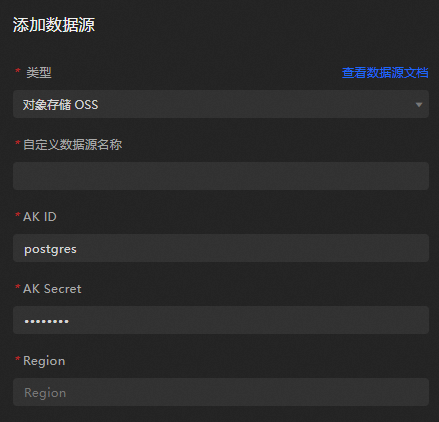
Enter the relevant OSS details.
Parameter
Description
Custom Data Source Name
The display name of the data source. You can specify a custom name.
AK ID
The AccessKey ID of the account with access privileges to the target OSS.
AK Secret
The AccessKey Secret of the account with access privileges to the target OSS.
Region
The external access region of the target OSS bucket. Log on to the OSS Console and click your bucket name to obtain the region.
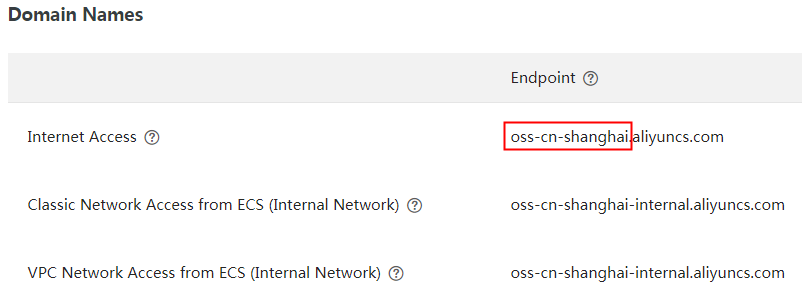
The OSS bucket in the above image is located in the Shanghai region, so the Region should be set to oss-cn-shanghai.
-
After you enter the information, click OK to add the data source.
The new data source is automatically displayed in the data source list.
Use Object Storage Service OSS data source
Access the DataV console.
-
On the Workbench page, hover over the data dashboard you want to edit and click Edit.
ImportantIf you haven't created a data dashboard on your Workbench page, please see Create a PC Dashboard Using a Template for guidance on creating one.
-
On the canvas editing page, select a widget from the canvas.
If your canvas lacks widgets, please add them first. For more information, see Widget Canvas Operations.
-
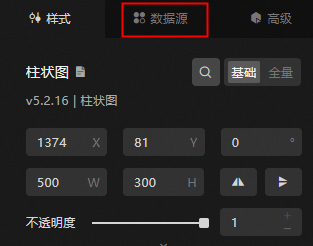
In the widget configuration panel on the right, select Data Source.
-
In the Set Data Source module, select Data Source Type as Object Storage OSS.
-
From the Select Existing Data Source list, choose the configured Object Storage OSS data source.
-
In the File Path field, enter the file path.
-
Click View Data Return Results to verify the data retrieval results.
The content must meet the following requirements:
-
The file must be in JSON format.
-
File path format: oss://bucket/file. For instance, if your bucket name is myBucket and the file name is test.json, the path should be oss://myBucket/test.json.
-
What to do next
To use the data source in your widgets, see Configure a widget data source.
FAQ
For more information, see FAQ about data source configuration and usage.