All Products
Search
Document Center

Dataphin:Manage real-time instances

Last Updated:Nov 18, 2025

A real-time instance is the data generated after a real-time task is submitted to the Operation Center. Dataphin lets you view data generated by real-time tasks and manage real-time instances. Management operations include viewing tasks, instance code, and instance parameters. This topic describes the statuses of real-time instances and how to manage them.

Go to the real-time instance page

  1. In the top navigation bar of the Dataphin homepage, choose Develop > O&M.

  2. In the top navigation bar, select the production or development environment.

  3. In the navigation pane on the left, choose Instance O&M > Real-time Instance to open the Real-time Instance page.

Introduction to the real-time instance page

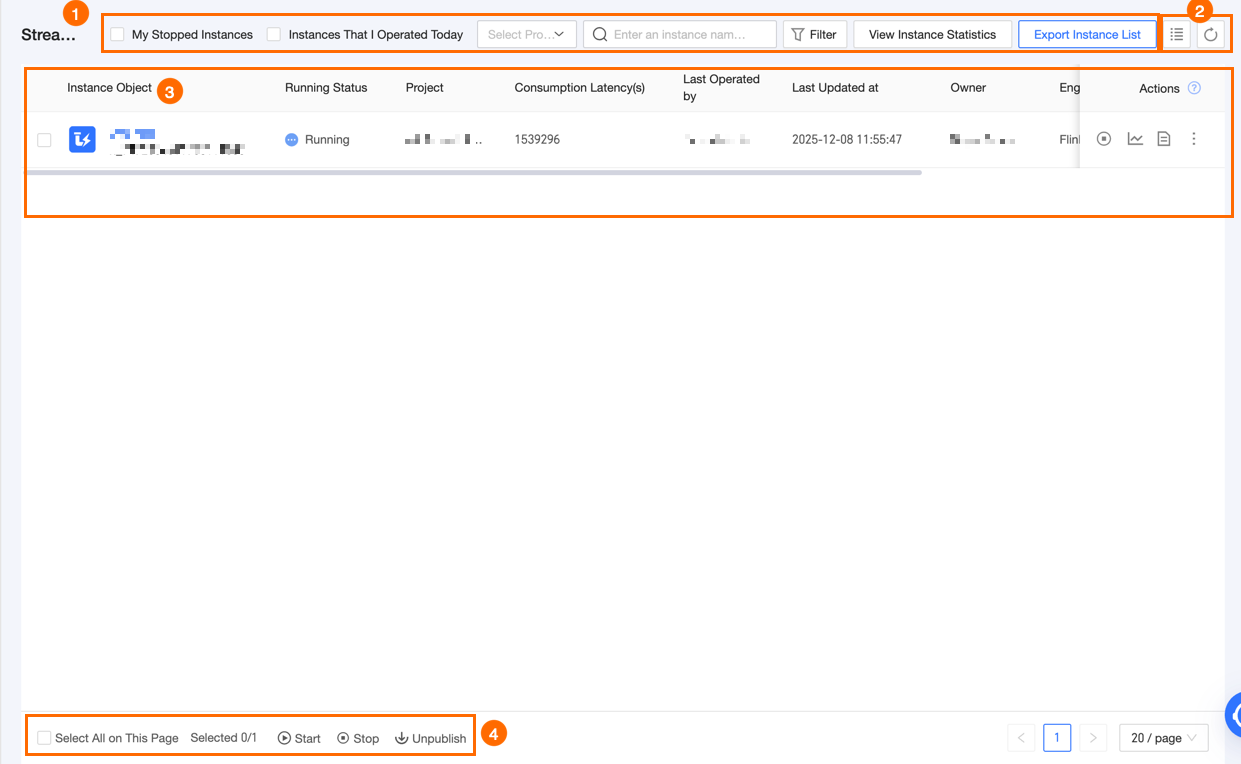
The Real-time Instance page lists the real-time instances generated by the system. The page consists of a search and filter area, a real-time instance list, and a batch operations area. You can perform operations and maintenance (O&M) on this page.

image

Section

Description

Filter and search area

Enter an instance object name or ID to search for a real-time instance. This feature is useful for quick searches when you know the real-time object name or ID.

  • My Stopped Instances: Instances that have been stopped and for which the current user is the schedule owner.

  • Instances I Operated Today: Instances that the current user has operated on today and for which the current user is the schedule owner.

  • Expand Filter: Click Filter to expand all filter options. The options include the following:

    • Subtype: Includes FLINK_SQL, FLINK_TEMPLATE_SQL, FLINK_DATASTREAM, and real-time integration.

    • Running Status: Select one or more running statuses to filter instances. The statuses include Completed, Starting, Startup Failed, Running, Failed, Stopping, and Stopped.

    • Last Operator: Filter by the last user who operated on the instance.

    • Owner: Filter by the O&M owner of the instance.

    • Engine Type: Filter by DPI engine type. The types include Ververica Flink, Blink, Flink, and FusionInsight Flink.

    • Cluster: The cluster ID of the Ververica Flink real-time computing engine.

    • Engine Version: The database engine version used by the instance.

    • Operated On: The time when the instance was operated on.

    • Project: Filter by the project to which the node belongs. You can select multiple projects for which the current user has O&M-Access Directory permissions.

  • Reset: After you open all filter options, click Reset to quickly clear the selected filter conditions.

  • View Instance Statistics: Click to go to the Instance Statistics page to view details. For more information, see View instance statistics.

  • Export Instance List: Click to export the filtered or searched instances. The exported file is in the .csv format.

  • Refresh: Click the Refresh icon to refresh the current real-time node list.

Real-time instance list

The Real-time Instance page lists the real-time instances that the system has generated. The list includes information such as instance object, running status, last operator, last update time, owner, and project.

  • Instance Object: When a real-time task is submitted and published to the Operation Center, a real-time instance object is generated. Its initial running status is Stopped. You can manually start it.

  • Running Status: The current running status of the instance. The statuses include Starting, Running, Stopping, Stopped, Failed, and Startup Failed. For more information, see Real-time instance running statuses.

  • Consumption Latency (s): The latency of the node, which is the latency in data source consumption.

  • Last Operator: The account that last operated on the instance.

  • Last Updated Time: The account that last updated this instance.

  • Owner: The O&M owner of the instance.

  • Project: The project to which the instance belongs. The format is Project English Name (Project Chinese Name).

  • Engine Type: The DPI engine type used by the current real-time instance.

  • Cluster: The cluster in which the real-time instance runs. This applies only to the Ververica Flink real-time engine. For other DPI engine instances, this field is empty.

  • Resource Queue: The resource queue in which the real-time instance runs. This applies only to Blink and Flink real-time engines. For other DPI engine instances, this field is empty.

  • Engine Version: The database engine version on which the real-time instance runs.

The Actions column in the list displays the O&M operations supported for real-time instances. For information about individual O&M operations, see Individual operations.

Batch operations

Use the Start, Stop, and Unpublish functions in the batch operations area to process real-time instances in batches. This improves operational efficiency.

For information about batch O&M operations, see Batch operations.

Real-time instance running status description

Status icon

Status

Description

image.png

Completed

The instance that processes bounded stream data is complete.

image

Starting

The instance is started, but the system has not started to run the instance.

image

Running

The instance is running.

image

Stopping

The stop operation has been triggered, and the system is stopping the instance.

image

Stopped

The running instance is stopped.

image

Failed

The instance failed to run.

image

Startup Failed

The instance failed to start.

Manage real-time instances

Single operation

Operation

Description

Start

In the Actions column of the target real-time instance, click the image icon to start the instance. For more information, see Start a real-time instance.

Stop

In the Actions column of the target real-time instance, click the image icon to stop the instance that is in the Running state. Two stop modes are supported: Stateless Stop and Stop And Retain Current State.

  • Stateless Stop: Does not save the current state (Savepoint). The next time the job starts, it will be a stateless start.

    Important

    A stateless stop clears previously saved Savepoints but does not clear Checkpoints.

  • Stop and Retain Current State: Saves the current state (Savepoint). The next time the job starts, you can choose to start it from the saved state.

Note
  • The Blink real-time computing engine does not support selecting Stateless Stop and Stop with Current State Preserved.

  • Real-time integration instances support only stateless stop. After you click Stop, the real-time incremental node stops, and all offline nodes that are being synchronized also stop.

Unpublish

In the Actions column of the target real-time instance, click the image icon to unpublish the instance from the production environment. You can unpublish instances that are in the Stopped, Failed, or Startup Failed state.

View Running Analysis

In the Actions column of the target real-time instance, click the image icon to view the running information, data curves, Failover, and other parameters of the instance.

The compute engine is Apache Flink. For more information, see View running analysis.

For real-time instances that use the Ververica Flink or Blink real-time engine, see View job details.

View Real-time Task

In the Actions column of the target real-time instance, click the image icon and select View Real-time Task. You are navigated to the node page that generated the current instance. On this page, you can view the details of the real-time task.

View Instance Code

In the Actions column of the target real-time instance, click the image icon and select View Instance Code to view the node code that generated the current instance.

If the compute engine is Flink, click Logical Code or Physical Code to switch between views.

  • Logical Code: The node code that was written.

  • Physical Code: The compiled code that can run on the Flink DPI engine.

    image

View Instance Parameters

In the Actions column of the target real-time instance, click the image icon and select View Instance Parameters to view the runtime parameters of the instance, such as metrics.reporter.promappmgr.port.

View Sync Objects

In the Actions column of the target real-time instance, click the image icon and select View Sync Objects to open the Sync Objects tab of the instance details page. The details include Incremental synchronization and Full synchronization.

  • Incremental synchronization: Displays the running status, start time, latency, and latest read offset. You can start, stop, view running logs, and view node code.

    • Running status: The running status of the original real-time integration node. The statuses include Completed, Starting, Startup Failed, Running, Failed, Stopping, and Stopped. If the node fails to run, you can view the error cause. If the real-time task is paused, its status is Running, but the running status here is displayed as Running (Paused).

    • Start time: The start time of the real-time incremental synchronization.

    • Latency: The latency of the real-time incremental node.

    • Latest read offset: The time offset that has been read.

  • Full synchronization: Displays the overall sync status, sync progress, source object, target object, status, sync time, duration, speed, and data volume. You can search by source or target object name and filter by object sync status.

    • Overall sync status: The overall sync status of all source objects in a full synchronization. The statuses include Not Started, Synchronizing, Completed, and Failed.

      • Not Started: The sync status of all source objects is Not Started. In this state, the sync progress is not displayed.

      • Synchronizing: One or more source objects are being synchronized.

      • Completed: The sync statuses of all source objects are Completed, Ignored, or Stopped.

      • Failed: One or more source objects failed to be synchronized.

    • Sync progress: The overall progress of the full synchronization. The format is Number of completed objects/Total number of objects.

    • Source object and Target object: The formats are schema.source/target_table_name and source/target_data_source_name.

    • Status: Includes Not Started, Stopping, Stopped, Ignored, Synchronizing, Failed, and Completed.

      • Not Started: The object is not running. It is waiting for the incremental node to be paused before starting the synchronization.

      • Stopping: The last temporary node that was being synchronized was manually stopped but has not finished stopping.

      • Stopped: The last temporary node that was being synchronized was manually stopped.

      • Ignored: The node status is displayed as Ignored after you click Ignore when the node has not started or has failed.

      • Synchronizing: The last temporary node is running.

      • Failed: The last temporary node failed to run.

      • Completed: The last temporary node ran successfully.

    • Sync time: The start and end time of the temporary node. The format is Start time - End time. If the node has not started or finished, this is displayed as -.

    • Duration: The total runtime of the temporary node.

    • Speed: The synchronization speed. The formula is Total data volume synchronized by the last completed temporary node/Duration.

    • Data volume: The total data volume synchronized by the last completed temporary node.

    • Operations: You can view logs, run, stop, and ignore objects only when the Incremental synchronization status is Running.

      • View logs: Click to open the log page of the last temporary node.

      • Run and Batch run: Supported only when the status is Ignored, Stopped, Failed, or Completed. When a full synchronization is performed on a sync object, the data in the corresponding target table is cleared. The schedule resource group for the node is also cleared and can be adjusted.

      • Stop and Batch stop: Supported only for sync objects that are being synchronized. Stopping an object does not block the node from running.

      • Ignore and Batch ignore: Supported only for sync objects that are in the Not Started or Failed state. Ignoring an object does not block the node from running.

Note

This feature is supported only for real-time integration instances that use the incremental and full synchronization solution in the development environment.

Refresh Sync Objects

In the Actions column of the target real-time instance, click the image icon and select Refresh Sync Objects. In the Refresh Sync Objects dialog box, click OK. The instance runs based on the new synchronization scope.

  • Only the sync object scope is changed:

    • New sync objects are added: The incremental synchronization is paused, but the node status remains Running. Temporary full synchronization nodes for the new objects are run. Full synchronization nodes that have run successfully are not run again. After all new temporary full synchronization nodes are complete, the incremental synchronization continues.

    • Sync objects are deleted: The sync objects are removed. The incremental synchronization node continues to run with a smaller synchronization scope.

  • Other changes are made in addition to the sync object scope (such as node configuration adjustments or target table adjustments): The incremental synchronization stops. If the synchronization scope is changed, the synchronization of new objects is completed first. Then, the incremental synchronization node is restarted. For existing full synchronization nodes, you can manually process them by object on the sync objects page as needed.

Note

This feature is supported only for real-time integration instances that use the incremental and full synchronization solution, are in the Running state, and have updated synchronization content.

Batch operations

Operation

Description

Start

Note

The instance statuses that support the start operation vary based on the real-time engine.

  • Flink: Stopped.

  • Ververica Flink: Stopped, Failed, Succeeded.

  • Blink: Stopped, Not Started.

  • FusionInsight Flink: Stopped, Failed.

Start Real-time Integration Instances:

  1. Select one or more real-time integration instances, or select all instances on the current page. Then, click Start and select Start Real-time Integration Instances.

  2. In the Batch Start Real-time Integration Instances dialog box, configure the start information.

    • Start n instances: Displays the number of instances to start and their names. The names are separated by commas (,).

    • Start Scope: Select Incremental + Full (available only for incremental and full real-time integration nodes) or Incremental Only.

    • Full Synchronization: You can configure parameters in this section only if you set Start scope to Incremental + Full.

      • Rerun Mode: Select Initialization or Resume.

        • Initialization: Starts temporary full synchronization nodes for all sync objects. After all temporary nodes are complete, the real-time incremental synchronization node starts.

        • Resume: Starts temporary full synchronization nodes for all sync objects that are not complete. This excludes objects that are already completed, stopped, or ignored. After all temporary nodes are complete, the real-time incremental synchronization node starts.

      • Memory (optional): Do not enter decimals or negative numbers. The maximum memory cannot exceed 8192 MB (8 GB).

      • Rate Limiting (optional): Limits the speed based on the data volume. Do not enter decimals or negative numbers. The default value is 10 MB/s. If you leave this empty, the speed is not limited.

      • Concurrency (optional): Sets the maximum desired concurrency for full synchronization nodes. Do not enter decimals or negative numbers. The default value is 10. If you leave this empty, the concurrency is 3.

      Note

      You can configure schedule resource groups, memory, rate limiting, and concurrency only in the production environment.

    • Incremental Synchronization: You can configure parameters in this section only if you set Start scope to Incremental only.

      • Start Mode: Only Stateless Start is supported. This means the instance starts without any initial state.

      • Data Read Start Time: If you set a start time, all source tables that support startTime start to read data from that time. These tables include Log Service, Kafka, MySQL, MongoDB, and OceanBase.

        Note

        The code parameter settings in SQL nodes take precedence over this specified start time.

  3. Click OK to start the instances.

Start Real-time Development Instances:

  1. Select one or more real-time development instances, or click Select All On This Page. Then, click Start and select Start Real-time Development Instances.

  2. In the Batch Start Real-time Development Instances dialog box, configure the start information.

    • Start n instances: Displays the number of instances to start and their names. The names are separated by commas (,).

    • Start Mode: Supports stateless start and start from a valid state.

      • Stateless Start: Starts without any initial state.

      • Start From A Valid State: Starts from an existing valid state.

        Note

        If the selected instances include stateless instances, only Stateless start is supported for batch starting.

    • Data Read Start Time: If you set a start time, all source tables that support startTime start to read data from that time. These tables include Log Service, Kafka, MySQL, MongoDB, and OceanBase.

      Note

      The code parameter settings in SQL jobs take precedence over this specified start time.

    • Data Timestamp: Assign values to time variables by configuring the data timestamp. Time-type variables are calculated based on the data timestamp, which defaults to the current day.

      Note

      The code parameter settings in SQL jobs take precedence over this specified start time.

  3. Click OK to start the instances.

Stop

Note

The stop operation is supported only for instances in the Failed, Running, Startup Failed, Resume Failed, or Completed state.

Stop Real-time Integration Instances:

  1. Select one or more real-time integration instances, or select Select All On This Page. Then, click Stop and select Stop Real-time Integration Instances.

  2. In the Batch Stop Real-time Integration Instances dialog box, configure the information.

    • Stop n instances: Displays the number of instances to stop and their names. The names are separated by commas (,).

    • Stop Mode: Currently, only Stateless Stop is supported. This means the current state is not saved, and the instance starts without a state next time.

Stop Real-time Development Instances:

  1. Select one or more real-time development instances, or select Select All On This Page. Then, click Stop and select Stop Real-time Development Instances.

  2. In the Batch Stop Real-time Development Instances dialog box, configure the information.

    • Stop n instances: Displays the number of instances to stop and their names. The names are separated by commas (,).

    • Stop Mode:

      • Stateless Stop: Does not save the current state. The next time the job starts, it will be a stateless start.

      • Stop And Retain Current State: Saves the current state. The next time the job starts, you can choose to start it from the saved state.

Unpublish

Unpublish the selected real-time instances from the production environment.

Note

You can unpublish only real-time instances that are in the Stopped state.

Real-time instance DAG

Click the name of an instance object in the instance list. A directed acyclic graph (DAG) is displayed on the right side of the page with the current node as the central node. By default, the DAG shows one level of parent and child nodes. You can also adjust the display of the DAG:

  • Click the tegtwe icon to hide the real-time instance list and enlarge the DAG.

  • Click the geg icon to hide the DAG.

  • Hover over the teaga icon and drag to expand or shrink the DAG display area.

The DAG provides a dynamic visualization of the node's upstream and downstream dependencies. It also supports O&M operations on upstream and downstream nodes:

image

Section

Description

Node information bar

Displays summary information for the selected node. Click View Node Details to see more information.

Ververica Flink real-time engine: Includes node details, sync objects (supported only by real-time instances generated from incremental and full real-time integration nodes), running logs, operation logs, node code, and task parameters (supported only by compute task instances).

Flink real-time engine: Includes node details, sync objects (supported only by real-time instances generated from incremental and full real-time integration nodes), running analysis, logs, operation logs, node code, and task parameters (supported only by compute task instances).

  • Node details: Contains basic information and running information of the current node. Basic information includes the node name, ID, instance ID, and project. Running information includes the running status and runtime.

  • Sync objects: Contains source and target objects. It displays the status of full and incremental synchronization. When the incremental synchronization node is in the Running state, you can manually Run, Stop, and Ignore the full synchronization.

    When running, you also need to configure the schedule resource group, memory, rate limiting, concurrency, and shard key (supported only when running a single sync object).

    • Schedule resource group: The schedule resource used by the full synchronization node. By default, the project's default resource group is used.

    • Memory: The channel configuration. Do not enter decimals or negative numbers. The maximum memory cannot exceed 16384 MB (16 GB). The default value is 4096 MB. If you leave this empty, the default value is 1024 MB.

    • Rate limiting: Limits the speed based on the data volume. Do not enter decimals or negative numbers. The default value is 10 MB/s. If you leave this empty, the speed is not limited.

    • Concurrency: The channel configuration. It sets the maximum desired concurrency for full synchronization nodes. Do not enter decimals or negative numbers. The default value is 10. If you leave this empty, the concurrency is 3.

    • Shard key: Chunks data based on the configured field. It is used with concurrency to achieve concurrent reads. This parameter is empty by default. If it is empty, the system automatically identifies a field to use. You can use a column from the source data table as the shard key. The field must be of an integer or datetime type. Otherwise, chunking may be inaccurate. We recommend that you use a primary key or an indexed column as the shard key to ensure transmission performance.

  • Running logs: Displays the running logs of the current node. If the node fails and generates dirty data, you can download the dirty data file.

  • Operation logs: Displays the operation logs of the current node, including the operation time, operator, and specific operation.

  • Running analysis: Uses a data dashboard to display various running data within a selected time period, such as the number of failures and backpressure data.

  • Logs: Displays startup logs, running logs, and error messages.

  • Node code: Displays the code of the current node.

  • Task parameters: Displays the task parameters of the current node.

Node search and filter area

Quickly set the number of upstream and downstream levels to expand from the central node. If many nodes are expanded and difficult to view, you can search for a node name to quickly locate a specific node within the current DAG display range.

Scheduling dependency graph

Displays the scheduling dependency graph of the instance. You can expand more upstream and downstream nodes. You can also perform O&M operations on upstream and downstream nodes. Hover over a node in the DAG to view its name, type, scheduling cycle, owner, and description.

Canvas adjustment area

Quickly adjust the DAG display ratio. You can set a specific ratio (default is 100%), zoom in (up to 200%), zoom out (down to 20%), fit to canvas, and enter full screen. This area also displays the node ID and node name of the central node in the current DAG.

Operations supported by real-time instance DAG nodes

Operation

Description

Expand Parent Nodes

Expand dependency nodes at different levels from the central node in the DAG.

Expand Child Nodes

View Real-time Task

Go to the task node DAG that generated the current instance node. You can view task node details, upstream and downstream node information, and perform O&M on task nodes. For more information, see View and manage real-time tasks.

View Node Code

View the node code that generated the current instance.

If the compute engine is Flink, click Logical Code or Physical Code to switch between views.

Logical Code: The node code that was written.

Physical Code: The compiled code that can run on the Flink DPI engine.

image..png

View Running Logs

View the running logs of the instance node. If the node has dirty data, click Download Dirty Data File to download the dirty data to your computer. The file includes the generation time, error content, and error cause of the dirty data. By default, the file is retained for 7 days.

If the compute engine is Flink, you can view the startup logs, running logs, and error messages separately to help locate and troubleshoot errors.

  • Startup logs: Log information from the process of the Dataphin client submitting the Flink job to YARN.

  • Running logs: Log information from the JobManager and TaskManager during the Flink job execution.

    Note
    • Logs are stored for 7 calendar days by default.

    • The log output level includes Warning and Error level log information.

  • Error messages: Exception error information generated during node execution. This includes the time of the exception, the name of the exception, the task where the exception occurred, and the hostname or IP address of the TaskManager node. Click the image..png view icon to view the details of the exception history.

View Task Parameters

View the task parameters of the current instance node, such as execution.checkpointing.interval.

Edit Development Node

Go to the node editing page in the Dev project for the node that generated the current instance. This is applicable only to the Dev-Prod development mode.

Edit Node

Go to the node editing page for the node that generated the current instance. This is applicable only to the Basic mode.

View Generated Node

View the node configuration in the Prod project for the node that generated the current instance.

View Operation Logs

View the operation logs of the current instance. The logs include the Operation Time, Operator, and Operation content.

View Running Analysis

View the running information, data curves, Failover, and other parameters of the current real-time instance.

For real-time instances that use the Ververica Flink or Alibaba Blink real-time engine, see View job details.

For real-time instances that use the Flink real-time engine, see View running analysis.

View Sync Objects

In the Sync Objects tab of the current real-time instance details, view the sync object details, including Incremental synchronization and Full synchronization. For field details, see View Sync Objects in the Individual operations section.

Note

This operation is supported only by real-time instances generated from incremental and full real-time integration nodes.

Refresh Sync Objects

Click Refresh Sync Objects. In the Refresh Sync Objects dialog box, click OK to run the current real-time instance based on the new synchronization scope. For field details, see Refresh Sync Objects in the Individual operations section.

Note

This operation is supported only by real-time instances generated from incremental and full real-time integration nodes.

Start

Start the current real-time instance. For more information, see Start a real-time instance.

Stop

Stop the current real-time instance. This operation applies to instances in the Running or Completed state. For Completed instances, only stateless stop is supported. Two stop modes are available: Stateless Stop and Stop And Retain Current State.

  • Stateless stop: Does not save the current state (Savepoint). The next time the job starts, it will be a stateless start.

  • Stop and retain current state: Saves the current state (Savepoint). The next time the job starts, you can choose to start it from the saved state.

Note

The Blink real-time computing engine does not support the Stateless Stop and Stop And Retain Current State modes.

Unpublish

Unpublish the real-time instance from the production environment. You can unpublish instances that are in the Stopped state.