Stream processing templates standardize real-time computing task development, improving efficiency and consistency. You can create a template once and instantiate multiple tasks from it.
Scenarios
Real-time computing tasks must run continuously with low latency and high availability. Production environments typically use multiple links for primary-backup disaster recovery, but this increases maintenance costs. Manual updates across links can also cause inconsistencies. By creating a stream processing template in Dataphin, you can instantiate tasks by referencing the template, streamlining maintenance across multiple real-time tasks and reducing the risk of inconsistencies.
Procedure
-
See Data Development Entry to access the Development page.
-
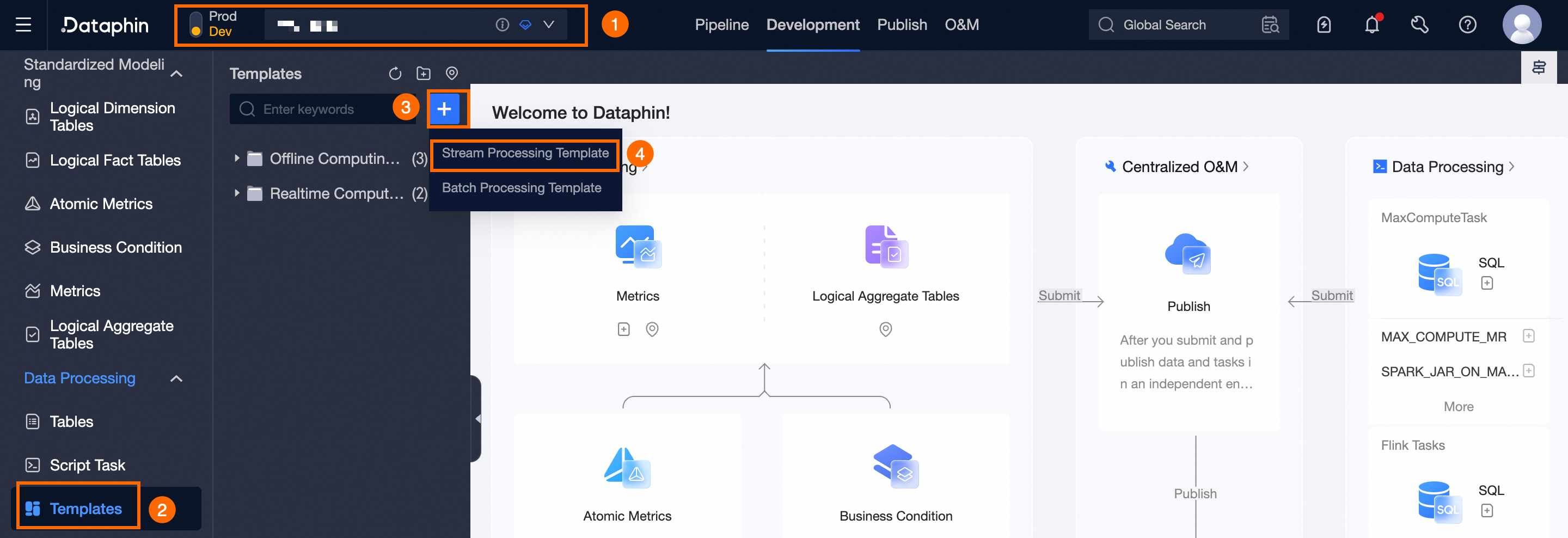
On the Development page, use the following guide to open the New Template dialog box.
-
In the New Template dialog, enter the required parameters.
Parameter
Description
Template Name
Specify the template name, which is immutable post-creation. Acceptable characters include English letters, numbers, underscores (_), and hyphens (-).
Select Directory
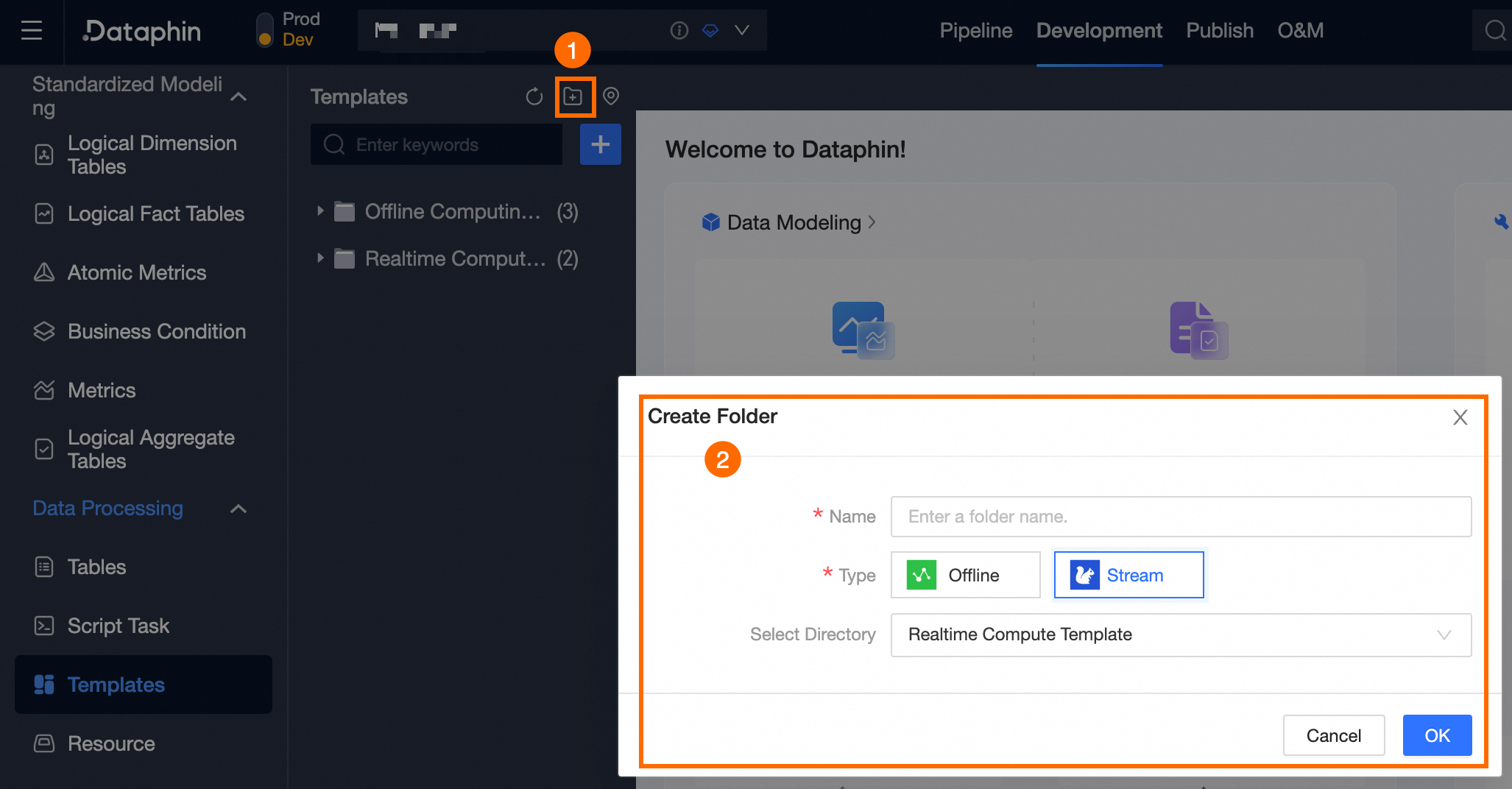
Choose the directory where the template will reside. If the appropriate directory does not exist, create a new one as per the guide below.
Description
Provide a concise description of the template, limited to 1000 characters.
-
Click OK.
-
Develop the stream processing template code on the code development page.
ImportantThe template code must include at least one parameter to be compiled and submitted correctly. Use the following format for parameters:
@@{parameter name}.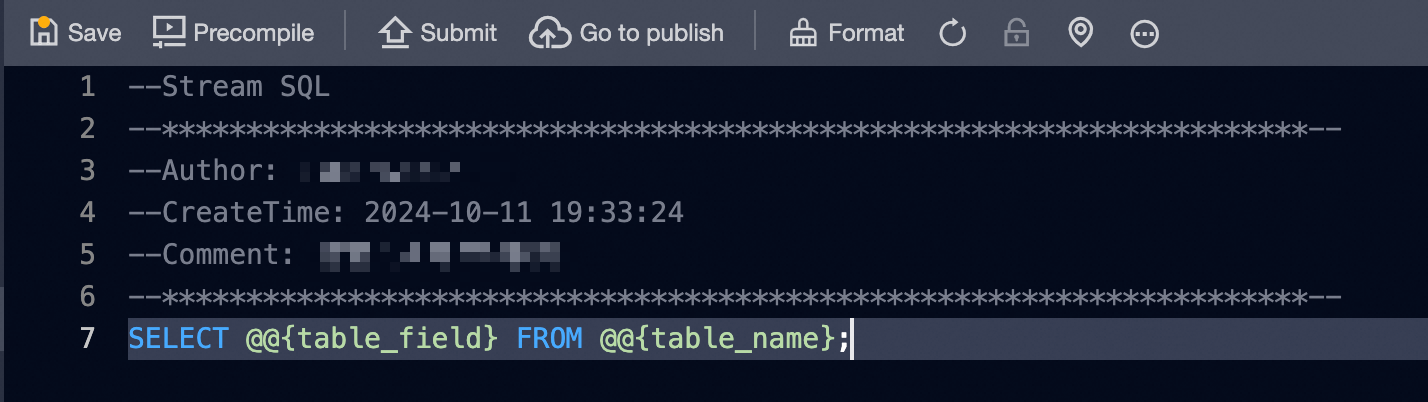 Note
NoteTo automatically format the SQL code, click the
 button at the top right of the page.
 -
Upon finalizing the template code, click the
 icon at the upper left of the page. Then, in the Parameter Filling dialog box, select Engine Version and Fill Parameter Value.
Parameter
Description
Engine Version
Choose the engine version for precompiling the code.
Parameter Filling
Input the parameter values for precompilation. If unconfigured, select Fill Empty Value or All Empty Values.
-
Click OK to validate the code task's syntax and permissions.
Note-
A successful precompilation triggers a
 notification at the top of the page.
 -
A failed precompilation results in a
 alert at the top of the page. Click the Console at the bottom to review the precompilation error log.
-
-
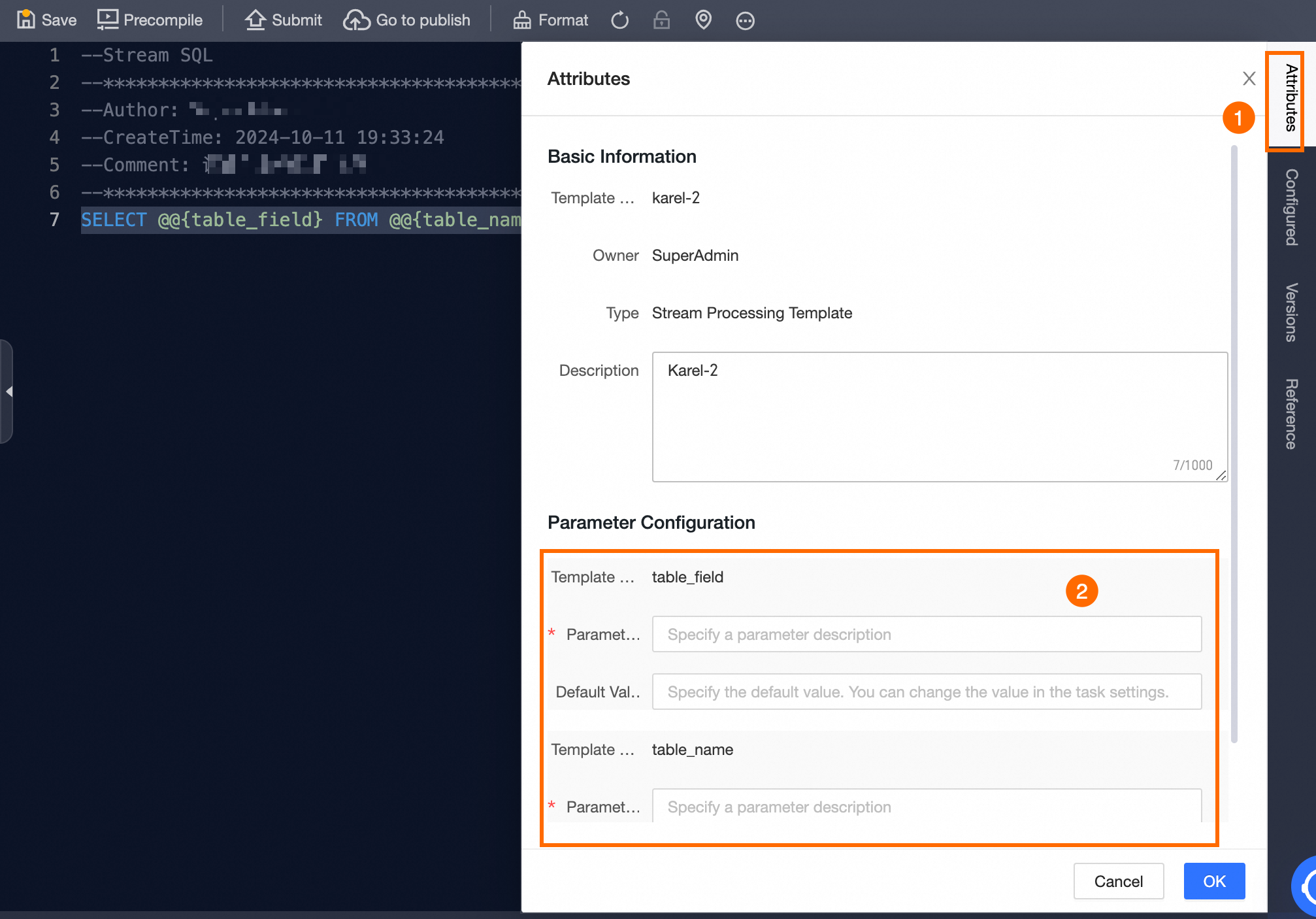
After development and precompilation, configure the parameters' description information and default value for the stream processing template. Use the guide below to set up the parameters in the Attribute pop-up.
Parameter
Description
Parameter Description
Detail the parameter's purpose within 128 characters.
Default Value
Specify the default value for the parameter.
NoteDataphin supports the configuration of runtime parameter information in real-time templates. Tasks created from the current template will inherit these parameters. For details, see Configure Real-time Template Runtime Parameters.
-
Submit the code template by clicking the
 button at the top left of the page, and in the Submit Code Template dialog box, fill in the Version Name and Remarks.
 -
To finalize, click OK And Submit.
If your project follows a Dev-Prod pattern, you must publish the stream processing template to the production environment. For detailed instructions, see Manage Publishing Tasks.
What to do next
After publication, manage your stream processing template tasks in the Operation Center. For more information, see View and Manage Real-time Tasks or .