Access control lists (ACLs) filter traffic at the ALB listener level. Each ACL contains IPv4 CIDR blocks and operates in one of two modes:
-
Whitelist: Allow only requests from IP addresses in the ACL.
-
Blacklist: Deny requests from IP addresses in the ACL.
ACLs support IPv4 addresses only.

Choose a configuration method
Two methods are available to associate an ACL with a listener.
aclIds (recommended) |
aclEntries |
|
|---|---|---|
| Controller version | 2.7.0 or later | All versions |
| ACL source | Reference an existing ACL by ID. Create the ACL in the SLB console first. | Define CIDR entries directly in the AlbConfig. The controller creates the ACL automatically. |
| Best for | Frequently updated ACLs shared across listeners | Small ACLs with a limited number of entries and listeners |
-
aclIdsandaclEntriesare mutually exclusive. Do not use both in the same listener. -
ALB Ingress controller 2.7.0 and later: use
aclIdsto associate an existing ACL with a listener.
Associate an existing ACL by using aclIds
Ensure your AlbConfig has a configured listener and aclConfig before you proceed.
Step 1: Create an ACL
-
Log on to the ALB console.
-
In the top navigation bar, select the region for the ACL.
-
In the left-side navigation pane, choose ALB > Access Control.
-
On the Access Control page, click Create ACL.
-
In the Create ACL dialog box, configure the following parameters and click OK.
Parameter Description ACL Name Enter an ACL name. Resource Group Select a resource group. Tag Set the Tag Key and Tag Value. Tags help filter ACLs on the Access Control page.
Step 2: Add entries to the ACL
ACL entries specify the source IP addresses or CIDR blocks to allow or deny.
-
On the Access Control page, find the ACL and click Manage in the Actions column.
-
On the Entry tab, add entries:
-
Add a single entry: Click Add Entry, set IP/CIDR Block and Remarks, then click Add.
-
Add multiple entries: Click Add ACL Entries, enter multiple IP addresses or CIDR blocks with remarks, then click Add.
-
When adding multiple entries:
Enter one entry per line.
Separate the IP/CIDR block and remarks with a vertical bar (
192.168.1.0/24|Remarks).Maximum 20 entries per batch.
-
Manage entries:
-
View the IP addresses or CIDR blocks in the Entry column.
-
Click Delete in the Actions column. To delete multiple entries, select them and click Delete below the list.
-
Click the
 icon to export entries. To export specific entries, select them first.
-
Step 3: Associate the ACL with a listener
Add the aclConfig section to the listener in your AlbConfig and set aclIds to the ACL ID. This example uses acl-wtg***.
apiVersion: alibabacloud.com/v1
kind: AlbConfig
metadata:
  name: default
spec:
  config:
  #...
  listeners:
    - port: #...
      protocol: #...
      aclConfig:
        aclType: White # The whitelist mode.
        aclIds:
          - acl-wtg***	# Add the ID of the existing ACL to the ACL configuration. In this example, the ID of the existing ACL is acl-wtg***.
	#...
aclConfig parameters
| Parameter | Description |
|---|---|
aclType |
The type of the ACL. Valid values: Black and White. |
aclIds |
The ID of the ACL to associate with the listener. Each listener supports up to three ACLs. |
Step 4: Verify access control
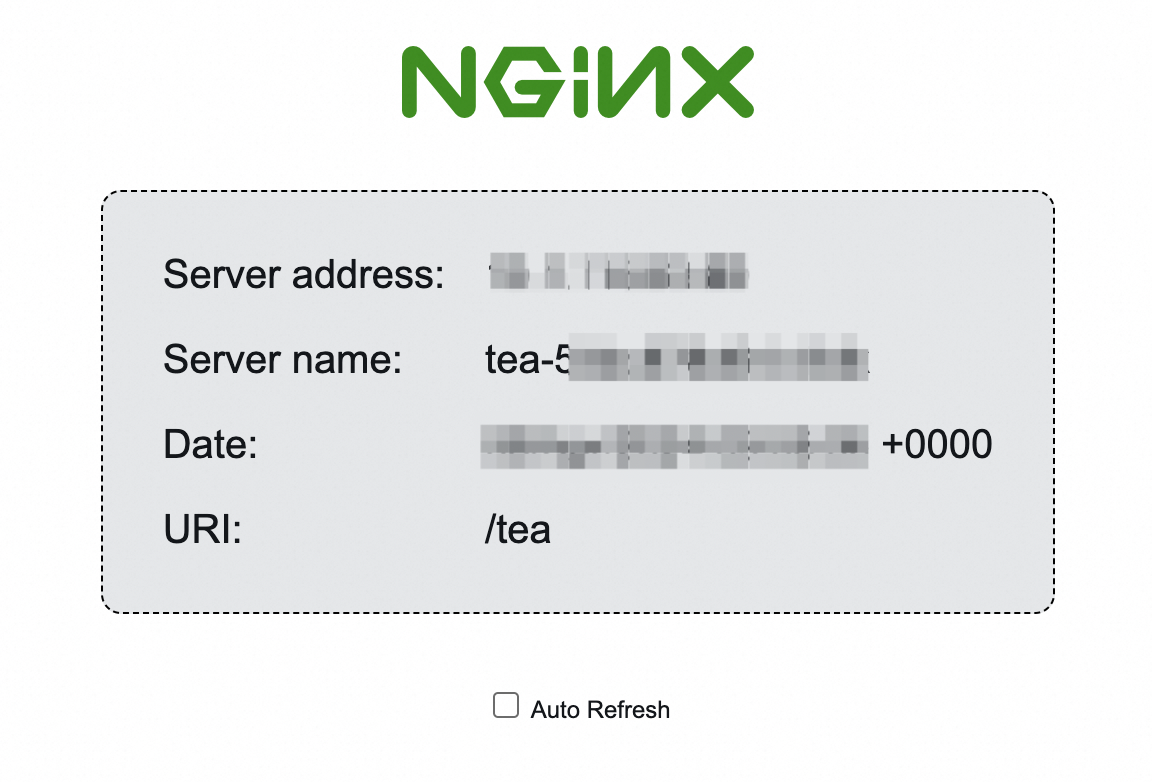
Access the backend Service from a client whose IP address is allowed by the ACL. This example uses resources from Get started with ALB Ingress.
If the client IP is allowed, the Service responds normally.
Step 5: (Optional) Disassociate the ACL from the listener
Remove the ACL ID from aclIds or set aclIds to null.
apiVersion: alibabacloud.com/v1
kind: AlbConfig
metadata:
  name: default
spec:
  config:
   #...
  listeners:
    - port: #...
      protocol: #...
      aclConfig:
        aclType: White
        aclIds: null  # Remove the ID of the existing ACL from the value of this parameter. In this example, the ID of the existing ACL is acl-wtg***.
  #...
ACLs cannot be deleted through AlbConfig. Delete ACLs in the SLB console.
Define ACL entries inline by using aclEntries
Ensure your AlbConfig has a configured listener and aclConfig before you proceed.
-
In ALB Ingress controller 2.7.0 and later,
aclNameno longer associates existing ACLs. Each update creates a new ACL. -
ALB Ingress controller 2.6.0 and earlier: write-back mechanism applies:
-
If
aclConfigis empty, the listener's ACL entries are written back to the AlbConfig. -
If
aclConfigis already configured or entries have been written back, the AlbConfig stays unchanged. When Ingress resources change, the controller overwrites the console ACL configuration with the AlbConfig. Keep both in sync.
Step 1: Define ACL entries
Add the aclConfig section to your AlbConfig and specify CIDR blocks in aclEntries. If aclName is set, the controller creates an ACL with that name. If aclName is omitted, the name is auto-generated as acl-{albName}-{port}.
apiVersion: alibabacloud.com/v1
kind: AlbConfig
metadata:
  name: default
spec:
  config:
   #...
  listeners:
    - port: #...
      protocol: #...
      aclConfig:
        aclEntries:
          - 192.168.XX.XX/16
          - 172.10.XX.XX/16
        aclType: White # The whitelist mode.
        aclName: "acl-test" # An ACL named acl-test is created and associated with a listener.
  #...
aclConfig parameters
| Parameter | Description |
|---|---|
aclEntries |
CIDR blocks for the ACL entries, such as 127.0.0.1/32. |
aclType |
The type of the ACL. Valid values: Black and White. |
aclName |
The name of the ACL. If omitted, the name is auto-generated as acl-{albName}-{port}. |
Step 2: Verify access control
Access the backend Service from a client whose IP address is allowed by the ACL. This example uses resources from Get started with ALB Ingress.
If the client IP is allowed, the Service responds normally.
Step 3: (Optional) Remove ACL entries
Remove entries by updating aclEntries. This example removes 172.10.XX.XX/16. Changes to aclEntries sync to the associated ACL (acl-test). If aclEntries is empty, all entries are removed.
apiVersion: alibabacloud.com/v1
kind: AlbConfig
metadata:
  name: default
spec:
  config:
   #...
  listeners:
    - port: #...
      protocol: #...
      aclConfig:
        aclEntries:
          - 192.168.XX.XX/16
        aclType: White
        aclName: "acl-test" # The 172.10.XX.XX/16 entry in the acl-test ACL is also removed.
  #...
ACLs cannot be deleted through AlbConfig. Delete ACLs in the SLB console.