This topic describes how service providers can configure monitoring and alerts for Compute Nest fully managed services deployed on Container Service for Kubernetes (ACK).
The integration process for Managed Service for Prometheus is the same for both a single-tenant fully managed service (where each user has a dedicated cluster) and a multi-tenant fully managed service (where multiple users share a cluster). In both scenarios, you configure Managed Service for Prometheus in the Container Service for Kubernetes (ACK) cluster to forward tenant metrics. This allows both tenants and service providers to view the monitoring metrics for a service instance. (For technical support, join the DingTalk group: 31045016300)
How it works
-
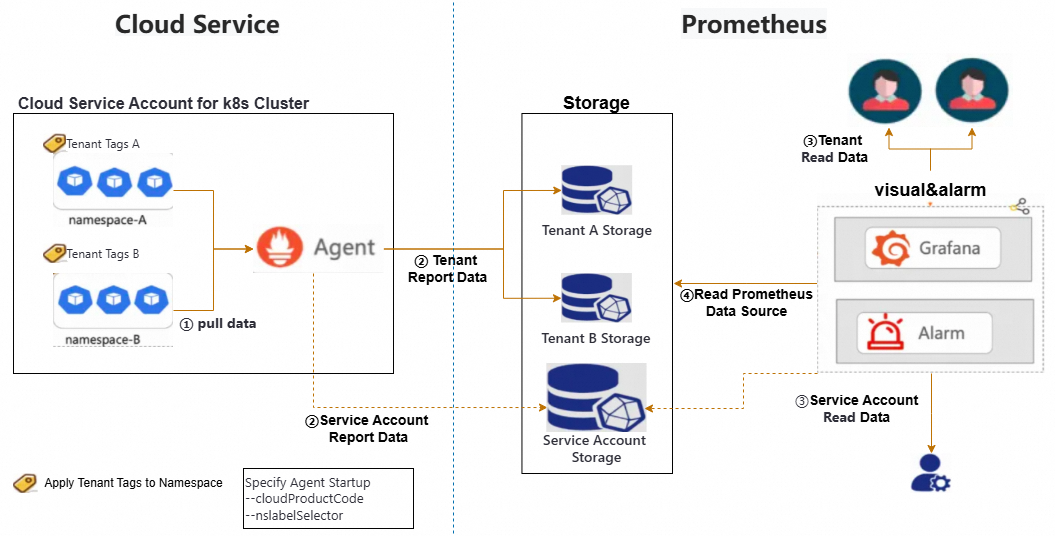
Compute Nest uses Managed Service for Prometheus, a feature of Application Real-Time Monitoring Service (ARMS), for its multi-tenant monitoring solution.
-
Managed Service for Prometheus provides built-in multi-tenancy support. For data collection, the agent uses specific tenant labels on workload resources (at the Pod or namespace level) to differentiate tenant metrics. Metrics from tenants are then forwarded to their respective cloud service instances.
-
Storage provides native multi-tenant isolation. Service providers only need to add specific tenant labels to the workload resources of each tenant.
-
Compute Nest uses namespaces to isolate tenant resources in multi-tenant fully managed service instances. When you add the corresponding tenant labels to a namespace, the system automatically forwards the tenant's metrics to their respective cloud service instance.
-
You can also configure remote write to send a copy of each tenant's monitoring data to the service provider's account. This allows the service provider to view the monitoring data of all tenants, while each tenant can only view their own data.
Procedure
Step 1: Configure Managed Service for Prometheus for ACK
By default, Prometheus does not support metric forwarding. You must apply additional configuration in Managed Service for Prometheus to forward application monitoring metrics to specific users.
Single-tenant service
For a single-tenant fully managed service, Compute Nest encapsulates this configuration into a ROS template module that you can use directly.
-
When you create the service, add the following content to your ROS template. The following sections provide a sample template and describe its parameters.
-
Sample template:
ClusterArmsConfig: Type: 'MODULE::ACS::ComputeNest::AckArmsConfig' Version: v1 Properties: ClusterId: Fn::If: - Condition: CreateACKCondition - Ref: ManagedKubernetesCluster - Ref: ClusterId WhetherSupplierNeedMetric: true AccessKeyID: LTAI**************** AccessKeySecret: yourAccessKeySecret SupplierAliuid: 15634578xxxxxx -
Parameters:
-
WhetherSupplierNeedMetric: Specifies whether the service provider needs to receive tenant data. If the service provider also needs to receive tenant metrics, set this totrue. IfWhetherSupplierNeedMetricistrue, you must configure theAccessKeyID,AccessKeySecret, andSupplierAliuidproperties.SupplierAliuidis the service provider's Alibaba Cloud account UID, and AccessKeyID and AccessKeySecret are the service provider's AccessKey pair.ImportantTo follow the principle of least privilege, grant the AccessKey (AK) only the permission to call the
arms:GetPrometheusApiTokenAPI. This is sufficient for data collection and queries in monitoring scenarios.{ "Version": "1", "Statement": [ { "Effect": "Allow", "Action": [ "arms:GetPrometheusApiToken" ], "Resource": "*" } ] } -
SyncServiceMonitor: Specifies whether to automatically synchronizeServiceMonitorresources in the cluster. Use this option to select theServiceresources to monitor. For more information, see Create service discovery by using a ServiceMonitor. -
SyncPodMonitor: Specifies whether to automatically synchronizePodMonitorresources in the cluster.
-
-
-
(Optional) If you create a new ACK cluster by using a ROS template, you must add the Addons parameter to the ACK resource as shown below.
LoginPassword: Ref: LoginPassword SnatEntry: true Addons: - Name: flannel Config: '' - Name: arms-prometheus
Multi-tenant service
For multi-tenant fully managed services, Compute Nest provides the ACK fully managed multi-tenant scenario - container infrastructure deployment service. Create a service instance of this service to configure Managed Service for Prometheus for the ACK cluster.
To follow the principle of least privilege, grant the AK only the permission to call the arms:GetPrometheusApiToken API. This is sufficient for data collection and queries in monitoring scenarios.
{
  "Version": "1",
  "Statement": [
    {
      "Effect": "Allow",
      "Action": [
        "arms:GetPrometheusApiToken"
      ],
      "Resource": "*"
    }
  ]
}Step 2: Configure the ROS template
-
Create a namespace named after the service instance ID and add tenant labels to it.
NoteThe keys for the tenant labels are
tenant_userid,tenant_clusterid,tenant_token, andtenant_cloudproductcode. The ROS template uses placeholders for these values. The namespace itself is named using the {{ serviceInstanceId }} placeholder, which is replaced with the ID of the createdservice instance.ClusterNameSpaceApplication: Type: ALIYUN::CS::ClusterApplication Properties: YamlContent: Fn::Sub: - | apiVersion: v1 kind: Namespace metadata: name: '${Name}' labels: tenant_userid: '{{ aliUid }}' tenant_clusterid: '{{ tenantClusterId }}' tenant_token: '{{ tenantToken }}' tenant_cloudproductcode: '{{ tenantCloudProductCode }}' - Name: '{{ serviceInstanceId }}' ClusterId: Fn::If: - Condition: CreateACKCondition - Ref: ManagedKubernetesCluster - Ref: ClusterIdImportantDeploy the service provider application in the namespace that you create in the preceding step to ensure that application monitoring metrics are routed to the correct tenant.
-
(Optional) In the single-tenant fully managed service scenario, use the
AckArmsConfigmodule in the ROS template to configure Managed Service for Prometheus for each newly created ACK cluster. -
(Optional) If you want to collect custom metrics, expose them over an HTTP port or by using an exporter. The
Servicethat exposes metrics must also be named{{ serviceInstanceId }}, and you must define aServiceMonitorfor service discovery. The following example shows theServiceandServiceMonitorused to collect MySQL metrics with mysqld-exporter.apiVersion: v1 kind: Service metadata: name: {{ serviceInstanceId }} labels: io.mysql.service: {{ serviceInstanceId }} spec: selector: app: mysql ports: - protocol: TCP port: 3306 targetPort: 3306 name: mysql - protocol: TCP port: 9104 targetPort: 9104 name: mysql-exporter type: LoadBalancerapiVersion: monitoring.coreos.com/v1 kind: ServiceMonitor metadata: name: prometheus-service-monitor annotations: arms.prometheus.io/discovery: 'true' labels: prometheus-service-monitor: prometheus-service-monitor spec: selector: matchLabels: io.mysql.service: {{ serviceInstanceId }} namespaceSelector: matchNames: - {{ serviceInstanceId }} endpoints: - port: mysql-exporter scheme: http path: /metrics interval: 10s scrapeTimeout: 10s
Step 3: Configure the Grafana dashboard
Each service instance supports only one dashboard. If you have multiple dashboards, combine them into a single dashboard. The dashboard must meet the following requirement:
Create a dashboard variable named Namespace and use it as a global filter for application monitoring metrics. Create the dashboard in Managed Service for Grafana and obtain the dashboard link.
Step 4: Configure product identifier and dashboard link
To use Managed Service for Prometheus with a multi-tenant fully managed service from Compute Nest, you must configure the product identifier and monitoring dashboard information.
-
Product identifier: This uniquely identifies the service in the monitoring system. For testing, use the shared product identifier cn-mariadb. This identifier is available for testing in the China (Hangzhou) and China (Hong Kong) regions.
NoteFor production use, your service requires a dedicated product identifier. To obtain one, join the technical support group mentioned at the beginning of this topic for assistance.
-
Monitoring dashboard settings include a title and a Grafana dashboard link. These settings have a one-to-one mapping with a product identifier.
NoteThis configuration currently requires manual setup. Please join the technical support group for assistance.
-
The following is the configuration for a sample service that uses the
cn-mariadbproduct identifier. When using cn-mariadb, you can use the default monitoring dashboard configuration. The default monitoring dashboard title is MySQL Exporter Quickstart and Dashboard.
Step 5: Configure alerts
-
Go to the ARMS console for Prometheus Monitoring and create a Prometheus alert rule template. For more information, see Create a Prometheus alert rule template.
-
After creating the template, obtain the TemplateId from the network requests in the console as described below.
ImportantThe corresponding network request appears only after you apply a search filter.
On the alert rule template page, use the static threshold drop-down list at the top to filter and search. A
alert.json?action=AlertTemplateActionrequest then appears in the Network panel of your browser's DevTools. Click the request and view the Response tab. In the returned JSON, find theidfield (for example,d9a9fb3b-47a9-4338-84f5-93240e03b4ee). This value is the required TemplateId. -
In the ROS template, define and apply the alert rule template to the ACK cluster by using the ALIYUN::ARMS::ApplyAlertRuleTemplate resource. This creates the corresponding alert rules in the cluster. The following example shows a ROS template snippet.
ROSTemplateFormatVersion: '2015-09-01'
Description:
  en: ApplyAlertRule
  zh-cn: ApplyAlertRule
Parameters:
  ClusterIds:
    AssociationPropertyMetadata:
      Parameter:
        Required: true
        Type: String
        Description:
          en: The ID of the Prometheus Instance.
    Description:
      en: The IDs list of Prometheus Instances.
    Default: Null
    MinLength: 1
    Required: false
    MaxLength: 100
    AssociationProperty: List[Parameter]
    Type: Json
  TemplateIds:
    AssociationPropertyMetadata:
      Parameter:
        Required: true
        Type: String
        Description:
          en: The ID of the Prometheus alert rule template.
    Description:
      en: The IDs list of Prometheus alert rule templates.
    Default: Null
    MinLength: 1
    Required: false
    MaxLength: 100
    AssociationProperty: List[Parameter]
    Type: Json
Resources:
  ApplyAlertRuleTemplate:
    Type: ALIYUN::ARMS::ApplyAlertRuleTemplate
    Properties:
      ClusterIds:
        Ref: ClusterIds
      TemplateIds:
        Ref: TemplateIds
Step 6: View monitoring data
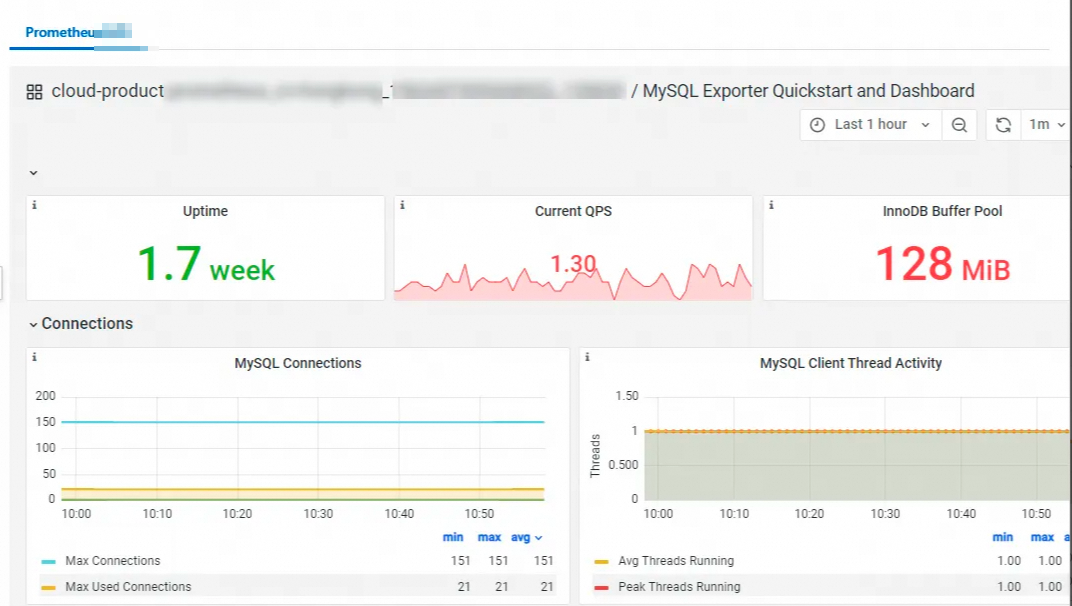
After the service instance is deployed, both the tenant and the service provider can view the monitoring dashboard on the service instance details page.
-
Tenant view:
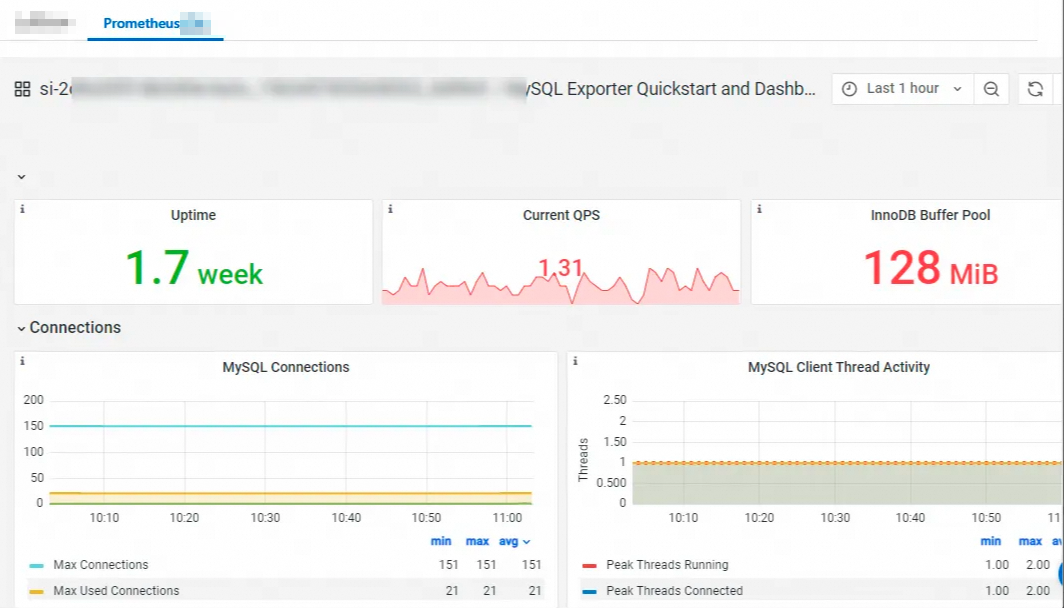
-
Service provider view: