This topic describes how to audit hosted O&M operations in the Compute Nest console. Compute Nest allows customers to audit hosted O&M operations by playing screen recordings and viewing resource operation logs. Screen recordings record the commands that are run by service providers on cloud resources, whereas resource operation logs record the operations that are performed by service providers on cloud resources. This ensures the transparency and security of hosted O&M operations.
Scenarios
Compute Nest provides the following audit methods:
Screen recording playback: When service providers perform hosted O&M operations on Elastic Compute Service (ECS) instances, all their operations are recorded. Customers can play the screen recordings to view the commands that are run by the service providers on the ECS instances.
Operation log audit: Customers can view the operations of service providers on cloud resources by checking the operation logs provided by Compute Nest.
Prerequisites
A hosted O&M service is created by a service provider. For more information, see Create a hosted O&M service and Enable the hosted O&M feature for a private service.
A service instance of the hosted O&M service is created by a customer, and the service provider is granted hosted O&M permissions on the service instance. For more information, see Create hosted O&M service instances and Hosted O&M policies.
Screen recording playback
How it works
When a service provider performs hosted O&M operations on an ECS instance of a customer, Workbench records the operations. The customer and service provider can separately specify an Object Storage Service (OSS) bucket in the Compute Nest console to receive screen recordings generated by Workbench.
Workbench sends screen recordings to the OSS buckets specified by the customer and service provider. This way, the customer and service provider can play the screen recordings by using the URLs provided by Workbench.
Step 1: Configure the screen recording playback feature
Both a service provider and a customer can configure the screen recording playback feature. Workbench sends screen recordings of hosted O&M operations performed on ECS instances to the OSS buckets specified by the customer and service provider. This facilitates operation tracking.
If you do not configure the screen recording playback feature, you cannot view screen recordings.
Service provider
Log on to the Compute Nest console.
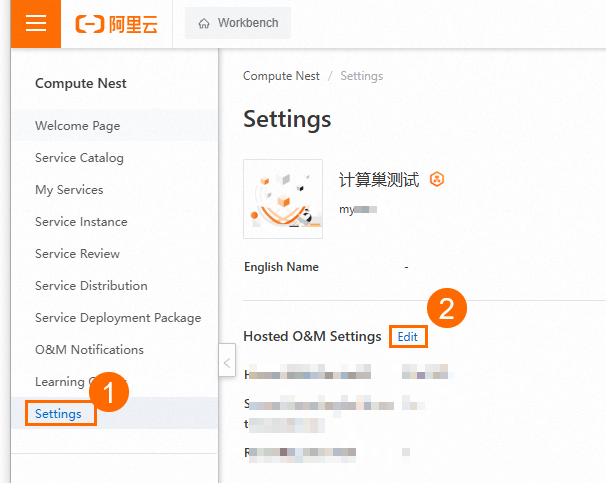
In the left-side navigation pane, click Settings. On the Settings page, find Hosted O&M Settings and click Edit.
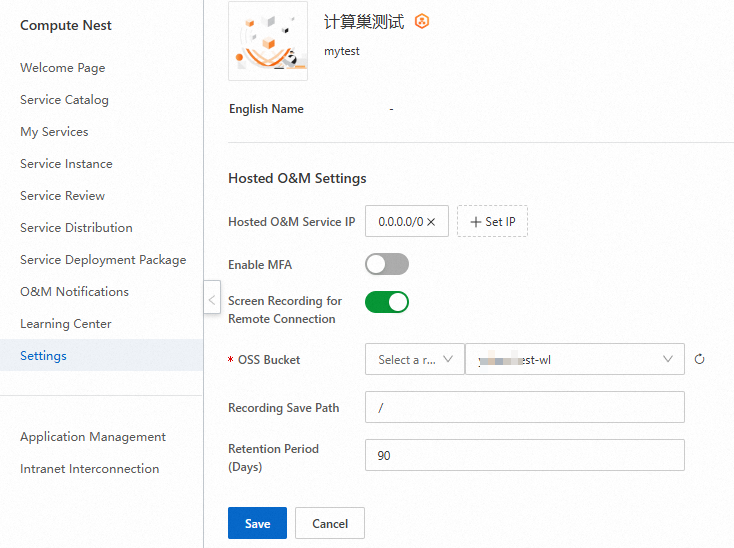
Configure the parameters described in the following table and click Save.
Parameter
Description
Hosted O&M Service IP
The IP address or CIDR block that is used to perform hosted O&M operations. 0.0.0.0/0 specifies that all IP addresses are allowed.
Enable MFA
Specifies whether to enable multi-factor authentication (MFA) for hosted O&M operations.
Screen Recording for Remote Connection
Specifies whether to enable screen recording for remote connections. If not, the service provider cannot view screen recordings of hosted O&M operations.
OSS Bucket
The OSS bucket in which screen recordings are stored.
Recording Save Path
The path in the OSS bucket in which screen recordings are stored.
Retention Period (Days)
The retention period of screen recordings. Expired screen recordings are automatically deleted from the OSS bucket.
Customer
Log on to the Compute Nest console.
In the left-side navigation pane, click Settings. On the Settings page, find Hosted O&M Settings and click Edit.
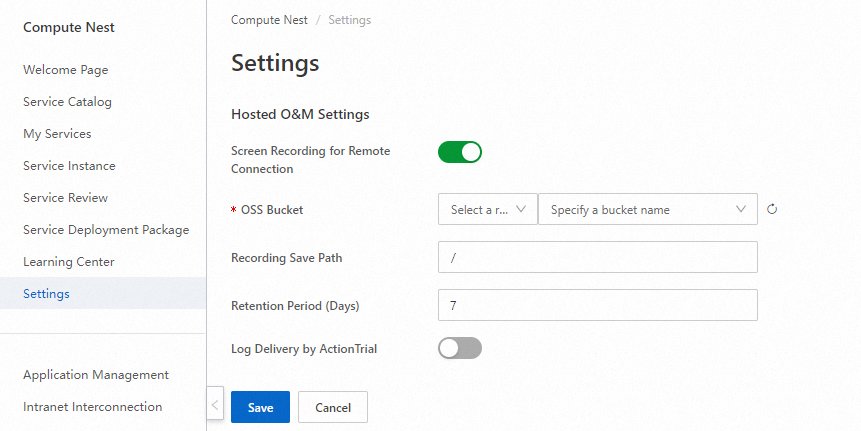
Configure the parameters described in the following table and click Save.
Parameter
Description
Screen Recording for Remote Connection
Specifies whether to enable screen recording for remote connections. If not, the customer cannot view screen recordings of hosted O&M operations.
OSS Bucket
The OSS bucket in which screen recordings are stored.
Recording Save Path
The path in the OSS bucket in which screen recordings are stored.
Retention Period (Days)
The retention period of screen recordings. Expired screen recordings are automatically deleted from the OSS bucket.
Step 2: Perform hosted O&M operations
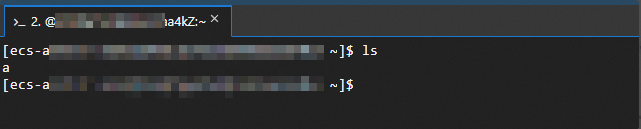
Go to the details page of the service instance as the service provider. On the details page, click the Resources tab. On the Cloud Resource tab, find the ECS instance that you want to manage and click Remote Connection in the Actions column to log on to the ECS instance.
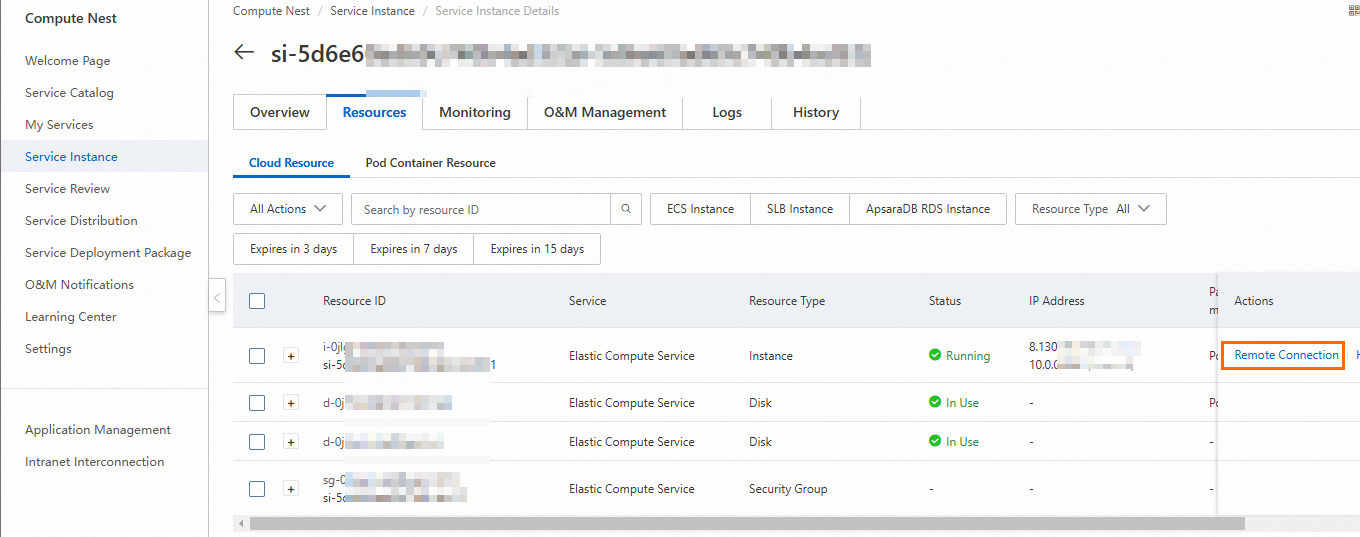
Perform hosted O&M operations. Then, close the connection to the ECS instance.
Step 3: Play screen recordings
Both the service provider and customer can go to the details page of the service instance to play screen recordings.
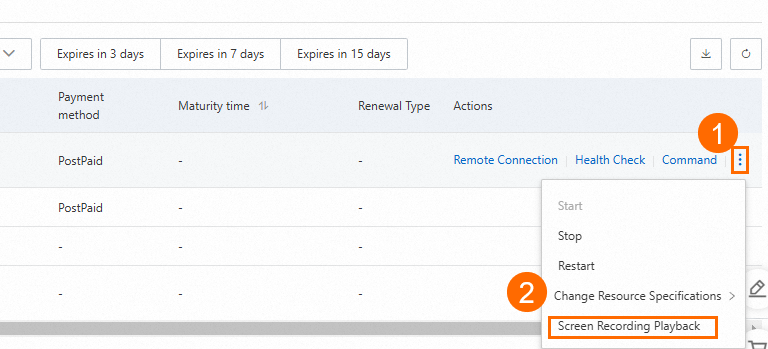
Go to the details page of the service instance. On the details page, click the Resources tab. On the Cloud Resource tab, find the ECS instance, move the pointer over the More icon, and then select Screen Recording Playback.
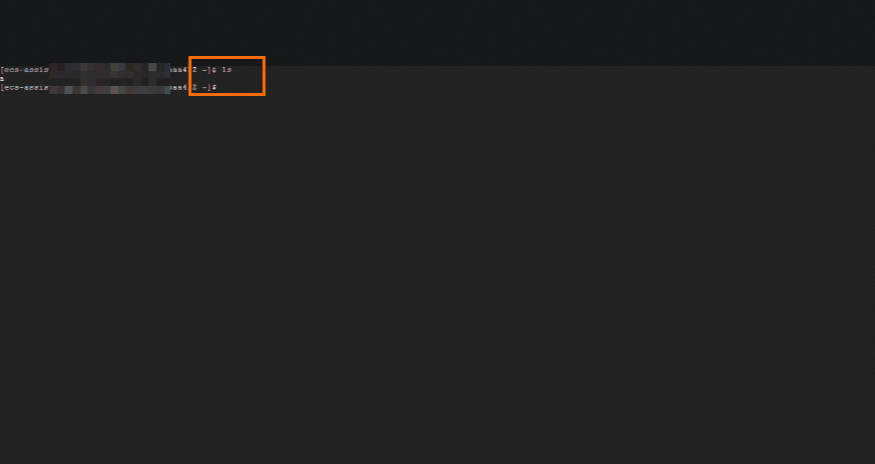
On the Workbench audit and playback page, find the screen recording that you want to play and click Play in the Actions column.

Operation log audit
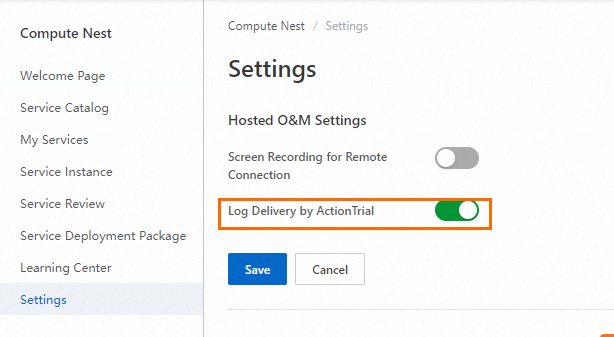
In the Hosted O&M Settings section of the Settings page in the Compute Nest console, a customer can turn on Log Delivery by ActionTrail. This way, logs of operations performed by service providers on cloud resources of the customer are delivered to the customer. The customer can audit the hosted O&M operations performed by the service providers by checking the operation logs.
Log on to the Compute Nest console.
In the left-side navigation pane, click Settings. On the Settings page, find Hosted O&M Settings and click Edit. Turn on Log Delivery by ActionTrail and click Save.
Go to the details page of the service instance. On the details page, click the Logs tab. On the Resource Operation Logs tab, view the logs of operations performed by service providers on cloud resources in the service instance.
NoteOperations of users whose usernames are prefixed with
aliyuncomputenestsupplierroleforserviceare hosted O&M operation performed by service providers. Focus on these operations during the audit.