Managed Service for Prometheus provides a standard Remote Read interface. Use this interface to remotely access Prometheus monitoring data in the cloud. This topic describes how to use the Remote Read address, using open-source Prometheus as an example to access Alibaba Cloud Managed Service for Prometheus monitoring data.
Prometheus Remote Read mode requires pulling extensive raw time-series data to a local compute engine, incurring limitations:
High operational overhead: Local Prometheus engine maintenance increases machine costs.
Network latency: Large data transfers traverse multiple devices, elevating latency.
Service constraints: Remote Read thresholds are easily exceeded at scale.
Instead, use the HTTP API query protocol of Managed Service for Prometheus, which:
Delivers performance gains of tens of times over local computation
Supports direct query via HTTP requests
Enables native Grafana connectivity.
Limits
The Remote Read interface does not currently support HTTP/2.
Prerequisites
You have created an instance of Managed Service for Prometheus. For detailed steps, see Create an Instance.
(Optional) Step 1: Grant CMS read and write permission to RAM users
If your Alibaba Cloud Prometheus instance was created by an Alibaba Cloud account, and you need to use the AccessKey ID and AccessKey Secret of a RAM user for remote read and write operations, first grant CMS read and write permission to the RAM user.
Log on to the RAM console using an Alibaba Cloud account or a RAM administrator account. In the left navigation pane, choose .
On the Authorization page, click Add Authorization. On the Add Authorization page, configure the parameters as follows.
Parameter
Description
Resource Scope
Select the resource scope as needed.
Authorized Entity
Specify the authorized entity, which is the RAM user to whom you want to add permissions.
Access Policy
Add the following permissions to the RAM user as needed:
AliyunCloudMonitorFullAccess: Full permissions for CMS. After adding this permission, the RAM user has all operation permissions, such as viewing, editing, and deleting, for instances of all sub-products.AliyunCloudMonitorReadOnlyAccess: Read-only permission for CMS. After adding this permission, the RAM user can only view instance information of all sub-products and cannot modify or delete them.
Click Confirm Add Authorization, then click Close.
Step 2: Obtain the Remote Read Address
Log on to the Cloud Monitor 2.0 console, and select a workspace. In the left navigation pane, choose .
On the Instance List page, click Settings in the Actions column next to the target instance.
On the Settings tab, copy the public network or private network Remote Read address as needed.

Step 3: Configure Open-Source Prometheus
Install Prometheus. For installation methods, see Open-Source Prometheus Download Address.
Edit the Prometheus.yml configuration file. Add the following content to the end of the file. Replace the
remote_readlink with the address obtained in Step 2, then save the file.global: scrape_interval: 15s evaluation_interval: 15s scrape_configs: - job_name: 'prometheus' static_configs: - targets: ['localhost:9090'] remote_read: # Replace with your Remote Read address. - url: "http://ts-xxxxxxxxxxxx.hitsdb.rds.aliyuncs.com:3242/api/prom_read" read_recent: trueRestart the open-source Prometheus service.
Step 4: View Alibaba Cloud Prometheus Data on Self-Built Prometheus
Log on to your self-built Prometheus instance in a browser.
http://localhost:9090On the Prometheus page, click Graph in the top menu bar.
On the Graph tab, enter the SQL statement to query in the search box, then click Execute to the right of the search box.
For example, query the CPU utilization of a specified IP address.
100 - (avg by (instance) (rate(node_cpu_seconds_total{instance="Specified IP:9100", mode="idle"}[5m])) * 100)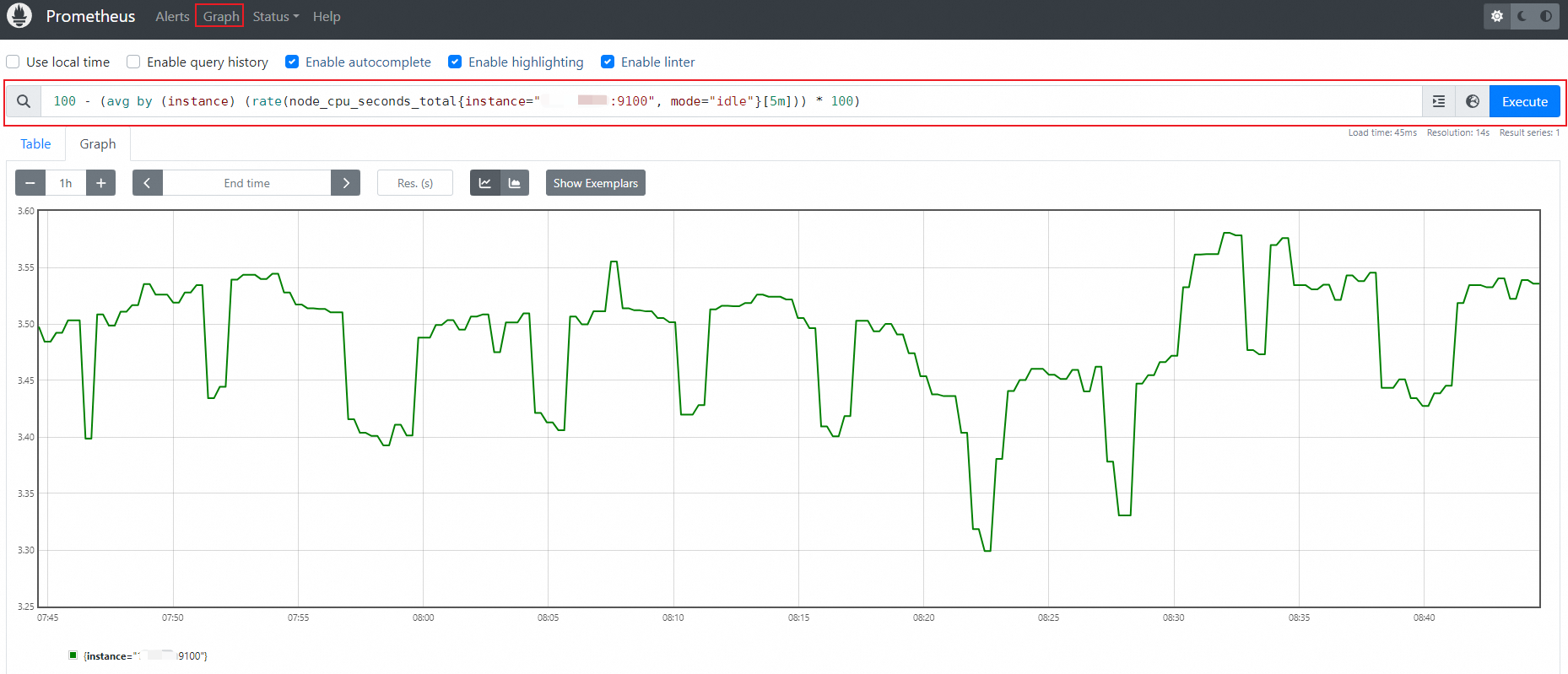
FAQ
Remote Read Configuration Does Not Return Data, No Error Reported
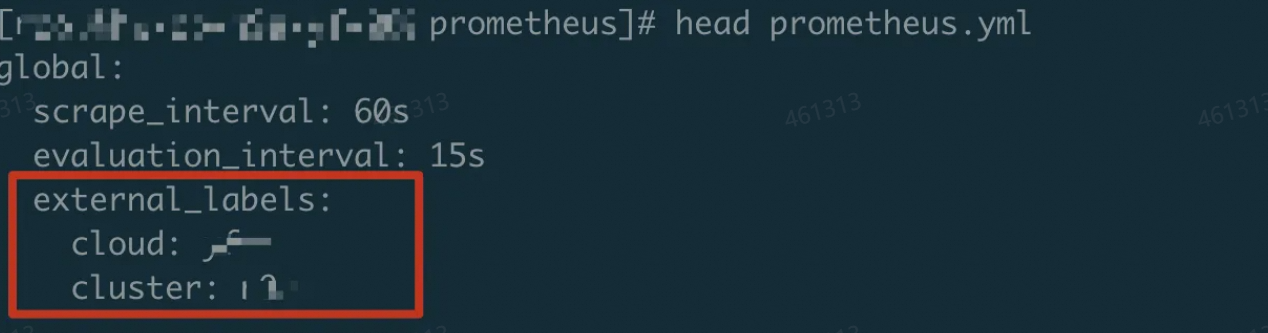
For Prometheus V1 instances, Remote Read does not require an AccessKey. If the configuration does not return data, check whether your local Prometheus configuration contains external_labels. This setting can prevent Remote Read from retrieving the expected data.