Outbound connections from your cloud assets risk exposing sensitive information. The Cloud Firewall data leak detection feature identifies and logs these incidents and their associated payload to help you prevent business losses. This topic shows you how to use the data leak detection feature.
Supported editions and specifications
This feature does not affect the performance of Cloud Firewall in protecting your business traffic.
Cloud Firewall provides data leak detection for outbound traffic. After you enable the feature on the purchase page, you receive a default monthly free quota for traffic inspection: 100 GB for Premium Edition, 300 GB for Enterprise Edition, 500 GB for Ultimate Edition, and 100 GB for the pay-as-you-go edition. Traffic exceeding the free quota is charged at a post-paid rate of USD 0.02 per GB, with bills generated the next day. You can use a pay-as-you-go savings plan (pre-paid) to offset these costs. In the console, you can enable detection for specific assets.
For detailed instructions, see Enable data leak detection.
Billing method | Edition | Monthly free quota | Overage rate (post-paid) | pay-as-you-go savings plan |
subscription | Premium Edition | 100 GB | USD 0.02/GB |
|
Enterprise Edition | 300 GB | |||
Ultimate Edition | 500 GB | |||
pay-as-you-go | Pay-as-you-go Edition | 100 GB | USD 0.02/GB |
Supported sensitive data types
Cloud Firewall can inspect outbound traffic from your public-facing assets for potential data leaks, such as:
AccessKeyId
Passport number (Chinese mainland)
Debit card number
ID card number (Hong Kong, China)
Exit-Entry Permit for Travelling to and from Hong Kong and Macao
ID card number (Chinese mainland)
Military ID number
private key
You can view the data types that Cloud Firewall can identify on the IPS configuration page. You can customize which data types to enable based on your business requirements. Detected sensitive data traffic is not automatically blocked. You can configure a Cloud Firewall access control policy to block the traffic.
Prerequisites
You must enable the internet firewall. For instructions, see Enable the internet firewall.
Enable data leak detection
Subscription
New users
When you purchase Cloud Firewall for the first time in the console or on the buy page, set the Sensitive data leak detection option to Yes to enable the feature.

Existing users
You can enable this feature from one of the following pages:
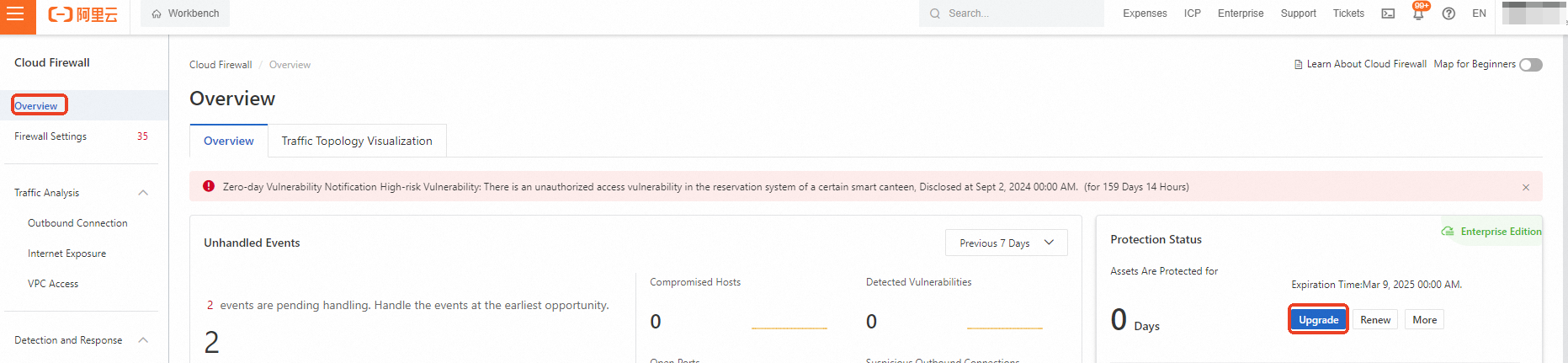
Upgrade page
Set Sensitive Data Leak Detection to Yes.

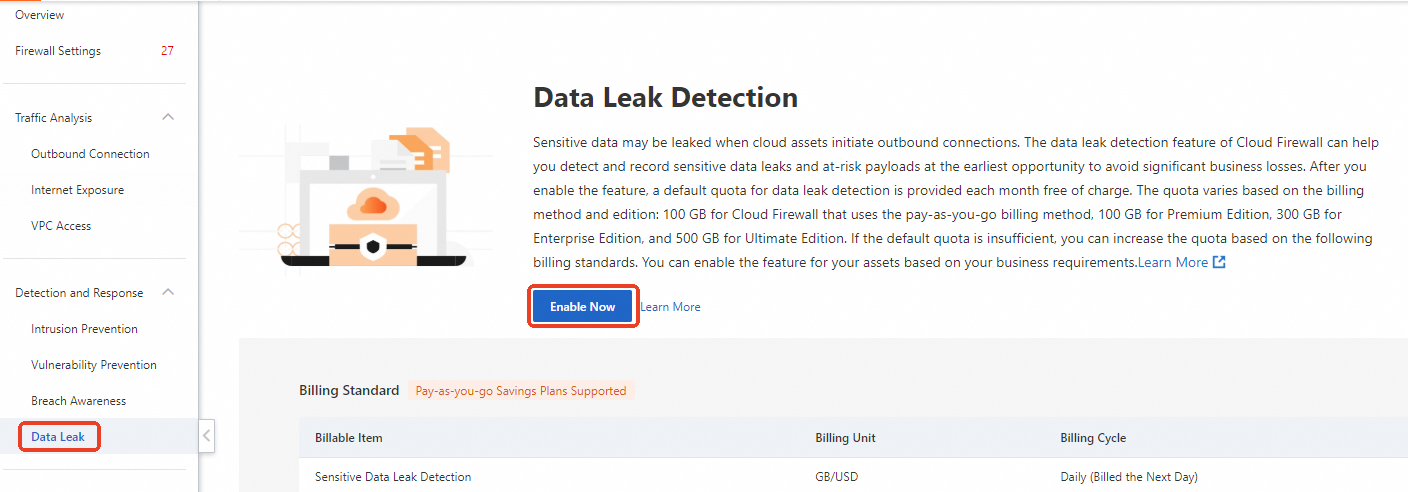
Feature page
Set Sensitive Data Leak Detection to Yes.
Pay-as-you-go
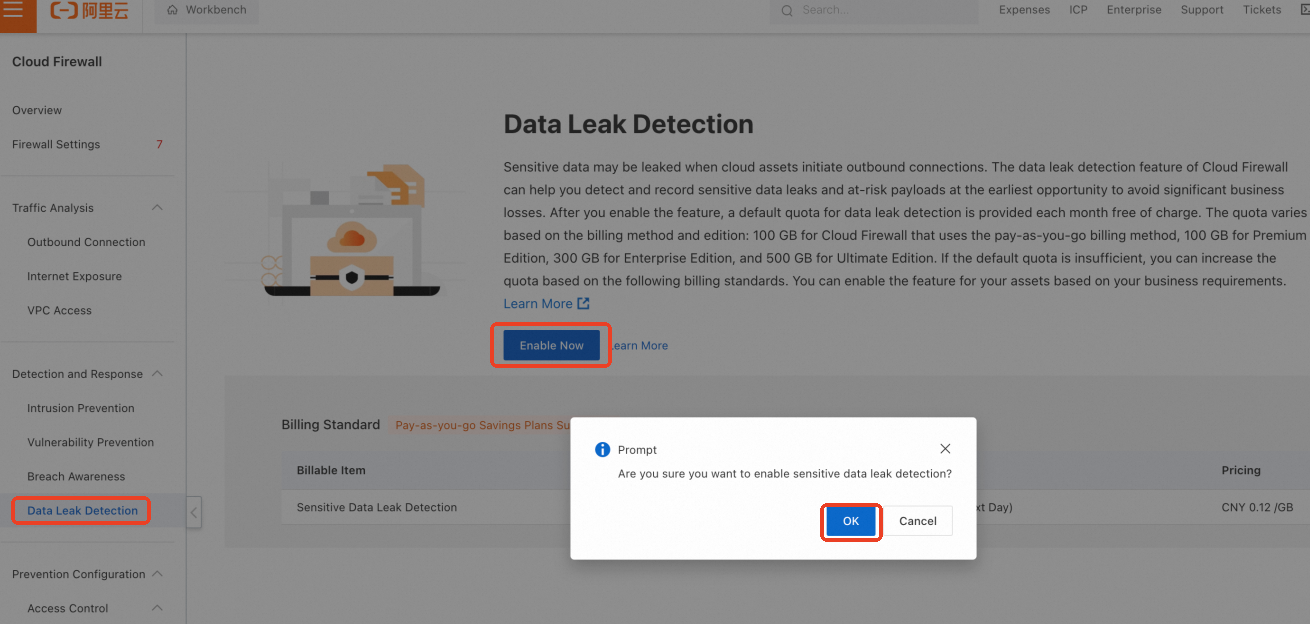
For the pay-as-you-go edition, after you purchase Cloud Firewall, go to the Data Loss Prevention page and click to enable the feature.
Configure assets for data leak detection
You must enable data leak detection on the assets that you want to monitor. Cloud Firewall then inspects the outbound traffic from these assets for sensitive data to help you identify data leak risks.
Detection is supported only for unencrypted protocols, such as HTTP. It is not supported for encrypted protocols, such as HTTPS.
Log on to the Cloud Firewall console. In the left-side navigation pane, choose .
On the Data Loss Prevention page, click Asset Configuration in the upper-right corner.

Find the public-facing asset that you want to monitor and click Enable Data Leak Detection in the Operation column.
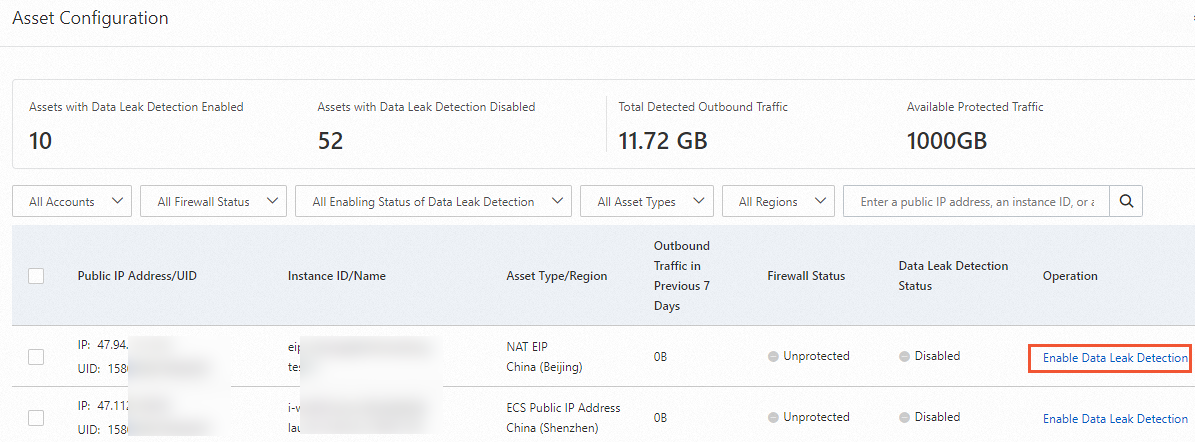
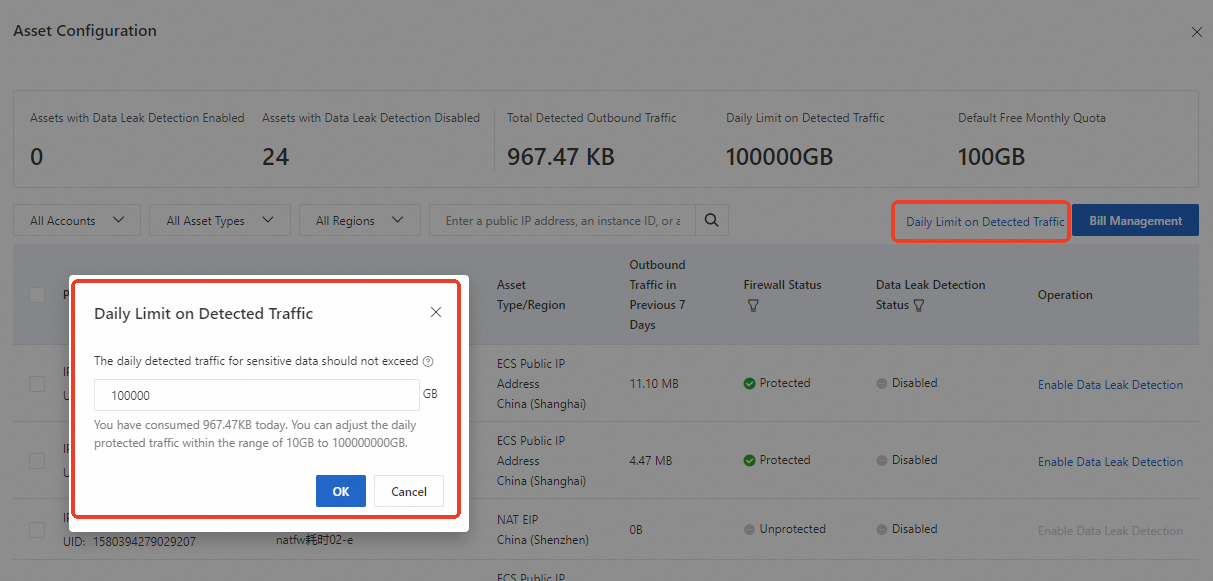
In the Asset Configuration panel, click Daily Limit on Detected Traffic in the upper-right corner to set a daily inspection limit.
NoteThe limit must be within the specified range and cannot be less than the traffic already processed for the day.
To estimate an appropriate limit, you can review the outbound request traffic from the past seven days in the Asset Configuration panel.
View or configure sensitive data detection types
Protection configuration entry point
You can access the protection configuration page in the following ways:
In the left-side navigation pane, choose Data Loss Prevention. In the upper-right corner of the page, click Prevention Configuration.
In the left-side navigation pane, choose IPS Configuration and find the Data Loss Prevention card.
View and manage detection types
On the configuration page, you can view the Supported Sensitive Data Types and their current Status.
To stop inspecting for a specific data type, click Disable in the Actions column for that type.
View data leak statistics
The sensitive data statistics area shows aggregated information for your selected time range, helping you understand the current state of sensitive data leaks from your assets.
The leaked sensitive data type distribution area shows the breakdown of leaks by type for the selected time range. This helps you audit asset behavior and prevent business losses.

Investigate data leak events
The events list displays data for your selected time range. Click View Details for an event to open the Data Leak Details panel. In this panel, you can review the Leaked Information, Risk Payload, Sensitive Data list, and event history. It also provides threat intelligence on the destination IP address or domain name to help you assess the destination's security.
Cloud Firewall provides remediation suggestions for each event, such as creating an access control policy to block similar leaks. Evaluate these suggestions based on your business needs to mitigate the risk of data exfiltration.
Bill management
Bill management entry point
To view the traffic consumed by data leak detection:
In the left-side navigation pane, choose Settings > Bill Management, and then select the Sensitive Data Leak Detection tab.
View usage and bills
The Sensitive Data Leak Detection tab of the Bill Management page shows the billed traffic.
Billing for data leak detection is processed daily. Data for the previous day (T) is available on the bill management page the next day (T+1). Bills for the previous day are settled at approximately 18:00 each day. If you disable the feature, the final bill for that day will be issued at approximately 18:00 on the following day.
In the upper-right corner of the list, click View Offset Details or View Bill Details to go to the Expenses and Costs console, where you can view the offset details for your pay-as-you-go savings plan or your generated bill details.
