A VPC firewall is created based on the network architecture of Cloud Enterprise Network (CEN). If you upgrade a transit router from Basic Edition to Enterprise Edition, you must also update the VPC firewall to align with the new network architecture. This topic describes how to update the VPC firewall to protect traffic that passes through the upgraded Enterprise Edition transit router.
Key differences after the upgrade
The following table outlines the key differences between a VPC firewall created for a Basic Edition transit router and one created for an Enterprise Edition transit router.
Aspect | Basic Edition firewall | Enterprise Edition firewall |
Protection scope | Protects:
Does not protect:
| Protects:
Does not protect traffic between multiple CCN instances. |
Firewall enablement granularity | A VPC firewall is enabled for each VPC instance. | A VPC firewall is enabled for each Enterprise Edition transit router. |
Impact of enabling and disabling the firewall |
| Automatic traffic steering
Manual traffic steering
|
CIDR block planning for traffic redirection | You must specify a CIDR block for the automatically created Cloud Firewall VPC and vSwitch. Cloud Firewall uses this CIDR block to create a dedicated firewall VPC (named You must also configure a vSwitch in the service VPC where traffic will be redirected. The elastic network interface required for traffic redirection uses this vSwitch. Cloud Firewall automatically assigns the elastic network interface. If your services are latency-sensitive, you can specify a zone for the service VPC to reduce network latency. | You must configure the VPC CIDR block and zone for the firewall. You also need to specify a CIDR block that is /27 or shorter and does not conflict with your existing network plan. The firewall setup allocates this CIDR block to the vSwitch. |
Traffic redirection method | Traffic between the service VPC with the firewall enabled and other connected network instances is redirected to the VPC firewall by default. | Before creating the VPC firewall for the Enterprise Edition transit router, you must decide whether to use automatic or manual traffic redirection. If you choose automatic redirection, you must also select a scenario that matches your service requirements.
|
Considerations
The firewall check fails when you enable the VPC firewall for the Enterprise Edition transit router if its route table is missing the default route (priority 5000), or if this route does not include the new VPN Gateway or Express Connect Router (ECR) instance types. To resolve this, submit a Cloud Enterprise Network (CEN) to request that technical support refresh the default route.
After the upgrade, Cloud Firewall retains the access control policies from the VPC firewall for the Basic Edition transit router.
ImportantWhen you enable the VPC firewall for the Enterprise Edition transit router, verify that your access control policies allow normal communication for the redirected network instances. If you add new network instances, you must add corresponding access control policies.
When configuring automatic traffic redirection for the VPC firewall after you upgrade to an Enterprise Edition transit router, consider the following routing points to prevent creation failures or route propagation issues:
Replace cross-region cloud service routes with transit router connection instances: If a route in the transit router route table has a next hop that points to a cloud service in another region, you must replace the next hop with the corresponding cross-region transit router connection instance. Otherwise, scenario creation may fail.
VPC instance routes may cause unintended propagation: If a cloud service route has a VPC instance as its next hop, the automatic traffic redirection process replaces it with the corresponding transit router connection instance for that VPC. This action may trigger route propagation to the selected network instances for traffic redirection, including cross-region transit router connections. To prevent unwanted propagation, use routing policies to restrict it.
Synchronize custom routing policies to the firewall-dedicated route table: If the transit router has custom routing policies, you must add the same policies to the transit router route table associated with the firewall VPC, named
Cloud_Firewall_ROUTE_TABLE. You must perform this action after you create the VPC firewall but before you create the automatic traffic redirection scenario. Otherwise, traffic redirection may fail or the system may forward routes incorrectly.
Migration overview
The following diagrams show the network architecture before and after the upgrade:
Detailed plan:
Before you begin, understand the impact of enabling and disabling the VPC firewall on your services. For more information, see What is the impact of enabling the firewall switch on my services?.
Delete the existing VPC firewall for the Basic Edition transit router: Before upgrading to an Enterprise Edition transit router, you must disable and delete the existing firewall.
Before you delete the firewall, you must first disable it. This removes the routes that redirect traffic to Cloud Firewall. Then, delete the VPC firewall.
Upgrade the transit router to Enterprise Edition: After the upgrade, you must wait for the Enterprise Edition assets to be automatically synchronized with CEN. The time required for route learning depends on the number of your routes. You can also synchronize the assets manually. Perform this operation during off-peak hours.
Before you upgrade your network architecture, you should understand how Basic Edition and Enterprise Edition transit routers work. For more information, see How transit routers work.
Create a VPC firewall for the Enterprise Edition transit router: You can use the one-click check feature to diagnose any routing issues. Then, create the VPC firewall. We recommend using the automatic traffic redirection mode.
If the upgrade fails, you must initiate the rollback plan. For more information, see FAQ.
1. Delete the Basic Edition VPC firewall
Disabling the VPC firewall for a Basic Edition transit router causes a brief service interruption.
Log on to the Cloud Firewall console. In the left-side navigation pane, click Firewall.
On the VPC Firewall page, click the CEN(Basic Edition) tab, and then disable all VPC firewalls for the Basic Edition transit router that you plan to upgrade.
To disable multiple VPC firewalls at once, use Batch Disable.
In the Actions column, click Delete to remove the VPC firewall.
You can only delete VPC firewalls one by one. Batch deletion is not supported.
2. Upgrade the transit router to Enterprise Edition
During the upgrade, the system converts the dynamic route entries learned from Cloud Enterprise Network (CEN) in a Virtual Private Cloud (VPC) instance into custom route entries with the next hop pointing to an Enterprise Edition transit router. The conversion does not affect your services.
After the upgrade, the Enterprise Edition transit router does not automatically propagate routes to the VPC-connected instance. To enable automatic route propagation, you must enable route synchronization for the VPC-connected instance. For more information, see Route synchronization.
You cannot upgrade Basic Edition transit routers in Cloud Connect Network (CCN) regions. For a list of regions that support the upgrade, see Supported regions and zones for Enterprise Edition transit routers.
For detailed instructions on how to upgrade a Basic Edition transit router, see Upgrade a Basic Edition transit router.
3. Create the Enterprise Edition VPC firewall
In the Cloud Firewall console, navigate to the VPC Firewall page and select the CEN (Enterprise Edition) tab.
If the Enterprise Edition transit router that you want to protect is not listed, click Sync Asset.
Find the Enterprise Edition transit router instance, and in the Actions column, click Create. Select Automatic traffic redirection mode. Then, run the one-click check to verify that your current assets meet the requirements for enabling the VPC firewall.
You can also select manual traffic redirection based on your service requirements. This topic uses automatic traffic redirection as an example.
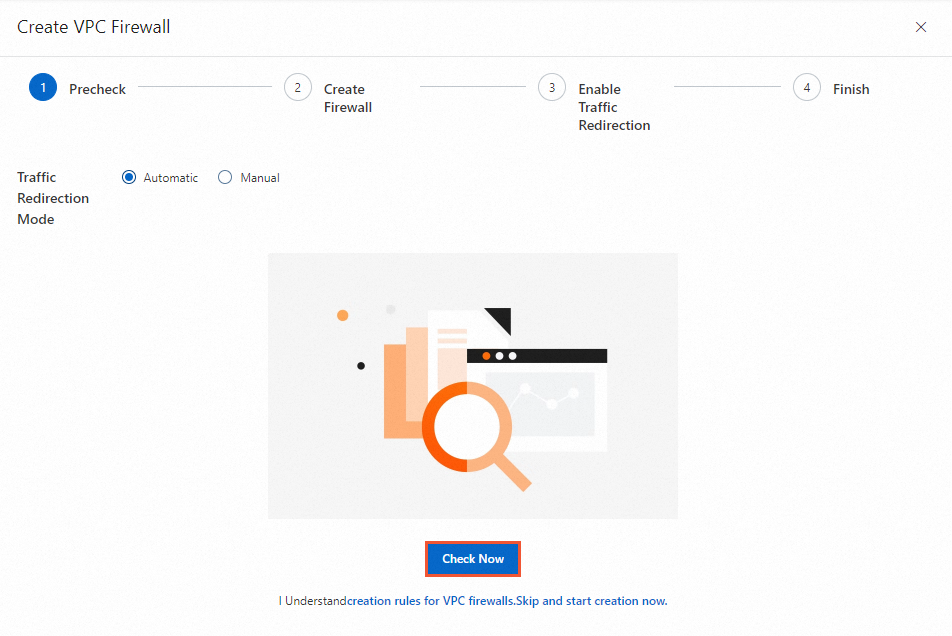
After the check is complete, review the diagnostic details. If any items fail the check, follow the recommendations to fix the issues, and then run the check again until all items pass.
Create the VPC firewall.
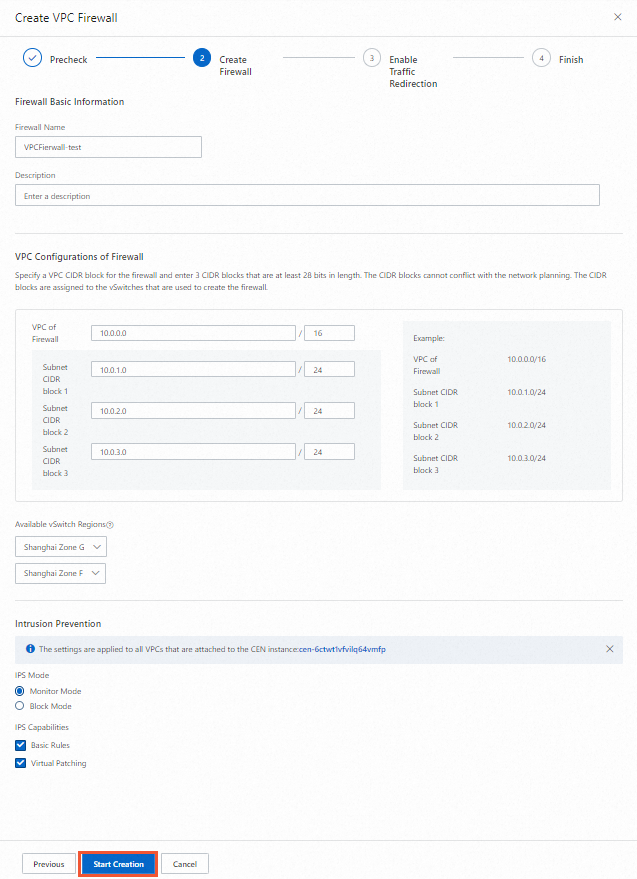 Important
The VPC CIDR block that you allocate to the VPC firewall cannot conflict with your service CIDR blocks. Select a vSwitch zone close to your services to reduce network latency for traffic that passes through Cloud Firewall.
Create a traffic redirection scenario.
The following steps show how to create an Instance To Instances traffic redirection scenario.
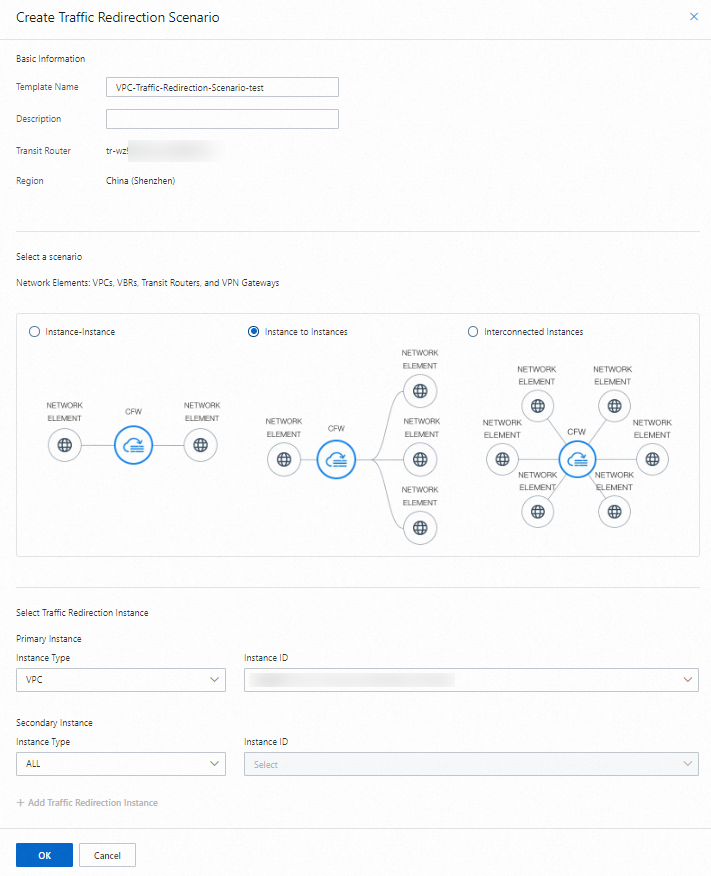
After you create the traffic redirection scenario, Cloud Firewall starts to protect traffic between the network instances that are connected to the Enterprise Edition transit router.
The traffic redirection process is time-consuming. The configuration takes up to 30 minutes to complete.
For detailed instructions on how to create a VPC firewall, see Configure a VPC firewall for an Enterprise Edition transit router.
FAQ
Upgrade failure and rollback
If the upgrade fails, initiate the rollback plan:
Disable the traffic redirection mode for the Enterprise Edition transit router and delete the VPC firewall that you created.
Use the route rollback feature to disable the newly created traffic redirection scenario.
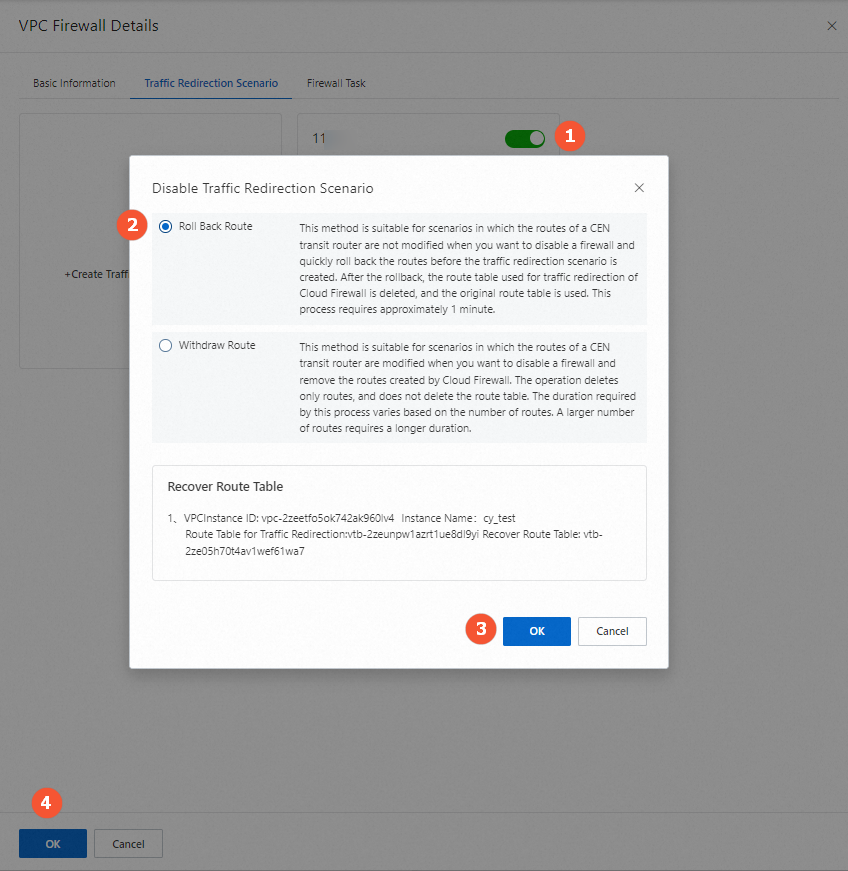
Troubleshoot the issues with the Enterprise Edition transit router and the VPC firewall instance.
After the issues are resolved, create the VPC firewall for the Enterprise Edition transit router again.