This topic describes how to migrate a self-managed ClickHouse cluster to ApsaraDB for ClickHouse Enterprise Edition using the console or manually.
Prerequisites
self-managed cluster: You have created a database account and password. The account must have read permissions on databases and tables and SYSTEM command execution privileges. If you need to migrate external tables that include account credentials, the account must also have the
displaySecretsInShowAndSelectprivilege.target cluster: You have created a database account and password and ensured that the account has the highest privileges.
Network connectivity
If the self-managed cluster and the target cluster are in the same VPC, add the IP addresses of all nodes in the target cluster and the IPv4 CIDR blocks of the nodes' switches to the whitelist of the self-managed cluster.
To learn how to configure a whitelist for an ApsaraDB for ClickHouse cluster, see Configure a whitelist.
To configure the whitelist for the self-managed cluster, see its product documentation.
Run the
SELECT * FROM system.clusters WHERE internal_replication = 1;command to query the IP addresses of all nodes in the ApsaraDB for ClickHouse cluster.
If the self-managed cluster and the target cluster are in different VPCs, or if the self-managed cluster is in an on-premises IDC or hosted by another cloud provider, first resolve any network connectivity issues. For more information, see Establish network connectivity between the target cluster and the data source.
NoteIn this scenario, you can use IP mapping to prevent CIDR block conflicts between different VPCs. If you use IP mapping, you must also add the mapped IP addresses to the whitelists of both clusters.
Migration validation
Before you start data migration, we highly recommend creating a test environment to validate compatibility, performance, and migration feasibility. Perform the data migration in your production environment only after this validation is complete. This step is crucial, as it helps you identify and resolve potential issues early, ensuring a smooth migration and protecting your production environment.
Create a migration task to perform the data migration.
Analyze performance bottlenecks and verify migration feasibility.
To validate cloud compatibility, use one of the following methods:
Manual validation: See Compatibility Analysis and Resolution.
Console validation: See (Optional) Check SQL compatibility.
Migration methods
Migration method | Pros | Cons | Use cases |
console migration | Provides a visual workflow that automates metadata migration. | Limited to full and incremental migration of an entire cluster; does not support migrating specific databases and tables or a subset of historical data. | Migrating an entire cluster. |
manual migration | Provides granular control over which databases and tables to migrate. | Involves a complex procedure and requires manual metadata migration. |
|
Procedure
Console migration
Considerations
During migration
The merge process is paused on the destination cluster for databases and tables being migrated, but continues on the self-managed cluster.
NoteIf a migration task runs for too long, an excessive amount of metadata can accumulate on the destination cluster. The recommended duration for a migration task is no more than 5 days. The system automatically cancels tasks that exceed this limit.
The destination cluster must use the
defaultcluster. If your self-managed cluster uses a different name, the system automatically converts the cluster definition in any distributed table todefault.
Supported content
The migration process converts the database and table structures for some engines. For details about engine conversions, see the tables below.
Database structure: The following table lists the supported database engine types.
Engine name
Conversion description
AtomicReplaced with the
ReplicatedengineReplicatedNo change
OrdinaryReplaced with the
ReplicatedengineTable structure: The following table lists the supported table engine types.
Engine name
Conversion description
MaterializedViewNo change
ViewGenerateRandomBufferURLNullMergeSharedMergeTreeSharedVersionedCollapsingMergeTreeSharedSummingMergeTreeSharedReplacingMergeTreeSharedAggregatingMergeTreeSharedCollapsingMergeTreeSharedGraphiteMergeTreeMergeTreeReplaced with
SharedMergeTreeReplicatedMergeTreeVersionedCollapsingMergeTreeReplaced with
SharedVersionedCollapsingMergeTreeReplicatedVersionedCollapsingMergeTreeSummingMergeTreeReplaced with
SharedSummingMergeTreeReplicatedSummingMergeTreeReplacingMergeTreeReplaced with
SharedReplacingMergeTreeReplicatedReplacingMergeTreeAggregatingMergeTreeReplaced with
SharedAggregatingMergeTreeReplicatedAggregatingMergeTreeReplicatedCollapsingMergeTreeReplaced with
SharedCollapsingMergeTreeCollapsingMergeTreeGraphiteMergeTreeReplaced with
SharedGraphiteMergeTreeReplicatedGraphiteMergeTreeData: Incremental migration is supported for data in tables of the
MergeTreefamily.
The system can automatically migrate the database and table structures listed above. Any other structures must be handled manually based on the warnings and errors encountered during the migration.
If your data does not meet these conditions, you can perform a manual migration.
Cluster impact
Self-managed cluster
Reading data from the self-managed cluster increases its CPU and memory usage.
DDL operations are not allowed.
Destination cluster
Writing data to the destination cluster increases its CPU and memory usage.
DDL operations are not allowed on the databases and tables included in the migration. This restriction does not apply to databases and tables that are not part of the migration.
The merge process is paused for tables and databases being migrated. This does not affect other tables and databases.
After the migration is complete, the cluster performs frequent merge operations for a period. This increases I/O utilization and can lead to higher latency for business requests. To mitigate the potential impact, Calculate Merge Time After Migration and plan accordingly.
Step 1: Check cluster and enable system tables
Before you begin the data migration, configure the config.xml file on your self-managed cluster to enable incremental migration. The configuration depends on whether the system.part_log and system.query_log system tables are already enabled.
If system tables are not enabled
If you have not enabled system.part_log and system.query_log, add the following configurations to the config.xml file.
system.part_log
<part_log>
    <database>system</database>
    <table>part_log</table>
    <partition_by>event_date</partition_by>
    <order_by>event_time</order_by>
    <ttl>event_date + INTERVAL 15 DAY DELETE</ttl>
    <flush_interval_milliseconds>7500</flush_interval_milliseconds>
</part_log>
system.query_log
<query_log>
    <database>system</database>
    <table>query_log</table>
    <partition_by>event_date</partition_by>
    <order_by>event_time</order_by>
    <ttl>event_date + INTERVAL 15 DAY DELETE</ttl>
    <flush_interval_milliseconds>7500</flush_interval_milliseconds>
</query_log>
If system tables are enabled
-
Ensure the configurations of
system.part_logandsystem.query_login the config.xml file match the following content. Inconsistencies may cause the data migration to fail or proceed slowly.system.part_log
<part_log>
    <database>system</database>
    <table>part_log</table>
    <partition_by>event_date</partition_by>
    <order_by>event_time</order_by>
    <ttl>event_date + INTERVAL 15 DAY DELETE</ttl>
    <flush_interval_milliseconds>7500</flush_interval_milliseconds>
</part_log>
system.query_log
<query_log> <database>system</database> <table>query_log</table> <partition_by>event_date</partition_by> <order_by>event_time</order_by> <ttl>event_date + INTERVAL 15 DAY DELETE</ttl> <flush_interval_milliseconds>7500</flush_interval_milliseconds> </query_log> -
After modifying the configuration, run the
drop table system.part_loganddrop table system.query_logstatements. Inserting data into a business table automatically recreates thesystem.part_logandsystem.query_logtables.
Step 2: Configure cluster compatibility
To ensure the target cluster is as compatible as possible with the self-managed cluster, connect to the target cluster and modify the compatibility parameter to match the version of your self-managed cluster.
Setting the compatibility to an earlier version disables some new features, such as ParallelReplica.
For example:
SELECT currentProfiles(); // Get the current profile name.
SELECT
    profile_name,
    setting_name,
    value
FROM system.settings_profile_elements
WHERE (setting_name = 'compatibility') AND (profile_name = 'xxxx'); // Check the value of the compatibility setting.
ALTER PROFILE XXXX SETTINGS compatibility = '23.8'; // Set the compatibility value.
Step 3: Create a migration task
Log on to the ApsaraDB for ClickHouse console. On the Clusters page, select Enterprise Edition Clusters, and then click the ID of the target cluster.
In the navigation pane, choose .
Click Create Migration Task.
Select the source and target instances.
Parameter
Description
Example
Task Name
A unique, case-insensitive name for the migration task. The name can contain only letters and digits.
MigrationTask1229
Source Cluster Name
Run
SELECT * FROM system.clusters;to obtain the cluster name of your self-managed cluster.default
VPC IP Address
The IP addresses and ports for each shard in the cluster, separated by commas. Format:
IP:PORT,IP:PORT,....You can use the following SQL statement to get the IP addresses and ports of your self-managed cluster:
SELECT shard_num, replica_num, host_address as ip, port FROM system.clusters WHERE cluster = '<cluster_name>' and replica_num = 1;Parameter description:
cluster_name: The name of your self-managed cluster.
replica_num=1 selects the first replica set. You can also select another replica set or manually choose one replica from each shard.
ImportantYou cannot use the VPC domain name or SLB address of the ClickHouse cluster.
If you use NAT to map IP addresses and ports to Alibaba Cloud, you must configure the mapped IP addresses and ports according to your network setup.
192.168.0.5:9000,192.168.0.6:9000
Database Account
The database account for the self-managed cluster.
test
Database Password
The password for the database account of the self-managed cluster.
test******
Source Instance Kernel Version
Click Get Version.
22.8.5.29
Based on the source instance version, proceed as follows:
If the source instance version is 22.10 or later: Click Next.
If the source instance version is earlier than 22.10: Enter the Destination Instance Information as prompted, and then click Next.
If version retrieval fails: This can happen if the source instance information is incorrect or the network is disconnected. Follow the prompt to resolve the issue, and then click Get Version again.
NoteDue to parameter incompatibilities between earlier community editions and the Enterprise Edition, if the source instance version is earlier than 22.10, you must synchronize data by pushing it from the source to the target. In this scenario, you must map the target instance's IP address to the self-managed network. If the self-managed network and the Enterprise Edition instance are in the same VPC, or if they are connected through a VPC Peering Connection, you can use the original IP addresses for the connection.
Check connectivity and configurations.
Click Start Check.
During the check, you can click the
 icon in the upper-right corner to view the real-time progress.
After the check is complete, proceed based on the results.
You can select a Result level and a check item, and then click the
icon to view the corresponding results. Result levels are described below.Success: If all checks pass, click Next to continue.
Warning: These are non-blocking items. You must manually confirm if the warning affects your workload or the migration task. You can either ignore the warning or resolve the issue and click Start Check again.
Error: These are blocking items. You must resolve the error using the provided information and then click Start Check again.
For information about error messages and solutions, see FAQ.
Check Database and Table Structures.
After the connectivity and configuration check passes, proceed to check the database and table structures. This step consists of three sub-steps: Select databases to migrate, Select tables to migrate, and Check database and table structures.
ImportantThe Select databases to migrate and Select tables to migrate sub-steps are optional. If you want to migrate all databases and tables from the source instance, you can skip these two sub-steps and proceed directly to sub-step 3 (Check database and table structures).
Sub-step 1: Select databases to migrate (Optional)
Click Query Source. The system automatically queries all databases on the source instance.
During the query, you can click Query Results to view the real-time results.
After the query is complete, select the databases to migrate based on your business requirements. After the selection is complete, click Confirm.
Sub-step 2: Select tables to migrate (Optional)
After you select the databases, the interface for selecting tables is displayed. Click Query Source. The system automatically queries all tables in the selected databases.
During the query, you can click Query Results to view the real-time results.
After the query is complete, select the tables to migrate based on your business requirements. After the selection is complete, click Confirm.
NoteBy default, all tables are selected. If you only need to migrate specific tables, deselect the select-all checkbox for the corresponding database, expand the dropdown list, and select the tables you need.
Sub-step 3: Check database and table structures
Click Start Check. The system checks the database structures, table structures, and UDFs to identify any incompatibilities between the source and target instances.
During the check, you can filter by Result Level and Check Item, and click the Refresh icon to view real-time results.
Check results are classified into three levels: success, warning, and error.
Check succeeds: Click Next to proceed with the migration.
Warnings occur during the check
Set the result level to Warning and find the corresponding check items to review the warning details.
ImportantWarning-level check items are non-blocking. You must confirm whether the warning affects your workload or the migration task. After your confirmation, you have two options:
Ignore the warning and click Next to continue the migration.
Resolve the warning based on the provided details, and then click Start Check to recheck the database and table structures. For information about warning messages and solutions, see the FAQ section of this topic.
Check fails
Set the result level to Error and find the corresponding check items to review the error details.
ImportantError-level check items are blocking. You must resolve the errors based on the provided details, and then click Start Check to recheck the database and table structures. For information about error messages and solutions, see the FAQ section of this topic.
Migrate Database and Table Structures.
Click Start Migration.
During the migration, you can click the
icon in the upper-right corner to view the real-time progress.After the migration is complete, proceed based on the results.
For information about the results, see Step 5.
(Optional) Check SQL compatibility.
The SQL compatibility check replays SQL statements from your self-managed instance on the target instance to verify syntax compatibility between different kernel versions.
To skip this step, click skip.
To perform this check, select a Request replay time and click Start Check. If the check passes, click Next. If the check fails, see Step 5 for solutions.
ImportantThe instance databases and tables contain no data, so this check only validates syntax compatibility. To test with data, you can migrate some data in the next step.
Mismatches between the client version used for SQL replay and the target instance can cause false positives. If errors occur, run the SQL statements manually to verify the results.
Record and clean up Kafka/RabbitMQ engine tables.
Before starting synchronization, record the definitions of Kafka/RabbitMQ engine tables and their downstream materialized views on the self-managed cluster, handle implicit tables, and then drop these tables to avoid migration exceptions.
Log on to the self-managed cluster and query all Kafka and RabbitMQ engine tables along with their downstream dependencies.
/*
create_table_query: table definition
dependencies_database: database of the downstream dependent table
dependencies_table: name of the downstream dependent table
From dependencies_database and dependencies_table, you can identify the materialized views that depend on the Kafka/RabbitMQ tables.
*/
SELECT * FROM system.tables WHERE engine IN ('RabbitMQ', 'Kafka');
View the materialized view definitions and check whether their target tables are implicit tables.
/*
View the materialized view definition.
If the target table of a materialized view is an implicit table, note the following:
Dropping the materialized view also drops the implicit table, which causes data loss.
Example: In CREATE MATERIALIZED VIEW [db.]table_name [TO[db.]name], if TO is not specified,
the system automatically creates an implicit table, which may be in the format '.inner_id.<TABLE_UUID>' or '.inner.<TABLE>'.
*/
SELECT * FROM system.tables WHERE database='<DATABASE>' AND name = '<MATERIALIZED_VIEW_NAME>';
If a materialized view's target table is an implicit table, rename it to a new name to prevent data loss when the materialized view is dropped later.
-- Rename the implicit target table to preserve data
RENAME TABLE <DATABASE>.`.inner_id.<TABLE_UUID>` TO <DATABASE>.<new_target_table_name>;
Drop the Kafka/RabbitMQ engine tables and their downstream materialized views.
-- Drop the materialized views first
DROP TABLE <DATABASE>.<MATERIALIZED_VIEW_NAME>;
-- Then drop the Kafka/RabbitMQ engine tables
DROP TABLE <DATABASE>.<KAFKA_OR_RABBITMQ_TABLE_NAME>;
ImportantMake sure to save all recorded DDL statements. You will need them to recreate these tables on both the self-managed cluster and the target cluster later. If you performed the RENAME operation, use the TO clause to point to the renamed target table when recreating the materialized views.
Start Synchronization.
Click Start Sync.
During synchronization, you can click the
icon in the upper-right corner to view the real-time progress.On the self-managed cluster, use the previously saved DDL statements to recreate the Kafka/RabbitMQ engine tables and their downstream materialized views. After recreation, incremental data resumes flowing in and is automatically synchronized to the target cluster.
ImportantIf you performed the RENAME operation on the implicit target table earlier, use the TO clause to point to the renamed target table when recreating the materialized views. For more information, see CREATE MATERIALIZED VIEW.
CREATE MATERIALIZED VIEW [db.]table_name [TO[db.]name].
-- Recreate the Kafka/RabbitMQ engine table on the self-managed cluster
CREATE TABLE <DATABASE>.<KAFKA_OR_RABBITMQ_TABLE_NAME> (...)
ENGINE = Kafka/RabbitMQ
SETTINGS ...;

-- Recreate the materialized view (pointing to the renamed target table)
CREATE MATERIALIZED VIEW <DATABASE>.<MATERIALIZED_VIEW_NAME> TO <DATABASE>.<new_target_table_name>
AS SELECT ... FROM <DATABASE>.<KAFKA_OR_RABBITMQ_TABLE_NAME>;
When the process reaches the Migrate data stage, switch to the Migrate data tab and click the
icon to view the Migration Progress and Estimated remaining time.ImportantYou must closely monitor the Migration Progress. Based on the Estimated remaining time, you need to proactively stop writes to the self-managed cluster and handle tables that use the Kafka and RabbitMQ engines.
The background process automatically cancels any task that runs longer than 5 days. If your migration task requires more time, submit a ticket to request a threshold adjustment.
When the Migration Progress reaches 100% and you confirm that writes to the source instance have stopped, click Stop to end the data migration and proceed to the next steps.
Click the Migrate Data tab to view migration details. Click the refresh icon in the upper-right corner to update the migration status.
After the synchronization is complete, click Completed.
ImportantAfter the Start Synchronization step is complete, the migration task is locked, and you cannot modify the migration process. You can still use the Previous, Next, or Refresh buttons to view the results of completed steps.
Step 4: Migrate data for non-MergeTree tables
During a migration task, non-MergeTree tables either support only table structure migration (for example, MySQL tables) or do not support migration at all (for example, Log tables). Therefore, after the migration task is complete, the target cluster may contain tables with a structure but no business data. You must manually migrate the business data as follows:
Log on to the self-built cluster and identify the non-MergeTree tables requiring data migration.
SELECT
    `database` AS database_name,
    `name` AS table_name,
    `engine`
FROM `system`.`tables`
WHERE (`engine` NOT LIKE '%MergeTree%') AND (`engine` != 'Distributed') AND (`engine` != 'MaterializedView') AND (`engine` NOT IN ('Kafka', 'RabbitMQ')) AND (`database` NOT IN ('system', 'INFORMATION_SCHEMA', 'information_schema')) AND (`database` NOT IN (
    SELECT `name`
    FROM `system`.`databases`
    WHERE `engine` IN ('MySQL', 'MaterializedMySQL', 'MaterializeMySQL', 'Lazy', 'PostgreSQL', 'MaterializedPostgreSQL', 'SQLite')
))
Log on to the target cluster and use the remote function to migrate the data.
Manual migration
Migrate from self-managed ClickHouse to Enterprise Edition
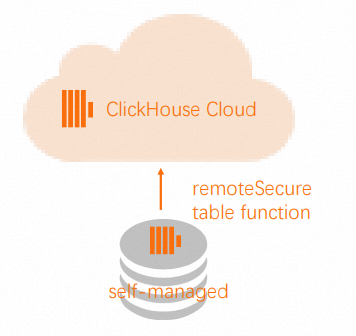
In ApsaraDB for ClickHouse Enterprise Edition, you only need to create the corresponding target table, regardless of whether your source table has shards or replicas. The system automatically uses the SharedMergeTree table engine, so you can omit complex engine parameters in the target table definition. The ApsaraDB for ClickHouse Enterprise Edition cluster automatically handles vertical and horizontal scaling, so you do not need to worry about the implementation details of replication and sharding.
Overview
The following procedure describes how to migrate from a self-managed ClickHouse cluster to an ApsaraDB for ClickHouse Enterprise Edition cluster.
Add a read-only user to the source cluster.
Replicate the source table structure on the target cluster.
If the source cluster is accessible from an external network, pull data from the source cluster to the target cluster. Otherwise, push data from the source cluster to the target cluster.
(Optional) Remove the IP address of the source cluster from the allow list of the target cluster.
Remove the read-only user from the source cluster.
Procedure
Perform the following operations on the source cluster. This procedure assumes that the source table already contains data.
Add a read-only user for the
db.tabletable.CREATE USER exporter IDENTIFIED WITH SHA256_PASSWORD BY 'password-here' SETTINGS readonly = 1;GRANT SELECT ON db.table TO exporter;Copy the source table structure.
SELECT create_table_query
FROM system.tables
WHERE database = 'db' and table = 'table'
Perform the following operations on the target cluster.
Create a database.
CREATE DATABASE dbUse the source table's
CREATE TABLEstatement to create the target table.NoteWhen you run the
CREATE TABLEstatement, change theENGINEtoSharedMergeTreeand omit any parameters. The ApsaraDB for ClickHouse Enterprise Edition cluster always replicates the table and provides the correct parameters. TheORDER BY,PRIMARY KEY,PARTITION BY,SAMPLE BY,TTL, andSETTINGSclauses define the table's structure and metadata. Keep these clauses to ensure the table is created correctly on the target ApsaraDB for ClickHouse Enterprise Edition cluster.CREATE TABLE db.table ...Use the
Remotefunction to pull or push data.NoteIf the source ClickHouse server is not accessible from an external network, push data from the source cluster rather than pulling it from the target cluster. The
Remotefunction supports bothSELECT(pull) andINSERT(push) operations.On the target cluster, use the
Remotefunction to pull data from the source table.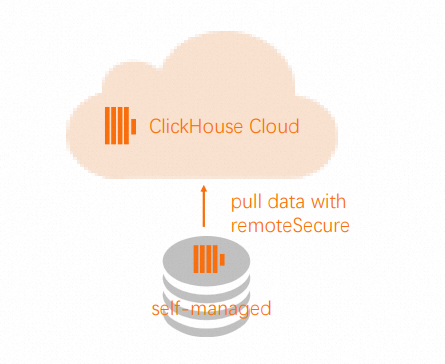
INSERT INTO db.table SELECT * FROM
remote('source-hostname:9000', db, table, 'exporter', 'password-here')
On the source cluster, use the
Remotefunction to push data to the target cluster.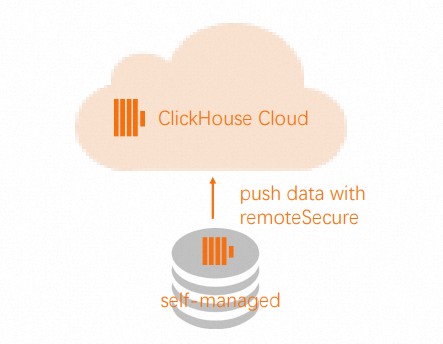 Note
NoteAdd the IP addresses of the source cluster to the allow list of the target cluster to enable the
Remotefunction to connect to your ApsaraDB for ClickHouse Enterprise Edition cluster. For more information, see Configure an allow list.INSERT INTO FUNCTION remote('target-hostname:9000', 'db.table', 'default', 'PASS') SELECT * FROM db.table
FAQ
Connectivity and configuration errors
Error message | Description | Solution |
| The network connection to the self-built cluster timed out. | Use the error message to troubleshoot the network issue. |
| The cluster specified in the migration task configuration was not found on the self-built cluster. | Query the self-built cluster for the correct cluster name using SQL, and then update the migration task configuration. |
| One or more of the following system tables are missing from the self-built cluster: | Create the missing system tables on the self-built cluster. |
| The timezone of the self-built cluster does not match the target cluster's timezone. | Align the timezone settings of the clusters. |
| The | Adjust the target cluster's Important Setting compatibility to an earlier version disables features like ParallelReplica. |
Database and table schema errors
Error message | Description | Solution |
| The database and table schemas are inconsistent across the nodes of the self-built cluster. | Check the schemas on each node of the self-built cluster and resolve any inconsistencies. |
| Passwords in the database and table schemas are hidden. | Set the Note: This operation requires the displaySecretsInShowAndSelect account permission. |
| The migration process does not support the self-built cluster's database engine. | Change the database engine to one supported by the target instance. |
| The database engine of the self-built cluster is not supported for migration. | To bypass migration exceptions, the system automatically replaces the engine with a Replicated database. |
| The database engine of the self-built cluster is not supported for migration. | Use Data Transmission Service (DTS) to synchronize data, or create a database with the same name on the target instance to bypass migration exceptions. |
| Migration is not supported for tables that use certain engines. | The migration process automatically ignores this engine. |
| Using the distributed table engine is not recommended in ApsaraDB for ClickHouse Enterprise Edition. | Drop the distributed table on the self-built cluster. After migration, query the underlying MergeTree table directly. |
| This warning flags potentially unreachable IP addresses but does not confirm an accessibility issue. | Ensure the target instance can reach the referenced IP addresses. If not, establish connectivity and add the IP addresses to the allowlist. |
| For tables that use certain engines, only the schema is migrated; data migration is not supported. | Migrate the data manually, for example, using the remote function. |
| Migration is not supported for tables that use certain engines. | Create a MergeTree table with the same name on the target instance and migrate the data manually. |
| Migration is not supported for tables that use certain engines. | See Step 4 in the Procedure section. |
| For the schema check to succeed, the corresponding table in the target instance must be empty. | Delete the data from the corresponding table in the target instance. |
| Only user-defined Functions with | Create the required function manually on the target instance. |
Other
For solutions to other migration issues, see the FAQ.