Connect your on-premises data center directly to a transit router so it can communicate with other attached networks, such as VPCs in the same or different regions and other data centers.
Starting November 26, 2024, newly created IPsec-VPN connections use dual-tunnel mode by default. If one tunnel fails, traffic automatically routes through the other to ensure high availability. For more information about dual-tunnel mode, see the VPN Gateway documentation: Associate with a transit router.
Limitations
Only Enterprise Edition transit routers support VPN connections.
Currently, only IPsec connections in specific regions can be connected to transit router instances. For more information about the supported regions, see Supported regions and zones.
After you create a VPN connection, the system automatically adds a routing policy to all route tables of the transit router in the Export from Regional Gateway direction. This policy has a Policy Priority of 5000 and a Policy Action of Deny. This route policy denies communication among VPN connections, virtual border router (VBR) connections, and Cloud Connect Network (CCN) connections.
If your on-premises data center is already connected to a transit router via an IPsec-VPN connection and a VPC, load balancing is not supported if you also add a direct VPN connection between the same data center and transit router.
The following table describes the resource quotas.
Resource
Default quota
Request a quota increase
Number of VPN connections per transit router
50
You can request a quota increase by using one of the following methods:
On the Quotas page, request a quota increase. For more information, see Increase CEN quotas.
In Quota Center, request a quota increase. For more information, see Create a quota increase application.
Number of VPN connections that support Equal-Cost Multipath (ECMP) routing per transit router
32
Cannot be changed
Number of transit routers that can be connected to an IPsec connection
1
Cannot be changed
Billing
A VPN connection may incur charges for transit router connection and data forwarding fees, IPsec connection instance fees, and data transfer fees. The billable items vary by the network type of the IPsec connection.
Billing rules for VPN connections over the internet
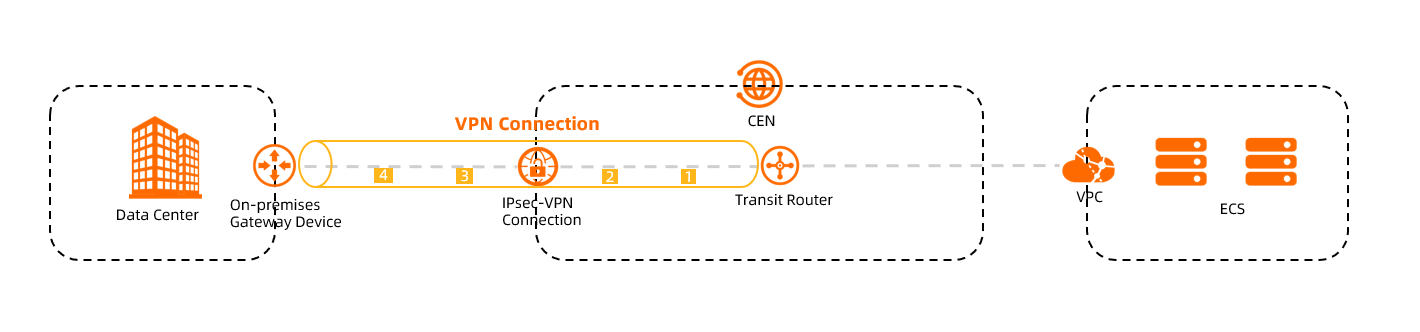
No. | Billable item | Description | Related documentation |
① | Transit router connection fee | The fee for connecting a transit router to an IPsec connection. |
|
② | Transit router data forwarding fee | The fee for traffic that an IPsec connection sends to a transit router. | |
③ | IPsec connection instance fee | The fee for the IPsec connection instance. | |
④ | Data transfer fee | The fee generated when an IPsec connection sends traffic to an on-premises data center. |
Billing rules for VPN connections over private networks
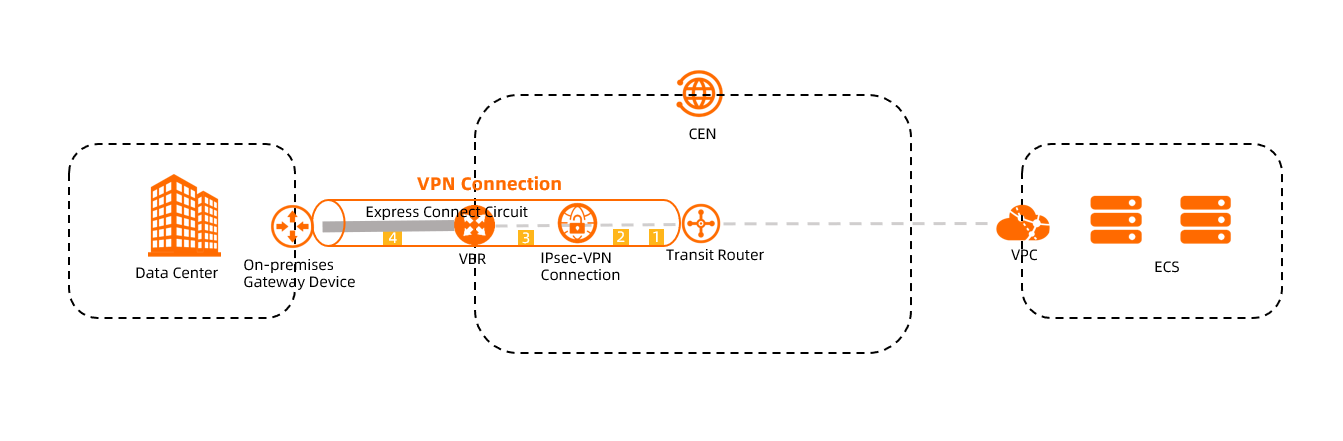
No. | Billable item | Description | Related documentation |
① | Transit router connection fee | The fee generated when a transit router is connected to a VBR instance and an IPsec connection. |
|
② | Transit router data forwarding fee | The fee generated when a VBR instance sends traffic to a transit router. | |
③ | IPsec connection instance fee | The instance fee generated after you create an IPsec connection. | |
④ | Outbound data transfer fee | The fee generated when a VBR instance sends traffic to an on-premises data center. |
Workflow
A VPN connection associates a transit router with an IPsec connection. Once associated, the on-premises data center can reach the transit router through the IPsec connection and communicate with other attached networks.
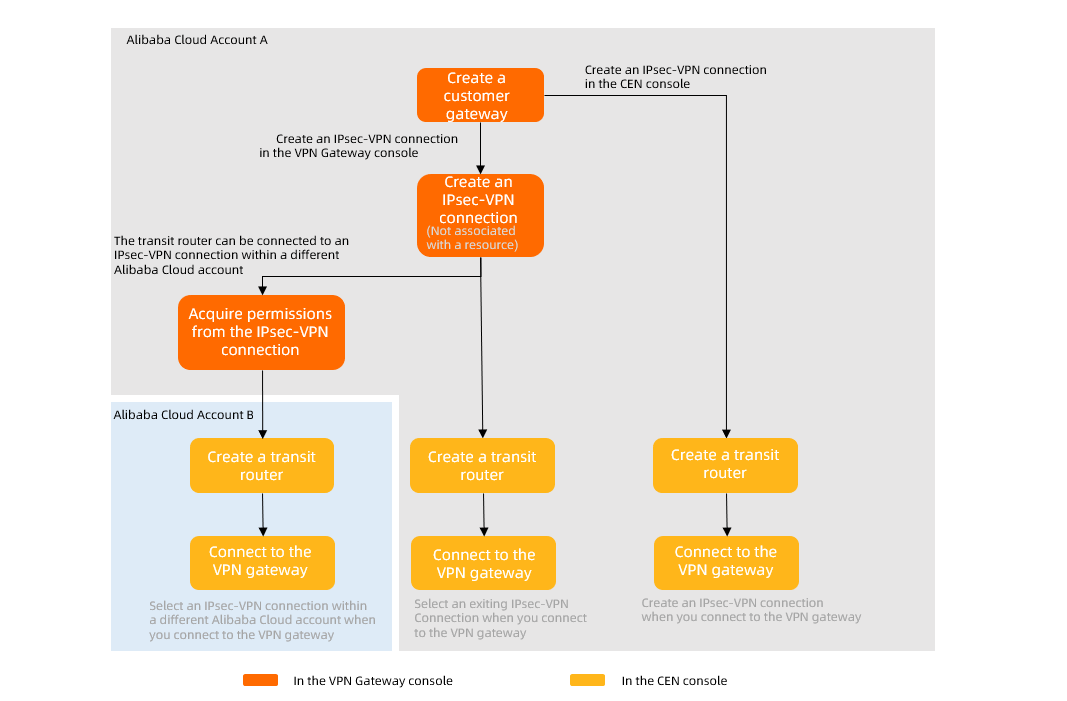
You can create an IPsec connection in the CEN console or the VPN Gateway console, including cross-account connections. The following figure shows the workflow, which varies based on the account that owns the IPsec connection and where it is created.
When you create an IPsec connection, you must specify a customer gateway for it. Therefore, you must create a customer gateway before you create an IPsec connection.
When you create an IPsec connection in the VPN Gateway console, you must set Associate Resource to Do Not Associate.
Prerequisites
Before you create a VPN connection, choose the appropriate workflow and complete all required preparations:
Dual-tunnel mode
- Important
When you create a transit router instance, you must configure a CIDR block for the transit router. The system allocates an IP address from the CIDR block to the IPsec connection. For more information about transit router CIDR blocks, see Transit router CIDR blocks.
Single-tunnel mode
- Important
When you create a transit router instance, you must configure a CIDR block for the transit router. The system allocates an IP address from the CIDR block to the IPsec connection. For more information about transit router CIDR blocks, see Transit router CIDR blocks.
Authorize an IPsec connection to connect to a cross-account transit router
Create a VPN connection
Log on to the Cloud Enterprise Network (CEN) console.
On the CEN Instance page, click the ID of the CEN instance that you want to manage.
On the tab, find the transit router in the target region, and in the Actions column, click Create Connection > Create Intra-Region Connection.
On the Create Intra-Region Connection page, configure the settings for the VPN connection and click OK.
The required parameters vary by the workflow used to create the IPsec connection. All parameters are listed below for reference.
NoteThe first time you perform this operation, the system automatically creates a service-linked role named AliyunServiceRoleForVpn. This service-linked role allows VPN Gateway to manage resources such as elastic network interfaces (ENIs) and security groups to create the VPN connection. If the service-linked role already exists in your account, the system does not create it again. For more information about AliyunServiceRoleForVpn, see AliyunServiceRoleForVpn.
Dual-tunnel mode
Basic settings
Parameter
Description
Instance Type
Select VPN Gateway.
Region
Select the region where the transit router is deployed.
Transit Router
The system displays available transit routers in the current region.
Account
Select the type of account to which the IPsec connection belongs.
A transit router can be connected to an IPsec connection that belongs to the same account as the transit router or a different account.
If the IPsec connection and the transit router instance belong to the same Alibaba Cloud account, select Your Account.
If the IPsec connection and the transit router instance belong to different Alibaba Cloud accounts, select Another Account and enter the ID of the Alibaba Cloud account (primary account) to which the IPsec connection belongs.
Individual Resource
Select the IPsec connection type. Valid values:
Create Resource: The transit router is connected to a new IPsec connection.
After the VPN connection is created, the system creates an IPsec connection and associates it with the transit router. You can go to the VPN Gateway console and click Edit to view the details of the new IPsec connection. For more information, see IPsec connection (associated with a transit router).
Select Resource: The transit router is connected to an existing IPsec connection.
Connection Name
Enter a name for the VPN connection.
Gateway Type
Select the network type of the IPsec connection. Valid values:
Public (Default): The IPsec connection establishes an encrypted tunnel over the internet.
Private: The IPsec connection establishes an encrypted tunnel over a private network.
Routing Mode
Select the routing mode of the IPsec connection. Valid values:
Destination Routing (Default): Forwards traffic based on the destination IP address.
Flow Protection: Routes and forwards traffic based on precise source and destination IP addresses.
If you select Flow Protection, you must configure Local CIDR Block and Peer CIDR Block. After the VPN connection is configured, the system automatically adds a destination route to the route table of the IPsec connection. By default, the route is then advertised to the route table of the transit router that is associated with the IPsec connection.
Apply Immediately
Specifies whether to immediately start IPsec negotiation. Valid values:
Yes: The system immediately starts IPsec negotiation after the configuration is complete.
No (Default): The system starts IPsec negotiation only when data traffic is detected.
Enable BGP
Off (Default): Manually configure static routes.
On: The IPsec connection automatically learns and advertises routes by using BGP dynamic routing.
Local ASN
This parameter is required if you set Enable BGP to On.
Enter the autonomous system number (ASN) for the Alibaba Cloud side of the IPsec connection. Default value: 45104. The valid range is 1 to 4294967295.
You can enter an ASN in the two-part format: a 16-bit number, a period (.), and another 16-bit number. Each part is a decimal value.
For example, if you enter 123.456, the ASN is 123 × 65536 + 456 = 8061384.
NoteWe recommend that you use a private ASN to establish a BGP connection with Alibaba Cloud. For information about the private ASN ranges, see the relevant documentation.
Tunnel settings
In dual-tunnel mode, you must configure both Tunnel 1 and Tunnel 2 and ensure both are active. If you configure or use only one tunnel, the IPsec-VPN connection cannot provide link redundancy or zone-level disaster recovery.
Parameter
Description
Enable BGP
Enable BGP if the IPsec connection needs to use the BGP routing protocol. By default, BGP is disabled.
Before you use BGP dynamic routing, make sure that your on-premises gateway device supports BGP. We recommend that you familiarize yourself with the working mechanism and limitations of BGP dynamic routing.
Local ASN
After you enable BGP, enter the ASN for the local side (Alibaba Cloud side) of the tunnel. Both tunnels use the same ASN. Default value: 45104. The valid range is 1 to 4294967295.
NoteWe recommend that you use a private ASN to establish a BGP connection with Alibaba Cloud. For information about the private ASN ranges, see the relevant documentation.
Customer Gateways
Select the customer gateway to associate with the tunnel.
Pre-Shared Key
Enter the authentication key for the tunnel. This key is used for identity authentication between the tunnel and its peer.
The key must be 1 to 100 characters in length and can contain digits, uppercase letters, lowercase letters, and the following special characters:
~`!@#$%^&*()_-+={}[]\|;:',.<>/?. The key cannot contain space characters.If you do not specify a pre-shared key, the system generates a random 16-character string as the pre-shared key. After the IPsec connection is created, you can click Edit for the tunnel to view the system-generated key.
ImportantThe tunnel's pre-shared key must match the peer's key. Otherwise, the tunnel cannot be established.
Encryption Configuration
IKE Configurations (Phase 1 encryption)
Parameter
Description
Version
Use ikev2. IKEv2 simplifies SA negotiation and provides better support for scenarios with multiple CIDR blocks.
Negotiation Mode
main (default): Main mode. This mode encrypts identity information during transmission, providing higher security during negotiation than aggressive mode.
aggressive: Aggressive mode. This mode offers faster negotiation and a higher success rate.
After a successful negotiation, both modes provide the same level of security for data transmission.
Encryption Algorithm
The encryption algorithm used in Phase 1 negotiation.
Supported algorithms: AES-128, AES-192, AES-256, DES, and 3DES (not recommended).
Authentication Algorithm
The authentication algorithm used in Phase 1 negotiation.
Supported algorithms: SHA1 (default), MD5, SHA2-256, SHA2-384, and SHA2-512.
When you configure the VPN on some on-premises gateway devices, you may need to specify a PRF algorithm. The PRF algorithm must be the same as the IKE authentication algorithm.
DH Group (Perfect Forward Secrecy)
Select the Diffie-Hellman key exchange algorithm for Phase 1 negotiation.
disabled: Does not use the DH key exchange algorithm.
Select
disabledfor clients that do not support PFS.If you select any group other than
disabled, the Perfect Forward Secrecy (PFS) feature is enabled by default. This requires the key to be updated at each renegotiation. Therefore, you must also enable PFS on your on-premises gateway device.
group1, group2, group5, group14: A larger DH group number indicates higher security but also consumes more resources.
SA Life Cycle (seconds)
The lifetime of the SA (Security Association) negotiated in Phase 1. Default value: 86400. Value range: 0 to 86400.
LocalId
The identifier of the local end of the tunnel. By default, the IP address of the tunnel is used as the local identifier.
This identifier is used only for negotiation and serves no other function. The identifier can be an IP address or a Fully Qualified Domain Name (FQDN) and cannot contain spaces. Use a private IP address as the identifier for the local end of the tunnel.
If you use an FQDN for
LocalId, for example,example.aliyun.com, the peer ID configured on your on-premises gateway device must match the value ofLocalId. Set the negotiation mode toaggressive.RemoteId
The identifier of the remote end of the tunnel. By default, the IP address in the associated customer gateway is used as the remote identifier.
This identifier is used only for negotiation and serves no other function. The identifier can be an IP address or an FQDN and cannot contain spaces. Use a private IP address as the identifier for the remote end of the tunnel.
If you use an FQDN for
RemoteId, for example,example.aliyun.com, the local ID configured on your on-premises gateway device must match the value ofRemoteId. Set the negotiation mode toaggressive.IPsec Configurations (Phase 2 encryption)
Configure the parameters for Phase 2 negotiation:
Encryption Algorithm, Authentication Algorithm, DH Group (Perfect Forward Secrecy), and SA Life Cycle (seconds): You can refer to the descriptions of the corresponding options in the Phase 1 IKE Configurations section.
DPD: Keep this feature enabled. It detects whether the peer device is active. After a timeout of 30 seconds, the SA is deleted and renegotiation is automatically initiated.
NAT Traversal: Keep this feature enabled. When enabled, the system automatically detects NAT devices during tunnel negotiation. If a NAT device is detected, UDP 4500 encapsulation is used. During data transmission, UDP port validation is skipped to ensure that packets whose port numbers have been changed by NAT can still be correctly received.
BGP Configuration
If you enabled BGP for the IPsec connection, you can specify the BGP tunnel CIDR block and the BGP tunnel IP address on the Alibaba Cloud side. If you have not enabled BGP, you can do so after you create the IPsec connection. For more information, see IPsec-VPN connection (attached to a TR).
Advanced settings
When you create a VPN connection, the following advanced features are enabled by default.
Automatic Advertising: Enables the route synchronization feature for the TR. This automatically publishes routes from the TR route table to the IPsec-VPN connection's route table.
Automatically Associate with Default Route Table of Transit Router: Traffic that enters the TR from the IPsec-VPN connection is forwarded based on the default route table of the TR.
Automatically Advertise System Routes to Default Route Table of Transit Router: Enables the route learning feature for the TR. The TR automatically learns routes from the IPsec-VPN connection's route table.
Single-tunnel mode
IPsec-VPN connections have been upgraded to dual-tunnel mode. Use the following instructions to manage existing single-tunnel mode connections.
Basic settings
Parameter
Description
Instance Type
Select VPN Gateway.
Region
Select the region where the transit router is deployed.
Transit Router
Displays available transit routers in the current region.
Account
Select the type of account to which the IPsec connection belongs.
A transit router can be connected to an IPsec connection that belongs to the same account as the transit router or a different account.
If the IPsec connection and the transit router instance belong to the same Alibaba Cloud account, select Your Account.
If the IPsec connection and the transit router instance belong to different Alibaba Cloud accounts, select Another Account and enter the ID of the Alibaba Cloud account (primary account) to which the IPsec connection belongs.
Individual Resource
Select the IPsec connection type. Valid values:
Create Resource: The transit router is connected to a new IPsec connection.
After the VPN connection is created, the system creates an IPsec connection and associates it with the transit router. You can go to the VPN Gateway console and click Edit to view the details of the new IPsec connection. For more information, see Modify an IPsec connection.
Select Resource: The transit router is connected to an existing IPsec connection.
Connection Name
Enter a name for the VPN connection.
Tag
Add a tag to the VPN connection.
Tag key: cannot be an empty string. The key can be up to 64 characters in length and cannot start with
aliyunoracs:. It cannot containhttp://orhttps://.Tag value: can be an empty string. The value can be up to 128 characters in length and cannot start with
aliyunoracs:. It cannot containhttp://orhttps://.
You can add multiple tags to a VPN connection. For more information, see Tags.
Gateway Type
Select the network type of the IPsec connection. Valid values:
Public (Default): The IPsec connection establishes an encrypted tunnel over the internet.
Private: The IPsec connection establishes an encrypted tunnel over a private network.
Zone
Select a zone.
The system creates resources in the selected zone.
Customer Gateway
Select a customer gateway for the IPsec connection.
Routing Mode
Select the routing mode of the IPsec connection. Valid values:
Destination Routing (Default): Forwards traffic based on the destination IP address.
Flow Protection: Routes and forwards traffic based on precise source and destination IP addresses.
If you select Flow Protection, you must configure Local CIDR Block and Peer CIDR Block. After the VPN connection is configured, the system automatically adds a destination route to the route table of the IPsec connection. By default, the route is then advertised to the route table of the transit router that is associated with the IPsec connection.
Apply Immediately
Specifies whether to immediately start IPsec negotiation. Valid values:
Yes: The system immediately starts IPsec negotiation after the configuration is complete.
No (Default): The system starts IPsec negotiation only when data traffic is detected.
Pre-shared Key
Enter the authentication key for the IPsec connection. This key authenticates the connection between the Alibaba Cloud side and the on-premises data center.
The key must be 1 to 100 characters in length. If you do not specify a pre-shared key, the system generates a random 16-character string as the pre-shared key.
After you create the VPN connection, you can go to the VPN Gateway console and click Edit to view the system-generated pre-shared key. For more information, see Modify an IPsec connection.
ImportantThe pre-shared key for the IPsec connection must match the key used on the on-premises data center side. Otherwise, the IPsec connection cannot be established.
IKE and IPsec settings
Parameter
Description
IKE Settings
Edition
Select the IKE protocol version. Valid values:
ikev1
ikev2 (Default)
IKEv1 and IKEv2 are supported. Compared with IKEv1, IKEv2 simplifies SA negotiation and provides better support for scenarios with multiple network segments. We recommend that you select IKEv2.
Negotiation Mode
Select the negotiation mode. Valid values:
main (Default): Main mode. Provides higher security during negotiation.
aggressive: Aggressive mode. Provides faster negotiation and a higher success rate.
After a successful negotiation, both modes provide the same level of security for data transmission.
Encryption Algorithm
Select the encryption algorithm for Phase 1 negotiation.
Supported algorithms: AES (aes128, default), AES192, AES256, DES, and 3DES.
Authentication Algorithm
Select the authentication algorithm for Phase 1 negotiation.
Supported algorithms: SHA1 (default), MD5, SHA256, SHA384, and SHA512.
DH Group
Select the Diffie-Hellman (DH) key exchange algorithm for Phase 1 negotiation. Valid values:
group1: DH group 1.
group2 (Default): DH group 2.
group5: DH group 5.
group14: DH group 14.
SA Lifetime (Seconds)
Set the Security Association (SA) lifetime for Phase 1 negotiation, in seconds. Default: 86400. Valid range: 0 to 86400.
LocalId
Enter the identifier for the Alibaba Cloud side of the IPsec connection, used for Phase 1 negotiation. The default value is the gateway IP address of the IPsec connection.
LocalId supports the FQDN format. If you use the FQDN format, we recommend that you set the negotiation mode to aggressive.
RemoteId
Enter the identifier for the on-premises data center side, used for Phase 1 negotiation. The default value is the IP address of the customer gateway.
RemoteId supports the FQDN format. If you use the FQDN format, we recommend that you set the negotiation mode to aggressive.
IPsec Settings
Encryption Algorithm
Select the encryption algorithm for Phase 2 negotiation.
Supported algorithms: AES (aes128, default), AES192, AES256, DES, and 3DES.
Authentication Algorithm
Select the authentication algorithm for Phase 2 negotiation.
Supported algorithms: SHA1 (default), MD5, SHA256, SHA384, and SHA512.
DH Group
Select the DH key exchange algorithm for Phase 2 negotiation. Valid values:
disabled: Does not use the DH key exchange algorithm.
Select disabled for clients that do not support Perfect Forward Secrecy (PFS).
If you select any group other than disabled, PFS is enabled by default. This requires the key to be updated upon each renegotiation. Therefore, you must also enable PFS on the corresponding client.
group1: DH group 1.
group2 (Default): DH group 2.
group5: DH group 5.
group14: DH group 14.
SA Lifetime (Seconds)
Set the SA lifetime for Phase 2 negotiation, in seconds. Default: 86400. Valid range: 0 to 86400.
DPD
Whether to enable Dead Peer Detection (DPD). DPD is enabled by default.
When enabled, the IPsec-VPN connection sends DPD packets to check peer activity. If a peer fails to respond within 30 seconds, it is considered disconnected. The ISAKMP SA and corresponding IPsec SA are deleted, and the security tunnel is removed. The IPsec-VPN connection then automatically reinitiates tunnel negotiation.
NAT Traversal
Specifies whether to enable Network Address Translation (NAT) traversal.
After you enable NAT traversal, the IKE negotiation process skips UDP port verification and helps discover NAT gateway devices in the encrypted communication tunnel. This feature is enabled by default.
BGP settings
BGP dynamic routing enables the IPsec connection to automatically learn and advertise routes, reducing maintenance costs and configuration errors.
BGP is disabled by default. Before you configure BGP settings, you must enable BGP.
Parameter
Description
Tunnel CIDR Block
Enter the CIDR block for the IPsec tunnel.
The tunnel CIDR block must be a /30 subnet within 169.254.0.0/16. It cannot be 169.254.0.0/30, 169.254.1.0/30, 169.254.2.0/30, 169.254.3.0/30, 169.254.4.0/30, 169.254.5.0/30, 169.254.6.0/30, or 169.254.169.252/30.
Local BGP IP
Enter the BGP IP address for the Alibaba Cloud side of the IPsec connection.
This address must be an IP address within the tunnel CIDR block.
Local ASN
Enter the ASN for the Alibaba Cloud side of the IPsec connection. Default value: 45104. The valid range is 1 to 4294967295.
You can enter an ASN in the two-part format: a 16-bit number, a period (.), and another 16-bit number. Each part is a decimal value.
For example, if you enter 123.456, the ASN is 123 × 65536 + 456 = 8061384.
NoteWe recommend that you use a private ASN to establish a BGP connection with Alibaba Cloud. For information about the private ASN ranges, see the relevant documentation.
Health check
Health checks detect the connectivity between the on-premises data center and Alibaba Cloud over the IPsec connection. Routes are automatically switched based on the results to improve network availability.
Health check is disabled by default. Before you add a health check configuration, you must enable health check.
ImportantAfter you configure health check, add a route on the on-premises data center side with the destination CIDR block set to the Source IP Address (with a /32 mask) and the next hop pointing to the IPsec connection. This ensures that health check works as expected.
Parameter
Description
Destination IP
Enter the IP address of the on-premises data center that the Alibaba Cloud side can access through the IPsec connection.
Source IP
Enter the IP address on the Alibaba Cloud side that the on-premises data center can access through the IPsec connection.
Retry Interval
Select the interval at which health check retries are performed. Unit: seconds. Default value: 3.
Retries
Select the number of health check retries. Default value: 3.
Switch Route
Select whether to allow the system to withdraw published routes if a health check fails. The default value is Yes, which means that the system withdraws the published routes if the health check fails.
If you deselect Yes, the system will not withdraw the published routes if a health check fails.
Advanced settings
When you create a VPN connection, the following advanced features are enabled by default.
Parameter
Description
Automatically Advertise Routes to VPN
If you enable this feature, the VPN connection automatically propagates routes from the route table of the transit router to the BGP route table of the IPsec connection.
NoteThis feature takes effect only if BGP dynamic routing is enabled between the IPsec connection and the on-premises data center.
You can later use the Automatic Route Advertisement feature to disable this functionality. For more information, see Disable route synchronization.
Associate with Default Route Table of Transit Router
If you enable this feature, the VPN connection is associated with the default route table of the transit router. The transit router then forwards traffic from the IPsec connection by looking up the default route table.
Propagate system routes to transit router route table
If you enable this feature, the VPN connection propagates routes from the destination-based route table and BGP route table of the IPsec connection to the default route table of the transit router.
You can disable these advanced features and then customize the connectivity of the VPN connection by using routing features of the transit router, such as route table association and route learning. For more information, see Route management.
Modify a VPN connection's associated route table
After creating a VPN connection, you can change its associated transit router route table.
If route synchronization is enabled for the VPN connection, after you change the associated transit router route table, the system withdraws the previously synchronized routes from the IPsec connection. The system then synchronizes routes from the new route table to the BGP route table of the IPsec connection. For more information about route synchronization, see Route synchronization.
Log on to the CEN console.
On the CEN Instance page, click the ID of the CEN instance that you want to manage.
On the tab, click the ID of the transit router instance in the target region.
On the Intra-Region Connections tab, find the VPN connection and click its ID.
In the Attachment Details panel, go to the Basic Information section and click Modify next to Associated Route Table.
In the Modify Route Table dialog box, select the destination transit router route table and click OK.
Create a VPN connection via API
You can use tools such as Alibaba Cloud SDK (recommended), Alibaba Cloud CLI, Terraform, and Resource Orchestration Service (ROS) to call API operations for creating and modifying VPN connections. For more information, see the following API operations:
CreateTransitRouterVpnAttachment: creates a VPN connection.
UpdateTransitRouterVpnAttachmentAttribute: modifies a VPN connection.
ReplaceTransitRouterRouteTableAssociation: Replaces the transit router route table associated with a network instance connection.