Embed Alibaba Cloud Captcha 2.0 into an Android app using a WebView component to load an HTML5 service page. This hybrid approach avoids native component dependency issues and lets the app pick up Captcha 2.0 updates automatically to stay ahead of sophisticated attacks.
If your service uses the V2 architecture, see Integrate with the V2 architecture on Android.
How it works
The integration spans three components:
HTML5 service client — integrates Captcha 2.0 and initiates verification.
Server for the HTML5 service — calls the
VerifyIntelligentCaptchaAPI operation to perform signature verification.Android app client — uses a WebView component to load the HTML5 service page and bridges JavaScript calls to the Java layer.
Prerequisites
Before you begin, make sure you have:
Created a verification scenario with Integration Method set to Webview+H5 (for Apps And WeChat Mini Programs)
Android 7.0 or later
Step 1: Integrate Captcha 2.0 into the HTML5 service client
Add the Captcha 2.0 client-side integration code to your HTML5 service client. For details, see Integrate with the V3 architecture for web and HTML5 clients.
If your service uses the V2 architecture, see Integrate with the V2 architecture for web and HTML5 clients.
In the success callback function, pass
captchaVerifyParamto the custom Java interfacetestJsInterface. The Android app uses this parameter to send the service request and signature verification request.// Success callback function function success(captchaVerifyParam) { // captchaVerifyParam contains the signature verification parameters. // Pass them to the custom Java interface. window.testInterface && window.testInterface.getCaptchaVerifyParam(captchaVerifyParam); }
Returned data
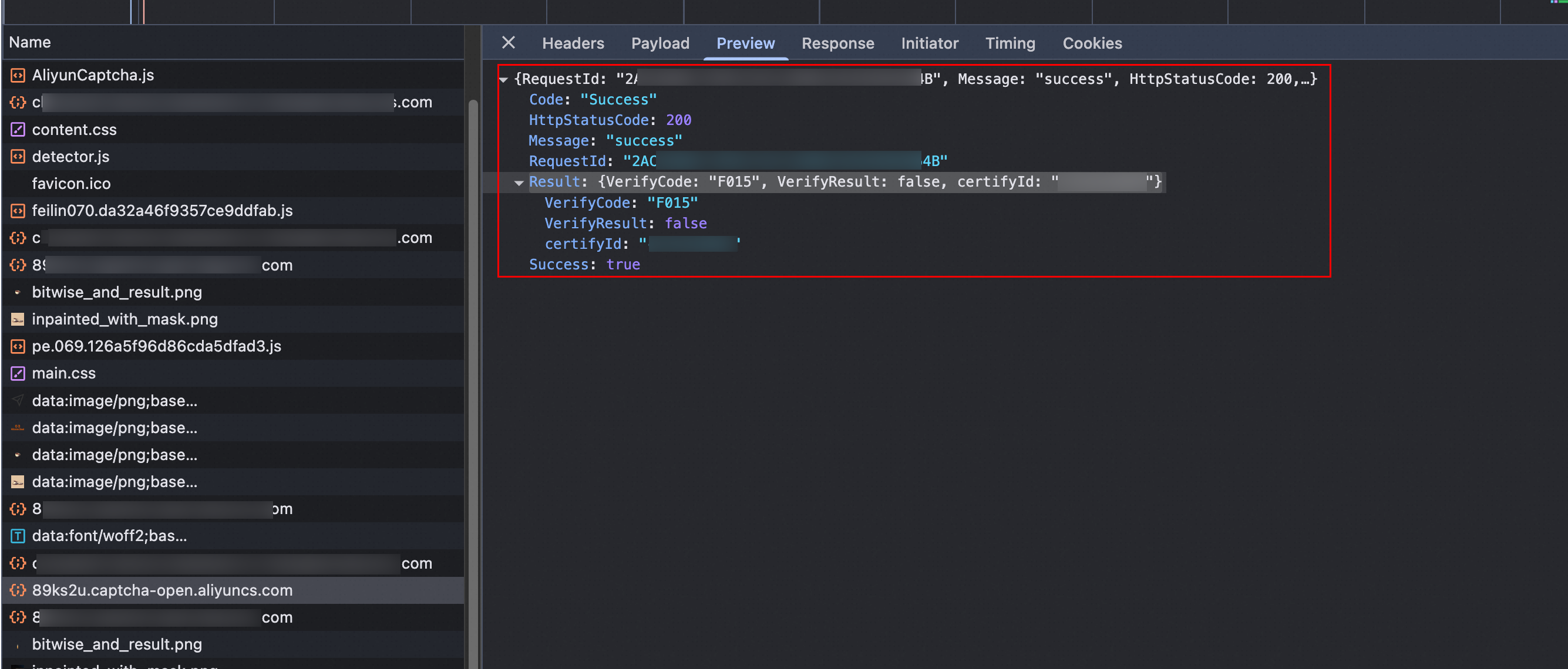
The Captcha server performs behavioral verification on the user's response to determine whether the request is from a human or a machine. It then returns a Captcha code and related parameters to the client. To inspect the returned data, use the Network tab in your browser's developer tools. For details, see Data returned by the V3 client architecture.
Step 2: Integrate Captcha 2.0 into the server
On the server for the HTML5 service page, integrate the Captcha 2.0 server-side SDK and call the VerifyIntelligentCaptcha API operation to perform signature verification. For details, see Server-side integration.
Step 3: Configure the Android app client
1. Import WebView dependency libraries
In Activity.java, import the dependency libraries for the WebView component:
import android.webkit.WebView;
import android.webkit.WebSettings;
import android.webkit.WebViewClient;
import android.webkit.WebChromeClient;
// Or
// import android.webkit.*;
2. Set network permissions
In AndroidManifest.xml, declare the permissions required to load web pages:
<uses-permission android:name="android.permission.INTERNET"/>
<uses-permission android:name="android.permission.ACCESS_NETWORK_STATE"/>
<uses-permission android:name="android.permission.ACCESS_WIFI_STATE"/>
<application
  ...
  android:usesCleartextTraffic="true"
  ...
  >
If your app calls other HTTP resources, add the corresponding configurations.
3. Add the WebView component
In activity_main.xml, add the WebView component to your layout:
<WebView
  android:id="@+id/webview"
  android:layout_height="match_parent"
  android:layout_width="match_parent"
/>
4. Load the HTML5 service page
In MainActivity.java, configure WebView settings and load the service page:
public class MainActivity extends AppCompatActivity {
    @Override
    protected void onCreate(Bundle savedInstanceState) {
        super.onCreate(savedInstanceState);
        setContentView(R.layout.activity_main);
        initView();
    }
    private void initView() {
        WebView webview = findViewById(R.id.webview);
        WebSettings webSettings = webview.getSettings();

        // Optional: Enable Chrome debugging
        WebView.setWebContentsDebuggingEnabled(true);

        // Required: Make the screen responsive
        webSettings.setUseWideViewPort(true);
        webSettings.setLoadWithOverviewMode(true);

        // Required: Disable caching so the app always loads the latest version of Captcha 2.0
        webSettings.setCacheMode(WebSettings.LOAD_NO_CACHE);

        // Required: Enable JavaScript
        webSettings.setJavaScriptEnabled(true);

        // Required: Enable DOM storage
        webSettings.setDomStorageEnabled(true);

        // Load the page within the WebView instead of the default browser
        webview.setWebViewClient(new WebViewClient(){
            @Override
            public boolean shouldOverrideUrlLoading(WebView view, String url) {
                view.loadUrl(url);
                return true;
            }
        });

        // Load the service page
        webview.loadUrl("http://x.x.x.x/demo/");
    }
}
5. Define the Java interface
In MainActivity.java, define the custom Java interface testJsInterface with the getCaptchaVerifyParam method. This method receives the signature verification parameters from the JavaScript layer.
import android.webkit.JavascriptInterface;

public class testJsInterface {
    @JavascriptInterface
    public void getCaptchaVerifyParam(String captchaVerifyParam) {
        // Use captchaVerifyParam to send service and signature verification requests.
        System.out.println(captchaVerifyParam);
    }
}
6. Register the JavaScript bridge
In the initView() method of MainActivity.java, bind the Java interface to the JavaScript layer:
// Build a bridge for JavaScript to call the Java interface
webview.addJavascriptInterface(new testJsInterface(), "testInterface");
Verify the integration
Run the app and trigger the CAPTCHA verification flow. If CAPTCHA renders and completes successfully, the integration is working.
Troubleshoot common issues
| Symptom | Likely cause | Fix |
|---|---|---|
| CAPTCHA widget does not appear | JavaScript is disabled in WebView | Set webSettings.setJavaScriptEnabled(true) |
| CAPTCHA appears but verification never completes | DOM storage is disabled | Set webSettings.setDomStorageEnabled(true) |
| WebView loads a blank page or fails to reach the service page | Missing network permissions or cleartext traffic blocked | Add INTERNET permission and set android:usesCleartextTraffic="true" in AndroidManifest.xml |
| Captcha 2.0 loads an outdated version | Caching is enabled | Set webSettings.setCacheMode(WebSettings.LOAD_NO_CACHE) |
captchaVerifyParam is never received by the Java layer | JavaScript bridge not registered or window object name mismatch | Confirm webview.addJavascriptInterface(new testJsInterface(), "testInterface") is called before loadUrl(), and that the JavaScript calls window.testInterface.getCaptchaVerifyParam(...) |