After you add a verification scenario in the console, integrate the Captcha initialization code into your web or H5 pages. This topic describes the integration process.
Prerequisites
You have activated Alibaba Cloud Captcha 2.0.
You have created a verification scenario with the Integration Method set to Web/H5.
Method overview
You can integrate your business client with Captcha 2.0 in just 3 steps:
Add the global variable
AliyunCaptchaConfig.Dynamically load the Captcha JS script.
Call the initialization method.
If your business uses the V2 architecture, see Integrate Web and H5 clients with the V2 architecture.
WeChat Mini Programs currently support integration only with the V2 architecture. The V3 architecture is not yet supported.
Procedure
Step 1: Add the AliyunCaptchaConfig global variable
Before you include the Alibaba Cloud CAPTCHA JS script, or at the beginning of the HTML head tag, add a script to define a global variable named AliyunCaptchaConfig that contains the region and prefix parameters.
<script>
  window.AliyunCaptchaConfig = {
    // Required. The region where the Captcha instance is located. Supported values: cn (Chinese mainland) and sgp (Singapore).
    region: "cn",
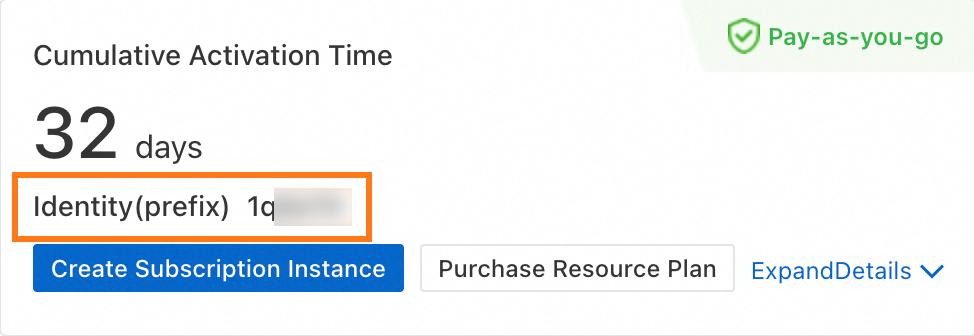
    // Required. The prefix of your Captcha instance. After you activate Alibaba Cloud Captcha 2.0, you can obtain the prefix from the Instance Information card on the Overview page in the console.
    prefix: "******",
  };
</script>You can find the prefix in the section, as shown in the following figure:
Step 2: Dynamically load Captcha JS
Dynamically load the Captcha JS script into your web page. This allows you to call the Captcha for verification when needed.
You must dynamically load the Captcha JS script. Bypassing dynamic loading, for example by downloading the JS for local deployment, prevents the service from updating correctly. This can lead to security vulnerabilities, incorrect blocking, or compatibility issues. Do not load the script multiple times, as this can cause verification to fail.
<script
  type="text/javascript"
  src="https://o.alicdn.com/captcha-frontend/aliyunCaptcha/AliyunCaptcha.js"
></script>
Step 3: Call the initialization method
If the initAliyunCaptcha method fails during initialization, refer to Client initialization errors for troubleshooting.
<script type="text/javascript">
  var captcha;
  // Parameters other than region and prefix
  window.initAliyunCaptcha({...});
</script>
Code example
Load the Captcha JS script as early as possible to collect more complete environment and device information. Ensure a delay of at least 2 seconds between loading the script and initiating a verification request.
To ensure faster loading of image resources, initialize the Captcha as early as possible. This pre-loads related resources and accelerates image loading. Ensure an interval of at least 2 seconds between initialization and the verification request.
In your client's source code, create a placeholder element for the Captcha. This DOM element will be referenced by the
elementandbuttonparameters, such as<div id="captcha-element"></div>in the following example.
<!doctype html>
<html>
  <head>
    <meta charset="utf-8" />
    <meta name="data-spm" />
    <!-- 1. Before loading the Alibaba Cloud Captcha JS script, or at the beginning of the HTML head tag, add a script to save a global variable AliyunCaptchaConfig that contains the region and prefix parameters. -->
    <script>
      window.AliyunCaptchaConfig = {
        // Required. The region where the Captcha instance is located. Supported values: cn (Chinese mainland) and sgp (Singapore).
        region: "cn",
        // Required. The prefix of your Captcha instance. After you activate Alibaba Cloud Captcha 2.0, you can obtain the prefix from the Instance Information card on the Overview page in the console.
        prefix: "xxxxxx",
      };
    </script>
    <!-- 2. Integrate the main JS script. -->
    <script
      type="text/javascript"
      src="https://o.alicdn.com/captcha-frontend/aliyunCaptcha/AliyunCaptcha.js"
    ></script>
  </head>

  <body>
    <div id="captcha-element"></div>
    <!-- A placeholder element for the Captcha, used for the element parameter in the initialization function. -->
    <button id="button" class="btn">Log On</button>
    <!-- In popup mode, this element triggers the Captcha dialog. -->
    <!-- 3. Create a <script> tag to call the Captcha initialization function initAliyunCaptcha. -->
    <script type="text/javascript">
      var captcha;
      // In popup mode, these are the parameters excluding region and prefix.
      window.initAliyunCaptcha({
        // The scene ID. After you create a verification scenario, you can find the scene ID in the verification scenario list.
        SceneId: "******",
        // The Captcha mode. 'popup' for popup mode, 'embed' for embedded mode. Do not change this value.
        mode: "popup",
        // The placeholder element on the page for rendering the Captcha. This must match the placeholder element in your code.
        element: "#captcha-element",
        // The element that triggers the Captcha dialog or traceless verification.
        button: "#button",
        // The callback function for successful verification.
        success: function (captchaVerifyParam) {
          // The input parameter is captchaVerifyParam.
          // 1. Send a request to your backend to validate the captchaVerifyParam.
          // 2. Handle the business logic based on the validation result.
          // 3. If your business requires re-verification, call the initAliyunCaptcha method to re-initialize Captcha.
        },
        // The callback function for failed verification.
        fail: function (result) {
          // The input parameter contains the failure information.
          // No action is needed within the normal verification validity period. The Captcha refreshes automatically for a new attempt.
          console.error(result);
        },
        // The callback function for binding the Captcha instance. This callback is invoked after Captcha is successfully initialized.
        getInstance: function (instance) {
          captcha = instance;
        },
        // The style for the slider and click-to-verify challenge trigger boxes. You can customize the width and height in pixels (px).
        slideStyle: {
          width: 360,
          height: 40,
        },
        // ...Other parameters. See the initAliyunCaptcha parameter description.
      });
    </script>
  </body>
</html>
Parameters
AliyunCaptchaConfig parameters
Parameter | Type | Required | Default | Description |
region | String | Yes | cn | The region where the Captcha instance is located. Valid values:
Important
|
prefix | String | Yes | None | The prefix of your Captcha instance. After you activate Alibaba Cloud Captcha 2.0, you can find this prefix in the upper-right corner of the Overview page in the console. |

initAliyunCaptcha parameters
Call the Captcha initialization method as early as possible after the page loads.
Parameter | Type | Required | Default | Description |
SceneId | String | Yes | None | The scene ID of the Captcha. You can obtain this value after you create a verification scenario. |
mode | String | Yes | None | The Captcha mode. Valid values:
|
element | String | Yes | None | The selector for the HTML element where the Captcha will be rendered. The value must be a valid CSS selector, such as '#captcha-element'. |
button | String | Yes | None | The selector for the HTML element that triggers the Captcha. Clicking this element displays the Captcha dialog or starts traceless verification. The value must be a valid CSS selector, such as '#my-button'. |
success | Function | Yes | None | The callback function for successful CAPTCHA verification provides the verification parameter. In this callback function, you can obtain |
fail | Function | No | None | The callback function executed if verification fails. It receives an object containing details about the failure. |
getInstance | Function | Yes | getInstance | The callback function for obtaining the Captcha instance object after initialization. This callback is invoked after the Captcha is successfully initialized. Use this function to get a reference to the instance: |
slideStyle | Object | No | { width: 360, height: 40 } | The style for the trigger box of slider and click-to-verify challenges. You can customize the width and height in pixels (px). This parameter is compatible with legacy parameter names. Important
|
language | String | No | cn | The languages supported by Alibaba Cloud Captcha 2.0. |
timeout | Number | No | 5000 | The timeout duration for a single Captcha initialization request, in milliseconds (ms). |
rem | Number | No | 1 | Scales the entire Captcha UI. The value acts as a multiplier. For example, Note The rem parameter is intended primarily for mobile browsers. |
onError | Function | No | None | The error callback function for failures or timeouts in the Captcha initialization API request and resource loading. Use the following fixed format: |
onClose | Function | No | None | When the verification code pop-up is closed, the
Use the following fixed format: |
captchaLogoImg | String | No | None | A parameter to replace the company logo displayed to the right of the trigger button for embedded click-to-verify, jigsaw puzzle, or image restoration challenges. The value can be an image URL or a Base64-encoded string. |
dualStack | Boolean | No | false | Specifies whether to enable dual stack support for the initialization and verification request domain names. Valid values:
|
UserCertifyId | String | No | None | A custom Important Format: prefix_10-character random string. The random string can include uppercase letters, lowercase letters, and digits. Example: |
showErrorTip | Boolean | No | true | Specifies whether to display an error message for access anomalies due to poor network quality. |
delayBeforeSuccess | Boolean | No | true | Specifies whether to delay triggering the |
EncryptedSceneId | String | No | None | The encrypted |
zIndex | Number | No | None | The layer level ( |
disableMaskClick | Boolean | No | false | Specifies whether clicking the mask layer (the area outside the dialog) closes the Captcha. If |

Method calls
Call the corresponding methods of the Captcha instance.
Method name | Description | Example | Use case |
show | Displays the Captcha element and mask layer. | captcha.show() | Programmatically displays the Captcha dialog without requiring a user to click a trigger element. Note Not supported in traceless verification mode. |
hide | Hides or closes the Captcha element and mask layer. | captcha.hide() | Use this method to programmatically close the Captcha dialog. Note Not supported in traceless verification mode. |
startTracelessVerification | Independently calls the traceless verification method. | captcha.startTracelessVerification() | This method is specific to traceless verification mode. It allows you to start verification programmatically, for example, after performing business logic checks, instead of waiting for a user to click the trigger element. |
Returned data
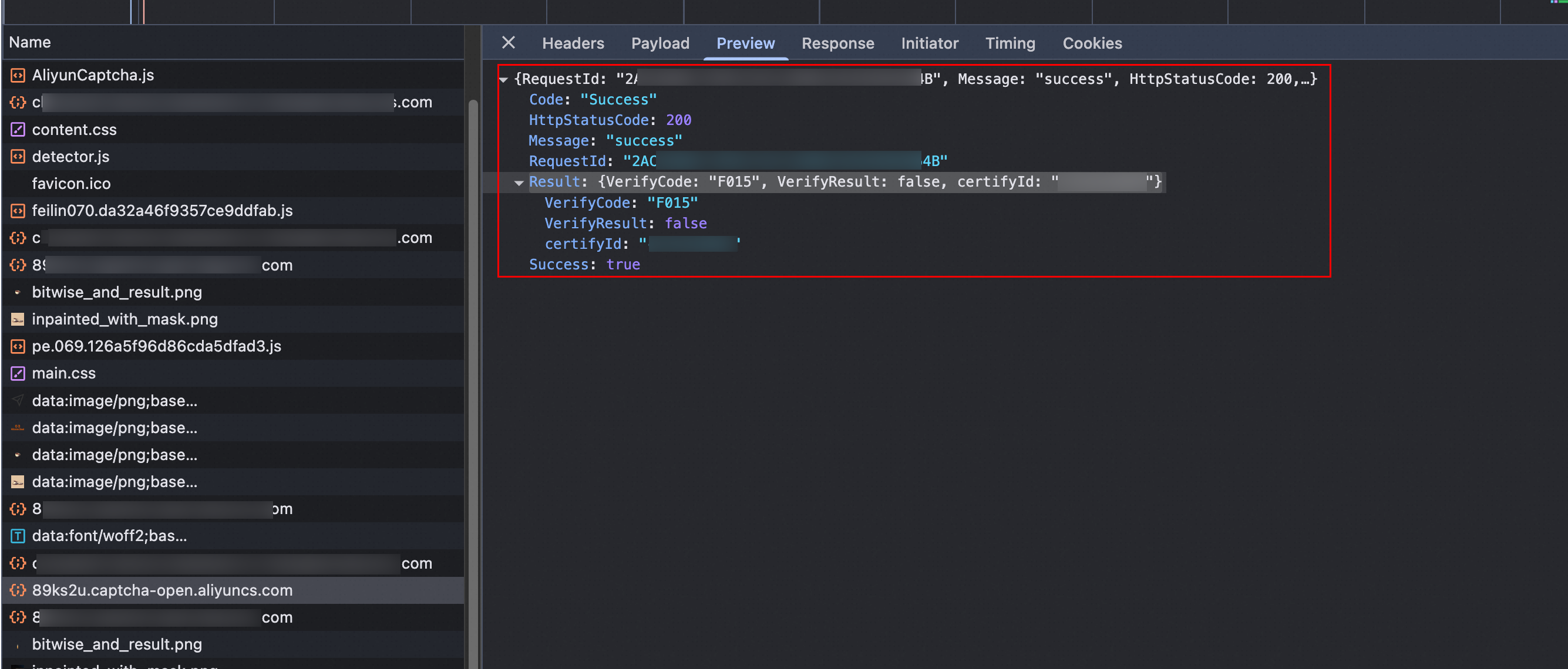
When you integrate the Alibaba Cloud Captcha 2.0 V3 client architecture, the Alibaba Cloud Captcha 2.0 server verifies the user's response to determine if the request is from a human. The server then returns verification data to your client. You can view the returned data on the Network tab of your browser. For more information, see Data returned by the V3 client architecture.