A verification scenario is the central configuration unit in Captcha 2.0. Each scenario holds your integration method, CAPTCHA type, and rule status — and produces a Scenario ID that your client uses to trigger CAPTCHA challenges. This page walks you through creating a scenario and managing it after creation.
Integrating Captcha 2.0 involves three stages:
Create a scenario (this page) — configure your integration method and CAPTCHA type, then get a Scenario ID.
Embed the client — add the Captcha 2.0 widget to your web page or app using the Scenario ID.
Validate server-side — verify each CAPTCHA token on your server before processing the user's request.
Prerequisites
Before you begin, ensure that you have:
Create a scenario
Start with Rule Status set to Test Mode. This lets Captcha 2.0 verify connectivity without applying threat policies — so your own actions during integration testing are not flagged as bot behavior. Switch to Official Release only after you confirm the integration works end-to-end.
In the left navigation pane, click Scenarios. On the Scenarios page, click Create Scenario.
In the Create Scenario panel, fill in the following fields and click OK.
Field Description Scenario name Enter a name for the scenario. Must be 1–32 characters and can include Chinese characters, letters, digits, and underscores ( _).Integration method Select how Captcha 2.0 integrates with your platform. See Integration method options below. Verification type Select the CAPTCHA challenge style. See Verification type options below. Rule status Set the operating mode. Use Test Mode during integration testing, then switch to Official Release when you go live. See Rule status options below. After the scenario is created, copy the Scenario ID from the scenario list. Pass this ID to your client integration code.

Integration method options
The integration method determines where the CAPTCHA runs and which security policy applies by default. The connection type cannot be changed after you save the scenario — if you select the wrong one, delete the scenario and create a new one.
| Method | Coverage | Notes |
|---|---|---|
| Web/H5 | Client and server | Use for standard web pages and H5 mobile pages. See Web and H5 integration. |
| Webview+H5 (for App/miniapp Integration) | Client, server, and app | Use for apps and WeChat mini programs that embed a WebView. See App client integration and Mini Program integration. |
| WeChat Mini Program Native Plugin | Client only | Use for native WeChat mini program integration. Custom policies are not supported for this method. See WeChat Mini Program V2 architecture integration. |
Scenario ID reuse: A single Scenario ID can be shared across multiple services, as long as they all use the same integration method. Services with different integration methods require separate scenarios.
Make sure the integration method you select matches how your client actually integrates. A mismatch causes authentication to fail.
Verification type options
| Type | Interaction | Notes |
|---|---|---|
| Invisible CAPTCHA | None (frictionless) | Runs silently in the background. Requires an Additional Challenge if the invisible check fails. Supported additional challenges: One-click CAPTCHA, Slider CAPTCHA, Puzzle Verification, Image Restoration. |
| One-click CAPTCHA | Click a button | — |
| Slider CAPTCHA | Drag a slider | — |
| Puzzle Verification | Drag a slider to complete a puzzle | — |
| Image Restoration | Drag a slider to restore an image | — |
Invisible CAPTCHA does not support embedded (embed) authentication. Use pop-up (popup) authentication instead.
Rule status options
| Status | Behavior |
|---|---|
| Official Release (default) | Captcha 2.0 runs a full threat assessment on each request and returns a pass or fail result. |
| Test Mode | Captcha 2.0 only checks connectivity. No threat assessment runs. Returns a configurable test result so you can verify your integration logic. Changes from Test Mode to Official Release take about 5 minutes to take effect. |
Configurable test results in Test Mode:
| Verification type | Available test results |
|---|---|
| Invisible CAPTCHA + One-click CAPTCHA or Slider CAPTCHA (additional challenge) | Pass Invisible CAPTCHA / Fail Invisible CAPTCHA and Pass Additional Challenge / Fail Invisible CAPTCHA and Additional Challenge |
| Invisible CAPTCHA + Puzzle Verification or Image Restoration (additional challenge) | Pass Invisible CAPTCHA / Fail Invisible CAPTCHA |
| One-click CAPTCHA | Pass Verification / Fail Verification |
| Slider CAPTCHA | Pass Verification / Fail Verification |
| Puzzle Verification | Pass Verification / Fail Verification |
| Image Restoration | Pass Verification / Fail Verification |
Each Captcha call is billed regardless of whether Rule Status is Official Release or Test Mode.
Manage scenarios
After a scenario is created, the Actions column in the scenario list gives you access to the following operations.
Integration guide
Click Integration Guide to view step-by-step instructions and code examples for integrating the scenario.
Edit
Click Modify to update the scenario name, CAPTCHA type, or rule status.
Custom policy
Click Custom Policy to define a custom security policy for the scenario. For details, see Custom policies.
Delete
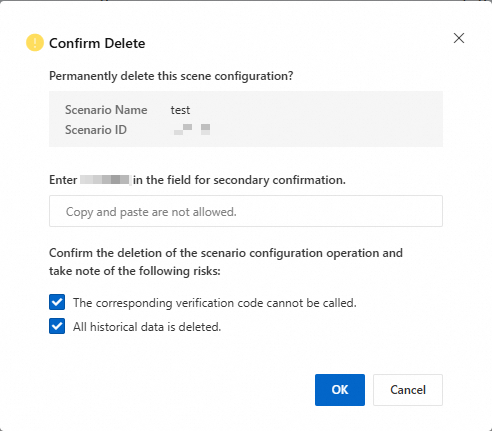
Click Delete. In the Confirm Delete dialog, enter the Scenario ID, select the risk reminder checkbox, and click OK.
Deleting a scenario permanently deletes all historical data and causes any Captcha calls that reference this scenario's configuration to fail. Delete only if you are sure you no longer need the scenario.