To manage host assets using a client, connect to a Bastionhost instance using a terminal or remote client, and then select the asset to manage.
Prerequisites
You have imported assets and users to your Bastionhost instance and authorized the users to manage the assets. For more information, see Add hosts, Manage users, and Authorize users or user groups to manage assets and asset accounts.
NoteTo enable password-free logon for a server, you must authorize the corresponding asset account to the user. For more information, see Authorize a user to manage assets and asset accounts.
If you do not host a specific account, you can enable the Unauthorized Asset Accounts Are Allowed option in the Special Asset Accounts section. With this option enabled, the user must manually enter the asset account password. For more information about how to enable this feature, see Configure O&M settings.
You have obtained the O&M address of the bastion host instance. You can find the O&M address in the Bastion Host Information section on the Overview page. For more information, see Overview of the Bastionhost console.
 Note
NoteBastionhost provides a fixed O&M address as a domain name and uses dynamic IP addresses to prevent attacks. The IP address that is resolved from the O&M address may change. To prevent O&M failures caused by IP address changes, you must use the domain name provided by Bastionhost for O&M.
For users who connect with public key authentication, you must first host their public key in Bastionhost. For more information, see Host the public key of a user.
If you use a client tool to manage assets, ensure that an SSH-compatible O&M tool, such as Xshell, SecureCRT, or PuTTY, is installed on your local computer.
For more information about compatible remote connection client tools and their versions, see Database O&M tools and versions.
Command-line tool
Password authentication
Open a command-line tool and run the following command:
ssh <Bastionhost_username>@<Bastionhost_O&M_address> -p 60022.The default SSH port number is 60022. If you need to change the O&M port of the Bastionhost instance, see Configure the bastion host port number.
Enter the password of the Bastionhost user.
If the Bastionhost user has enabled two-factor authentication (2FA), enter the verification code.
For more information about how to configure 2FA for a Bastionhost user, see Enable two-factor authentication.
PS C:\Users\admin> ssh demo@uww****wux-public.bastionhost.aliyuncs.com -p 60022
demo@uww****wux-public.bastionhost.aliyuncs.com's password:
Two-Step Verification required
Please Input Mfa Code (SMS):
On the asset management page, use the arrow keys to select the host to manage, and then press Enter to log on.
NoteIf you see the
[usmshell]$prompt but cannot select a host, follow these steps:Type
lsand press Enter to view the list of hosts that you are authorized to manage.Use the up and down arrow keys to select the target host. A blue highlight or cursor indicator appears on the left side of the selected host.
Press Enter to connect to the host.
Token authentication
Open a command-line tool and run the following command:
ssh <Bastionhost_username>@<Bastionhost_O&M_address> -p 60022.The default SSH port number is 60022. If you need to change the O&M port of the Bastionhost instance, see Configure the bastion host port number.
At the password prompt, enter the O&M token. For more information about how to obtain an O&M token, see Manage an O&M token.
Perform O&M operations on the target server.
Public key authentication
Open a command-line tool and run the following command:
ssh -i <path_to_private_key_file> <Bastionhost_username>@<Bastionhost_O&M_address> -p 60022.The default SSH port number is 60022. If you need to change the O&M port of the Bastionhost instance, see Configure the bastion host port number.
If 2FA is enabled for the user, enter the verification code. For more information about how to configure 2FA for a Bastionhost user, see Enable two-factor authentication.
PS C:\Users\admin> ssh -i C:\Users\admin\Desktop\id_rsa demo@uwxxx-xxxiwux-public.bastionhost.aliyuncs.com -p 60022
Two-Step Verification required
Please Input Mfa Code (SMS):
On the asset management page, use the arrow keys to select the host to manage, and then press Enter to log on.
Client tool
Password authentication
Open Xshell. In the Connection settings, enter the O&M address of the Bastionhost instance and the SSH port number.
The default SSH port number is 60022. If you need to change the O&M port of the Bastionhost instance, see Configure the bastion host port number.
In the Authentication settings, enter the username and password of the Bastionhost user, and click OK.
If 2FA is enabled for the user, enter the verification code and click OK.
For more information about how to configure 2FA for a Bastionhost user, see Enable two-factor authentication.
If two-factor authentication fails, the Two-Step Verification failure, please try again dialog box appears. You must re-enter the verification code. The dialog box also contains a Remember password checkbox.
On the asset management page, use the arrow keys to select the host to manage, and then press Enter to log on.
Token authentication
Open Xshell. In the Connection settings, enter the O&M address of the Bastionhost instance and the SSH port number.
The default SSH port number is 60022. If you need to change the O&M port of the Bastionhost instance, see Configure the bastion host port number.
In the Authentication settings, enter the username of the Bastionhost user and the O&M token, and then click OK. For more information about how to obtain an O&M token, see Manage an O&M token.
Perform O&M operations on the target server.
Public key authentication
Open Xshell. In the Connection settings, enter the O&M address of the Bastionhost instance and the SSH port number.
The default SSH port number is 60022. If you need to change the O&M port of the Bastionhost instance, see Configure the bastion host port number.
On the Authentication settings page, select Public Key from the Method drop-down list.
Click Setup. In the Setup Public Key dialog box, upload the private key file that corresponds to the public key hosted in Bastionhost, and then click OK.
Optional: If 2FA is enabled for the user, enter the verification code and click OK.
For more information about how to configure 2FA, see Enable two-factor authentication.
On the asset management page, use the arrow keys to select the host to manage, and then press Enter to log on.
Asset search
You can search for a target asset in one of the following ways:
Use
/+search content. The search results are highlighted. The following figure shows an example: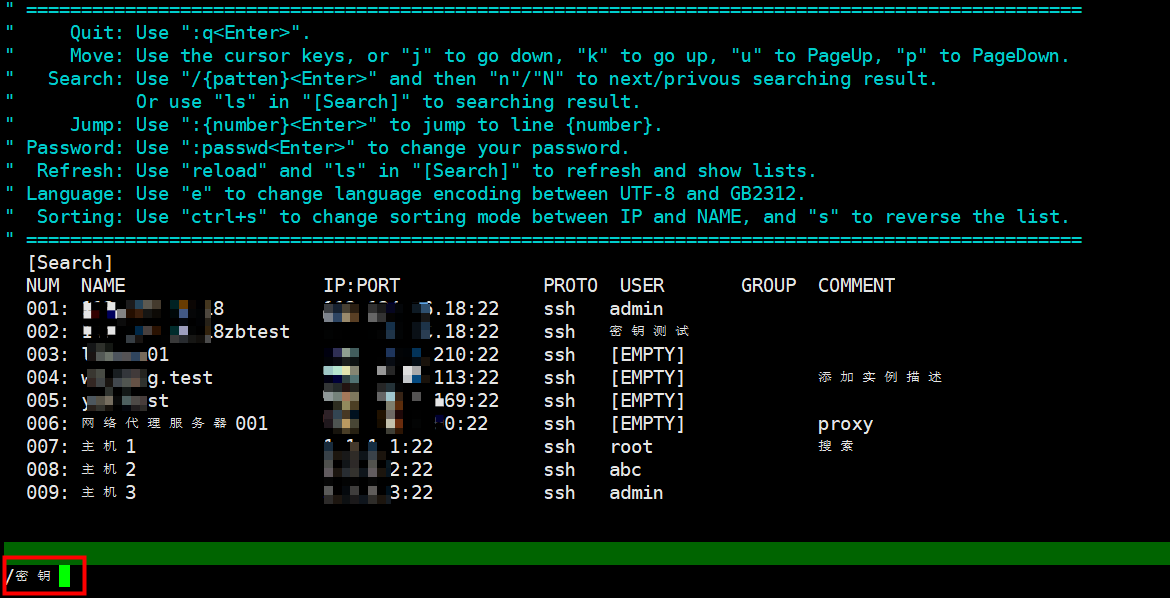
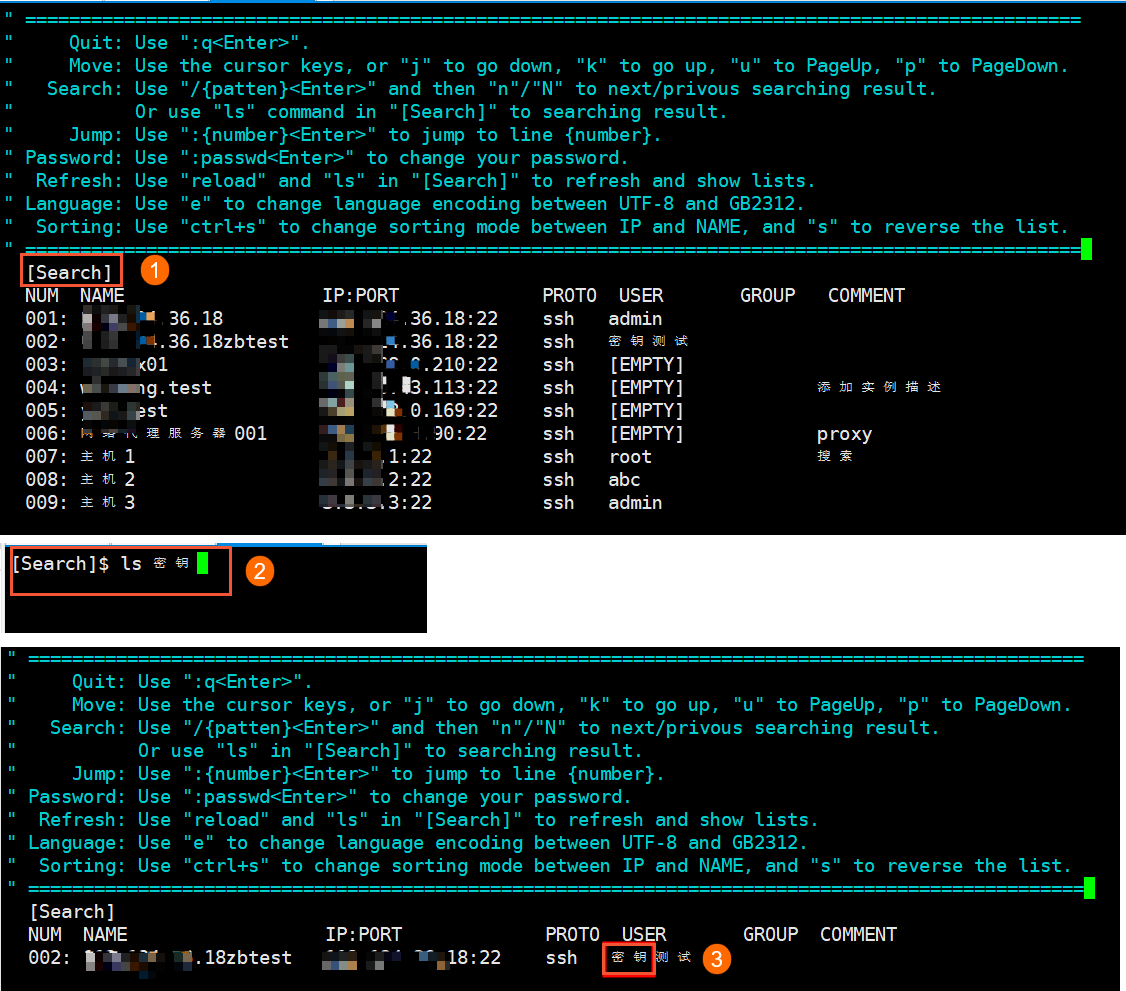
Use the Search feature that is provided by Bastionhost to filter assets by keyword.
For example, to filter assets by the keyword "key", click [Search]. On the [Search] page, enter "ls key", and press Enter. The assets that meet the filter condition are displayed in the asset list. The following figure shows an example:
 Note
NoteFor more information about the [Search] command, enter
helporhelp ls.
What should I do if VSCode Remote-SSH reports an error or cannot connect to Bastionhost?
Bastionhost does not support the VSCode Remote-SSH extension, including dynamic port forwarding scenarios. When you attempt to use Remote-SSH for remote development or remote file access, you may encounter the following errors:
administratively prohibitedTCP port forwarding may be disabled
Workaround: Use the built-in terminal in VSCode and run an SSH command to connect to Bastionhost for asset O&M. For example:
ssh <Bastionhost_username>@<Bastionhost_O&M_address> -p 60022You can manage assets using the command-line interface in VSCode terminal. Remote-SSH-based remote development workflows (such as opening a remote folder or forwarding ports via Remote-SSH) are not supported.
How do I resolve common errors when connecting to Bastionhost via SSH?
Invalid port number
The port parameter format is incorrect. Ensure that you use the -p 60022 format with a space after -p. If a custom port is configured, verify that the port number is a valid integer and contains no invalid characters.
INVALID_USER Incorrect username or password
The username must be a Bastionhost account. RAM accounts and server usernames are not supported.
If you use token authentication: at the first password prompt, enter the O&M token; at the second password prompt, enter the target server password.
Protocol mismatch causes connection failure
Verify that you are using an SSH client to connect to a Linux server. The default SSH port is 60022.
V3.2.X versions only support domain name access.
If the SSH port of the target server has been modified, update the corresponding host service port in Asset Management of Bastionhost.
How do I access a database service on a backend ECS instance through Bastionhost?
The current version of Bastionhost does not support direct database O&M. To access a database service on a backend ECS instance, follow these steps:
Connect to the target ECS instance via SSH through Bastionhost as described in this topic.
After logging in to the ECS instance, connect to the database service from within the instance.
The underlying SSH configuration of Bastionhost (such as AllowTcpForwarding) is managed by Alibaba Cloud and is enabled by default. You cannot view or modify this configuration.