Alibaba Cloud Linux 3 provides Shared Memory Communication (SMC), a high-performance kernel network protocol stack that is compatible with the socket layer. It uses Remote Direct Memory Access (RDMA) technology to transparently optimize network performance for TCP applications. However, when you use SMC to optimize network performance in a native ECS environment, you must carefully maintain the SMC whitelist and configurations in container network namespaces to prevent SMC from unexpectedly degrading to TCP. ASM provides a controlled environment (within the cluster) for SMC optimization. It automatically optimizes traffic between pods in the service mesh, which eliminates the need for you to manage specific SMC configurations.
Prerequisites
Limitations
-
The nodes must be ECS instances that support eRDMA. For more information, see Enable eRDMA for enterprise-level instances.
-
The nodes must run Alibaba Cloud Linux 3. For more information, see Alibaba Cloud Linux 3.
-
The ASM instance must be version 1.23 or later. For information about how to upgrade an instance, see Upgrade an ASM instance.
-
The ACK cluster must use the Terway network plug-in. For more information, see Use the Terway network plug-in.
-
The ACK cluster must allow Internet access to the API server. For more information, see Control Internet access to the API server.
Procedure
Step 1: Initialize the node environment
SMC uses the elastic RDMA interface to accelerate network performance. Before you enable SMC, you must initialize the nodes.
-
Ensure the kernel version of Alibaba Cloud Linux 3 is 5.10.134-17.3 or later. For information about how to update the kernel, see Change the kernel version.
-
Install the
erdma-controllercomponent on the nodes and enable transparent acceleration for SMC-R. For more information, see Use eRDMA to accelerate container networking.
Step 2: Deploy the test application
-
Enable automatic sidecar proxy injection for the
defaultnamespace used for testing. For more information, see Enable automatic sidecar injection. -
Create a file named
fortioserver.yamlwith the following content. -
Using the kubeconfig file for the ACK cluster, run the following command to deploy the test application:
kubectl apply -f fortioserver.yaml -
Run the following command to check the status of the test application.
kubectl get pods | grep fortioExpected output:
NAME                            READY   STATUS    RESTARTS
fortioclient-8569b98544-9qqbj   3/3     Running   0
fortioserver-7cd5c46c49-mwbtq   3/3     Running   0
This output confirms that both applications are running.
Step 3: Run a baseline test
After the Fortio application starts, it listens on port 8080. You can access this port to open the Fortio web console. To generate test traffic, use port-forwarding to map the port of the fortioclient service to your local machine. You can then open the Fortio console.
-
Use the kubeconfig of the ACK cluster to run the following command to forward port 8080 of the
fortioclientservice to port 8080 on your local machine.kubectl port-forward service/fortioclient 8080:8080 -
In your browser, go to
http://localhost:8080/fortioto access the Fortio client console and modify the test parameters.After configuring the parameters, click Start at the bottom of the Fortio console page to begin the load test.
Modify the parameters on the page as described in the following table.
Parameter
Value
URL
http://fortioserver:8080/echo
QPS
100000
Duration
30s
Threads/simultaneous connections
64
Payload
Enter the following 128-byte string:
xhsyL4ELNoUUbC3WEyvaz0qoHcNYUh0j2YHJTpltJueyXlSgf7xkGqc5RcSJBtqUENNjVHNnGXmoMyILWsrZL1O2uordH6nLE7fY6h5TfTJCZtff3Wib8YgzASha8T8g
-
After completing the configuration, click Start at the bottom of the page to begin the test. Wait for the progress bar to finish.
After the test is complete, the results are displayed on the page. The following figure is for reference only. The actual results may vary based on your environment.
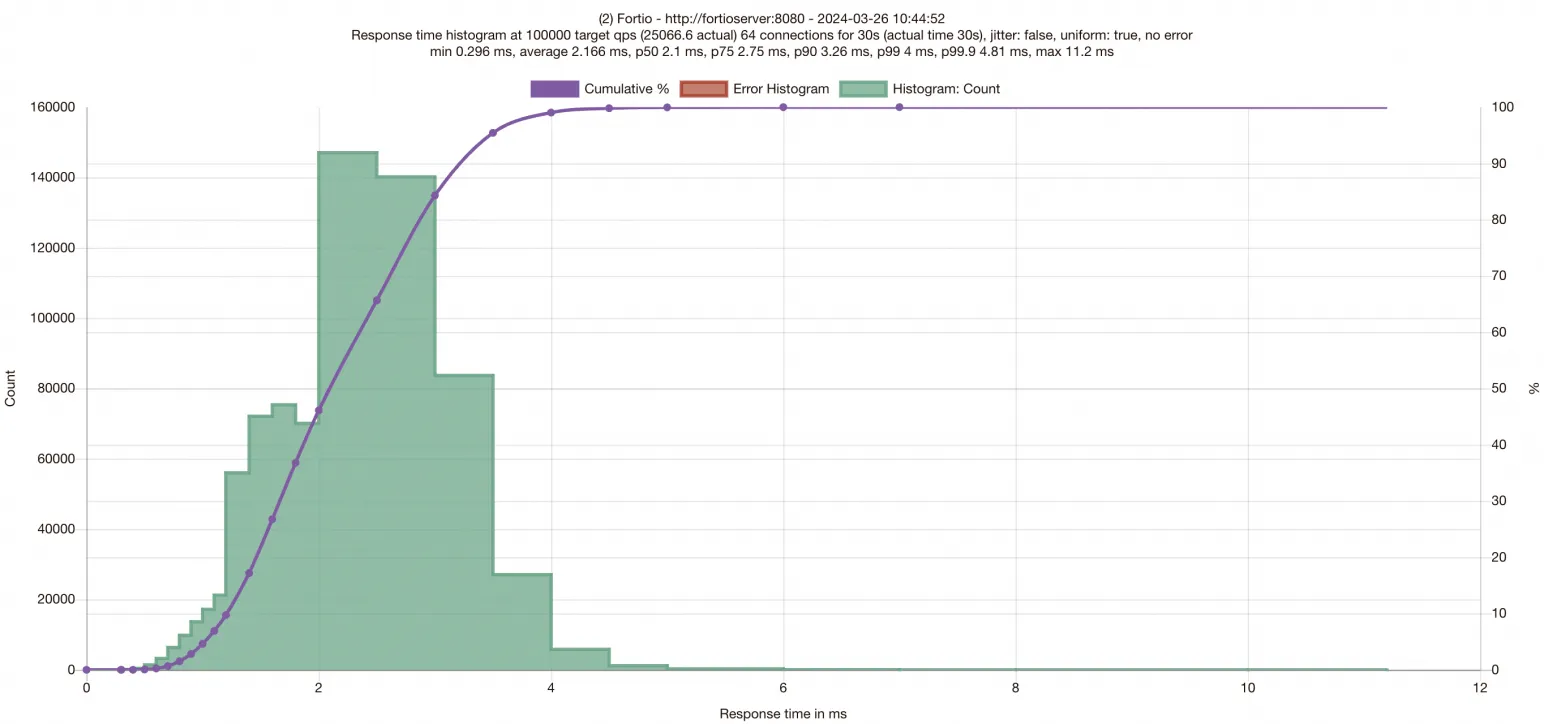
The test results chart displays request latency on the x-axis and the number of completed requests on the y-axis. The bar distribution shows the latency distribution, while the purple curve shows the number of requests completed within specific response time ranges. The chart also lists P50, P75, P90, P99, and P99.9 latency data. After obtaining this baseline data, you will enable SMC to measure the performance improvement from acceleration.
Step 4: Enable SMC acceleration
-
Use the kubeconfig of the service mesh to edit the mesh configuration. Add
smcEnabled: trueto enable the SMC acceleration feature.$ kubectl edit asmmeshconfig apiVersion: istio.alibabacloud.com/v1beta1 kind: ASMMeshConfig metadata: name: default spec: ambientConfiguration: redirectMode: "" waypoint: {} ztunnel: {} cniConfiguration: enabled: true repair: {} smcEnabled: true -
Use the kubeconfig of the ACK cluster to run the following commands to modify the
fortioserverandfortioclientDeployments and add an annotation to the pods.After you enable acceleration for the ASM instance, you must also enable it for the workloads. To do this, add the
smc.asm.alibabacloud.com/enabled: "true"annotation to the pods. You must enable acceleration for the workloads at both ends of the communication that you want to optimize.-
Edit the
fortioclientDeployment definition.$ kubectl edit deployment fortioclient apiVersion: apps/v1 kind: Deployment metadata: ...... name: fortioclient spec: ...... template: metadata: ...... annotations: smc.asm.alibabacloud.com/enabled: "true" -
Edit the
fortioserverDeployment definition.$ kubectl edit deployment fortioserver apiVersion: apps/v1 kind: Deployment metadata: ...... name: fortioserver spec: ...... template: metadata: ...... annotations: smc.asm.alibabacloud.com/enabled: "true"
-
Step 5: Run the accelerated test
Modifying the Deployment causes the workloads to restart. You must re-establish port forwarding for the fortioclient service as described in Step 3, and then run the test again. Wait for the test to complete and view the results.
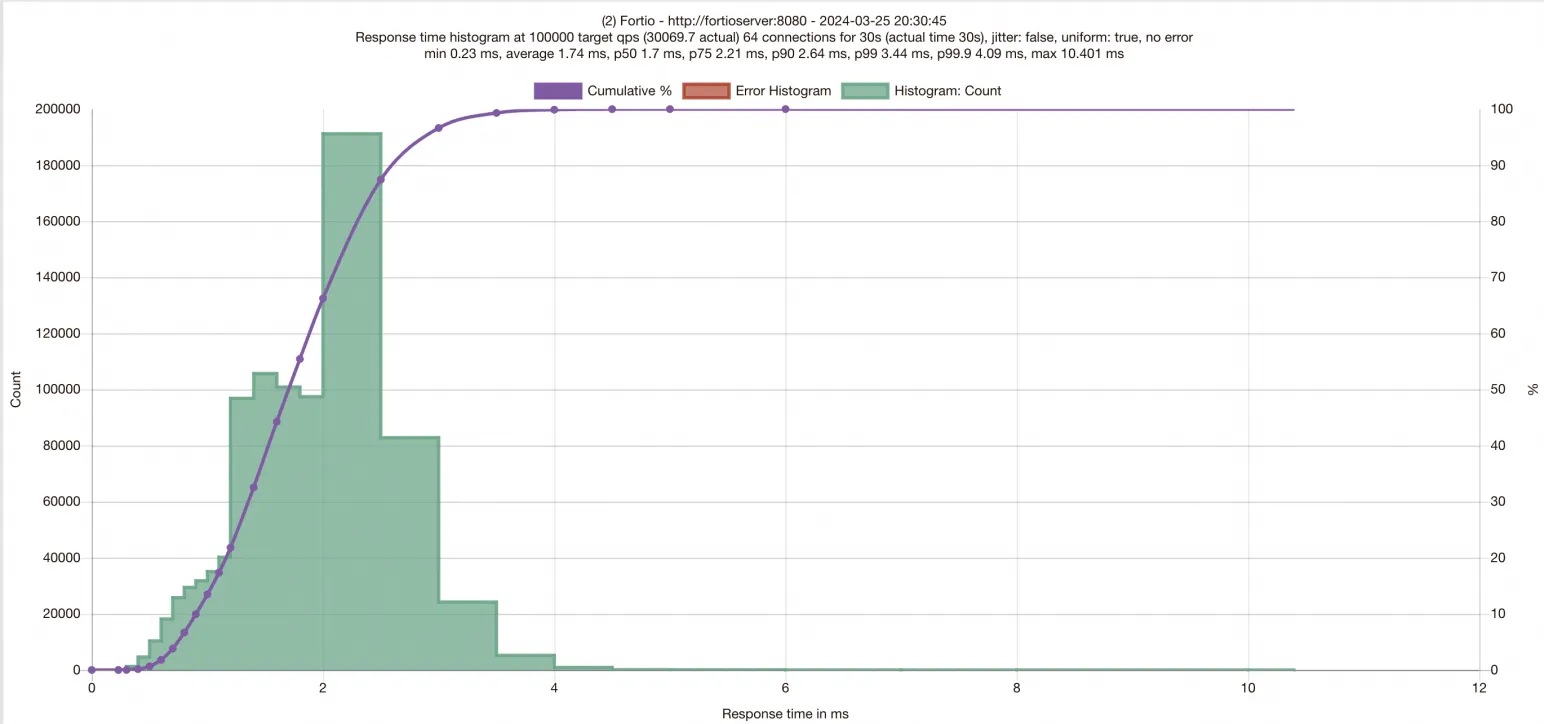
A comparison with the baseline data shows that enabling SMC acceleration in ASM decreases latency and significantly increases QPS.
FAQ
-
Why does accessing some database services hang and fail to establish a connection after I enable SMC?
This issue occurs because traffic to database services often passes through a load balancer. Some load balancer implementations do not strictly follow TCP option standards and incorrectly handle the TCP option of kind 254 specified in the SMC protocol. This causes connection failures and prevents access to the service.
To diagnose this issue, perform the following steps:
-
Install the
aliyun-smc-extensionstoolkit on the node:sudo yum install -y aliyun-smc-extensions -
Use
aliyunsmc-checkto check the communication link to the destination URL:aliyunsmc-check syn_check --url <url>The
aliyunsmc-checkcommand checks for TCP option replay, conflicts, and overlength issues on the access path to the destination URL. The following is an example of the output:The check results mean: PASS: pass the test or meet the requirement. SKIP: encounter some problems when running the check. FAIL: test failed or requirements are not met. XXXX: information, e.g. smcr_tcp2smc config, ipv6_disable config,. Check: syn_check Begin to run syn checks. Please make sure scapy have been installed(python3 -m pip install scapy). Name Result Desc result info ---------------------- -------------------- ---------------------------------------------------- ------------------------------------------- syn_option_replay PASS check whether smc option is replayed syn_option_conflict PASS check whether smc option kind is conflict syn_option_long PASS check whether syn options is overly long
If the check confirms non-standard handling of TCP options on the service access path, disable SMC acceleration for the pod that accesses this service.
-