The slow session tracing feature provides a performance waterfall chart that visualizes how static resources load on your page. This allows you to analyze detailed performance data and quickly identify performance bottlenecks.
Prerequisites
Reporting on static resource loading is triggered on page load and can generate significant data. To manage this volume, reporting is sampled by load time: full data is reported for loads exceeding 8 seconds, 5% is sampled for loads between 2 and 8 seconds, and none for loads under 2 seconds. If your application has stringent performance requirements, do not enable this configuration.
-
You have integrated Browser Monitoring. For more information, see Get started with Browser Monitoring.
-
Modify the SDK configuration.
By default, the ARMS Browser Monitoring SDK does not report static resource information. To use the slow session tracing feature, set sendResource to true in the SDK's
configsection.<script> !(function(c,b,d,a){c[a]||(c[a]={});c[a].config={pid:"atc889zkcf@8cc3f6354******",imgUrl:"https://arms-retcode.aliyuncs.com/r.png?",sendResource:true}; with(b)with(body)with(insertBefore(createElement("script"),firstChild))setAttribute("crossorigin","",src=d) })(window,document,"https://sdk.rum.aliyuncs.com/v1/bl.js","__bl"); </script> -
Redeploy your application.
After you redeploy the application, static resource information is reported when the page's
onloadevent is triggered. This allows you to use Browser Monitoring in ARMS to quickly identify slow page load issues.
Entry point
-
Log on to the ARMS console. In the left-side navigation pane, choose .
-
On the Browser Monitoring page, select a region in the top navigation bar and click the name of the application that you want to manage.
-
In the left-side navigation pane, choose .
Use case: identify performance bottlenecks
This section shows how to identify a page performance bottleneck.
-
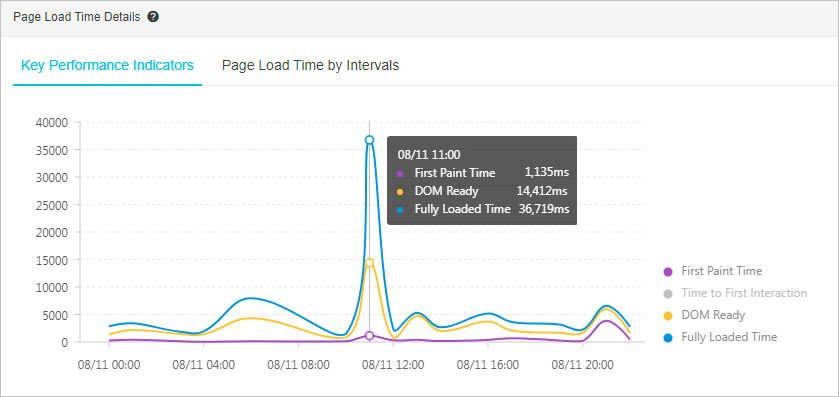
In the left-side navigation pane, choose . The chart shows a full page load time of 36.7 seconds at 11:00.
-
On the Access speed page, scroll down to the Slow Page Session Trace (TOP20) section. This section lists the 20 slowest sessions for the page within the specified time range.
To change the time range, click the time picker in the upper-right corner of the page and select a new range from the list.
A session at 11:36:46 shows a page load time of 36.72 seconds, identifying this access as the cause of the sudden increase in page load time.
-
In the Slow Page Session Trace (TOP20) section, click a page name in the Page column.
The Slow Loading Details page opens, displaying a performance waterfall chart of static resource loading that helps you quickly locate the performance bottleneck.
-
In the Page Information section at the top of the Slow Loading Details page, review the page URL, access time, full page load time, DOM parsing time, client IP address, browser, and operating system. Use this information to determine if the problem is caused by network issues or other factors and make targeted optimizations.
Alternative methods for identifying performance issues
In addition to the Access speed page, you can also use the Session Tracing page to find performance issues.
-
In the left-side navigation pane, click Session Tracing to open the Session Tracing page, which lists the application's sessions. You can also filter sessions by username, user ID, session ID, access IP, page URL, browser, browser version, network type, and region.
-
Click an ID in the Session ID column to open the Session Details page and view a summary and trace for the session. For more information, see Session Traces.
FAQ
-
Why is
Size0 in the resource loading waterfall chart?The
Sizedata is obtained from PerformanceResourceTiming.transferSize. The read-only transferSize property represents the size of the fetched resource in bytes. This property returns 0 if the resource is retrieved from the local cache or is a cross-origin resource.In the Chrome browser, press F12 to open the developer tools. If the Disable cache checkbox on the Network tab is not selected, the value of transferSize is 0.
Solution
Select the Disable cache checkbox. The value of
transferSizeis then reported correctly.▶ 1: PerformanceResourceTiming {initiatorType: "link", nextHopProtocol: "h2", workerStart: 0, …} ▶ 2: PerformanceResourceTiming {initiatorType: "link", nextHopProtocol: "h2", workerStart: 0, …} ▶ 3: PerformanceResourceTiming {initiatorType: "link", nextHopProtocol: "h2", workerStart: 0, …} ▼ 4: PerformanceResourceTiming connectEnd: 410.7099999964703 connectStart: 410.7099999964703 decodedBodySize: 232002 domainLookupEnd: 410.7099999964703 domainLookupStart: 410.7099999964703 duration: 195.52999999723397 encodedBodySize: 59637 entryType: "resource" fetchStart: 410.7099999964703 initiatorType: "script" name: "https://g.alicdn.com/cm-design/arms/1.2.81/scripts/arms/nls/messages_zh.js" nextHopProtocol: "h2" redirectEnd: 0 redirectStart: 0 requestStart: 514.6799999929499 responseEnd: 606.2399999937043 responseStart: 562.94999999227 secureConnectionStart: 410.7099999964703 ▶ serverTiming: [] startTime: 410.7099999964703 transferSize: 60043 workerStart: 0 ▶ __proto__: PerformanceResourceTiming transferSize: 60043 workerStart: 0 ▶ __proto__: PerformanceResourceTiming -
Why is
Time0 in the resource loading waterfall chart?The
Timedata is obtained from PerformanceResourceTiming.duration. When you view the static resource loading in the waterfall chart, the value ofTimeis 0 in some cases. This is because the request hits the cache and is controlled by a long-term cache policy that usesmax-age.Solution
In the Chrome browser, press F12 to open the developer tools. Select the Disable cache checkbox on the Network tab and refresh the page. The time consumed by network requests is then displayed.
-
Why are many returned time values 0?
You may notice that many time-related API values are 0. This happens because the same-origin policy sets timing information for cross-origin resources to 0. This primarily affects the following properties:
-
redirectStart
-
redirectEnd
-
domainLookupStart
-
domainLookupEnd
-
connectStart
-
connectEnd
-
secureConnectionStart
-
requestStart
-
responseStart
Solution
Add the
Timing-Allow-Originheader to the response header. For example:Timing-Allow-Origin: *. -
-
What time period does the API loading waterfall chart represent?
The API loading waterfall chart corresponds to the following time period:
-
Start time: the time when the page starts to load
-
End time: 1 minute after the full page load time
The API loading waterfall chart visualizes all API requests made during the page loading process.
-
-
Why does the duration in the API loading waterfall chart differ from the duration in the page resource loading waterfall chart?
The duration in the API loading waterfall chart might be slightly longer than in the page resource loading waterfall chart. This difference occurs because the values are calculated differently: the API chart measures from request-sent to response-received, while the page resource chart uses the browser's
performance.getEntriesByType('resource')API.This minor time difference does not affect your ability to identify performance bottlenecks.
-
What does the start time of the timeline in the API loading waterfall chart represent?
The start time of the timeline in the API waterfall chart is the difference between the time when an API request is initiated and the page's fetchStart time. This timeline shows the initiation point and duration of the API request during the page loading process.