This topic describes the features available on the Page Speed page of ARMS browser monitoring.
After you connect your application to ARMS browser monitoring, you can view its performance data on the Page Speed page:
You can manually report custom performance metrics, such as first paint time and time to interact. For more information, see SDK methods.
Procedure
-
Log on to the ARMS console. In the left-side navigation pane, choose .
-
On the Browser Monitoring page, select a region in the top navigation bar and click the name of the application that you want to manage.
In the left-side navigation pane, choose .
In the Page Speed Ranking section on the left side of the Page Speed page, you can sort pages by first paint time or page views. Click the up or down arrow to change the sort order.
Page load time details
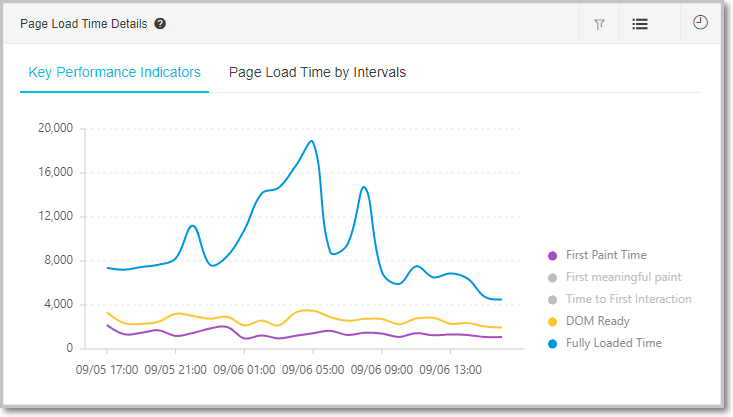
The line chart displays the average value of each metric within the specified time range. Averages reflect the mean performance over a period but can be skewed by outliers. For example, a single user session with a very slow page load due to a poor network connection can significantly inflate the average. To prevent outliers from skewing the overall performance trend, click the
 icon in the upper-right corner to filter them out.
If you notice a sudden spike in the data, use the performance distribution and slow page session trace modules to locate the problem.
Page load waterfall chart
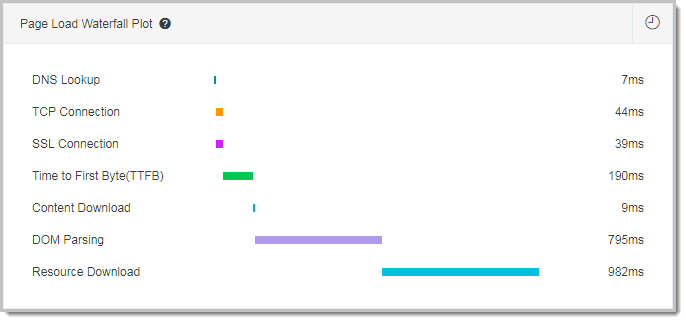
The page load waterfall chart visualizes the time spent in each stage of the page loading process. To optimize performance, apply targeted solutions to specific stages.
Performance distribution
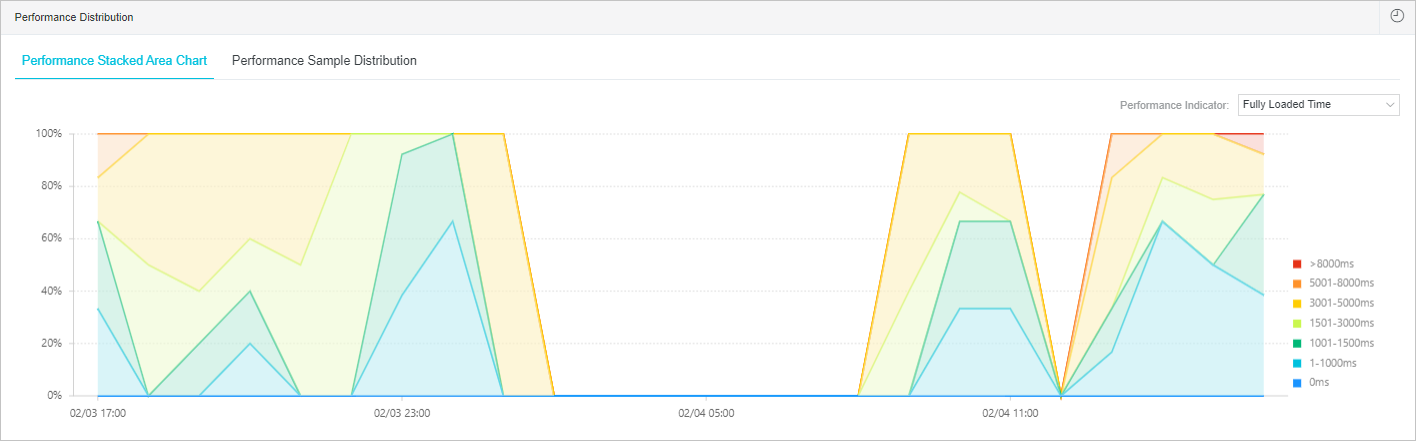
This module shows your page's performance distribution.
On the Performance Layer tab, the stacked area chart shows the performance distribution over time.
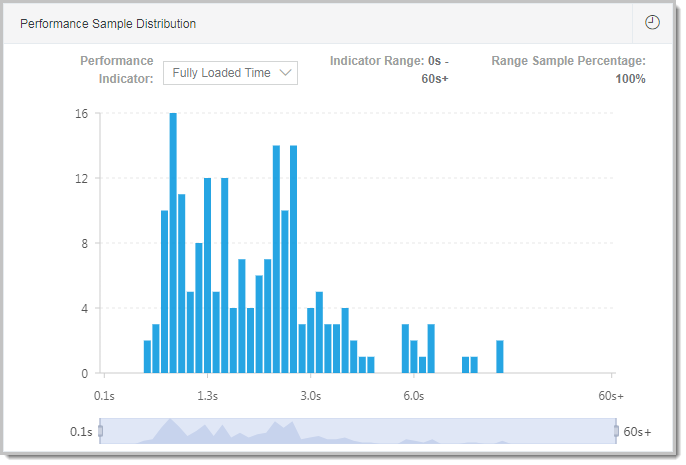
On the Performance Sample Distribution tab, you can view the distribution of page load times. For example, you can see the percentage of pages that load in under one second or identify the proportion of long-tail user samples.
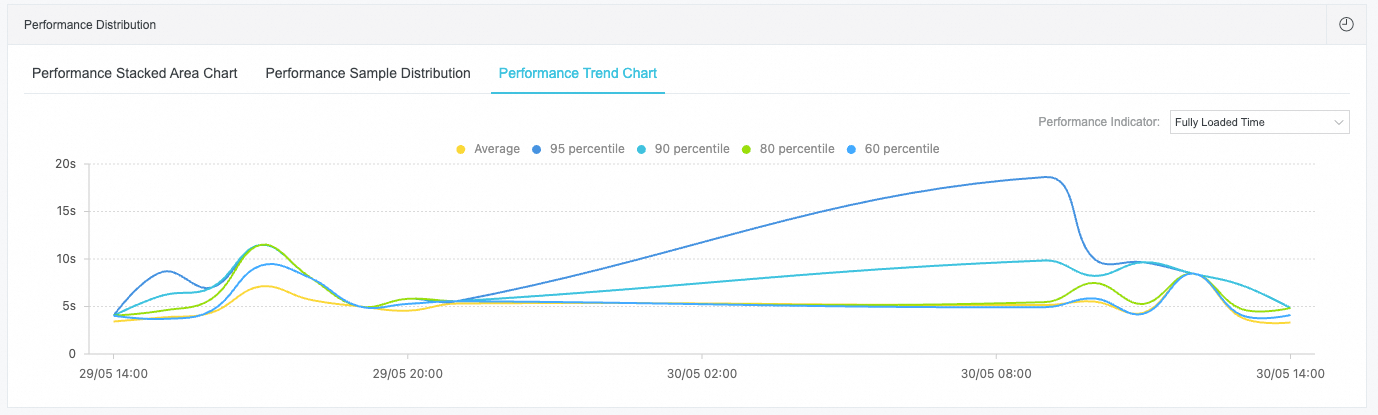
The Performance Trend tab shows trend charts for the mean, 95th, 90th, 80th, and 60th percentiles of performance metrics such as DNS lookup time, TCP connection time, and page load time.
Slow page session trace
The slow page session trace feature provides a performance waterfall chart for static resource loading during the page loading process. This helps you understand resource loading details and quickly identify performance bottlenecks based on page performance data. For more information, see session tracing.
The list of slow page session traces includes the following fields: Page, Session ID, Browser, Page Load Time, and Start Time.
Page load distribution
Page loading occurs in the user's browser and is affected by factors such as geographic location, network conditions, browser type, and carrier. ARMS browser monitoring provides statistics on geographic, device, network, and version distributions to help you identify performance bottlenecks.
Performance metrics
Web page performance metrics
These metrics capture the overall page load experience.
| Reported field | Type | Description | Formula | Remarks |
|---|---|---|---|---|
| FMP | number (ms) | First Meaningful Paint. The point at which the primary content is visible. | N/A | N/A |
| FPT | number (ms) | First Paint Time. Time from request initiation to the browser parsing the first batch of HTML. | responseEnd - fetchStart | N/A |
| TTI | number (ms) | Time to Interactive. Time from request initiation until the browser finishes parsing HTML, constructs the DOM, and starts loading resources. | domInteractive - fetchStart | N/A |
| Ready | number (ms) | DOM ready time. Time to fully load and parse HTML into the DOM. | domContentLoadEventEnd - fetchStart | If synchronous JS executes on the page, its execution time = Ready - TTI. |
| Load | number (ms) | Full page load time. | loadEventStart - fetchStart | Load = FPT + DOM + (Ready - TTI) + Res. |
| FirstByte | number (ms) | Time to receive the first data packet from the server. | responseStart - domainLookupStart | N/A |
| Reported field | Type | Description | Formula | Remarks |
|---|---|---|---|---|
| DNS | number (ms) | Time spent on DNS lookup. | domainLookupEnd - domainLookupStart | N/A |
| TCP | number (ms) | Time spent establishing a TCP connection. | connectEnd - connectStart | N/A |
| TTFB | number (ms) | Time to First Byte (TTFB). Time the server takes to respond after receiving the request. | responseStart - requestStart | For details on how ARMS calculates TTFB, see Google's TTFB definition. |
| Trans | number (ms) | Time spent transferring the response body. | responseEnd - responseStart | N/A |
| DOM | number (ms) | Time spent parsing the DOM. | domInteractive - responseEnd | N/A |
| Res | number (ms) | Time spent loading synchronous resources on the page. | loadEventStart - domContentLoadedEventEnd | N/A |
| SSL | number (ms) | Time spent on the TLS/SSL handshake. | connectEnd - secureConnectionStart | Only applies to HTTPS connections. |