When distributed applications experience slow responses or failures, isolating the root cause across dozens of services requires correlating spans, filtering by duration, and comparing traces at scale. Trace Explorer in Application Real-Time Monitoring Service (ARMS) provides real-time query and analysis of stored full trace data. Combine filter conditions and aggregation dimensions to pinpoint slow requests, diagnose failures, and surface common patterns across traces.
Prerequisites
Before you begin, make sure that you have:
An ARMS agent installed for the application
Application Monitoring provides a redesigned application details page for users on the new billing mode. If you have not switched to the new billing mode, click Switch to New Version on the Application List page to access the new interface.
Data initialization
When you first open Trace Explorer in a region where Application Observability has not been initialized, a notification appears at the top of the page. It reports that Application Observability is not yet enabled for the region and that the missing underlying resources affect the functionality of the page.
Click the initialization link in the notification to trigger automatic creation of the underlying storage resources that Trace Explorer requires.
Initialization is an asynchronous process. The notification remains visible while resources are being created, and disappears once creation is complete and the page loads normally. Regions where Application Observability has already been initialized do not display this notification.
Open Trace Explorer
Log on to the ARMS console. In the left-side navigation pane, choose Application Monitoring > Application List.
On the Application List page, select a region in the top navigation bar and click the application name.
NoteThe Language column indicates the language each application is written in:
 : Java
 : Go
: Go : Python
Hyphen (-): application monitored through Managed Service for OpenTelemetry.
In the top navigation bar, click Trace Explorer.
In the upper-right corner, select a time range.
Filter traces
Use any of the following methods to narrow down results:
Quick Filter: In the Quick Filter section, filter by status, duration, application name, span name, or host address. Selected conditions appear in the search box.
Search box: Click the search box to modify existing filter conditions or add new ones from the dropdown.
Query statement: Type a query directly in the search box. For syntax details, see Trace Explorer query syntax.
Click the
 icon next to the search box to save filter conditions.
Click Saved View to load previously saved filters.
Aggregate queried data by specific dimensions for deeper analysis.
Trace list
After you apply filters, Trace Explorer displays the results in several sections: a bar chart showing call counts and HTTP errors, a time series curve for call duration, and span and trace lists. Use the trace list to scan results and navigate to individual traces for deeper investigation.
Span status legends
Legend | Meaning | Source |
| Normal | Spans with |
| Error | Spans with |
| Exception | Spans where |


The bar chart in the upper section color-codes HTTP status codes: 2XX (green), 3XX (yellow), 4XX (orange), and 5XX (red). These codes come from the attributes.http.status_code or attributes.http.response.status_code field. If a span contains both fields, the HTTP status code takes precedence over the span state indicator.
Available actions
Click a trace ID or click Details in the Actions column to view trace details and topology. See Trace details.
Click Logs in the Actions column to view trace-related logs. See Log analysis.
Click the
 icon to expand all spans under a trace ID. By default, only root spans are displayed per trace ID.
Click the
 icon in the upper-right corner to show or hide list columns.
Hover over a trace and click the
 icon to add its parameter values as a filter condition.
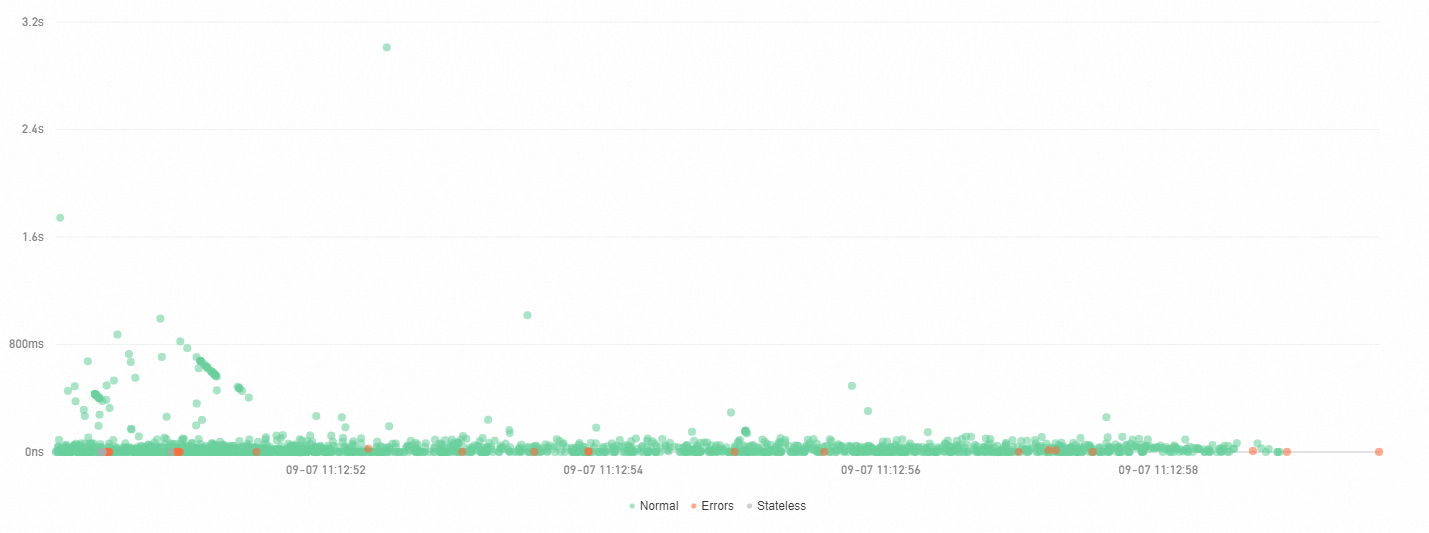
Scatter chart
The Scatter plot tab plots each trace as a point with time on the X axis and duration on the Y axis. Use this view to identify outlier traces with unusually high latency. Hover over a point to view basic trace information, or click it to open trace details. See Trace details.
Trace aggregation
While the trace list analyzes individual spans, trace aggregation reconstructs complete traces for a higher-level view. It queries up to 5,000 distributed traces based on your conditions, retrieves all corresponding spans by trace ID, and aggregates the results while preserving trace integrity. Use this view to understand how time and errors are distributed across your service call graph.
Aggregate queries run on trace data matching your conditions. Combining multiple conditions may increase calculation time.
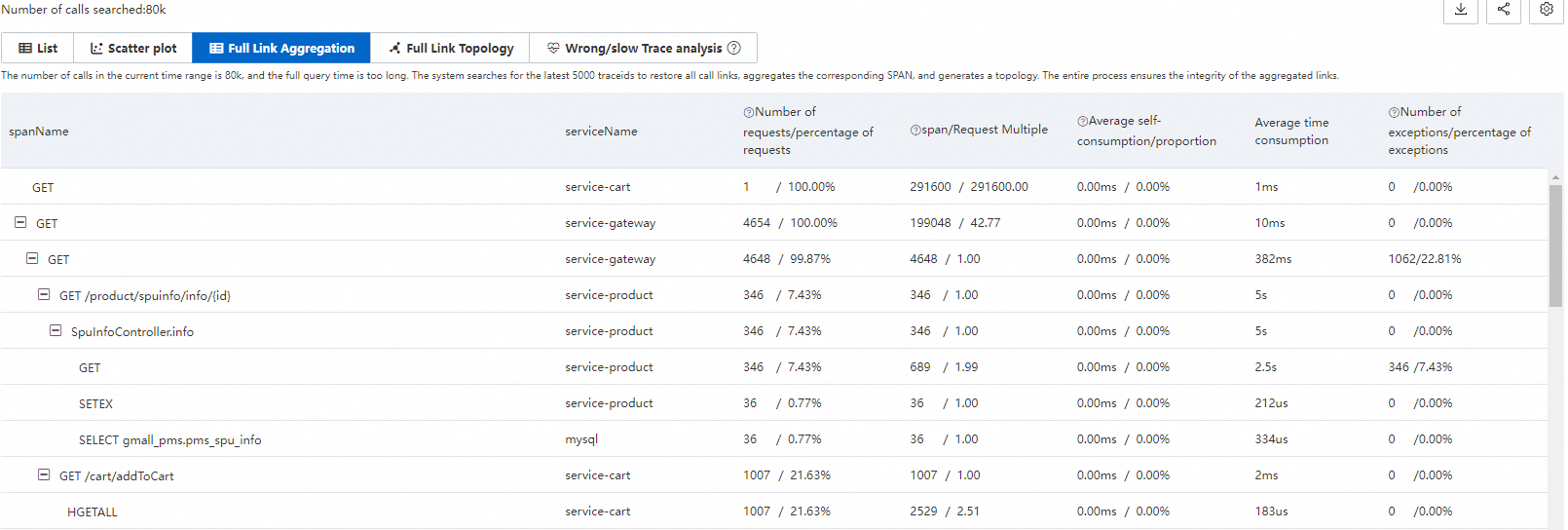
Aggregation parameters
Parameter | Description |
spanName | Name of the span. |
serviceName | Application associated with the span. |
Number of requests / percentage of requests | Percentage of total requests that call this span. Formula: requests calling this span / total requests x 100%. |
span / Request Multiple | Average number of times each request calls this span. Formula: total spans / total requests. |
Average self-consumption / proportion | Average duration of the span excluding its child spans. Formula: span duration - total child span durations. Important For asynchronous calls, child span durations are included. |
Average Duration | Average duration of the span. |
Number of exceptions / percentage of exceptions | Percentage of requests with exceptions. Formula: requests with exceptions / total requests. Important The number of requests with exceptions is not the same as the total exception count. If the request multiple exceeds 1, a single request may produce multiple exceptions. |
Aggregation example
Consider a trace where Span A calls Span B and Span C:
spanName | serviceName | Requests / percentage | span / Request Multiple | Average self-consumption / proportion | Average Duration | Exceptions / percentage |
A | demo | 10 / 100.00% | 10 / 1.00 | 5.00 ms / 25.00% | 20 ms | 2 / 20.00% |
- B | demo | 4 / 40.00% | 8 / 2.00 | 16.00 ms / 100.00% | 16 ms | 2 / 50.00% |
- C | demo | 1 / 10.00% | 1 / 1.00 | 4.00 ms / 100.00% | 4 ms | 1 / 100.00% |
How to read this table:
Request distribution: Span A has 10 requests (100%). Only 4 of those requests call Span B (40%), and only 1 calls Span C (10%). The remaining requests skip Span B and C due to conditional logic or exceptions.
Span frequency: Span A is called once per request (multiple = 1.00). Span B has 8 spans across 4 requests, so each request calls Span B twice on average (multiple = 2.00).
Self-time distribution: Span A's self-time is 5.00 ms (25% of the 20 ms average duration), meaning 75% of the time is spent in child spans. Span B and C show 100% self-time because they have no children.
Exception distribution: Span A has 2 exceptions across 10 requests (20%). Span B has 2 exceptions across 4 requests (50%). Because Span B's request multiple is 2.00, a likely distribution is: 2 of the 4 requests encounter an exception on the first call, with the second call succeeding.
To view details for a specific trace, hover over the span name (shown in blue) and click the recommended traceId.
Trace topology
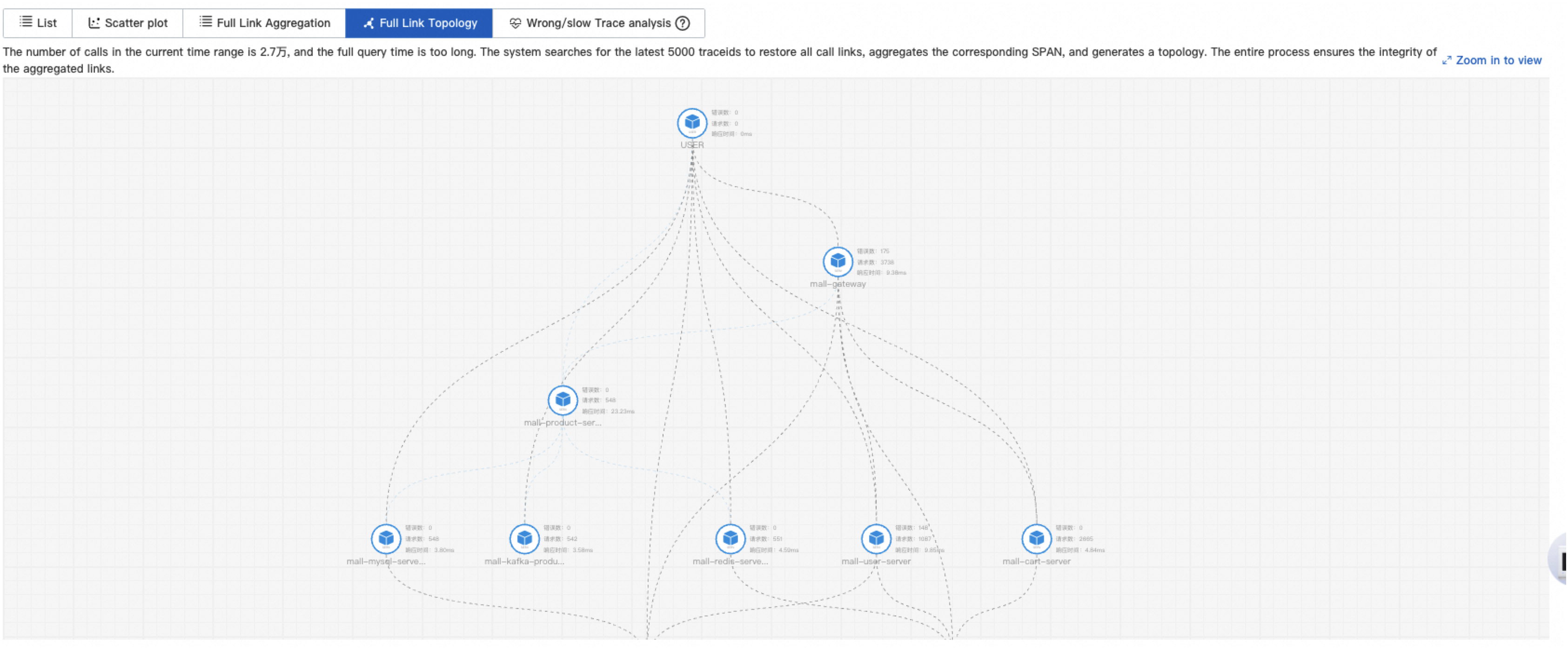
The Full Link Topology tab shows the inter-application call topology for aggregated traces. Use this view to visualize service dependencies and identify error-prone or slow links between applications. Each application node displays the request count, error count, and response time.
Analyze slow and failed traces
Trace Explorer surfaces common patterns across slow and failed traces to help locate root causes. Narrow your investigation by host, interface, or combined conditions such as serviceName="arms-demo" AND ip="192.168.1.1". This analysis also helps you identify slow interfaces for targeted optimization.
Slow trace analysis
ARMS analyzes the 1,000 longest-duration traces and surfaces the five dimensions most correlated with slowness.
Slow trace details
ARMS selects the 1,000 longest traces that exceed the configured threshold, samples 1,000 traces below the threshold, compares them, and identifies the three characteristics most correlated with slow calls.
Set the threshold based on your needs. For example, to find characteristics of traces exceeding 1 minute, set the threshold to 60000 milliseconds.
In the analysis results, IP 10.219.154.56 accounts for 21.8% of slow trace samples but only 10.2% of normal traces; spanName /eventCenter accounts for 71.9% of slow trace samples but only 64.5% of normal traces.
Failed trace analysis
ARMS randomly samples 1,000 failed traces and surfaces the five dimensions most correlated with failures.
Failed trace details
ARMS compares failed traces with normal traces and identifies the three characteristics most correlated with failures.
Trace details
The trace details view has four sections, labeled 1 through 4 in the following figure.

Component tags (1)
Tags represent call types and span counts. Call types are determined by the attributes.component.name field. Click a tag to show or hide its related spans.
Trace bar chart (2)
The horizontal bar chart provides a high-level overview of the trace and its span distribution. Use it to quickly identify where time is spent across the trace.
Each bar represents a span. Only spans with a duration exceeding 1% of the total trace duration are shown.
Colors distinguish different applications. In the preceding figure, blue represents the opentelemetry-demo-adservice application.
A black line within each bar represents self-time: the span's total duration minus time spent in child spans. For example, if Span A takes 10 ms and its child Span B takes 8 ms, Span A's self-time is 2 ms.
The timeline shows the full time range of the trace.
Focus and filter spans (3)
Each row represents a span with its parent-child hierarchy. Parent spans display a number indicating their child span count. Available operations:
Collapse/Expand: Click the
 icon to collapse or expand a span and its children.
Focus: Select a span and click the
 icon to display only that span and its downstream spans.
Defocus: Click the
 icon to exit focus mode.
Filter: Enter a span name, application name, or attribute in the search box to filter the trace down to matching spans and their path to the entry span. Clear the search box and click the Search icon to remove the filter.
Zoom: Click the
 icon to zoom in and hide the bar chart. Click the
  icon to restore it.
Span details (4)
The span details panel shows attributes, metrics, logs, and exception data for the selected span.
Additional Information: Displays span attributes, resources, details, and events, grouped by type. For field descriptions, see Trace Explorer parameters.
Metrics: Shows metrics related to the span.
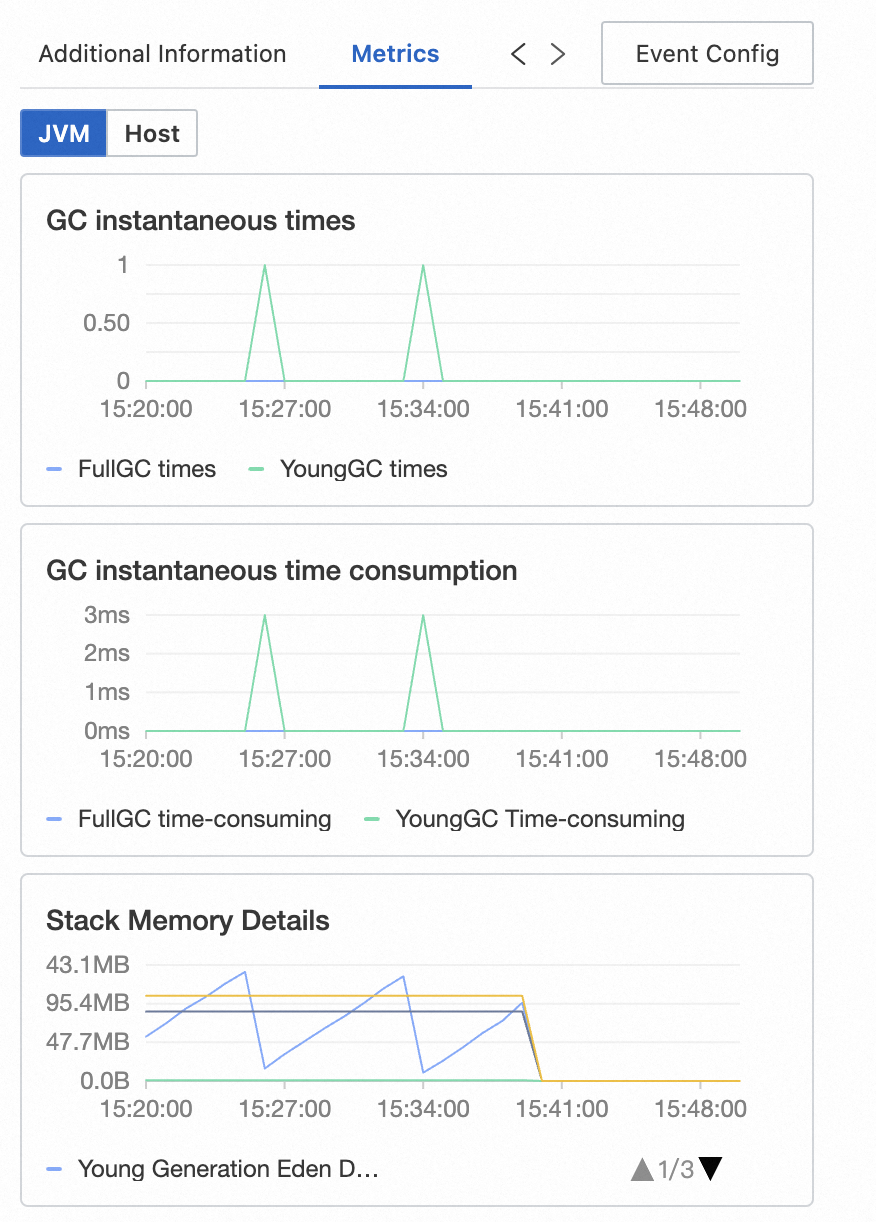
For Java applications monitored by ARMS: JVM and host metrics.
For traces from open source agents: RED Method metrics (rate, errors, duration).
Logs: Displays business logs linked to the trace. If a Simple Log Service (SLS) Logstore is configured for the application, query business logs by trace ID in the Logstore.
Exceptions: Shows exception information for the span, if any.
Event Config: Configure interaction events for one or more trace attributes to access additional trace details or related logs and metrics. See Configure a custom interaction event for a trace.
Access trace data programmatically
Trace data is stored in Simple Log Service (SLS). Access it programmatically for custom analysis:
SLS project:
proj-xtrace-<encode>-<region-id>(for example, if the region iscn-hangzhou)Logstore:
logstore-tracing
For data format details, see Trace Explorer parameters. For analysis examples, see Analyze trace data in real time.
FAQ
Why are SQL statements truncated in traces?
ARMS limits SQL statements to 1,024 characters by default. To increase this limit, go to the Custom Configurations tab of your application and change Maximum retention length for SQL collection in the Database call configuration section.
Database call configuration items in the Custom Configurations tab:
Slow SQL Threshold: Default 500 ms. SQL queries exceeding this threshold are marked as slow SQL.
Maximum Retention Length for SQL Collection: Default 1,024 characters. SQL statements exceeding this length are truncated.
Display Variable Binding Values in SQL: When enabled, captures PrepareStatement parameter binding values. Supported for MySQL only.
Display Constant Values in SQL: Enable to display constant values in SQL statements.
Record MySQL Query Return Value Size: Enable to record the size of MySQL query return values.
After configuring, click Save, or click Save and Batch Copy to Other Applications to sync the configuration to other applications.
Why do Nacos spans with 30-second durations appear after upgrading to ARMS agent V4.x?
ARMS agent 4.x instruments HTTP long polling requests that Nacos uses for configuration updates and service discovery. These spans are not captured in V3.x. For details, see ARMS agent V4.x upgrade announcement.
To exclude these spans, add a filter rule in the Interface call configuration section on the Custom Configurations tab of your application.
This feature requires ARMS agent V4.2.x or later.
In the Interface Call Configuration section on the Custom Configurations tab, enter the interface paths you want to exclude in the Invalid Interface Call Filter text box to suppress those spans. The section also includes Slow Call Threshold (default 500 ms), Exception Allowlist, HTTP Status Code Allowlist, and multiple metric recording toggles.