Arthas is a powerful tool for diagnosing production issues in Java applications. It uses bytecode instrumentation to allow you to inspect a program's runtime state without restarting the JVM process.
Prerequisites
-
Application Monitoring (ARMS) provides a new monitoring details page for users who have enabled the new billing plan. For more information, see Product Billing (New).
If you have not enabled the new billing plan and want to view the new monitoring details page, click Switch to New Version on the Application List page.
-
This feature currently supports only Java applications.
-
We recommend enabling the Arthas diagnostics feature only for troubleshooting and disabling it during routine use.
-
The ARMS agent version is v2.7.1.3 or later.
-
Your application is connected to Application Monitoring. For more information, see Application Monitoring overview.
-
The application must be written in Java.
Background information
The Arthas diagnostics feature provided by ARMS is mainly used to complement the real-time diagnostics capabilities of ARMS. The Arthas diagnostics feature of ARMS includes the following types:
-
JVM overview: View the real-time memory usage, system information, system variables, and environment variables for the current JVM process.
-
Thread duration analysis: View the CPU time consumed by threads in the current JVM process and the real-time method stack of a specific thread.
-
Method execution analysis: Capture a single execution record of any non-JDK method that meets specified conditions. This record includes the method's parameters, exceptions, return values, and the execution duration of internal methods.
-
Object viewer: View the real-time field values of any class instance.
-
Real-time dashboard: View real-time dashboards for common components. For example, the real-time dashboard for a Druid connection pool shows its configuration, usage, and SQL execution durations.
-
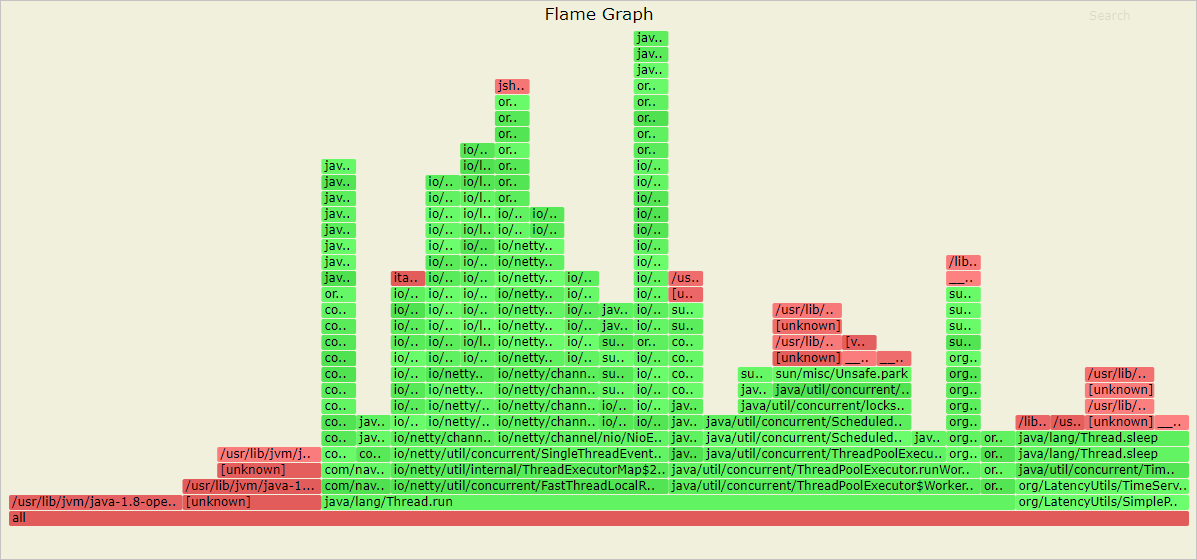
Performance analysis: Sample data such as CPU time and memory allocation over a period of time to generate corresponding flame graphs.
-
Arthas Shell: Use the command line to perform Arthas diagnostics.
Arthas version information
For ARMS agent versions from v2.7.1.3 to 4.6.x, the corresponding Arthas version is 3.5.6. For ARMS agent versions 4.7.x and later, the corresponding Arthas version is 4.1.0.
Enable Arthas diagnostics
-
Log on to the ARMS console. In the left-side navigation pane, choose .
-
On the Application List page, select a region at the top of the page and then click the name of the target application.
NoteThe icons in the Language column indicate the following:
 : a Java application connected to Application Monitoring.
 : a Go application connected to Application Monitoring.
 : a Python application connected to Application Monitoring.
-: an application connected to Managed Service for OpenTelemetry.
-
In the top navigation bar, choose .
-
In the Arthas Monitoring section, turn on the Arthas switch. You can also run diagnostics only on specific IP addresses by adding them to the configuration.
-
Click Save.
View Arthas diagnostics
-
Log on to the ARMS console. In the left-side navigation pane, choose .
-
On the Application List page, select a region at the top of the page and then click the name of the target application.
NoteThe icons in the Language column indicate the following:
: a Java application connected to Application Monitoring.: a Go application connected to Application Monitoring.: a Python application connected to Application Monitoring.-: an application connected to Managed Service for OpenTelemetry.
-
In the top navigation bar, choose .
-
At the top of the Arthas Diagnostics page, select an instance to diagnose from the drop-down list.
-
If the ARMS agent for the instance is not upgraded to v2.7.1.3 or later, the page prompts you to upgrade the agent first.
-
If the ARMS agent for the instance is upgraded to v2.7.1.3 or later, the page displays the Arthas diagnostic information for the instance.
-
JVM overview
The JVM overview feature provides a high-level view of your application's JVM status, including memory, operating system information, and variables.
The Arthas diagnostics page displays the JVM Overview tab by default. On the JVM Overview tab, you can view the following information:
-
JVM Memory: Information about JVM memory, including heap usage, non-heap usage, and GC status. The table displays the Used, Total, and Max memory for the heap, buffer_pool, and nonheap areas, as well as the Total Count and Total Time for each GC type.
-
Operating System Information: Information about the operating system, including average load, OS name, OS version, and Java version. The fields include systemLoadAverage, osVersion, javaVersion, processors, osName, javaHome, timestamp, and uptime.
-
Variable information: Information about variables, including system and environment variables. The page is divided into a System variables panel on the left and an Environment variables panel on the right, each with a search box to filter by keyword. Variables are displayed as key-value pairs.
Thread duration analysis
Thread duration analysis shows all threads of the application and lets you view thread stack information. This helps you quickly identify threads with high CPU usage.
-
On the Arthas Diagnostics page, click the Threading Time Analysis tab.
The Threading Time Analysis tab fetches the real-time CPU usage of threads in the current JVM process and groups similar threads. The top of the page shows the number of threads in each state (NEW, TERMINATED, RUNNABLE, BLOCKED, WAITING, TIMED_WAITING). The table below aggregates threads by Name, Total CPU, and Count. You can expand a group to view each thread's ID, CPU usage, State, and the View real-time stack action.
-
Click the + icon to the left of a thread group to expand its details. You can view the ID, CPU usage, and state of each thread.
-
To view the stack of a thread, click View Live Stack in the Actions column for that thread.
The Thread Details dialog box appears and shows the thread name, state (for example, RUNNABLE), and the complete Java stack.
Method execution analysis
Method execution analysis allows you to capture the duration, input parameters, and return values of a specific method execution, and to drill down into it. This helps you quickly locate the root cause of slow calls and is useful for scenarios where issues cannot be reproduced offline or logs are missing.
-
On the Arthas Diagnostics page, click the Method Execution Analysis tab.
-
On the Method Execution Analysis tab, enter a keyword for the class name in the search box and click the
 icon.
icon. -
From the search results, select the class you want to diagnose, choose a method from the drop-down list on the right, and click OK.
The page displays information from a randomly captured execution of the selected method by ARMS and .
-
The Execution Stack section on the left displays the internal execution record of the diagnosed method.
-
To drill down into an internal method, click Drill-down in the Actions column.
-
To view the method's source code, click View Source Code at the top of the Execution Stack section.
The execution duration of each internal method is displayed as a comment in the source code.
-
-
The Method Execution Result section on the right displays the parameter values, return value, exceptions, member variables, and the TraceID of this method execution.
-
In the Set Execution Conditions section on the right, follow these steps to set conditions for capturing method execution records:
-
Select an overloaded method of the current method.
-
From the Please select initial filter key drop-down list, select a key type and click the
 icon.
icon.Initial filter key types:
-
params[n]: The nth parameter of the method.
-
returnObj: The return value of the method.
-
Method execution duration: The execution time of the method.
-
Whether an exception is thrown: A condition based on whether the method threw an exception.
NoteIf the selected initial filter key is a nested type, you must continue selecting its internal fields until you reach a primitive type.
-
-
Select a comparison operator.
-
Enter a filter value.
-
Click Add.
The added filter condition appears in the Current Filter Condition section.
For example, select the overloaded method doGetDatas(ArmsCtx, String), set the current filter key to params[0].userId, select the operator =, enter the value 123, and click Add. The Current Filtering Conditions section shows the configured conditions, such as params.length = 2 and params[0].userId = 123.
-
Click the
 icon in the upper-right corner of the Execution Stack section. The system recaptures a method execution based on the set conditions.
-
-
Object viewer
Use the object viewer to inspect the state of singleton objects and troubleshoot issues with application configuration, allowlists, denylists, and member variables.
-
On the Arthas Diagnostics page, click the Object Viewer tab.
-
On the Object Viewer tab, enter a keyword for the class name in the search box and click the Search icon.
-
From the search results, select the class to diagnose. Then, from the instance list on the right, select an instance and click OK.
The page displays the real-time values of the fields in that instance. The page is divided into the Real-time Field Values of Object panel on the left (a table with Type, Field Name, and Details columns) and the Field Details panel on the right (which displays detailed JSON data for the selected field).
-
For simple type fields, the Details column in the Object field real-time value panel shows the field's value.
-
For complex type fields, click View Details in the Details column of the Object field real-time value panel to see the field's value details in the Field Details panel on the right.
The Field Details panel supports only one-level deserialization for complex fields. To view more specific data, click Click.
-
Real-time dashboard
Use the real-time dashboard to view the real-time status of key components in your system, such as database connection pools and HTTP connection pools. This helps you troubleshoot resource-related issues.
-
On the Arthas Diagnostics page, click the Live Kanban tab.
-
On the Live Kanban tab, select a dashboard from the drop-down list, choose an instance from the instance selection box on the right, and click Add to dashboard.
The page shows real-time data for the dashboard. For example, for a Druid connection pool, the status information includes basic configuration, pool status, and execution duration distribution. The basic configuration includes DbType and URL. The pool status includes metrics such as ActiveCount, PoolingCount, and MaxActive. The bar charts below show the connection holding time distribution and transaction execution duration distribution.
Performance analysis
Performance analysis samples data such as CPU time and memory allocation for a period of time and generates flame graphs. This helps you quickly identify application performance bottlenecks.
-
On the Arthas Diagnostics page, click the Performance Analytics tab.
-
Below the Performance Analytics tab, click Create flame map.
-
In the Create flame map dialog box, select a flame graph type, enter the sampling duration and remarks, and then click Confirm.
Parameter
Description
Example
Flame graph type
The type of object to sample. Valid values:
-
CPU time
-
Memory allocation
-
Lock time
-
itimer
CPU time
Sampling duration (in seconds)
The sampling duration. Valid values: 10 to 1800.
30
The task information for the created flame graph is displayed below the Performance Analytics tab, including the start time, sampling duration, remarks, flame graph type, and task status. After the task is complete, a View flame graph link is displayed in the Task Status column. You can click the link to view the generated flame graph.
-
-
Below the Performance Analytics tab, find the task record. In the Task Status column, click View flame chart. Follow the on-screen instructions to download the flame graph file in SVG format, and then open the file in a browser.
Arthas Shell
Use the command line to perform custom Arthas diagnostics.
At the top of the Arthas Shell page, you can select a Route and use the Connect or Disconnect button. After a successful connection, a green Connected status prompt is displayed. The black terminal interface below shows the Arthas command prompt, such as [arthas@9]$. You can enter Arthas commands in the terminal to perform diagnostic operations.
FAQ
No prompt or heartbeat after enabling Arthas
This issue can occur for the following two reasons:
-
Network connectivity issue.
Check the network connectivity. If connections to both the public and private application diagnostic ports (9092) fail, you must configure the security group to allow outbound access on port 9092 for the diagnostic and access endpoint domains in the corresponding region. For information about the required domain names, see Network configurations for Java application monitoring. The application diagnostic domain is the same as the trace metadata domain.
-
The application has a SkyWalking agent attached.
The Arthas agent integrated in ARMS is incompatible with the SkyWalking agent. You must either uninstall the SkyWalking agent or manually attach a later version of Arthas (3.7.0 or later).
Run the
cat ~/logs/arthas/arthas.logcommand. An exception that indicates an agent incompatibility is displayed at the end of the log.2023-09-11 09:09:47 [arthas-binding-thread] ERROR c.t.a.core.server.ArthasBootstrap -start channel client failure java.lang.ExceptionInInitializerError: null at com.alibaba.arthas.channel.proto.ArthasServiceGrpc$ArthasServiceStub.register(ArthasServiceGrpc.java:306) at com.alibaba.arthas.channel.client.ChannelClient.connect(ChannelClient.java:165) at com.alibaba.arthas.channel.client.ChannelClient.start(ChannelClient.java:111) at com.taobao.arthas.core.server.ArthasBootstrap.bind(ArthasBootstrap.java:478) at com.taobao.arthas.core.server.ArthasBootstrap.<init>(ArthasBootstrap.java:162) at com.taobao.arthas.core.server.ArthasBootstrap.getInstance(ArthasBootstrap.java:613) at com.taobao.arthas.core.server.ArthasBootstrap.getInstance(ArthasBootstrap.java:601) at sun.reflect.NativeMethodAccessorImpl.invoke0(Native Method) at sun.reflect.NativeMethodAccessorImpl.invoke(NativeMethodAccessorImpl.java:62) at sun.reflect.DelegatingMethodAccessorImpl.invoke(DelegatingMethodAccessorImpl.java:43) at java.lang.reflect.Method.invoke(Method.java:498) at com.taobao.arthas.agent334.AgentBootstrap.bind(AgentBootstrap.java:182) at com.taobao.arthas.agent334.AgentBootstrap.access$000(AgentBootstrap.java:20) at com.taobao.arthas.agent334.AgentBootstrap$1.run(AgentBootstrap.java:152) Caused by: java.lang.reflect.InvocationTargetException: null at sun.reflect.NativeMethodAccessorImpl.invoke0(Native Method) at sun.reflect.NativeMethodAccessorImpl.invoke(NativeMethodAccessorImpl.java:62) at sun.reflect.DelegatingMethodAccessorImpl.invoke(DelegatingMethodAccessorImpl.java:43) at java.lang.reflect.Method.invoke(Method.java:498) at io.grpc.stub.ClientCalls.<clinit>(ClientCalls.java:52) ... 14 common frames omitted Caused by: java.lang.reflect.InvocationTargetException: null at sun.reflect.NativeMethodAccessorImpl.invoke0(Native Method) at sun.reflect.NativeMethodAccessorImpl.invoke(NativeMethodAccessorImpl.java:62) at sun.reflect.DelegatingMethodAccessorImpl.invoke(DelegatingMethodAccessorImpl.java:43) at java.lang.reflect.Method.invoke(Method.java:498) at org.apache.skywalking.apm.dependencies.net.bytebuddy.dynamic.Nexus.initialize(Nexus.java:139) ... 19 common frames omitted Caused by: java.lang.NoClassDefFoundError: Lorg/apache/skywalking/apm/agent/core/plugin/interceptor/enhance/StaticMethodsInter; at java.lang.Class.getDeclaredFields0(Native Method) at java.lang.Class.privateGetDeclaredFields(Class.java:2583) at java.lang.Class.getDeclaredField(Class.java:2068) at org.apache.skywalking.apm.dependencies.net.bytebuddy.implementation.LoadedTypeInitializer$ForStaticField.onLoad(LoadedTypeInitializer.java:163) at org.apache.skywalking.apm.dependencies.net.bytebuddy.implementation.LoadedTypeInitializer$Compound.onLoad(LoadedTypeInitializer.java:233) at org.apache.skywalking.apm.dependencies.net.bytebuddy.agent.builder.AgentBuilder$InitializationStrategy$SelfInjection$Dispatcher$InjectingInitializer.onLoad(AgentBuilder.java:3655) ... 24 common frames omitted Caused by: java.lang.ClassNotFoundException: org.apache.skywalking.apm.agent.core.plugin.interceptor.enhance.StaticMethodsInter at java.net.URLClassLoader.findClass(URLClassLoader.java:382) at java.lang.ClassLoader.loadClass(ClassLoader.java:424) at com.taobao.arthas.agent.ArthasClassloader.loadClass(ArthasClassloader.java:34) at java.lang.ClassLoader.loadClass(ClassLoader.java:357) ... 30 common frames omitted
Command failure in method execution analysis
The loading animation in the Execution Stack section on the Method execution analysis page indicates that the system is waiting for the method to be invoked.
Method execution analysis captures the execution of the currently selected method in real time. If the method does not execute during the waiting period, the operation times out and this error occurs. You can click the Refresh icon to retry.
Incorrect survivor space size
The survivor space is divided into two equal parts: a "from" space and a "to" space. Arthas displays the size of only the "from" space.
Billing for Arthas diagnostics
No. There are no additional charges for this feature.
Connection refused when manually attaching Arthas
By default, Arthas uses port 3658 to accept new client connections. To prevent port conflicts when multiple processes on the same host attach Arthas, the ARMS-integrated Arthas uses a random port. This can cause attachment failures. If this issue occurs, you must disable the Arthas feature in the ARMS console before you manually attach Arthas.
"Arthas server already bind" error
If an open-source Arthas instance was previously attached to the application, the ARMS-integrated Arthas cannot be enabled. You must first remove the open-source Arthas, and then enable the ARMS-integrated Arthas.