The AnalyticDB for MySQL SQL diagnostics feature collects statistics on SQL queries at the query, stage, and operator levels. Based on these statistics, the feature provides diagnostics and optimization suggestions. This topic explains how to view a query's properties and diagnostic results at each level in the AnalyticDB for MySQL console.
Usage notes
Clusters in the Germany (Frankfurt), UK (London), US (Silicon Valley), and US (Virginia) regions do not support sql diagnostics.
Query properties
-
Navigate to the SQL Diagnostics and Optimization tab. For details, see Access the SQL diagnostics feature.
-
In the upper-right corner of the SQL Diagnostics and Optimization tab, select your desired filter criteria. For example, you can retrieve the Top 100 Most Time-consuming Queries SQL queries within the Last 5 Minutes.
-
In the resulting charts, use one of the following methods to open the query details page:
-
Method 1
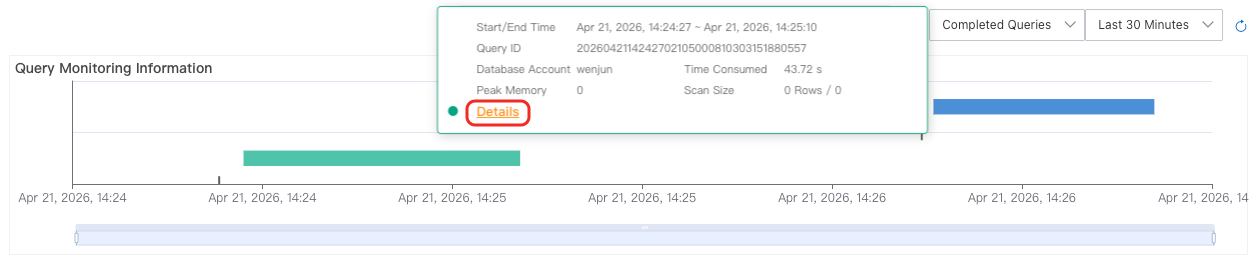
In the trend chart of the Query Monitoring Information section, each colored block represents an SQL query. Hover over a block to view information about the query, such as its start and end times. Click Details to open the query's details page.
-
Method 2
On the SQL Queries tab, find the desired query and click Diagnose in the Actions column to open its details page.

-
-
In the Query Properties section of the query details page, you can view the query's execution metrics, such as Scanned Data, Returned Data, and Peak Memory.
In the upper-right corner of the page, click Back to return to the previous page to view other queries.

Diagnostic results
-
Follow the steps in Query properties to navigate to the query details page.
-
On the query details page, click the Execution Plan tab to view the query's execution plan tree. You can use this tree to view query-level, stage-level, and operator-level diagnostic results:
-
Query-level diagnostic results
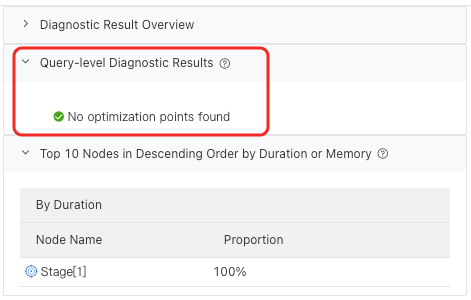
On the right side of the execution plan tree, click Query-level Diagnostic Results to view the details. For more information about query-level diagnostic results, see Query-level diagnostic results.
-
Stage-level diagnostic results
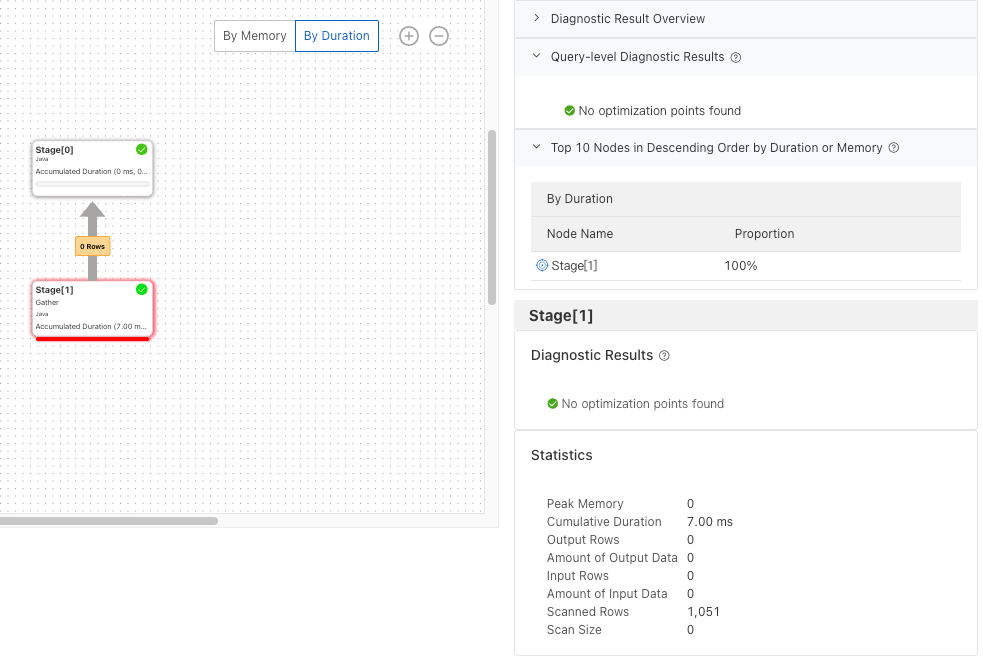
In the execution plan tree, click a stage, such as Stage[2], to view its details in the Diagnostic Results section on the right. For more information about stage-level diagnostic results, see Stage-level diagnostic results.
-
Operator-level diagnostic results
-
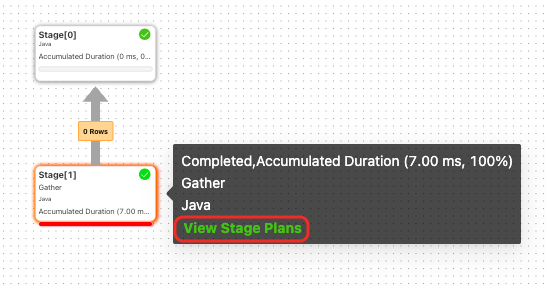
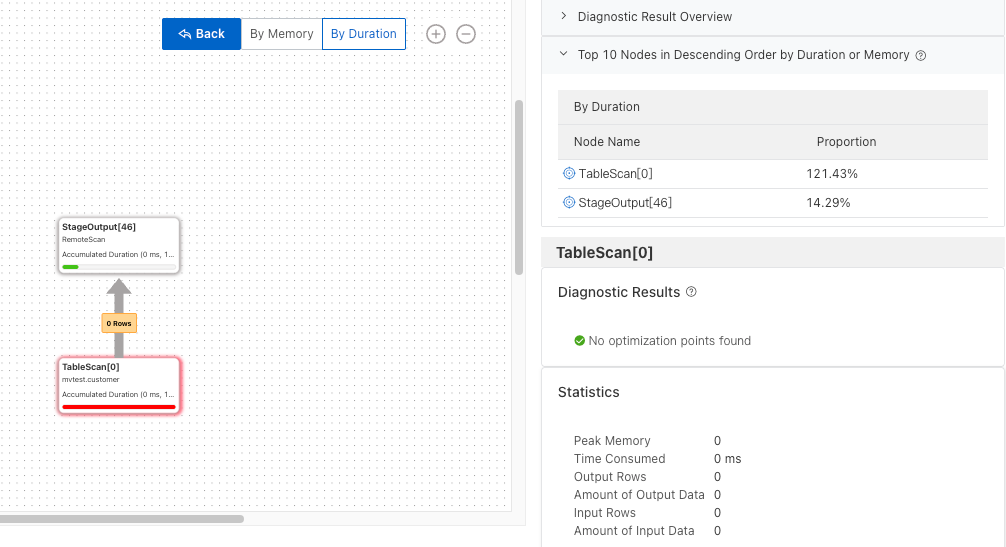
Hover over a stage and click View Stage Plans in the displayed tooltip to open the stage's plan details page.
-
On the stage plan details page, click an operator in the execution plan tree, such as TableScan[3], to view its details in the Diagnostic Results section on the right. For more information, see Operator-level diagnostic results.
-
-