The SQL diagnostics feature in AnalyticDB for MySQL visualizes the execution plan for a SQL query as a tree diagram. An execution plan tree consists of two layers: the stage layer and the operator layer. This topic describes how to use execution plan trees at both the stage and operator layers to analyze query performance.
Stage layer execution plan tree
The stage layer execution plan tree consists of multiple stage nodes, with data flowing from the bottom up. The process begins with stages that contain scan operators to scan the data. The data is then processed through intermediate stages before the root node at the top returns the query results to the client.
The stage layer execution plan tree provides the following information:
-
Basic information
Each rectangle in the diagram represents a stage. It contains information such as the stage ID, data output type, and duration or memory. Memory usage is displayed when you sort the plan by selecting By Memory.
NoteA red warning icon on a stage in the execution plan tree indicates that the stage can potentially be optimized.
-
Output rows
The number on the line connecting two adjacent stages represents the number of rows that the upstream stage outputs to the downstream stage. The more rows are output, the thicker the connecting line.
-
Data output method
This is the method used to transfer data between upstream and downstream stages. AnalyticDB for MySQL supports the following data output methods.
Output method
Description
Broadcast
Copies data from each compute node in an upstream stage to all compute nodes in the downstream stage.
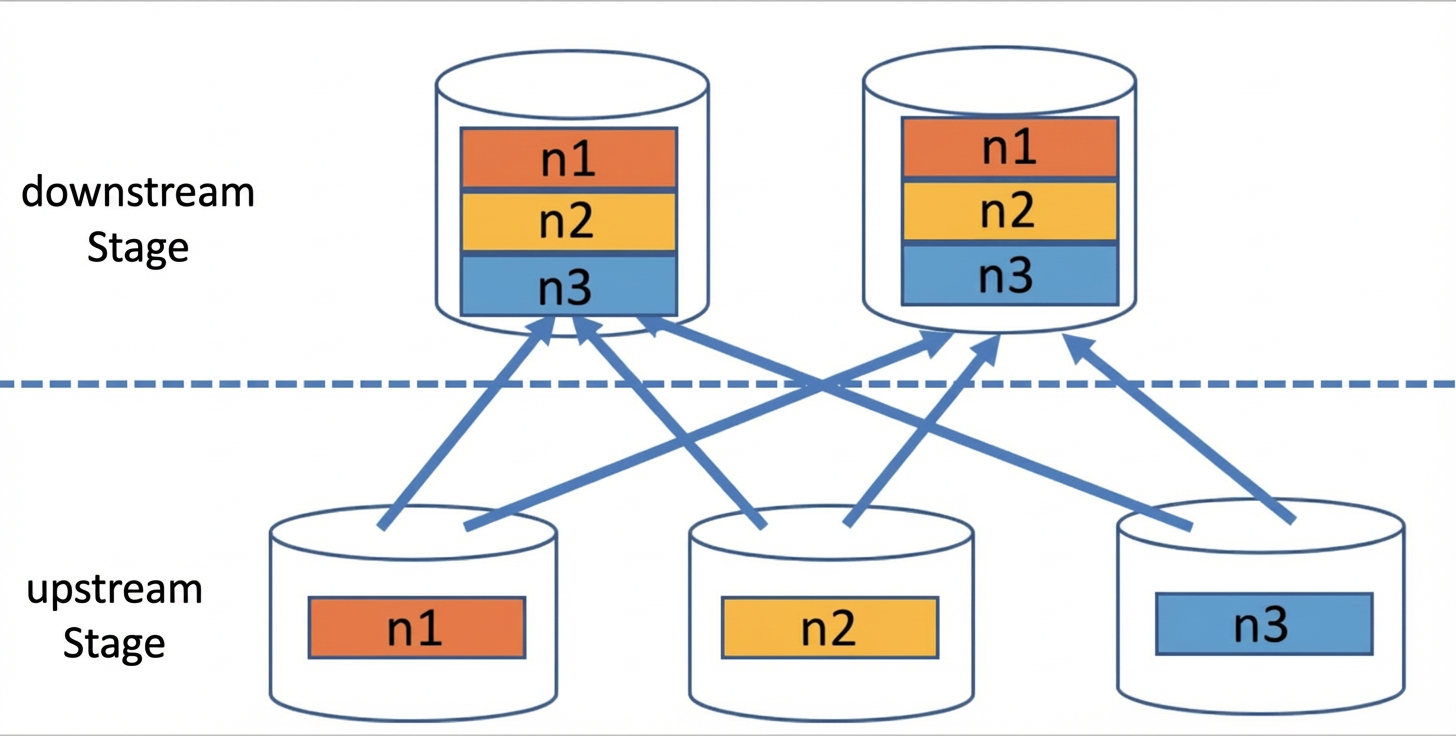
Repartition
Partitions data from each compute node in an upstream stage based on specific rules and then distributes it to the specified compute nodes in the downstream stage.
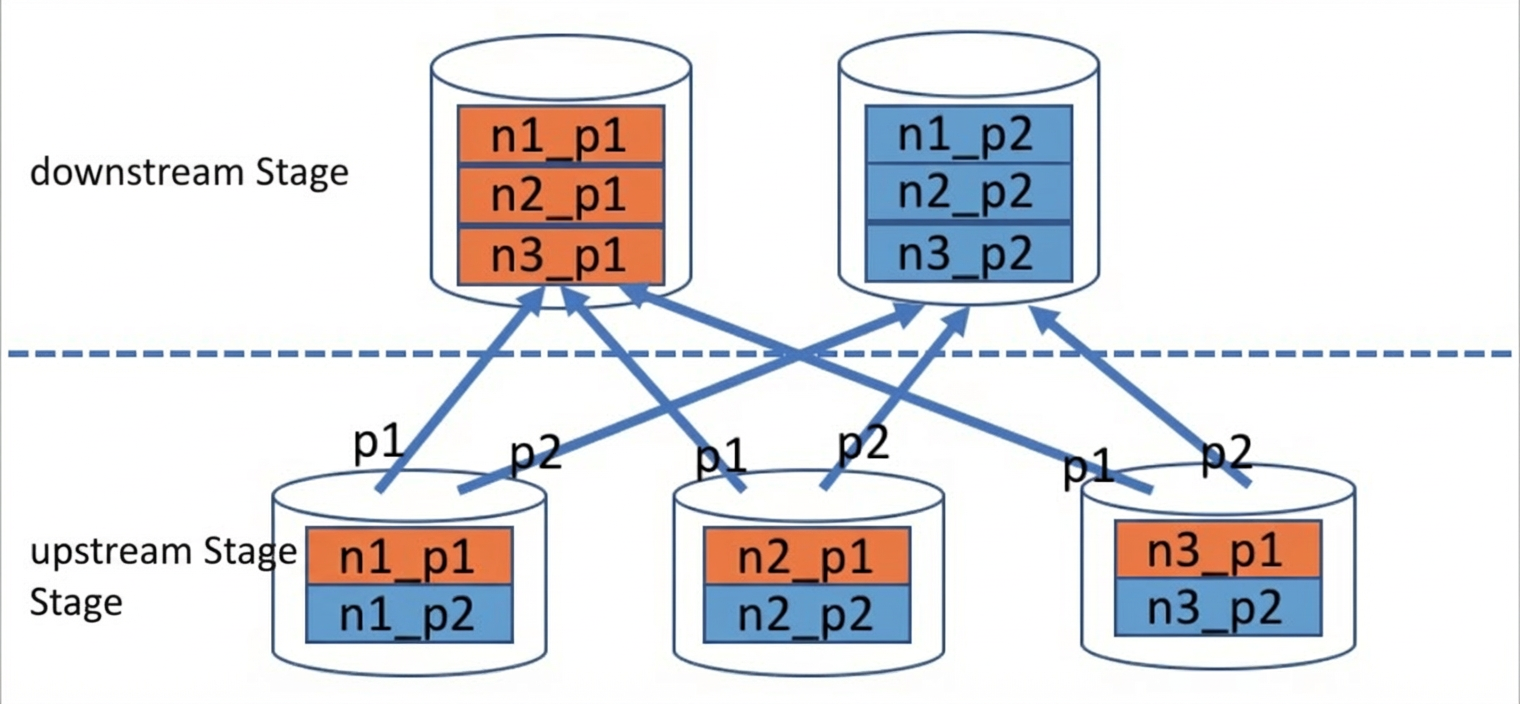
Gather
Sends data from each compute node in an upstream stage to a single, specific compute node in the downstream stage.
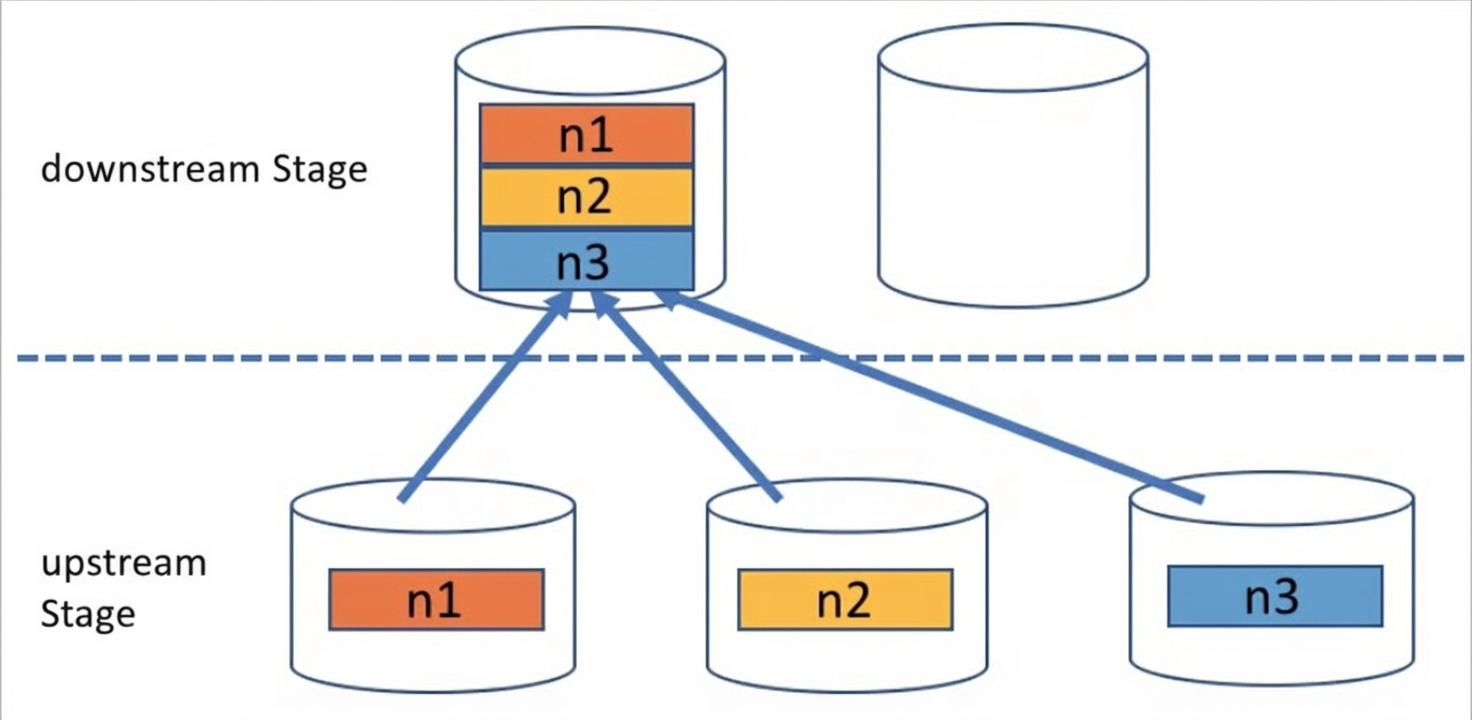
-
Top 10 stages by memory usage or execution duration
The Top 10 Nodes in Descending Order by Duration or Memory tab on the right side of the execution plan tree lists the IDs and corresponding percentages for the top 10 stages that account for the largest proportion of the total query duration or total memory usage.
Note-
By default, stages are sorted By Duration. You can also select By Memory in the upper-right corner of the execution plan tree.
-
The Top 10 Nodes in Descending Order by Duration or Memory tab does not display stages whose memory usage or execution duration accounts for less than 1% of the total.
-
Due to differences in statistical methods, the sum of duration or memory percentages for all stages in a query may not equal 100%.
-
-
Diagnostic Results
Click a stage, such as Stage[1], in the execution plan tree to view its details in the Diagnostic Results pane on the right. This includes two types of diagnostics:
-
Stage diagnostics: Provides a detailed description of the diagnostic results for the target stage, including identified issues such as large-volume data broadcast or data skew, and corresponding optimization recommendations.
-
Operator diagnostics: Shows only the names of problematic operators within the current stage and a brief overview of the issues. For detailed descriptions and optimization solutions, view the operator layer execution plan tree. For more information, see Operator layer execution plan tree.
For more information about the diagnostic results for a stage, see Stage-level diagnostic results.
-
-
Statistics
Below the Diagnostic Results pane, the Statistics section displays metrics for the target stage.
Metric
Description
Peak Memory
The peak memory consumed by the stage. The system automatically selects the unit (Bytes, KB, MB, GB, or TB) based on the actual memory consumption.
Cumulative Duration
The sum of the execution times of all operators within the stage, aggregated across all compute nodes and threads. The system automatically selects the unit (ms, s, m, or h) based on the actual duration.
NoteThis cumulative duration cannot be directly compared with the total query duration.
Output Rows
The number of rows output by the stage.
Amount of Output Data
The size of data output by the stage. The system automatically selects the unit (Bytes, KB, MB, GB, or TB) based on the actual data size.
Input Rows
The number of rows input to the stage.
Amount of Input Data
The size of data input to the stage. The system automatically selects the unit (Bytes, KB, MB, GB, or TB) based on the actual data size.
Scanned Rows
The number of rows scanned by the stage.
NoteThis metric is available only if the stage contains a scan operator.
Scan Size
The size of data scanned by the stage. The system automatically selects the unit (Bytes, KB, MB, GB, or TB) based on the actual data size.
NoteThis metric is available only if the stage contains a scan operator.
Operator layer execution plan tree
The operator layer execution plan consists of multiple operators. Each rectangle in the diagram represents an operator, and data flows from the bottom up. The process begins with operators at the bottom of the tree, such as TableScan and RemoteSource, which scan data or receive it from the network. The data then passes through intermediate operators. Finally, a root operator, such as StageOutput or Output, at the top sends the data to a downstream stage or returns the final query result to the client.
To view the operator layer execution plan tree, hover over a stage and click View Stage Plans in the pop-up box to go to the plan details page for that stage.
The operator layer execution plan tree provides the following information:
A red warning icon on an operator in the execution plan tree indicates that the operator can potentially be optimized.
-
Basic information
Each rectangle in the diagram represents an operator. It contains the operator name and ID, operator properties such as the join conditions and algorithm for a
Joinoperator, and the duration or memory. Memory usage is displayed when you sort the plan by selecting By Memory. -
Output rows
The number on the line connecting two adjacent operators represents the number of rows that the upstream operator outputs to the downstream operator. The more rows are output, the thicker the connecting line.
-
Top 10 operators by memory usage or execution duration
The Top 10 Nodes in Descending Order by Duration or Memory tab to the right of the execution plan tree displays the IDs and corresponding ratios of the top 10 operators that account for the largest percentage of the total query duration or total memory usage.
Note-
By default, operators are sorted By Duration. You can also select By Memory in the upper-right corner of the execution plan tree.
-
The Top 10 Nodes in Descending Order by Duration or Memory tab does not display operators whose memory usage or execution duration accounts for less than 1% of the total.
-
Due to differences in statistical methods, the sum of duration or memory percentages for all operators in a stage may not equal 100%.
-
-
Diagnostic Results
Click an operator, such as Join[36148], in the execution plan tree to view its details in the Diagnostic Results pane on the right. The details include identified issues, such as data explosion or an oversized right table in a
join, and corresponding optimization recommendations. For more information about operator diagnostics, see Operator-level diagnostic results. -
Statistics
Below the Diagnostic Results pane, the Statistics section displays metrics for the target operator.
Metric
Description
Peak Memory
The peak memory the operator consumed. The system automatically selects the unit (Bytes, KB, MB, GB, or TB) based on the actual memory consumption.
Time Consumed
The average duration of the operator at a given concurrency level. The system automatically selects the unit (ms, s, m, or h) based on the actual duration.
NoteThis duration can be compared with the total query duration.
Output Rows
The number of rows the operator output.
Amount of Output Data
The size of data the operator output. The system automatically selects the unit (Bytes, KB, MB, GB, or TB) based on the actual data size.
Input Rows
The number of rows input to the operator.
Amount of Input Data
The size of data input to the operator. The system automatically selects the unit (Bytes, KB, MB, GB, or TB) based on the actual data size.
Builder Statistics
Includes information about the builder, such as its type, peak memory, duration, input/output rows, and data volume. The following builder types are available:
-
HashBuilder: Used to build a hash table for hash join computations. -
SetBuilder: Used to build a set structure for semi-join computations. -
NestLoopBuilder: Used to perform nested-loop join computations.
NoteThis metric is available only for join operators.
Properties
The properties vary depending on the operator type. For example, the properties of a join operator include the join type and method. For more information, see Operators.
-