Description
Normal email is saved in the spam box after receiving.
Causes of Problems
1. The email was moved by user or the rules set by admin.
2. If the email received by the Alibaba Mail is determined by the system to have the attribute of spam, the email will be automatically stored in the spam box.
Solution
You can use one of the following methods to receive emails to avoid normal emails being stored in the spam box. Select the following corresponding steps based on the actual issue:
1. Check the blacklist set by employee account and admin account, and the email filter rule set in the domain management page. If there is a special rule causing the block, please remove the rule.
Employee account:
How to Create Receiving Rules in Alibaba Mail?
How to Add the Blacklist of Alibaba Mail?
Postmaster account:
How to Add or Delete the Blacklist?
2. Webmail Settings
Add senders to the whitelist
We recommend that you use this method. You only need to add the email address of the sender to the whitelist. This prevents the sender's emails from being stored in the spam box. This does not increase the probability of receiving spam emails.
Reduce the anti-spam level
If the anti-spam level of the email account is low, it may increase the probability that corporate emails receive spam. Please use this option with caution.
Add Sender to The Whitelist
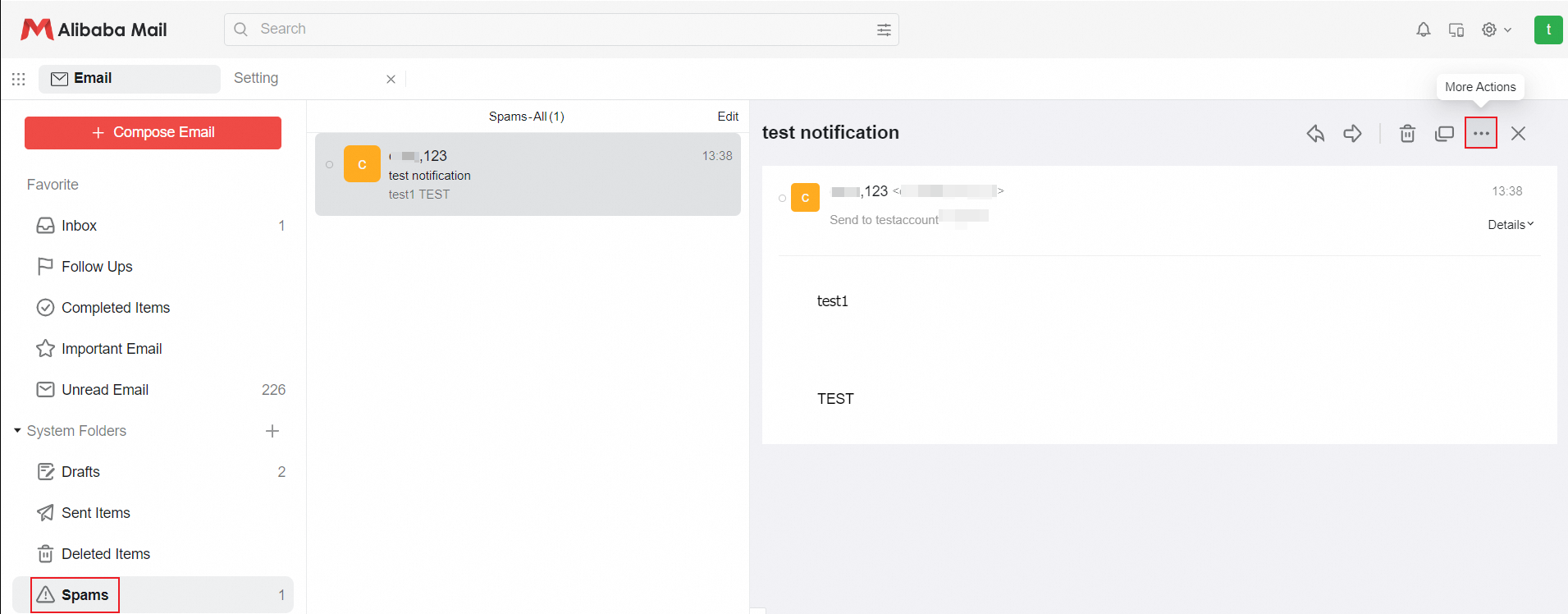
1. Log on to the Webmail, click the related email under the Spams folder, and then click More Actions.
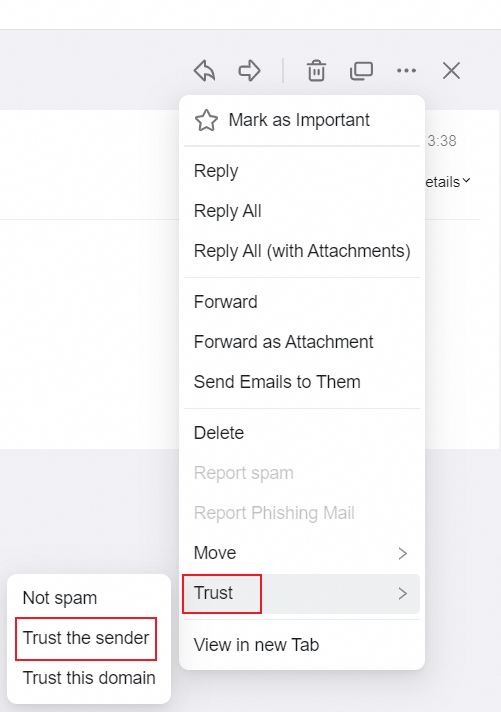
2. Click Trust > Trust the sender.
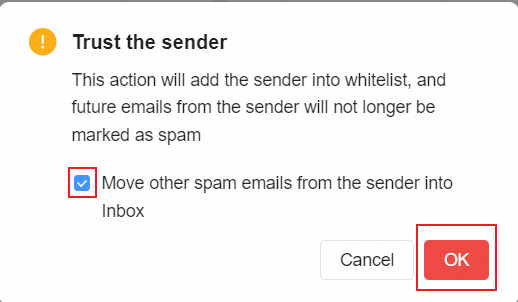
3. It will prompt that This action will add the sender into whitelist, and future emails from the sender will no longer be marked as spam. You may select Move other spam emails from the sender into Inbox as well and click OK.
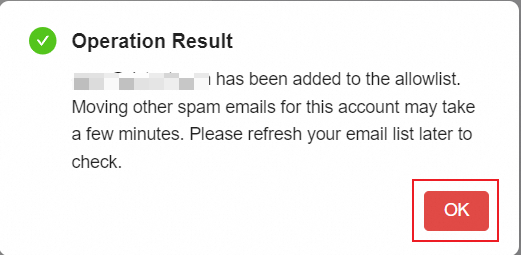
4. Then the Operation Result will show and inform you that this sender has been added to the whitelist, meanwhile the current email has been moved to the inbox.
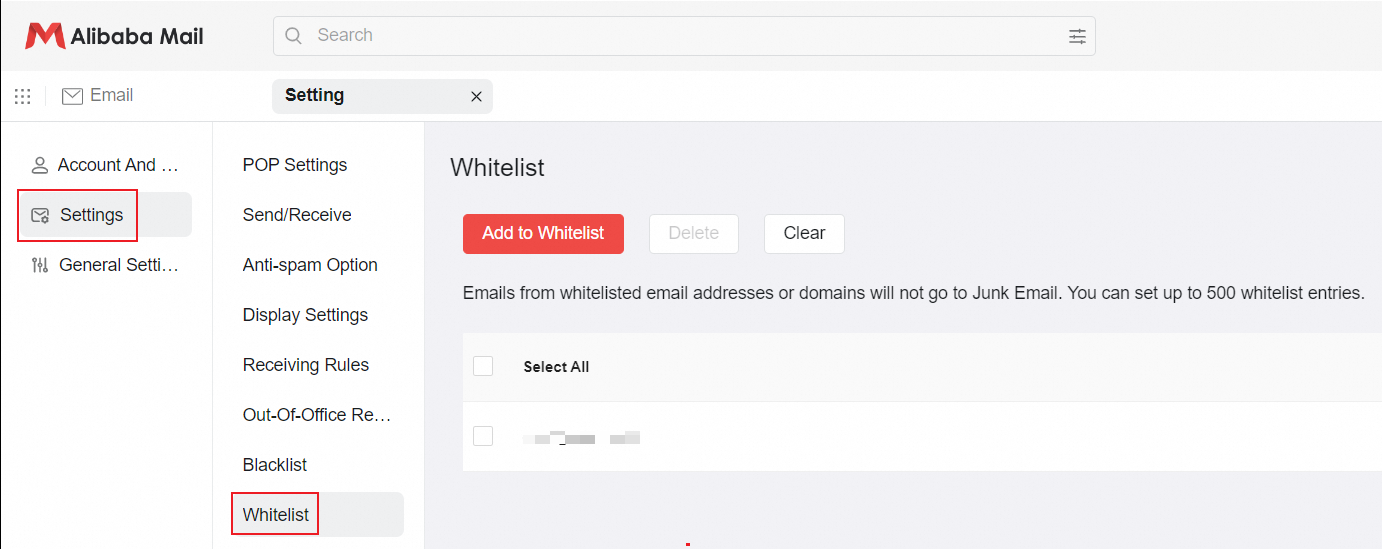
5. Go to the Settings page, and you can see this sender in Whitelist now.
Reduce the Anti-spam Level
If the Anti-spam level of the account is low, the probability of enterprise emails receiving spam may be increased. Therefore, please use this option with caution.
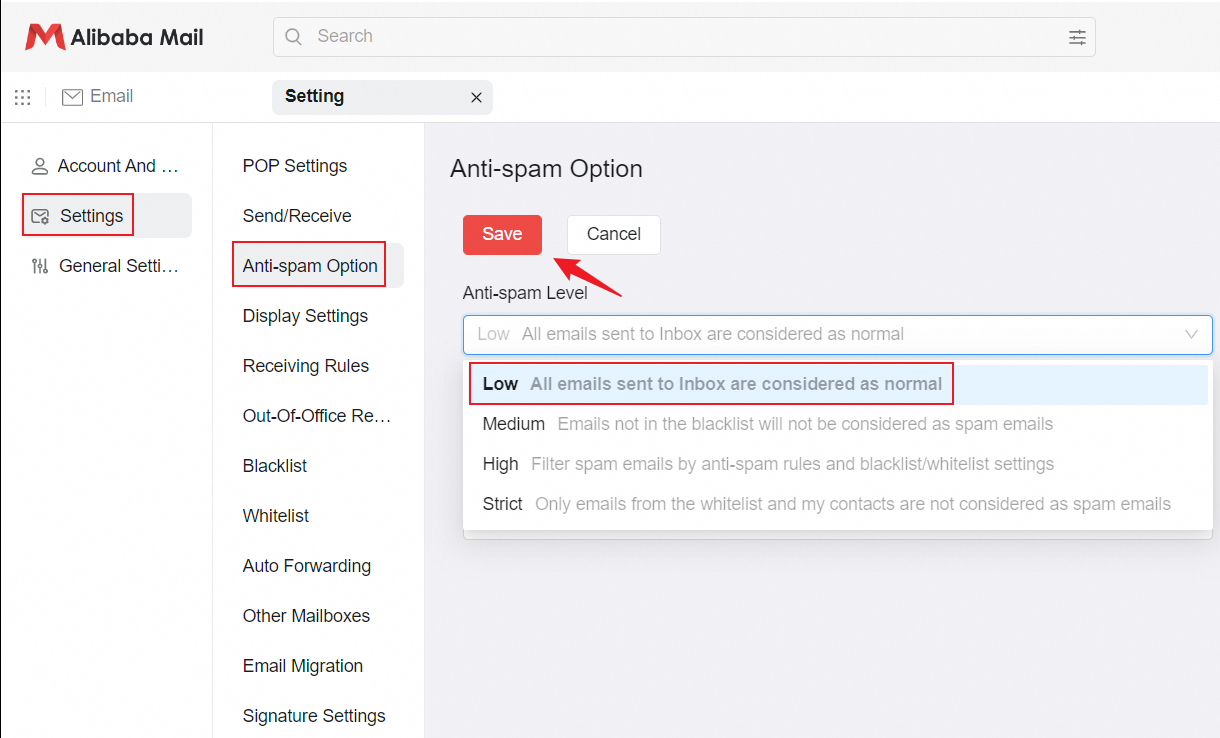
1. Click the Settings button in the top navigation bar.
2. Go to Settings > Anti-Spam Option, set Anti-Spam Level to Low, and then click Save. All incoming emails to your account will be automatically saved to the inbox.