Configure your Alibaba Mail account in the Outlook client on a Mac over IMAP or POP.
Prerequisites
Network ports — The encrypted ports 465, 995, and 993 are open on your local computer and network.
Add your Alibaba Mail account to Outlook on a Mac
Open Outlook and choose Tools > Accounts. Then, click the plus sign (+) in the lower-left corner.
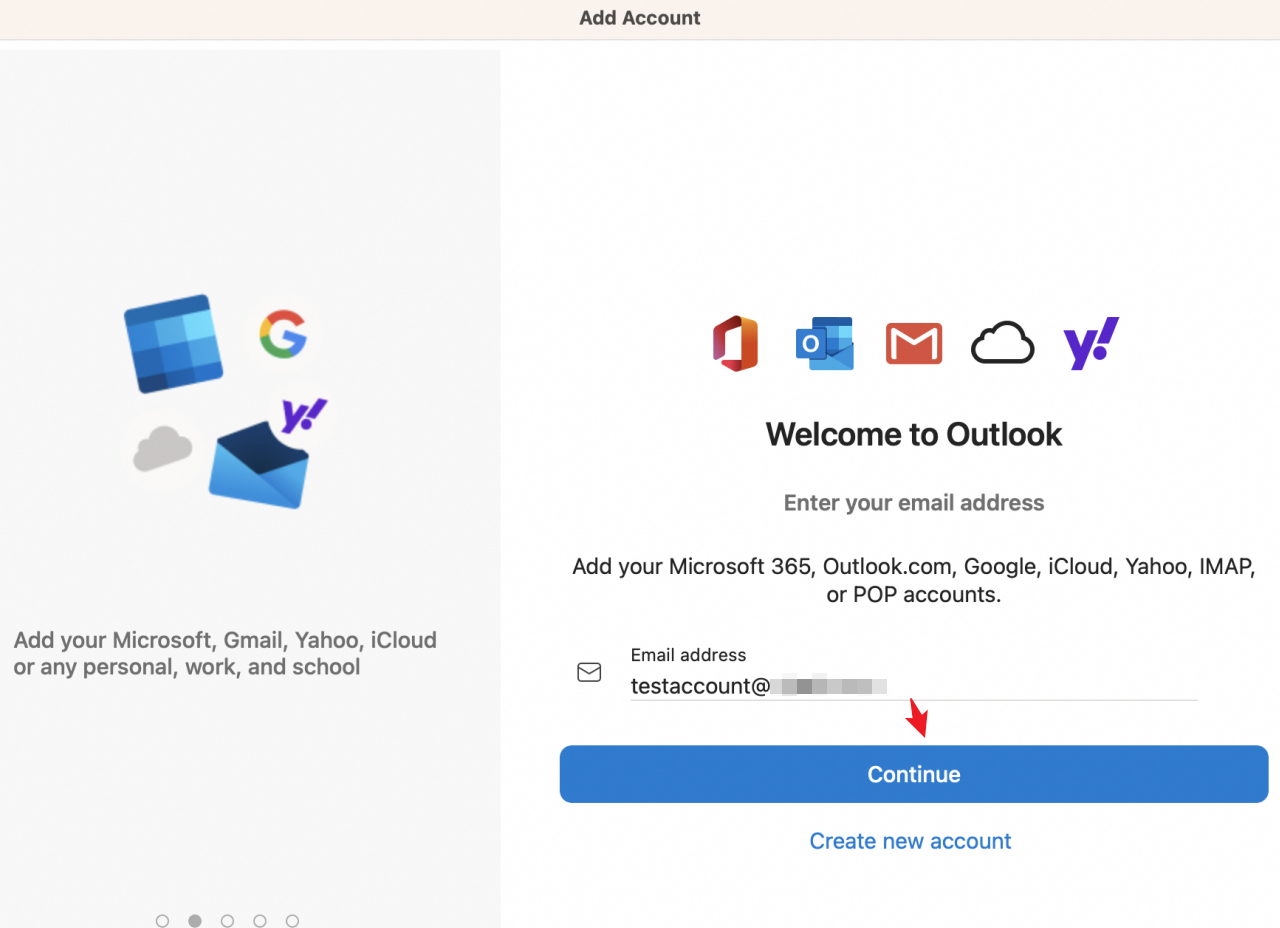
Select IMAP/POP.

Select the IMAP or POP service, and then configure the account settings. (Recommended) Select IMAP.
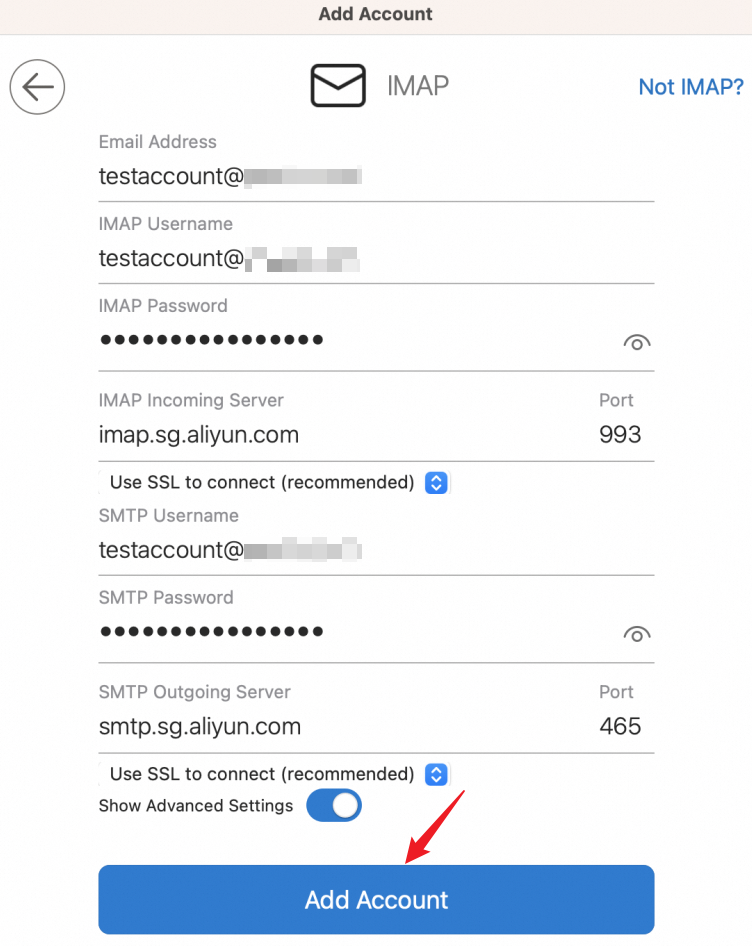
Username — Your full email address.
Password — Your mailbox password. If you have enabled a security password for a third-party client, use the client password instead. For more information, see How do I enable and use a security password for a third-party client?.
Incoming and outgoing mail server — Enter the address and port of the service that you selected, as listed in the Mail server addresses and ports section.
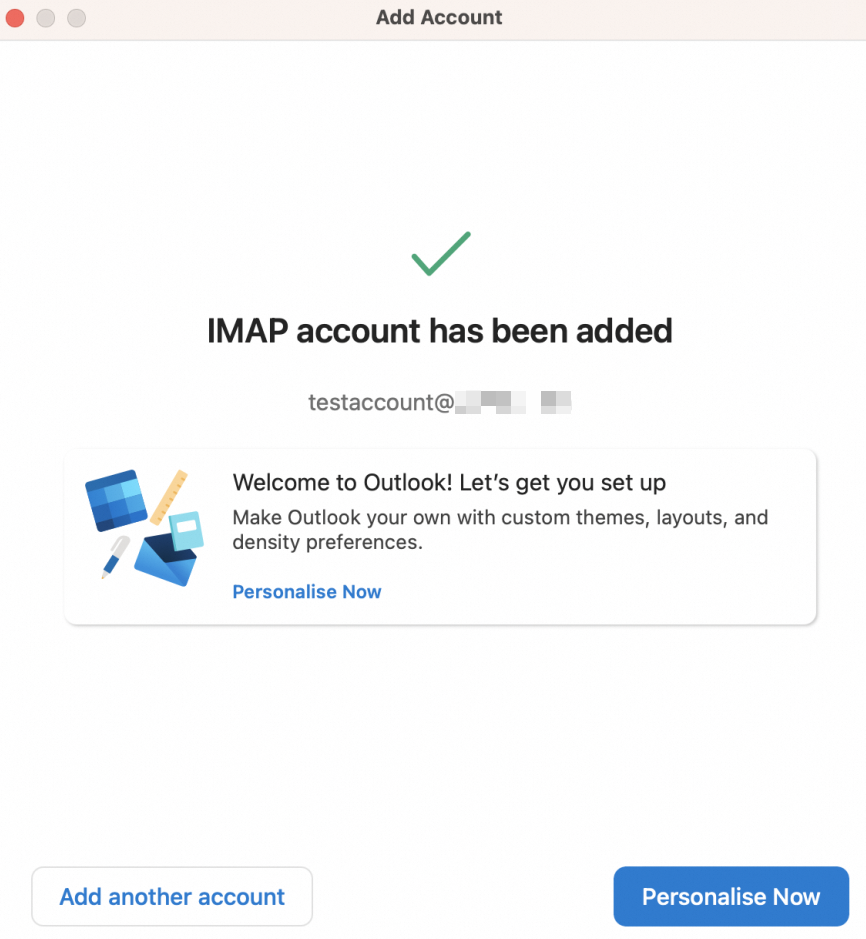
The configuration is complete.
Mail server addresses and ports
(Recommended) Use a Secure Sockets Layer (SSL) encrypted connection for higher security.
Use the following mail server settings for your Alibaba Mail account:
IMAP service (recommended)
Incoming mail server —
imap.sg.aliyun.com. Port 993 (SSL-encrypted, recommended) or 143 (unencrypted).Outgoing mail server —
smtp.sg.aliyun.com. Port 465 (SSL-encrypted, recommended) or 25 (unencrypted).
POP service
Incoming mail server —
pop.sg.aliyun.com. Port 995 (SSL-encrypted, recommended) or 110 (unencrypted).Outgoing mail server —
smtp.sg.aliyun.com. Port 465 (SSL-encrypted, recommended) or 25 (unencrypted).
For details about the incoming and outgoing mail server addresses, see Alibaba Mail IMAP, POP, and SMTP server addresses and ports.