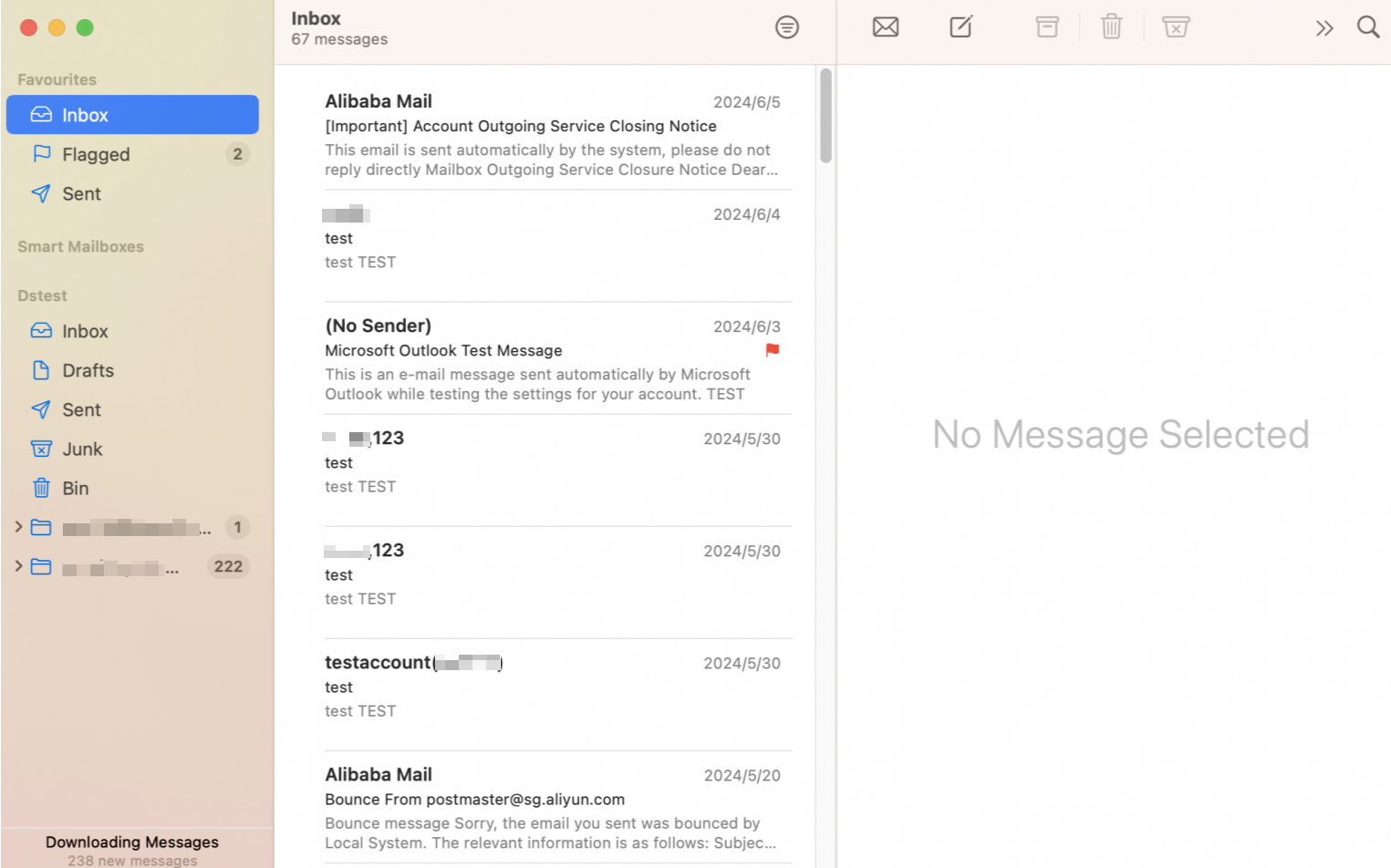
Configure your Alibaba Mail account in the Mac Mail app using IMAP or POP3.
-
Open System Preferences > Internet Accounts.
-
Click Add Other Account... > Mail account.
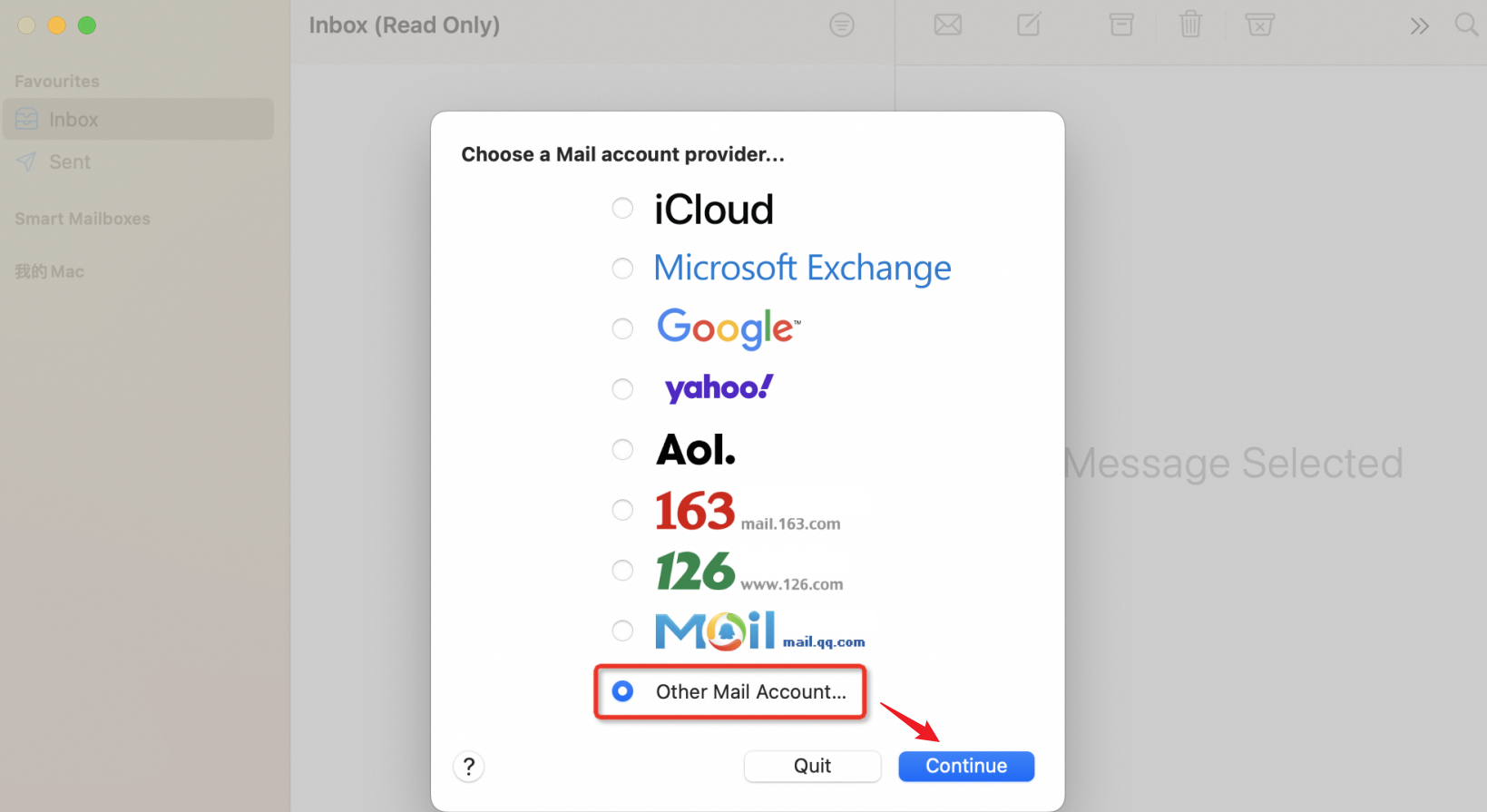
-
Enter your email address and password, then click Sign In.
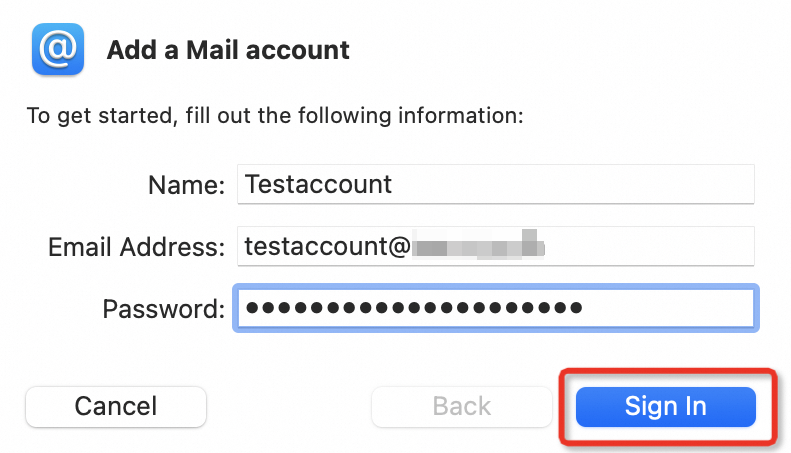
-
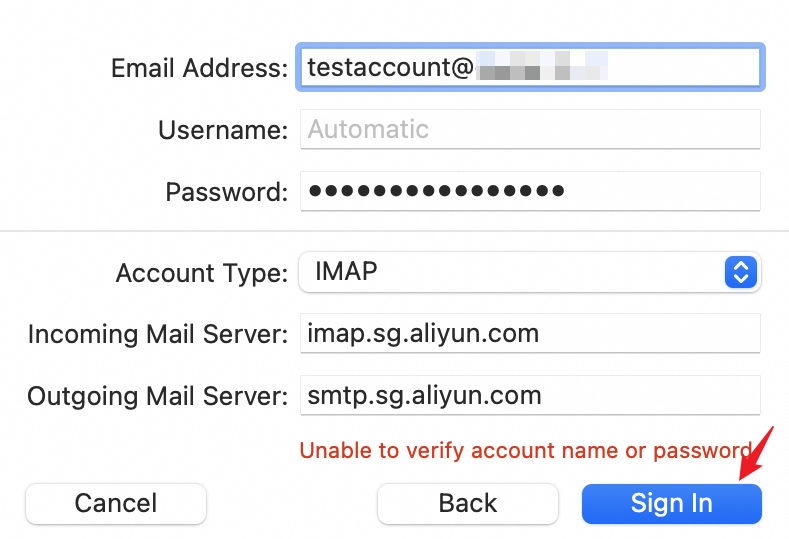
Enter the incoming and outgoing mail server addresses.
Example using the IMAP protocol:
ImportantIf Unable to verify account name or password appears, the auto-detected server name is incorrect. Ignore this after entering the correct server settings.
 Note
NoteFor security, use SSL encryption. Ensure ports 465, 995, and 993 are open on your network.
POP3 protocol settings:
Incoming mail server: pop.sg.aliyun.com or pop.your-domain.com, Port: 110 or 995 Outgoing mail server: smtp.sg.aliyun.com or smtp.your-domain.com, Port: 25 or 465
IMAP protocol settings:
Incoming mail server: imap.sg.aliyun.com or imap.your-domain.com, Port: 143 or 993 Outgoing mail server: smtp.sg.aliyun.com or smtp.your-domain.com, Port: 25 or 465
-
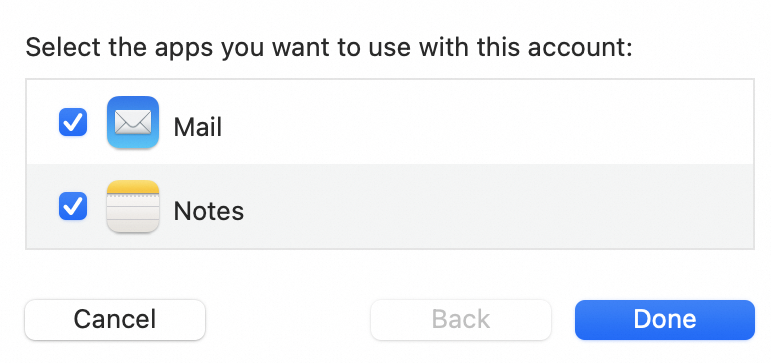
Select the apps that you want to use with this account.
-
Setup is complete.