Connect ARMS to an ACK Serverless cluster
Integrating Application Real-Time Monitoring Service (ARMS) with an Alibaba Cloud ACK Serverless cluster provides a unified way to manage your distributed Kubernetes clusters. This topic describes how to connect ARMS to a standard ACK Serverless cluster.
Step 1: Install the ARMS monitoring component
Before you install the ARMS monitoring component, check whether your ACK Serverless cluster has an ARMS Addon Token. If the token exists, ARMS uses passwordless authorization. Otherwise, you must provide an accessKey and accessKeySecret during installation for authorization.
Procedure
-
Complete authorization on the RAM Quick Authorization page.
Log on to the ACK console. In the left navigation pane, click Clusters.
On the Clusters page, click the name of your cluster. In the left navigation pane, click Components and Add-ons.
-
On the Add-ons page, click the Logs and Monitoring tab. In the ack-onepilot card, click Install.
-
In the Install ack-onepilot dialog box, configure the parameters and click OK.
If the ACK Serverless cluster does not have an ARMS Addon Token, you must set accessKey and accessKeySecret. You can configure other parameters as needed. We recommend that you use the default settings.
Parameter
Description
accessKey
The AccessKey ID of your Alibaba Cloud account. The account must have permissions to access ARMS.
accessKeySecret
The AccessKey secret of your Alibaba Cloud account.
Step 2: Enable ARMS for a Java application
-
Log on to the ACK console. In the left-side navigation pane, click Clusters.
-
On the Clusters page, find the cluster that you want to manage and click its name. In the left-side navigation pane, choose .
-
On the Deployments page, choose
 > Edit YAML in the Actions column of the target application.
To create a new application, click Create Resources Using YAML.
-
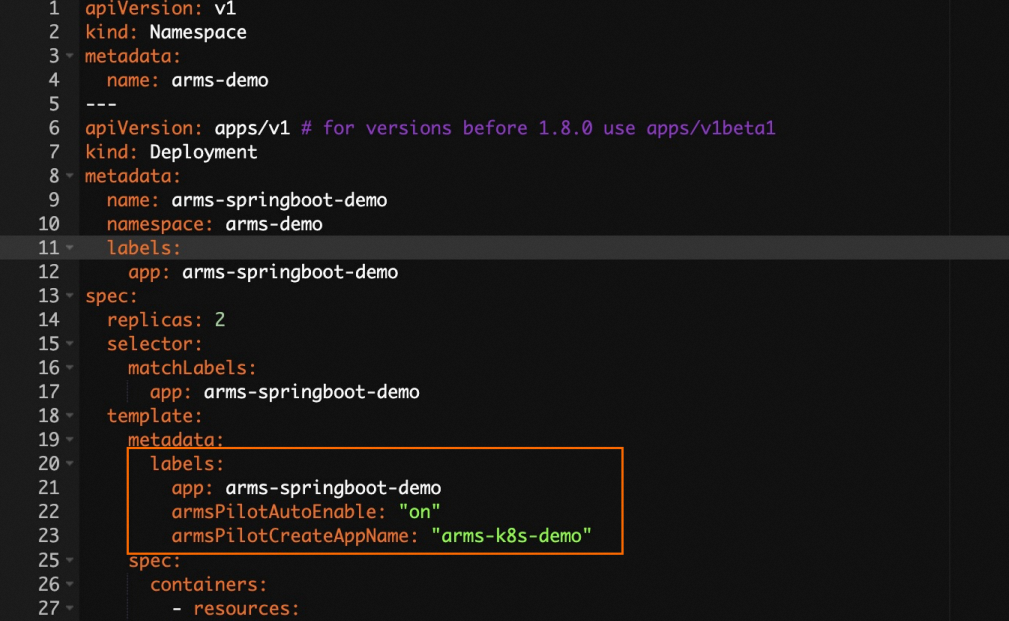
Add the following
labelsunder the spec.template.metadata level in the YAML file.labels: armsPilotAutoEnable: "on" armsPilotCreateAppName: "<your-deployment-name>" # Replace <your-deployment-name> with the name of your application. aliyun.com/app-language: javaNote-
For more information about application security, see What is Application Security?.
-
For more information about application security billing, see Billing.
-
-
Click Update.
On the Deployments page, choose
> ARMS Console in the Actions column of the target application to view application monitoring details.
On the Deployments page, click ARMS Console in the Actions column of the target application to open the ARMS console and perform service governance.
Next steps
-
Uninstall the agent for all applications
-
Log on to the ACK console. On the Clusters page, click the name of the cluster.
-
In the left-side navigation pane, choose . In the search box, enter ack-onepilot.
-
On the ack-onepilot card, click Uninstall.
-
In the message that appears, click OK.
-
Restart your business pod.
-
-
Uninstall the agent for a specific application
-
In the left-side navigation pane of the ACK console, choose Cluster. On the Clusters page, find the target cluster and click Manage Applications in the Actions column.
-
On the Deployments page, find the target application and choose in the Actions column.
-
In the Edit YAML dialog box, remove the
labelsthat you added in Step 2 to install the agent, and then click Update. -
Restart the Pods.
-